In-app messages and cards
Show a pop-up, banner or card inside your app or site, choose when it appears, and read how people responded.
An in-app message appears inside your app or website while someone is using it: a pop-up, a bottom sheet, a banner, a full-screen takeover, a corner card or a tooltip. A card is different. It waits in a feed that your app draws, such as an inbox, until the person reads or dismisses it.
You design the message in the console. The SDK fetches the messages a person is eligible for, decides on the device which one to show, and draws it. No push permission is needed.
| In-app message | On-site message | Cards | |
|---|---|---|---|
| Channel | In-App Message | On-Site Message | App Inbox / Cards |
| Shown in | A mobile app | A website | A feed in your app or site |
| Who draws it | The SDK, or your code | The SDK, or your code | Your code, from data the SDK gives you |
Before you start
- A mobile app or website registered under Connect, then Apps. See Apps.
- The SDK installed in that app, version 0.7.0 or later. See Where it works.
- A user who is identified, or an anonymous visitor, for audiences that allow it. A message limited to a saved segment is never sent to a visitor TrueEngage can't identify.
Design the message
In-app messages use the same template editor as the other channels.
- Open Engage, then Templates, and click New template.
- Choose the In-App Message channel (or On-Site Message or App Inbox / Cards). Pick a starting point, such as Announcement pop-up, or choose Start from scratch.
- Work through the tabs:
- Layout is where the message appears: Pop-up, Bottom sheet, Top banner, Bottom banner, Full screen, Corner card or Tooltip. The preview updates as you choose.
- Content is a list of blocks. Select Add for a heading, text, an image or a button. Drag blocks to reorder them. Give each image a Description for screen readers. See Images.
- Style sets the colours and Corner radius. Start from Clean light, Dark or Brand accent, then adjust.
- Behaviour sets how the message closes: a close button, a close button or a tap outside, automatically after 5 or 10 seconds, or only when a button is tapped. The last option needs at least one button.
- For each button, set the Button label and the Link or screen to open. You can also set Track taps as, a name for the tap that you can use in segments and goals.
- Publish the template. See Versions, validation and publishing.
Text fields accept variables, so the message can greet people by name. See Personalise a template.
Personalisation
TrueEngage fills in variables, filters and conditions on its servers, separately for each person, before the message reaches the device. The SDK never sees your template or any other person's data. It only receives the finished text.
In-app, on-site and card messages show real profile values only for a verified user. The SDK identifies a person with an ID the device supplies, which anyone could copy, so showing a name, email or city without proof could expose one person's details to another. Turn on Identity verification and have your app send a signed token, and {{ user.first_name }} renders the real value for that user.
Everyone else gets the fallback text. That includes anonymous visitors, and every user while verification is off. Write a good fallback for every token (for example {{ user.first_name | default:"there" }}) so the message reads well for everyone. Who qualifies for the message is decided from the real profile either way.
Bottom sheet
A bottom sheet slides up from the bottom edge of the screen. It is full width on a phone and centred, up to 560 pixels wide, on a larger screen. The page behind it is dimmed and blocked, and the person can swipe it down to close it, or tap outside it when the message can be closed. Use it for choices and short forms. It counts as a pop-up for display rules: only one message shows at a time, and priority and limits work the same way.
Images
Select an image block to change how it appears.
- Full width, no padding makes the image touch the top, left and right edges of the message, with no cap on its height. Use it on the first block only, and only on a Pop-up, Bottom sheet, Corner card or Full screen layout. Banners and tooltips don't support it, and the console tells you when to switch. The close button gets a dark round background so it stays visible over the picture. If the image is the only block, the message is just the picture.
- Tap action makes the whole image tappable. Choose Nothing happens or one of your links. A tap counts as a click, the same as a button tap, and opens the link.
For the quickest result, use the Image only (full width) starting point, then pick a tap action. Always add a Description for screen readers to a tappable image, because people who can't see the picture hear it as the button's name.
An SDK older than 0.7.0 shows these images with padding and ignores the tap. Update the SDK before you rely on them. See Where it works.
Create the campaign
- Open Engage, then Campaigns, and click New campaign.
- Enter a Name and pick the In-App Message, On-Site Message or App Inbox / Cards channel. The Basics step has no Priority field for these channels. You set it on Display.
- Choose the audience and template, as for any other campaign. See The campaign wizard.
- On the Display step, set how, when and where the message shows. It sits between Content and Delivery. A side list switches between its sections, and a section with a problem is marked.
- The Delivery step is hidden for these channels unless the type is One time or Recurring, because the trigger and timing are already on Display. Limits and Goals follow. Add a goal if you want to measure conversions.
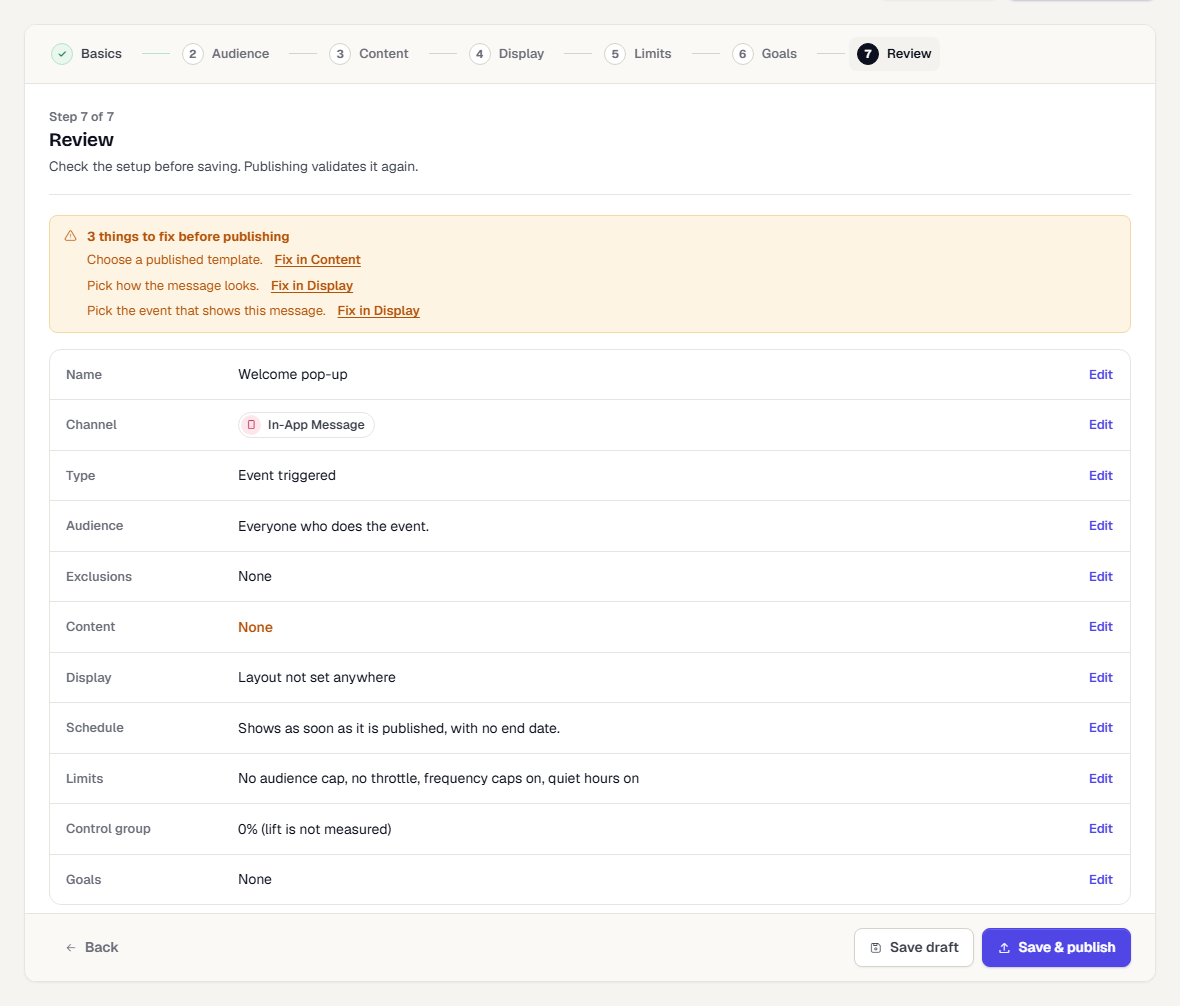
- On Review, check the Display, Schedule and Trigger rows. If the checklist at the top lists a problem, use its Fix in Display link. Then click Save & publish.
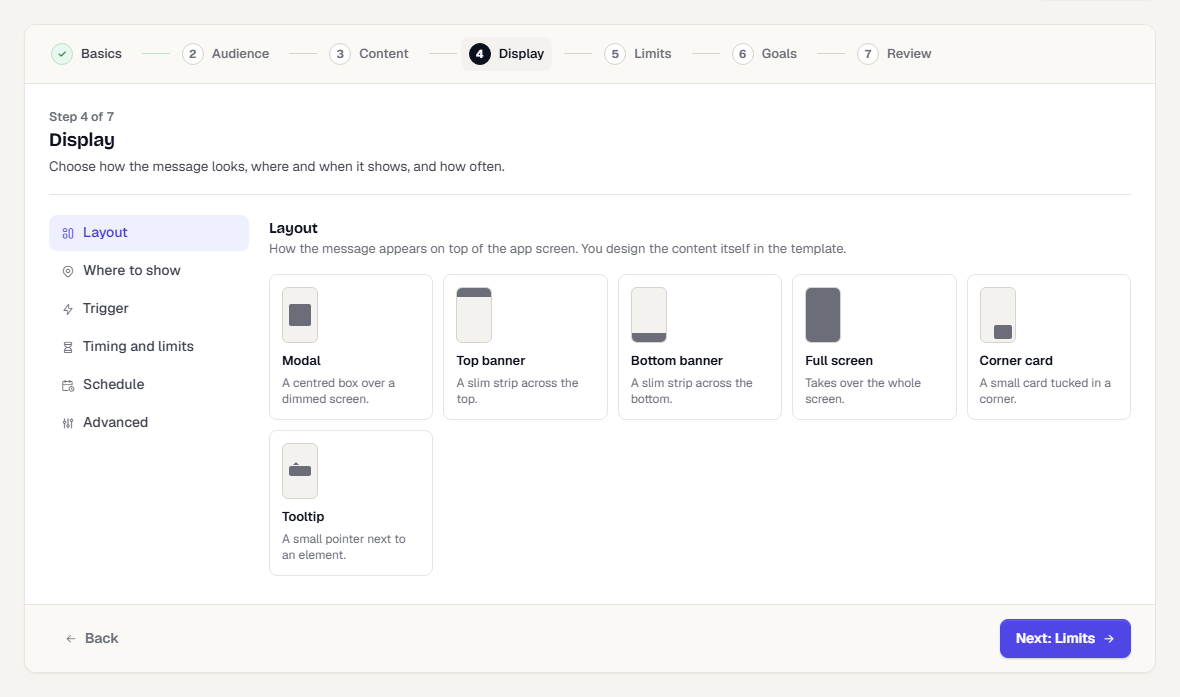
The Display step has these sections:
| Section | What you set |
|---|---|
| Layout | The layout and, for a pop-up or card, its position. |
| Where to show | The screens (in an app) or page paths (on a website) where the message can appear. Leave it empty to allow it anywhere. With more than one app, pick the App first. |
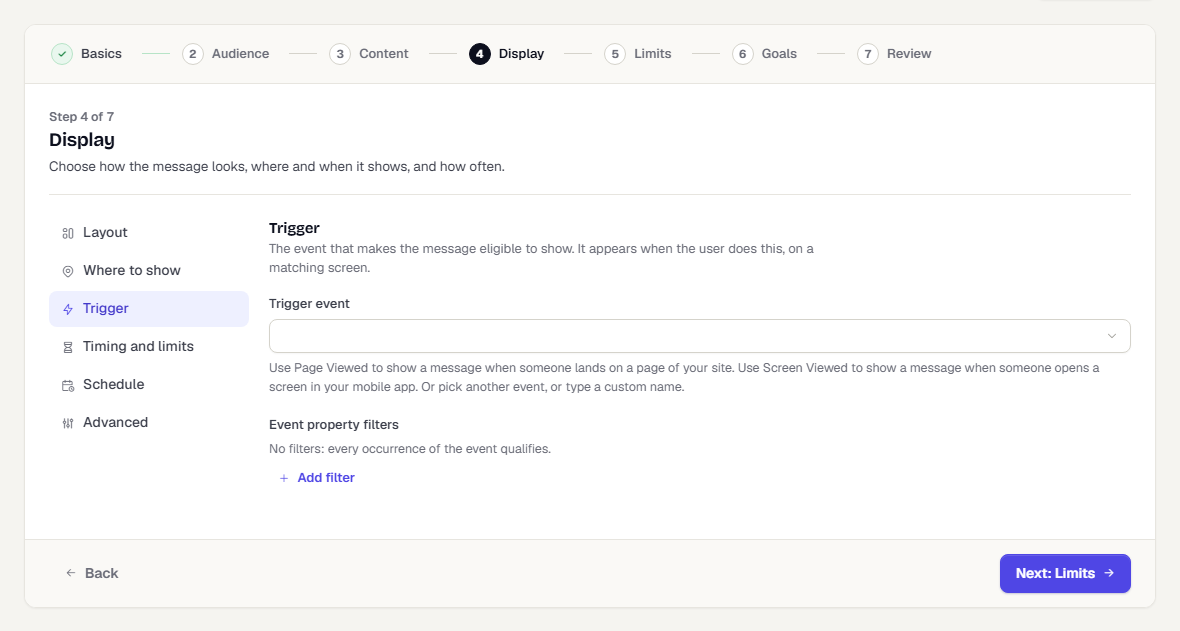
| Trigger | The Trigger event that makes the message eligible, plus Event property filters to narrow it. |
| Timing and limits | Delay after the trigger, Max per session, Minimum gap between shows, Max per person, ever and Priority. |
| Schedule | Show from and Show until. See Show from and show until. |
| Advanced | My app draws this message, Show when the device is offline, Orientation and Minimum SDK version. |
A cards campaign has fewer settings. It has no layout, screens or delay. It shows Limits and priority, and a Trigger only when the campaign type needs one.
Where and when it shows
A message shows when its trigger event happens, on a matching screen. Screen triggers use an event the SDK records for you:
| Where | Event | Property | What goes in Where to show |
|---|---|---|---|
| Website | Page Viewed |
path |
The page path, such as /pricing. It is matched exactly. |
| Android, iOS, Flutter | Screen Viewed |
screen |
The screen name, exactly as your app reports it, such as Checkout. |
In the Trigger event list, Page Viewed comes first for a website and Screen Viewed comes first for a mobile app. Use Page Viewed to show a message when someone lands on a page of your site. Use Screen Viewed to show a message when someone opens a screen in your mobile app. When the app isn't chosen yet, both are offered. You can also pick any other event your app sends, such as Add To Cart, or type a custom name.
Screens that your app has reported appear as suggestions in Where to show. You can also type a name that hasn't appeared yet.
On a mobile app, the screen name is whatever you pass to trackScreen. See the setup below.
Show from and show until
Open the Schedule section of the Display step to limit the dates a message can show. Both times are optional:
- Show from keeps the message hidden until that moment. Empty means it can show as soon as the campaign is published.
- Show until stops the message at that moment. Empty means it keeps showing until you pause or stop the campaign.
Times are picked in your own time zone (the one in your profile, else the workspace's), and a line under the fields reads the window back to you. Show until must be after Show from, and a campaign whose Show until has already passed cannot be published. At the exact Show until time the message is already gone, and devices that fetched it earlier stop showing it too. The campaign page shows the window when one is set.
Limits and priority
The SDK shows at most one message at a time. These settings keep messages from becoming a nuisance:
- Max per session limits how often one message shows in a visit or app launch. The default is 1.
- Minimum gap between shows keeps any two in-app messages apart by that many seconds.
- Max per person, ever is a lifetime limit, counted across sessions and devices. It needs a known person, so it does not apply to visitors who haven't been identified yet.
- Delay after the trigger waits up to 3600 seconds before showing.
- Priority, from 0 to 100 (default 100), decides which message wins when several qualify at the same moment. The highest priority shows. On a tie, one message is chosen consistently on every platform. The ones that lose are not shown, and are counted as held back.
A message that has passed its Show until time never shows.
Read the results
Open the campaign and stay on the Overview tab. The Shown to people card appears for in-app, on-site and cards campaigns only.
| Row | Meaning |
|---|---|
| Eligible | The message qualified to show. |
| Shown | It appeared on screen. The note reads, for example, "50% of eligible". |
| Clicked | The person tapped a button or link. The note reads "% of shown". |
| Dismissed | The person closed it, or it closed by itself. The note reads "% of shown". |
Each row shows the number of times, the number of unique people, and the bar length against the largest row. The figures cover the whole life of the campaign. They are counts only; TrueEngage shows no list of people for these messages.
Below the funnel:
- Button clicks lists each button by its label, with its clicks and the people who clicked. If you later remove a button from the template, its earlier clicks stay under its internal id.
- Why it was not shown lists the reasons a qualifying message was held back, with how often each happened and its share:
| Reason | What it means |
|---|---|
| A higher-priority message was shown instead | Another message qualified at the same moment and had a higher priority. |
| Already shown the maximum times this session | Max per session was reached. |
| Shown too recently (minimum gap not passed) | Minimum gap between shows hadn't passed. |
| Reached the lifetime limit for this person | Max per person, ever was reached. |
| Expired before it could show | The message's end time had passed. |
Until the first result arrives, the card says No impressions yet. Messages appear after the SDK syncs, which happens the next time the app or site is opened by an eligible person. The SDK sends results in batches, so numbers can lag a little.
For delivery of other channels, see Read a campaign's results.
Where it works
| Web | Android | Flutter | iOS | |
|---|---|---|---|---|
| In-app and on-site messages | Yes | Yes | Android only | Not yet |
| Cards | Yes | Yes | Android only | Not yet |
On a platform that doesn't support a feature yet, the SDK ignores it, so one campaign can safely target everything. The SDK versions to use are in SDK release notes.
Set up the SDK
Messages the SDK draws need no code beyond installing and initialising the SDK. The code below is for screen triggers, for messages your app draws itself, and for cards.
Web
Page views are tracked automatically, so Page Viewed fires on load and when the route changes. Call page() yourself only if you turned automatic page tracking off.
import TrueEngage from '@trueengage/web';

TrueEngage.initialize({ appKey: 'test_xxxxxxxx' });
For a campaign with My app draws this message ticked, register a handler before the first trigger:
const off = TrueEngage.inApp.onMessage((item) => {
  myModal.open(item); // item.messageId, item.campaignId, item.content
});

await TrueEngage.inApp.refresh(); // optional: fetch now
Cards give you data and a badge count. You draw the feed:
const cards = await TrueEngage.cards.fetch();
TrueEngage.cards.unreadCount(); // safe to call while rendering

await TrueEngage.cards.markRead(card.cardId);
await TrueEngage.cards.markClicked(card.cardId); // you route card.deeplink
await TrueEngage.cards.dismiss(card.cardId);

const off = TrueEngage.cards.onChange(() => renderBadge(TrueEngage.cards.unreadCount()));
A card has cardId, campaignId, title, body, imageUrl, deeplink, buttonLabel, state, isPinned, createdAt and expiresAt. Actions taken offline are sent on the next fetch(). See Web SDK.
Android
Call initialize from Application.onCreate, so the SDK sees the first activity resume. Report screens with trackScreen. This sends Screen Viewed, with screen set to the name you pass.
TrueEngage.trackScreen("Checkout")
To draw a message yourself, register a listener:
TrueEngage.setInAppListener { message ->
    showMyOwnDialog(message.messageId, message.content)
}

TrueEngage.refreshInApp() // optional: fetch now
Modal and full-screen messages close when the person presses back, unless the campaign closes only on a button tap. A message also closes when its activity pauses; that doesn't count as a dismissal. See Android SDK.
Flutter
Call trackScreen from a router observer, because the Flutter SDK doesn't track screens on its own by default.
TrueEngage.trackScreen('Checkout'); // Screen Viewed
To draw a message yourself, listen to the stream. The message is counted as shown when it is emitted.
TrueEngage.onInAppMessage.listen((m) {
  showMyOwnDialog(m.content);
});

await TrueEngage.refreshInApp(); // optional: fetch now
On iOS, in-app messages aren't available yet; the calls do nothing. See Flutter SDK.
iOS
In-app messages and cards aren't available in the iOS SDK yet. Campaigns that include iOS users are unaffected on every other channel, and the SDK ignores in-app messages it can't draw. See iOS SDK.
Consent
Opting a person out of inApp stops fetching, showing and counting messages for them:
TrueEngage.optOutOf('inApp');
See Consent and opt-out.
Troubleshooting
The message never shows.
- Check the campaign is published and its status isn't Paused. Then check the key: a
test_key sees Test campaigns only, and alive_key sees Live campaigns only. See Test and Live. - Check that the SDK version supports your platform (see Where it works).
- Check Where to show. The name must match exactly what the SDK reports, including capital letters. Clear the field to test with no screen limit.
- Check the trigger. A screen trigger needs
Page ViewedorScreen Viewedto fire first. On Android and Flutter, make suretrackScreenis called. - Check the audience. A message limited to a saved segment shows only to people in it.
- Check the person hasn't opted out of
inApp. - Open the Shown to people card. Why it was not shown tells you if a limit or a higher-priority message held it back.
The card says "No impressions yet". Nothing has been reported. Open the app or site as a person in the audience, trigger the event, and wait a minute for the SDK to send results. If you did and it stays empty, see the checklist above.
"Shown" is much lower than "Eligible". A message qualifies, then can fail to appear: a delay was set and the person left first, another message was already on screen, or the device was offline and Show when the device is offline is off.
The wrong message wins. Raise the Priority of the one you want. Messages with equal priority are ordered the same way on every platform.
A button doesn't appear under Button clicks. Only buttons that have been tapped are listed. A message your app draws itself can't report taps to TrueEngage unless your code tracks them as events.
Cards are empty on iOS. Cards are available on web and Android (and Flutter on Android) for now.
What happens next
The campaign page keeps updating as people see the message. Add a conversion goal to see whether it changed behaviour. See Read a campaign's results.
Was this page helpful?