Write the content for each channel
The content fields for push, email, SMS, MMS, RCS and WhatsApp templates, with limits and tips.
The Content section of the editor changes with the channel. This page lists the fields for each one. Fields that accept text can contain variables.
Before you start
Create a template for the channel, or open an existing one. The Live preview on the right shows how the message looks as you type.
Push
Open the seeded Autumn Sale push template to see a push template.
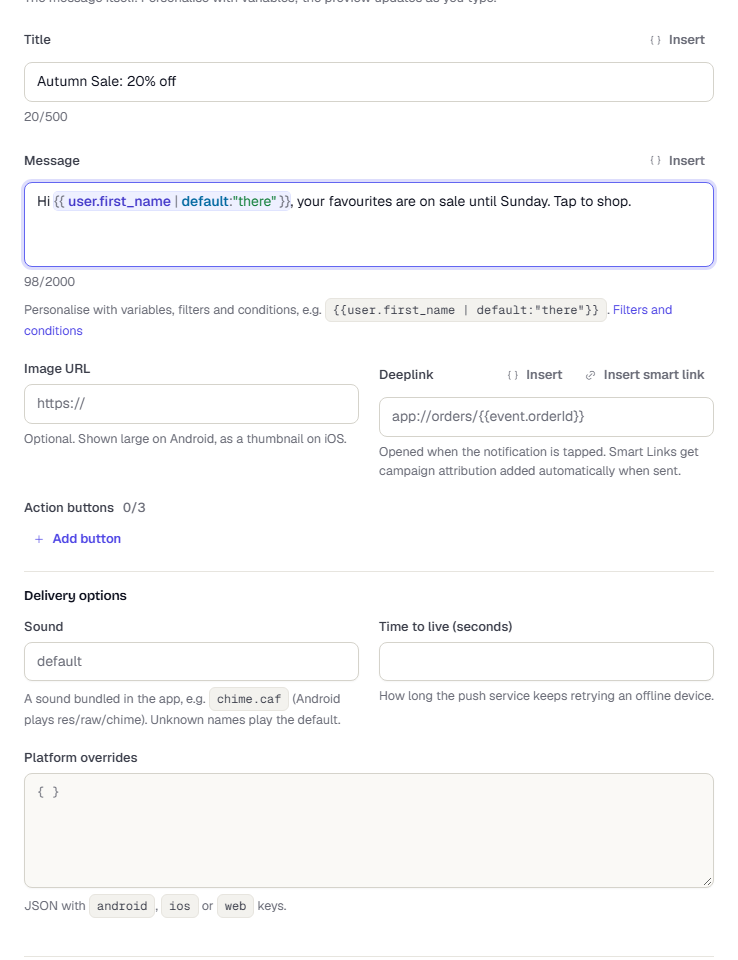
| Field | What to enter |
|---|---|
| Title | Up to 500 characters. A counter under the field shows how many you have used. |
| Message | Up to 2000 characters. Variables, filters and conditions are allowed. |
| Image URL | Optional. Shown large on Android and as a thumbnail on iOS. |
| Deeplink | Opened when the notification is tapped, for example app://orders/{{event.orderId}}. Select Insert smart link to pick or create a smart link (needs permission to view smart links). |
| Action buttons | Up to 3. Each has a Label, an Action id and a Deeplink. Select Add button to add one. Only the label is required. A button with no deeplink opens the notification's deeplink. iOS shows buttons only when the app includes the TrueEngage notification service extension. |
| Sound | Optional name of a sound bundled in the app, such as chime.caf. On Android the sound is res/raw/chime. An unknown name plays the default sound. |
| Time to live (seconds) | How long the push service keeps retrying an offline device. |
| Platform overrides | Optional JSON with android, ios or web keys. |
Coloured and bold push text (Android)
Next to the Title and Message fields, select Style to open a small panel. Select some text in the field first, then:
- Choose Bold, Italic or Underline.
- Choose a colour from the swatches, or enter a custom colour in Custom colour, hex (3, 6 or 8 digits, such as
#f97316) and select Apply. The panel shows the contrast against a light and a dark notification and warns when it is low. - Select Clear styling to remove it.
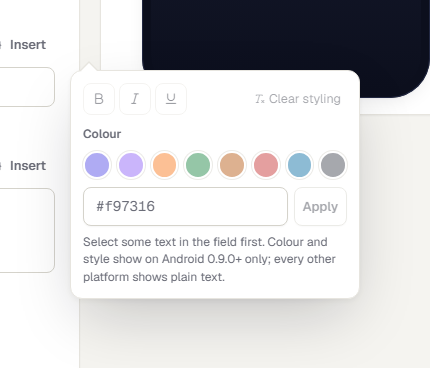
Colour and style show on Android SDK 0.9.0 and later only. Every other platform shows plain text, and the previews for iOS and Web show the plain text too. If you type a < or & in a styled field, it stays as written. See Push notifications in the SDKs.
The preview has iOS, Android and Web tabs. Next to every text field, Insert opens a panel for variables, filters and conditions. See Personalise a template.
Text fields colour the variables, filters and conditions you type, so you can see where each one starts and ends.
Open Cart reminder email.
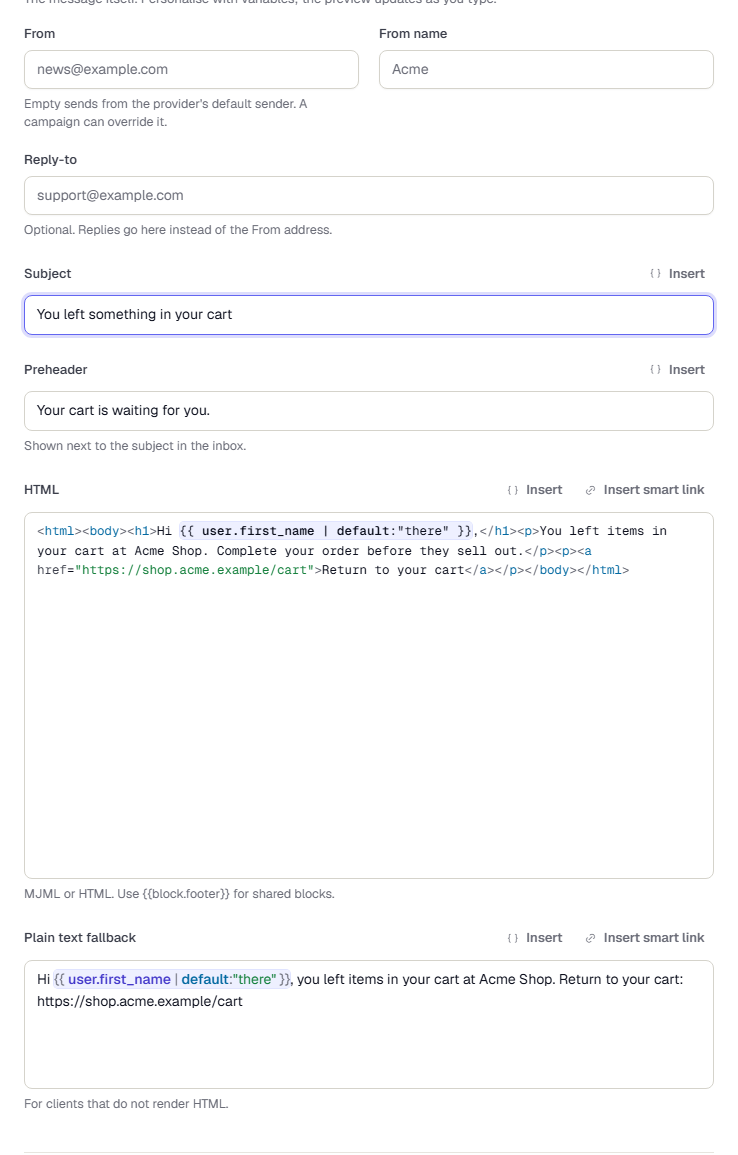
| Field | What to enter |
|---|---|
| From | Sender address. Leave empty to use the provider's default sender. A campaign can override it. |
| From name | Name shown to the recipient. |
| Reply-to | Optional. Replies go here instead of the From address. |
| Subject | The subject line. Variables are allowed. |
| Preheader | A one-line summary shown next to the subject in the inbox. |
| HTML | MJML or HTML. Use {{block.footer}} for shared blocks. Select Insert smart link to add a smart link. |
| Plain text fallback | For clients that do not render HTML. It also has Insert smart link. |
SMS, MMS and RCS
SMS, MMS and RCS share one editor. The create page also shows a DLT registration section for Indian SMS.
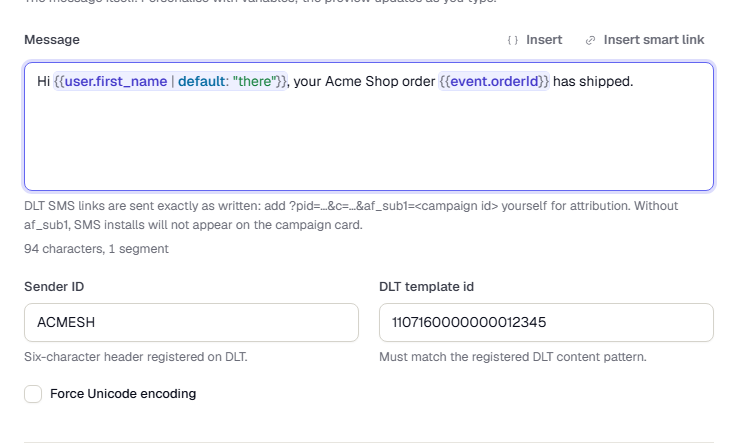
| Field | What to enter |
|---|---|
| Message | The text. A counter shows characters and segments, and flags Unicode. Insert smart link adds a smart link. For DLT SMS the link is sent exactly as written, so add the attribution parameters yourself. See Smart Links overview. |
| Sender ID | The six-character header registered on DLT. |
| DLT template id | Must match the registered DLT content pattern. |
| Force Unicode encoding | Sends as Unicode even if the text is plain. |
| Rich cards | RCS and MMS only. A JSON array of cards with title, description, media and suggestions. |
Under DLT registration enter the DLT category, DLT entity id and DLT template id from the DLT portal. Validation checks the text against the registered pattern.
WhatsApp templates are reviewed by Meta, so the editor is a designer with a chat preview. Open Order shipped WhatsApp.
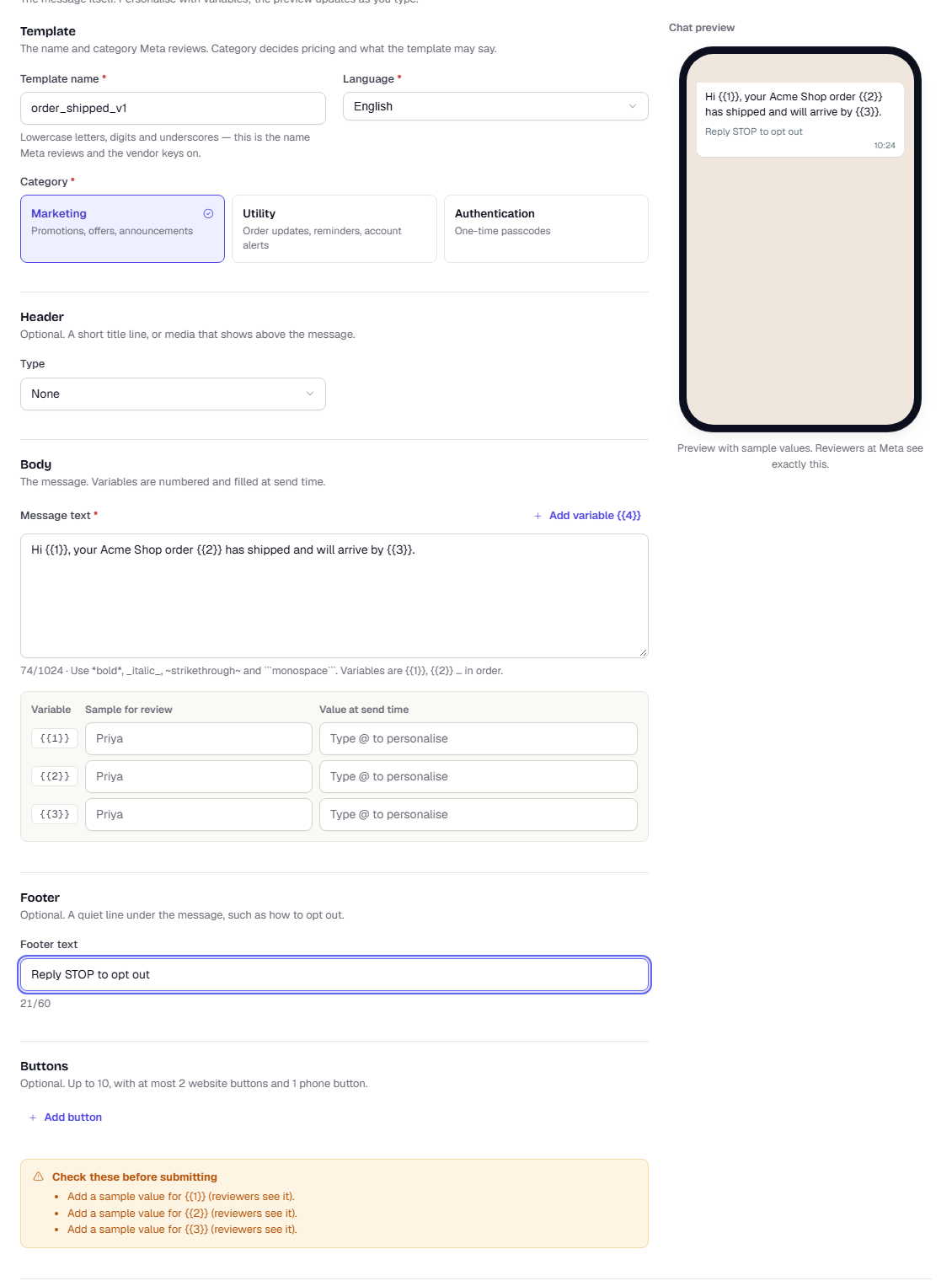
- Under Vendor approval, choose the Provider. Providers come from Channels. The demo workspace has none, so the list is empty.
- In Template, set the Template name (lowercase letters, digits and underscores), the Language and the Category: Marketing, Utility or Authentication.
- In Header, choose a Type: None, Text, Image, Video, Document or Location. For media, enter a public URL or use Browse to pick a file from your asset library. See Use files from the asset library.
- In Body, write the Message text (up to 1024 characters). Use
{{1}},{{2}}for variables, or select Add variable. For each variable enter a Sample for review and a Value at send time. Type@in the value field to insert a personalisation token. - Optional: add a Footer text (up to 60 characters).
- Optional: add up to 10 Buttons: quick reply, website, phone number or copy code.
- Save the template, then select Submit for approval. Use Refresh status to check Meta's decision.
Authentication templates have fixed wording. You choose Add security recommendation, Code expires in (minutes) and the OTP button.
A warning box titled Check these before submitting lists anything the designer finds wrong.
Related
Was this page helpful?