Test and debug a flow
See where people are in a flow, replay one person's path step by step, and dry-run a flow for one person without sending anything.
A flow's page has three tabs for understanding what the flow does: Stats, Debug and Dry run. Stats shows where everyone is. Debug replays what really happened to one person. Dry run shows what would happen to one person, before it does.
Before you start
- Debug and Dry run follow one person, so they need permission to view users. Without it the tab says so.
- Stats needs a published flow. A draft has no numbers yet.
- People are found by an exact match, and their contact details stay masked. Nothing here is exported.
Open a flow from Engage, then Flows.
Stats: see where people are
- Open the flow and select the Stats tab.
- Switch Design to Live stats.
The canvas shows the flow with the number of people on each step. A line under the toggle says how the counts were made, for example that they cover every person who entered the flow, or only the most recent group when there are very many.
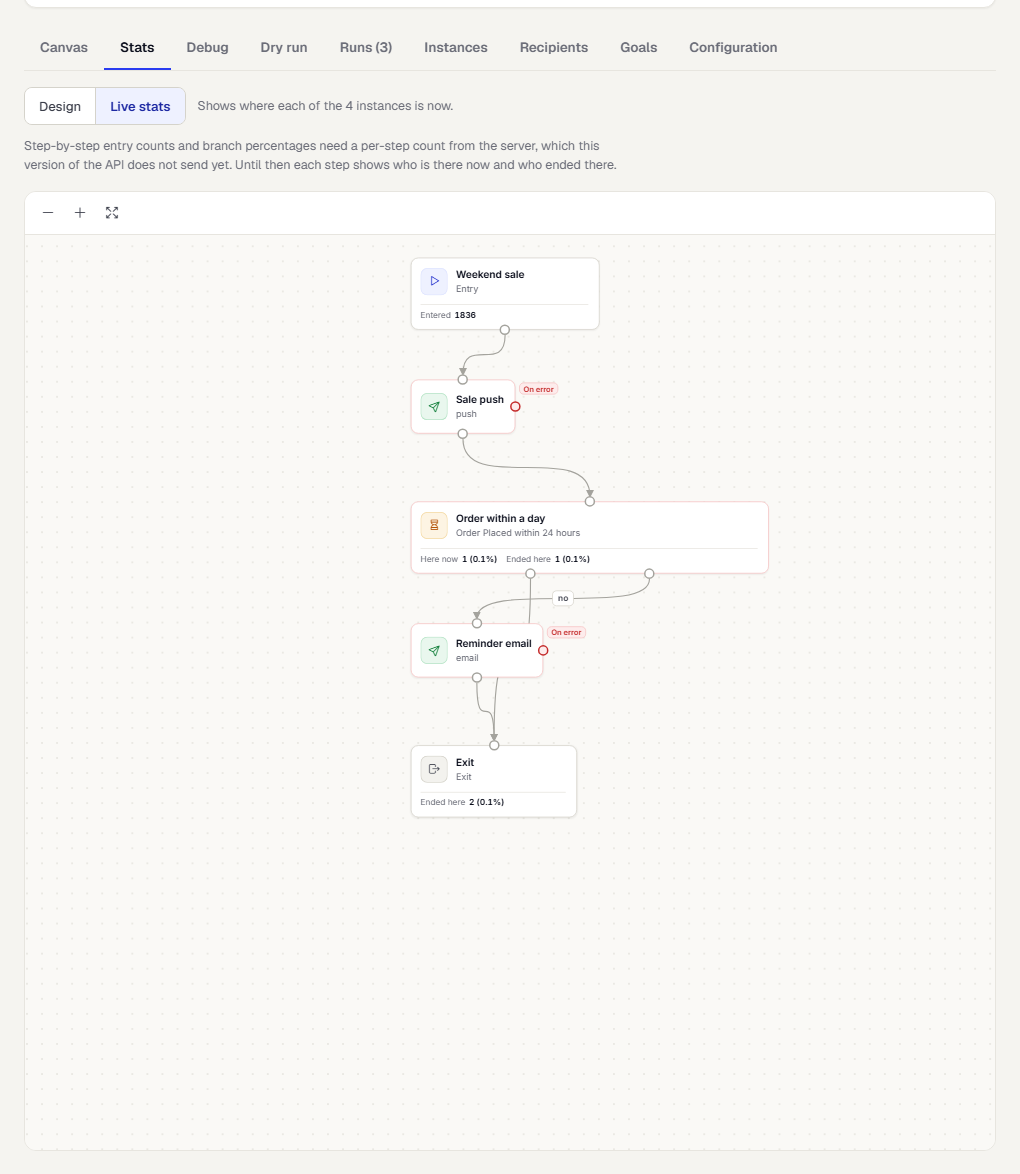
A step that alerts your team shows extra counts when they apply, such as how many notes were sent or held back.
Debug: replay one person
Use this to answer "why did this person get that message, or not?"
- Open the Debug tab.
- Under 1. Find a person, enter an email, phone number, external ID or TrueEngage ID and select Find. Choose the person in the list.
- Under 2. Pick an entry, choose one of their entries into this flow. Each shows when they entered, its status, and whether they were in the control group or why they left. Only the latest 2,000 entries are searched.
The canvas and a trail appear.
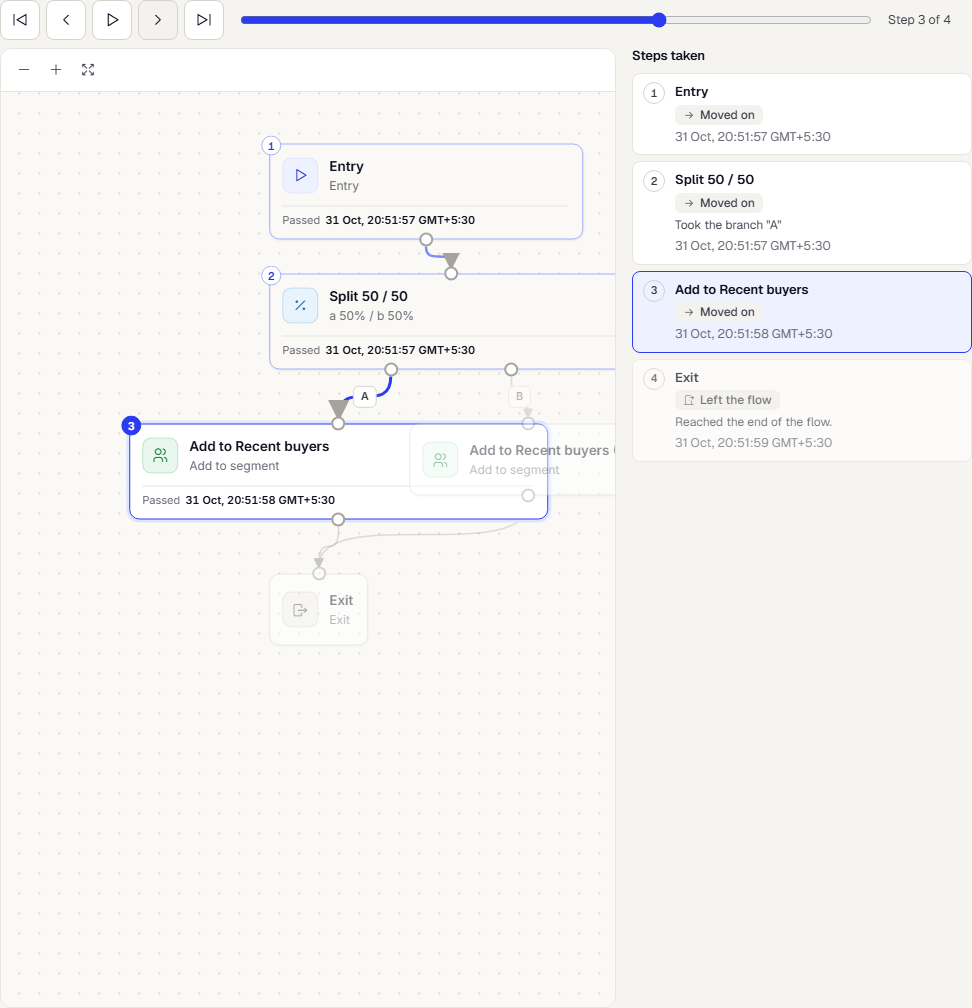
Step through the path:
- Use First step, Previous step, Next step and Last step, or the arrow keys.
- Select Play to watch the path animate. Autoplay is off if your device asks for reduced motion.
- Drag Jump to step to move quickly.
- In Steps taken, select any step to jump to it. Each step shows the outcome, a plain-words detail and the time.
Dry run: test without sending
A dry run walks one person through the flow as they are right now. No messages are sent. Nothing is scheduled, called, written or charged. Only the fact that a dry run happened is logged.
- Open the Dry run tab.
- Under Who to simulate, find a person as in Debug, or choose a member of a test group.
- Choose the Version of the flow. A draft can be tried before you publish it.
- Select Run dry run.
The result starts with a summary: the Outcome, the number of Steps, how many messages it Would send and the Simulated time the path takes. If the person does not match the entry filters, a note says they would not enter, and the path shows what would happen if they did.
Below it, What would happen lists each step. Step through it as in Debug. For each step you can see:
- What the step would do, in words, such as a wait with its length, or that a person would be skipped because they opted out of a subscription category.
- The message as it would be rendered for this person. Values that have no real data in a dry run are shown as samples, and the page names them.
- The checks a send passes: consent, suppression, frequency caps, quiet hours and the rest.
Some steps depend on chance or on something outside TrueEngage. For a step that waits for an event, tick Assume it happens within the window. For a split, a webhook or a check, choose which branch to Follow. The dry run runs again with your choice. Open How the dry run decides to read the assumptions.
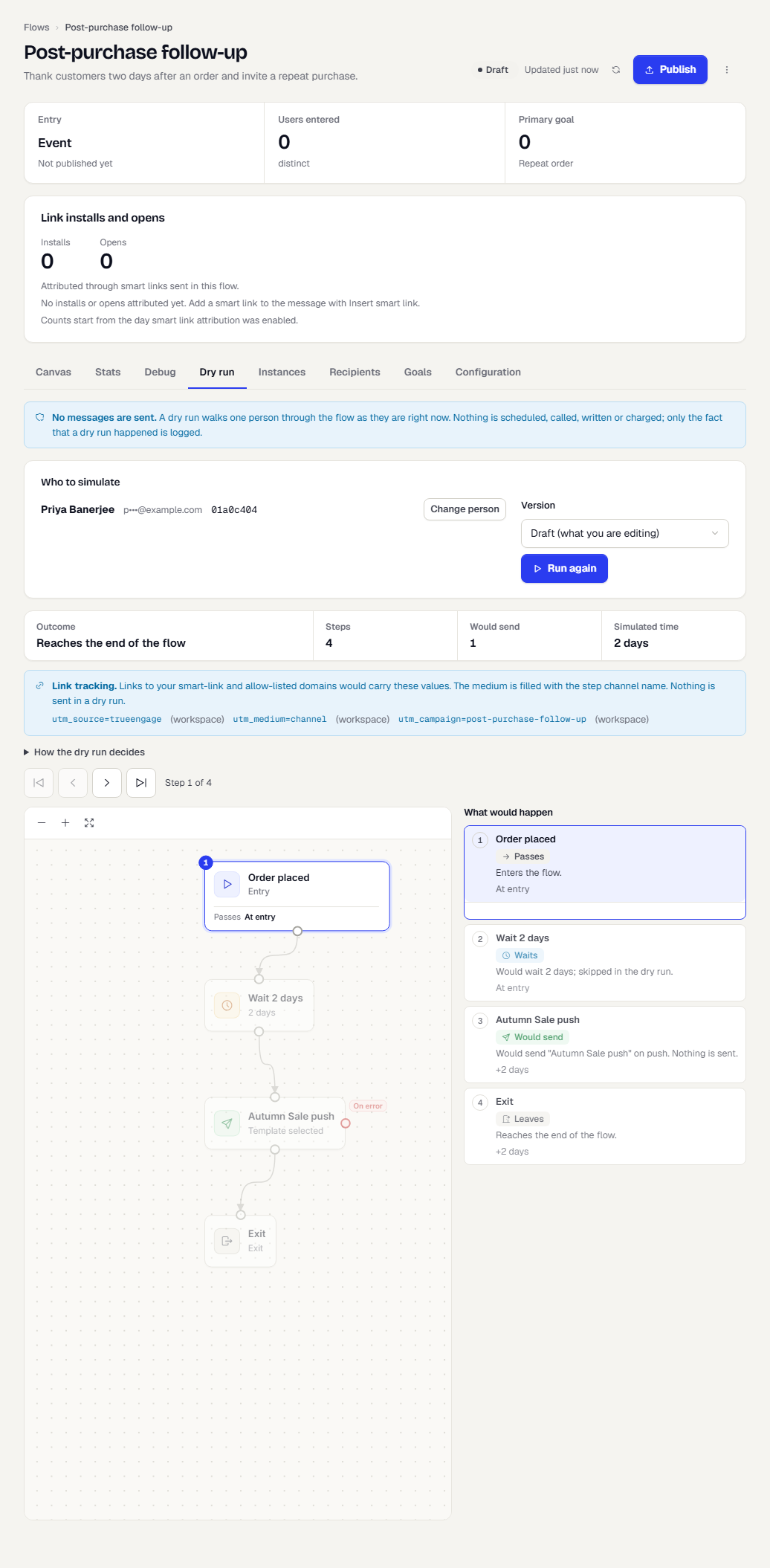
A flow that uses Wait for a time window shows the simulated wait. A flow with an Alert team step shows that the note would go out, and sends nothing. If the flow has link tracking values, a Link tracking note shows which UTM values would be used and whether each comes from this flow or from the workspace.
What happens next
If the dry run shows what you expect, publish the flow. After it runs, use Stats to watch it and Debug to answer questions about one person. For runs, instances and goals, see Monitor a flow.
Related
Was this page helpful?