Add people to ad audiences from a flow
Use the Ad audience step to add people to, or remove them from, a Google Ads or Meta audience as they move through a flow.
The Ad audience step puts a person into an ad audience, or takes them out, at a point in a flow. Use it to retarget people who reached a step, such as an abandoned cart, or to stop showing ads to people who bought.
Before you start
- You need View on Ad platforms to pick an audience, and Create and manage to create one.
- A connected Google Ads account, or a Meta account connected earlier with a sign-in. See Connect Google Ads.
- Ad consent on your users. See Ad consent.
Add the step
- Open the flow in the editor. See Build a flow.
- Add an Ad audience step from the action steps.
- Under What should this step do?, choose Add to audience or Remove from audience.
- Under Ad audience, pick an audience. The list shows audiences made for flows only. An audience that follows a segment cannot be used here.
- Publish the flow.
The step continues the flow at once. It does not wait for the platform.
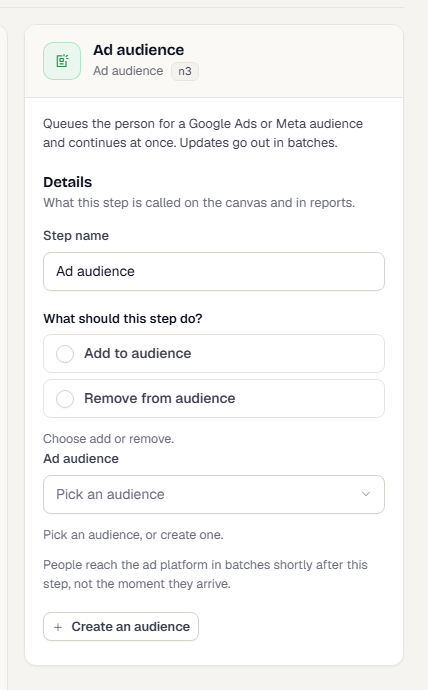
Create an audience for the flow
If none exists, select Create an audience in the step panel.
- Choose the Ad account. Only accounts that can take audiences are listed.
- Enter an Audience name in the platform.
- Under Match people on, tick the identifiers to send.
- Select Create audience.
The new audience appears on the connection's Audiences tab with From a flow and Managed in the flow. Edit it from the flow, not from there.
When people reach the platform
Changes are queued and sent in batches.
- Adds go out when enough people have queued, or after up to 1 hour.
- Removals go out at the next check, about 5 minutes later.
If a person is added and then removed before a batch goes out, only the last change is sent.
Consent and removal
TrueEngage sends only people who consented. A person who withdraws consent is removed from every audience they are in, even without a Remove from audience step.
Publish checks
TrueEngage checks the step when you publish. It reports a problem if:
- you have not picked an audience and an action
- the audience was deleted, or belongs to another environment
- the audience follows a segment
- the ad account behind it needs to be reconnected
- you lack View on Ad platforms
A flow that is already running keeps queueing people when its account needs a reconnect. They are sent once you reconnect. See Fix connection errors and reconnect.
What happens next
Was this page helpful?