Invite and manage your team
Invite colleagues, track pending invitations, change roles and decide which workspaces and environments each person can open.
Each person has one membership in your organisation. The Team page is where you add people, change their role and control which workspaces and environments they can open.
Before you start:
- Team is available to Owners, Admins, Managers and Developers. Other roles do not see it in the sidebar.
- Inviting people needs the Team management create and manage permission. You can only assign roles at or below your own level.
- Changing roles, workspace access, suspending and removing people, and the Pending invitations tab are for Admins and Owners only.
- Admins cannot suspend, change the role of or remove an Owner. Only an Owner can.
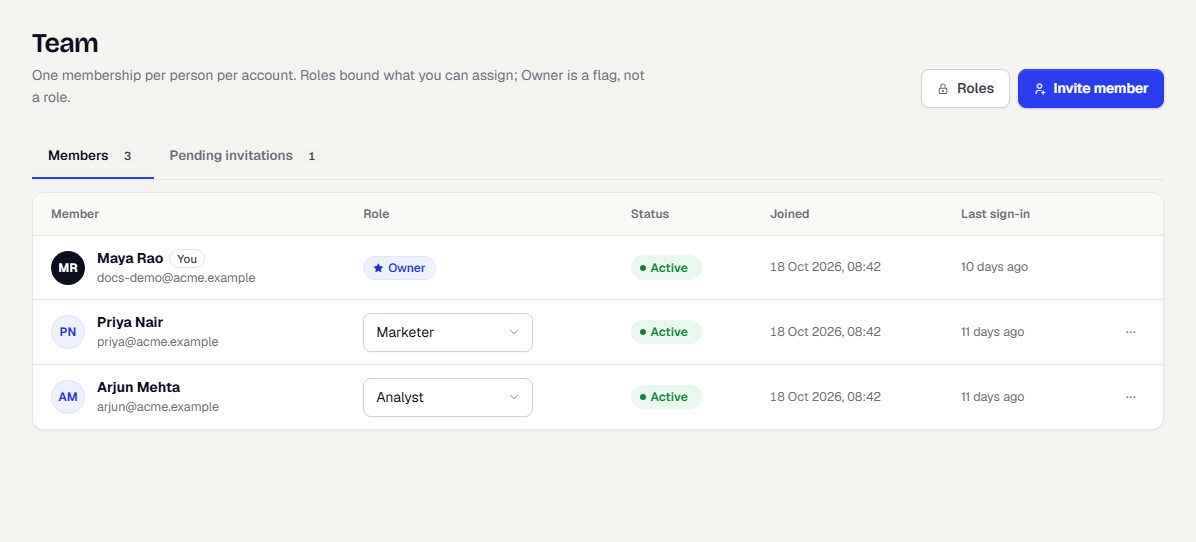
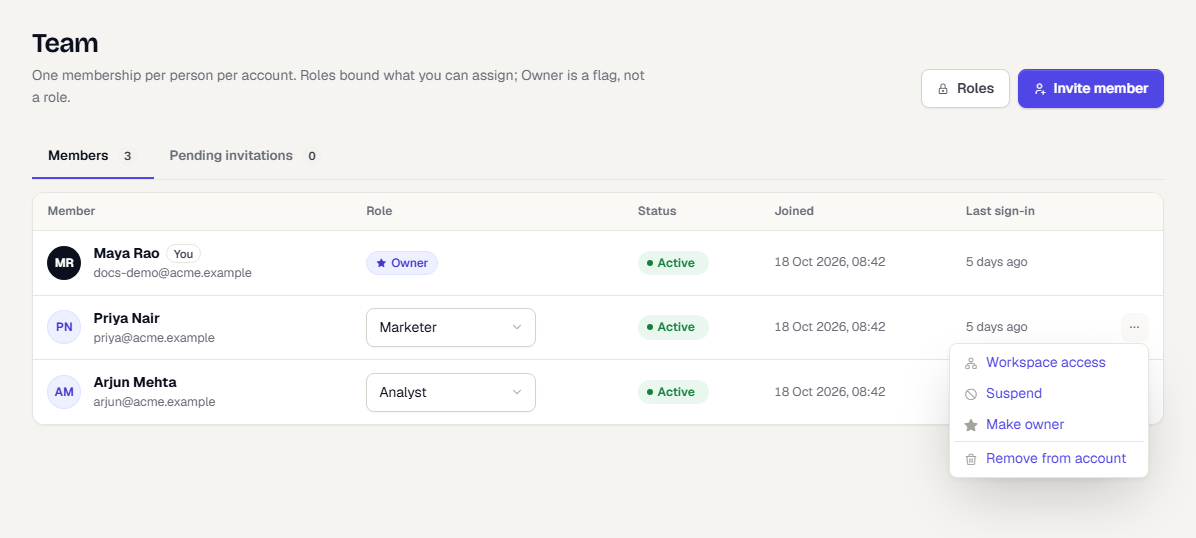
Open Settings, then Team. A Roles button at the top right opens Roles and permissions. The Members tab lists everyone with their Role, Status, Joined date and Last sign-in, which shows when they last signed in, or Never if they have not yet. Pending invitations lists invitations that have not been accepted yet. Admins and Owners see that tab.
Who can do this
| Action | Permission | Default roles |
|---|---|---|
| Open the Team page | Team management: View (team_management:view) |
Owner, Admin, Manager, Developer |
| Invite, change roles or access, suspend, remove | Team management: Create and manage (team_management:create_manage) |
Owner, Admin |
| See Pending invitations | Admin or Owner | Owner, Admin |
| Copy link on an invitation | Owner only | Owner |
| Create a New workspace | Admin or Owner | Owner, Admin |
Admins cannot act on Owners. For every permission in the console, see Permissions reference.
Invite a member
- Select Invite member.
- Enter the person's Email.
- Choose an Account role. This is their role everywhere unless you set a different one for a workspace.
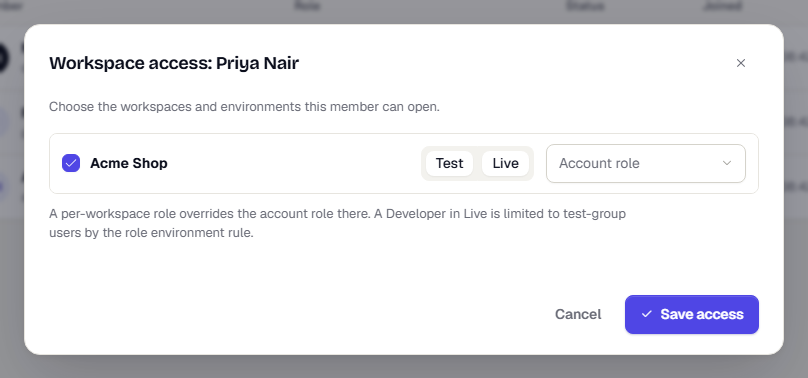
- Under Workspace access, turn on each workspace they should reach. Choose Test, Live or both, and optionally pick a role that applies only in that workspace. A workspace role overrides the account role there. A Developer in Live is limited to test-group users by the role's environment rule.
- Select Send invitation.
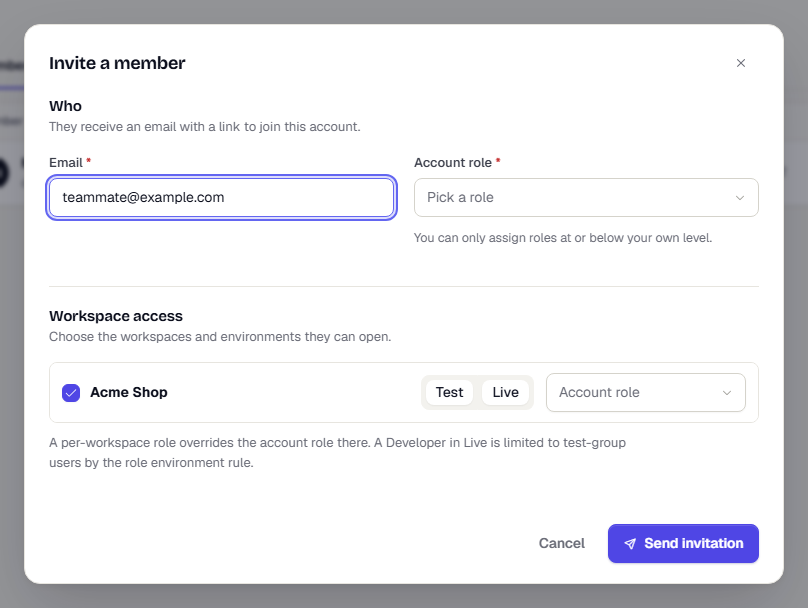
The person gets an email with a link. See Accept an invitation for what they see.
Track and manage pending invitations
Open the Pending invitations tab. Each row shows the Invitee, their Role, who sent it under Invited by, when it was Invited, when it Expires and how many times it was resent.
- Select Resend to issue a fresh link and extend the expiry. The link sent earlier stops working.
- Select the revoke icon to cancel the invitation.
- Owners also see Copy link. See the next section.
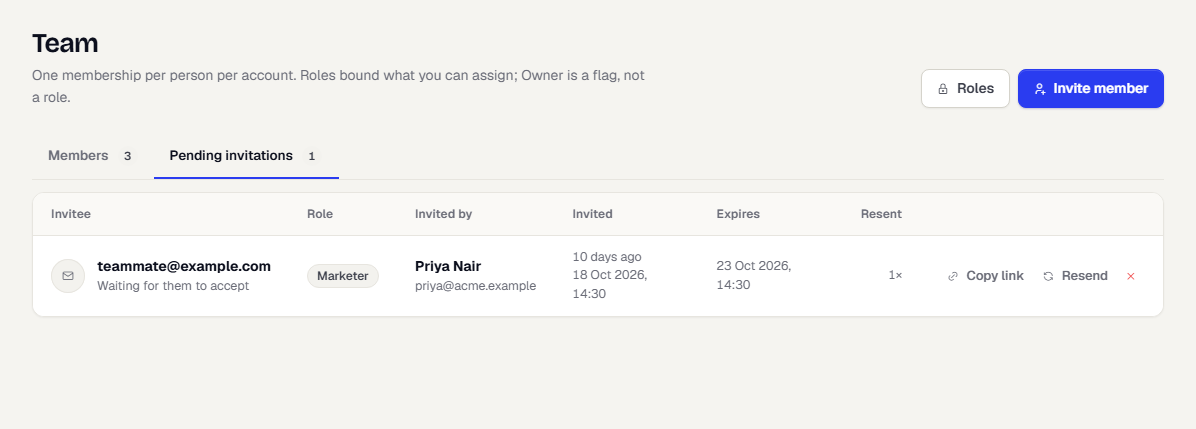
Invitations expire after a few days. If nothing is pending, the tab says so and offers Invite member.
Hand over an invitation link yourself
Invitation emails are not always set up for your organisation. If the person did not get an email, an Owner can give them the link directly.
- Open the Pending invitations tab.
- In the person's row, select Copy link.
- Paste the link into a message to them.
Copy link creates a new link each time and copies it to your clipboard. TrueEngage cannot show a link sent earlier, so any earlier link for that invitation stops working. If your browser blocks the clipboard, the link appears in a message so you can copy it by hand. Each use is recorded in the audit log.
Change someone's role
- Open the Members tab.
- In the Role column, open the person's role menu.
- Pick the new role. It takes effect straight away.
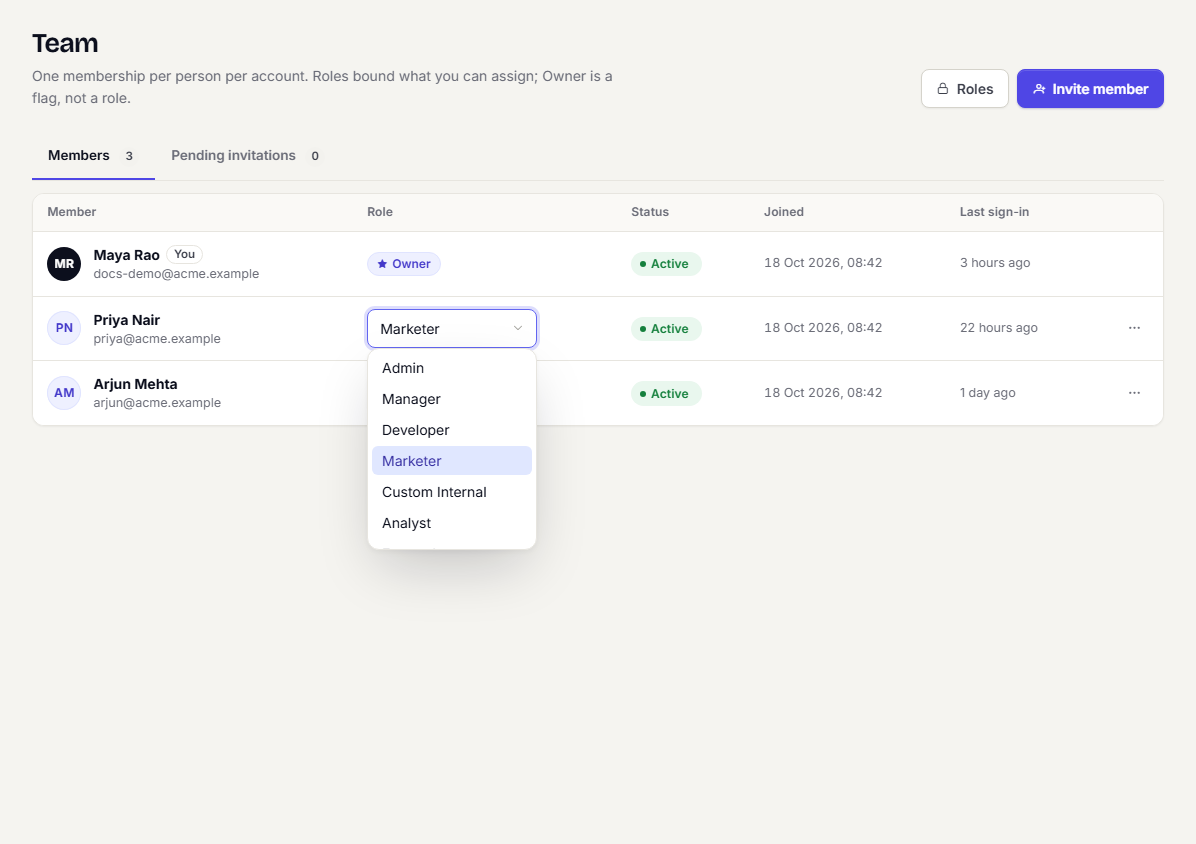
Owners show a locked role chip. You cannot change your own membership. Ask another Owner or Admin. Only Admins and Owners can change roles, and only an Owner can change an Owner.
Change workspace access
- In the member's row, select the actions menu.
- Choose Workspace access.
- Turn workspaces on or off, pick Test, Live or both for each, and optionally set a role per workspace.
- Select Save access.
Other member actions
The same menu also has these actions:
- Suspend blocks sign-in and Restore access brings it back.
- Make owner or Revoke owner changes the Owner flag. An organisation must always keep at least one Owner.
- Remove from account deletes the membership after you confirm.
Related
Was this page helpful?