Read a campaign's results
Pause, resume or stop a campaign, and read its funnel, runs, recipients, skip reasons and conversion lift.
The campaign page shows what a campaign is doing and how it performed. Use it to control the campaign, check delivery, find out why someone didn't get a message, and measure conversions.
Before you start
You need permission to view campaigns. Pausing, stopping, publishing and running need permission to manage or publish campaigns.
Open a campaign
- Open Engage, then Campaigns.
- Click a campaign name, for example "Autumn Sale announcement".
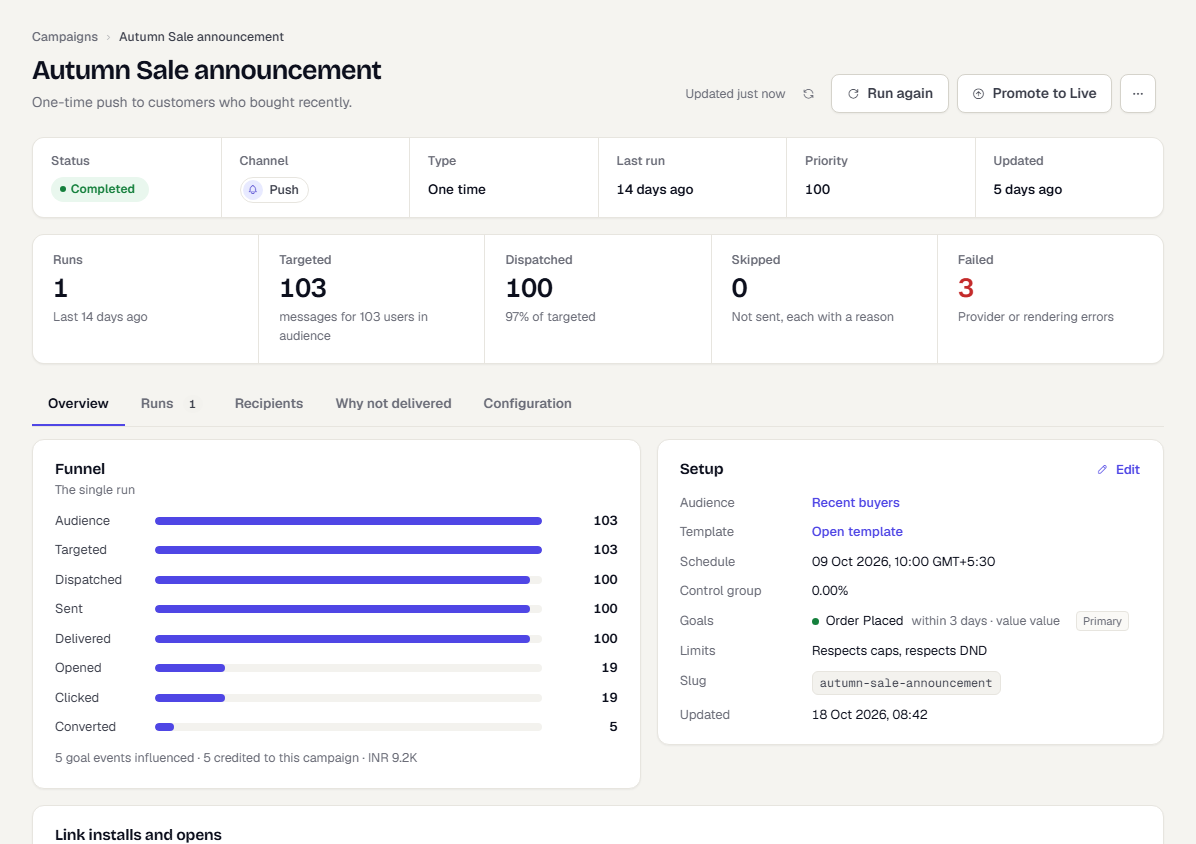
Select the refresh button in the page header to reload runs and counts. The facts at the top show Status, Channel, Type, Next run (or Last run), Priority and Updated. Below them, the totals count every run:
| Total | Meaning |
|---|---|
| Runs | How many times the campaign has fired |
| Targeted | Messages created, for the users in the audience |
| Dispatched | Messages handed to the provider. A multi-device push sends one message per device, so this can exceed the number of users |
| Skipped | Messages not sent, each with a reason |
| Failed | Provider or rendering errors |
Pause, resume, stop or run
Buttons in the page header depend on the status.
- Click Run now to start a send immediately on a running or scheduled campaign.
- Click Run again on a completed one-time campaign to send again.
- Click More actions (the three dots) for Edit, Validate, Pause, Resume, Stop and Archive.
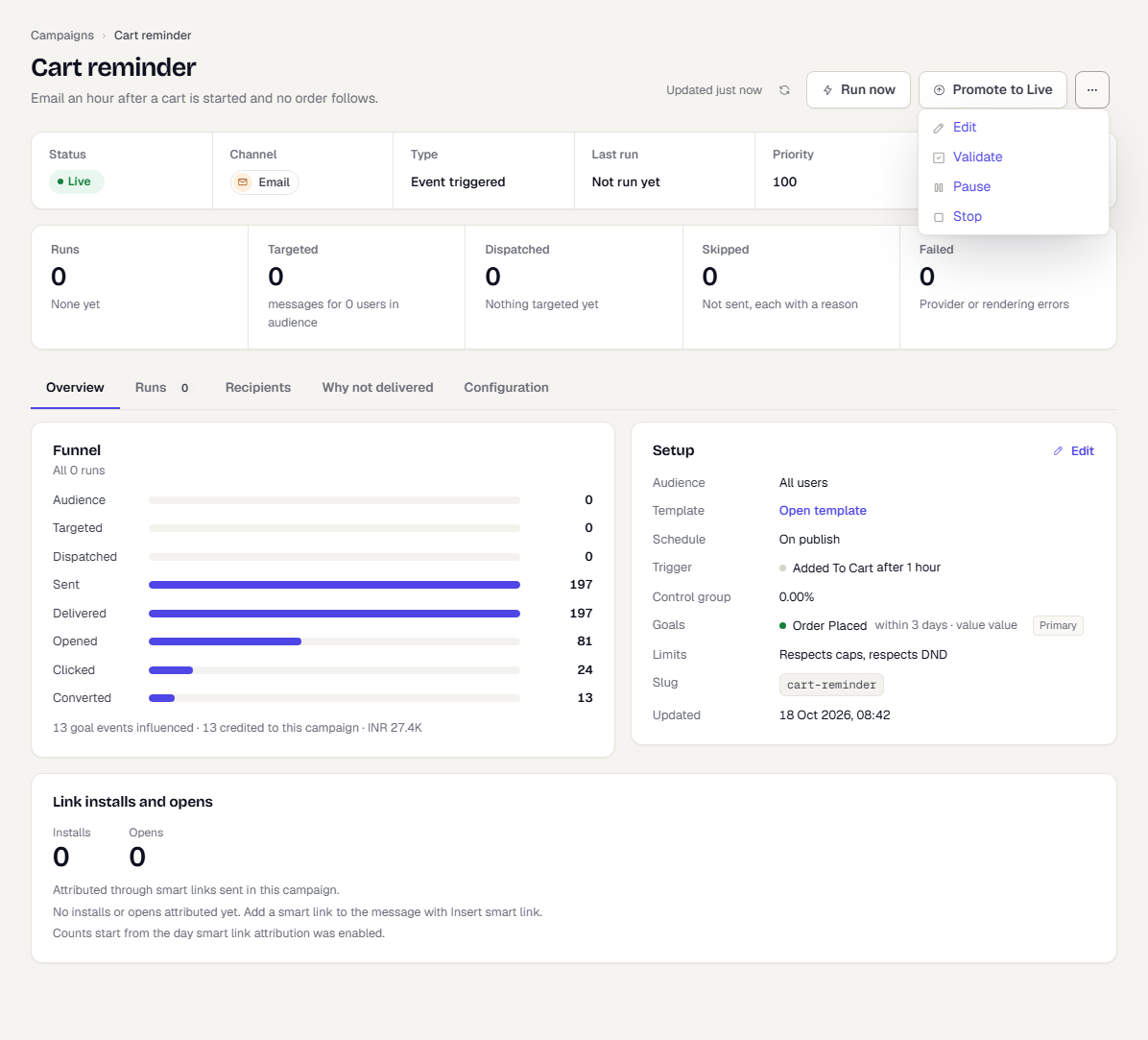
- Pause holds a running or scheduled campaign. Resume continues it.
- Stop ends it for good and asks you to confirm.
- Archive hides a draft, completed or stopped campaign.
- Validate checks the setup and reports problems before you publish.
Validate shows a green Configuration is valid and ready to publish. note, or a red Fix these before publishing list.
When a campaign is published with no send time, a note says nothing goes out on its own and the status reads Awaiting run. Use Run now to send, or add a time under Delivery.
Drafts show Publish instead. When your organisation requires approval, drafts show Submit for approval first. A dialog asks you to pick Reviewers (members who can publish campaigns) and add an optional Comment. Submitting turns the status to In review, and the campaign can be published once it's approved. The approval policy is set under Settings, then Account; it is off in the Acme Shop demo.
The Overview tab
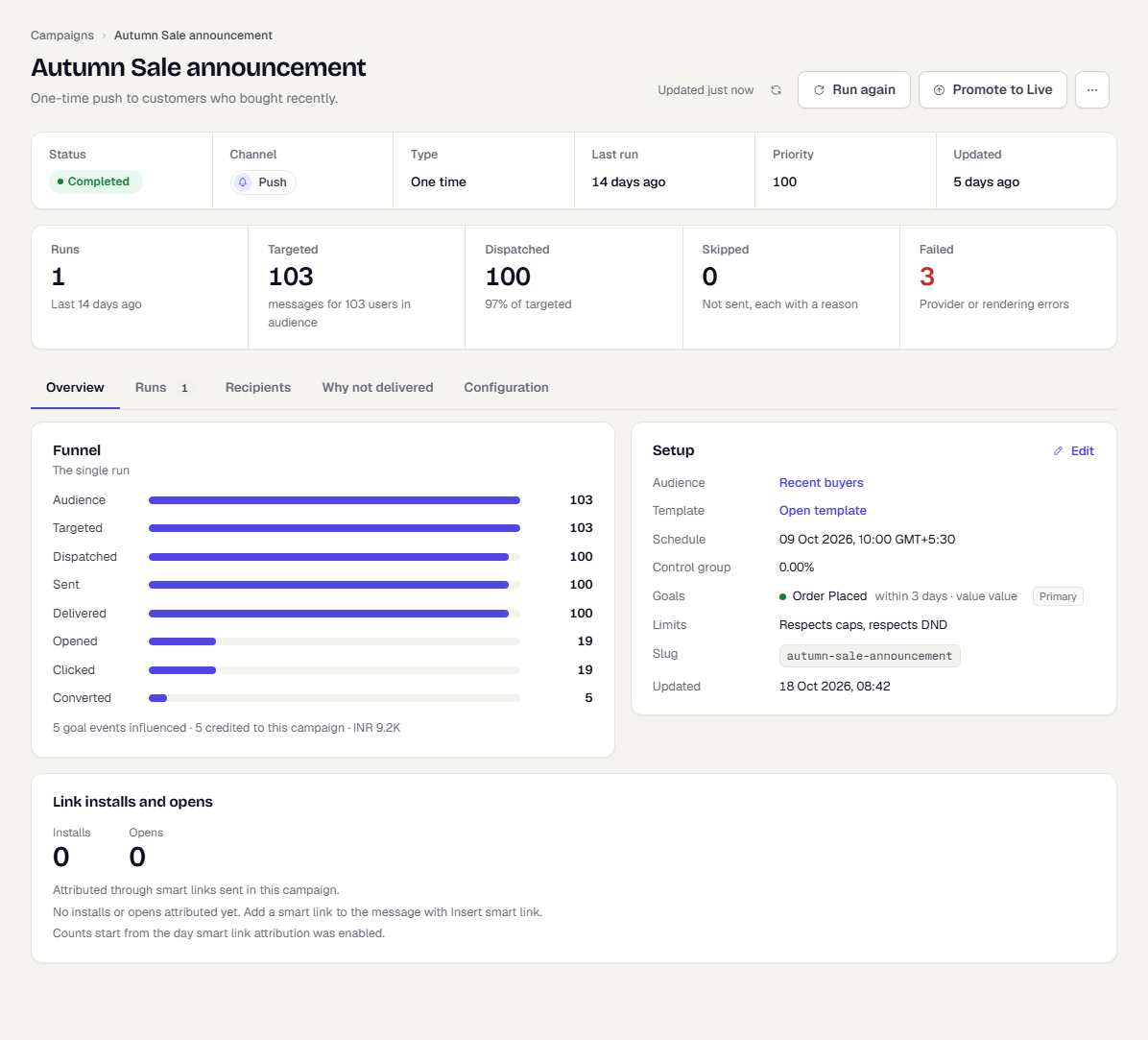
Funnel shows audience, dispatch, delivery, opens, clicks and conversions as bars. When there is more than one run, switch between All runs and Latest run. If other campaigns or flows reached the same user, the note under the funnel says how many goal events were influenced and how many are credited to this campaign.
Setup summarises the audience, template (select Open template to jump to it), schedule or trigger, control group, goals and limits. Each goal shows its window and whether it is Primary. If your account has conversion events set under Connect, then Events, a line says the campaign also counts them. Click Edit to change the setup while the campaign is editable.
In-App, On-Site and Cards campaigns also show a Shown to people card with how often the message was eligible, shown, clicked and dismissed. See In-app messages and cards.
If you have permission to view smart links, a Link installs and opens card shows the installs and opens attributed through smart links in this campaign. To add one, use Insert smart link in the template. See Smart Links overview.
Conversions and lift
When a campaign has a Control group, a Lift table compares conversion between users who were sent the message and users who were held out. For each goal the Sent and Control columns show both rates with the number of people who converted, Lift shows the difference in percentage points, the Incremental conversions the campaign added, and a Confidence verdict. A small control group needs more data before the verdict is firm. Lift appears from the first run that held users out. Runs before control groups were recorded can't be compared.
The demo campaigns have no control group, so the table doesn't appear in the screenshot above.
The Runs tab
Each firing is a run. The table lists status, scheduled time, Users, Messages, Sent, Skipped, Failed and when it finished. Click a run to see its raw counts and any failure summary. View recipients jumps to that run in the Recipients tab.
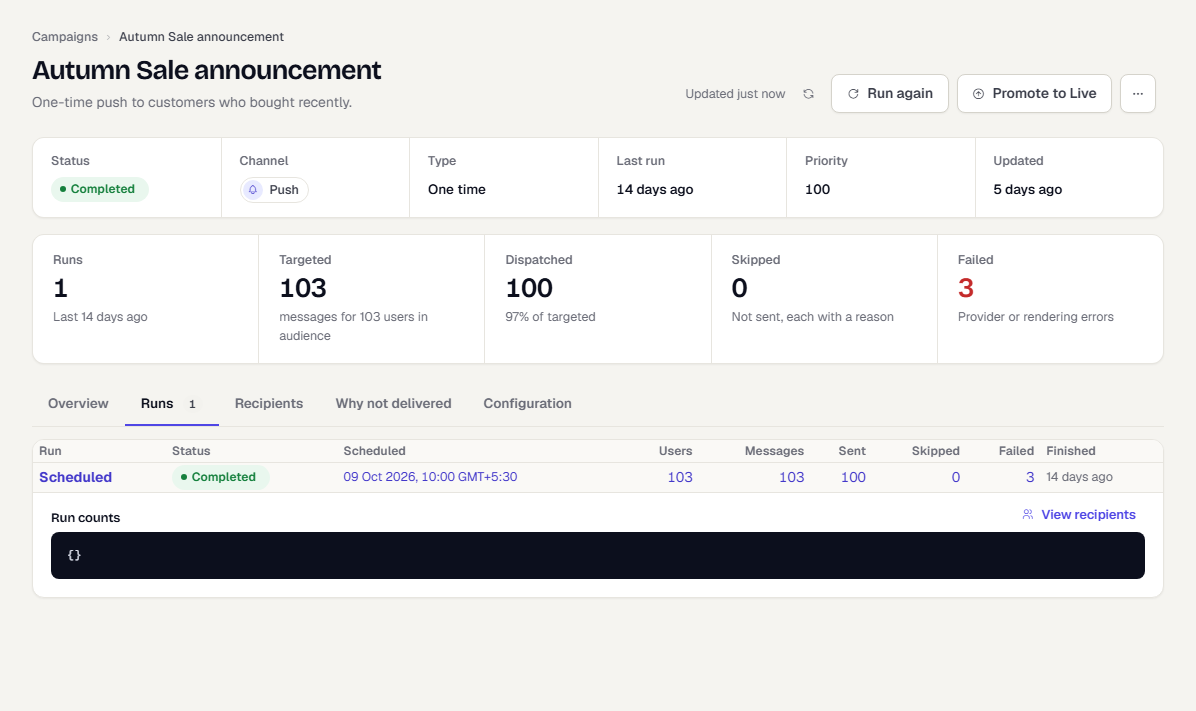
If a run is waiting on delayed messages, a banner says how many are held and why. The campaign keeps its status until they go out.
The Recipients tab
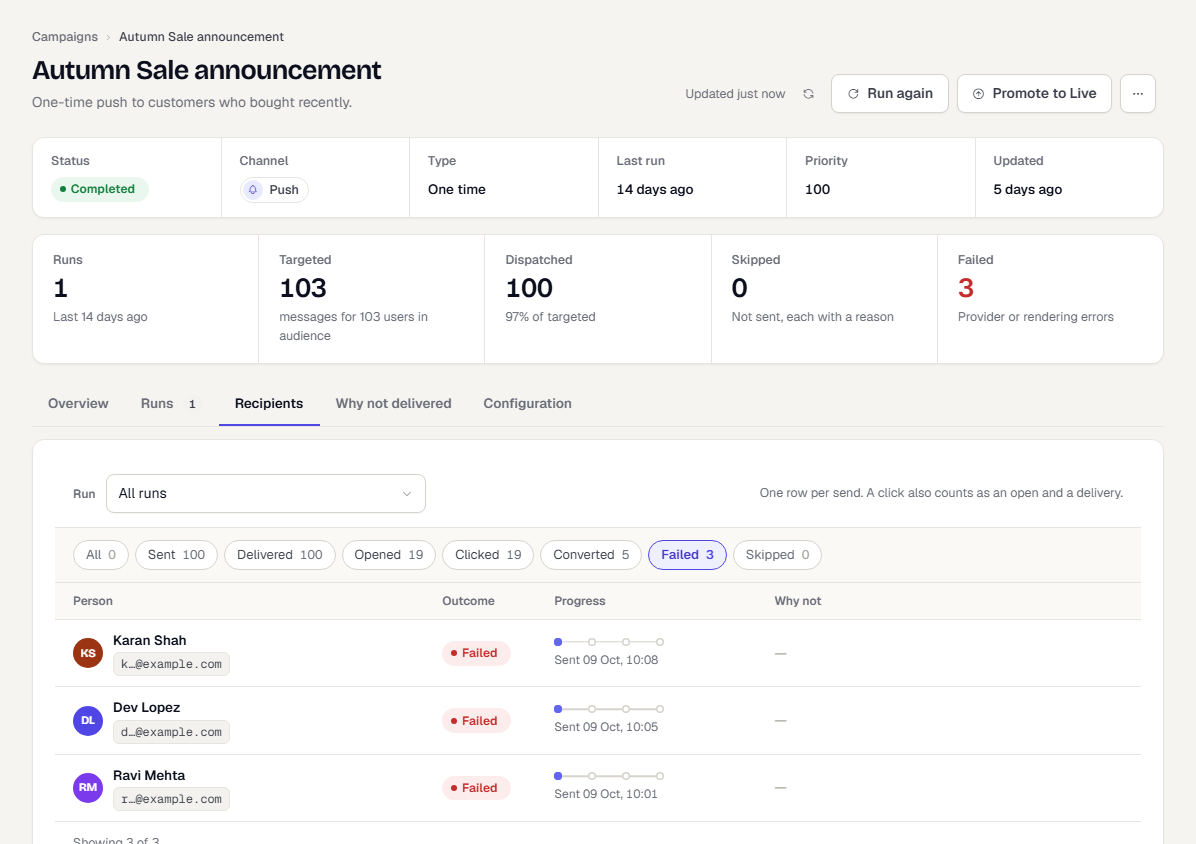
Recipients lists one row per message. Pick a Run, then use the outcome chips to filter, for example to see only failures. A click also counts as an open and a delivery. The list shows a page at a time; select Load more for the next one. The Person column shows the name and masked address, plus the variant code when the campaign uses variants. The Progress column shows how far each message got (hover a dot for the time), and Why not gives the reason when it didn't go out. Contact details are masked. Open a person's profile to reveal them; every reveal is audited.
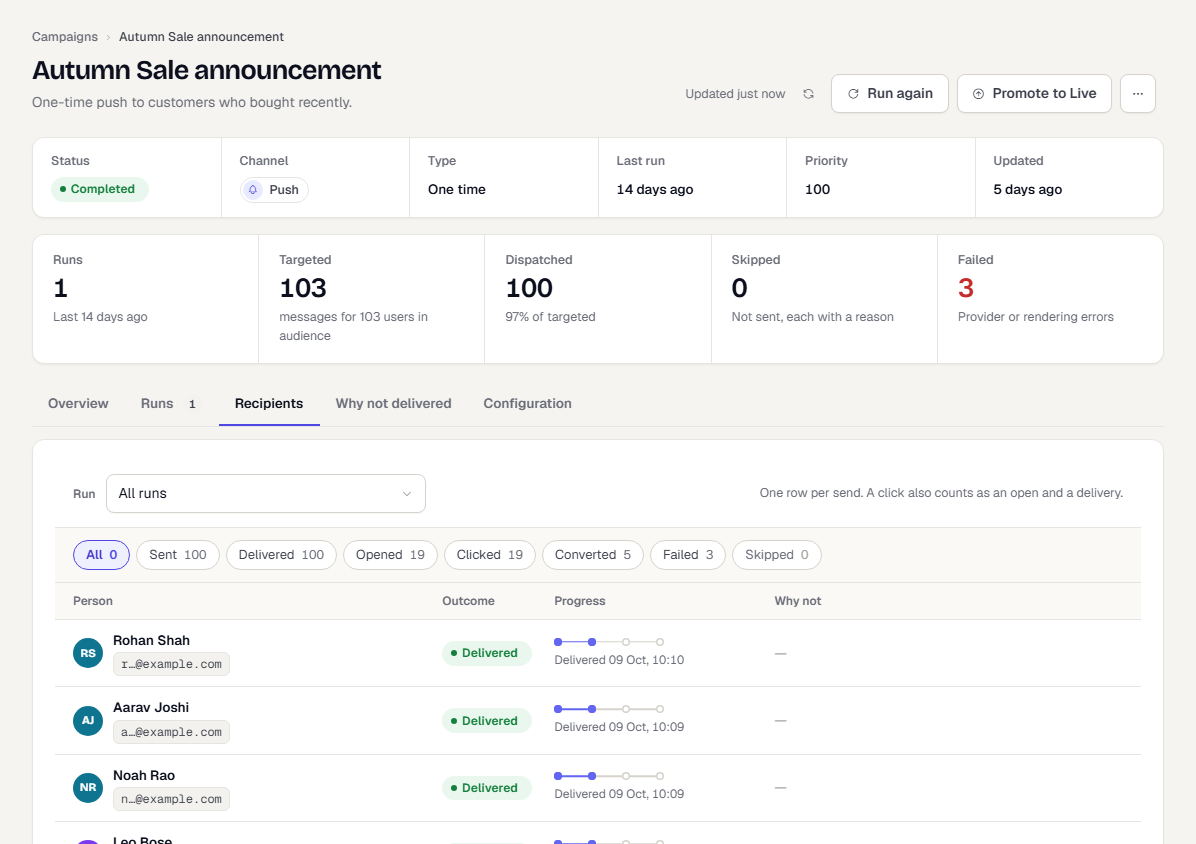
To see which messages failed, click the Failed chip. When the provider gave a reason, the Why not column shows it; otherwise the column shows a dash.
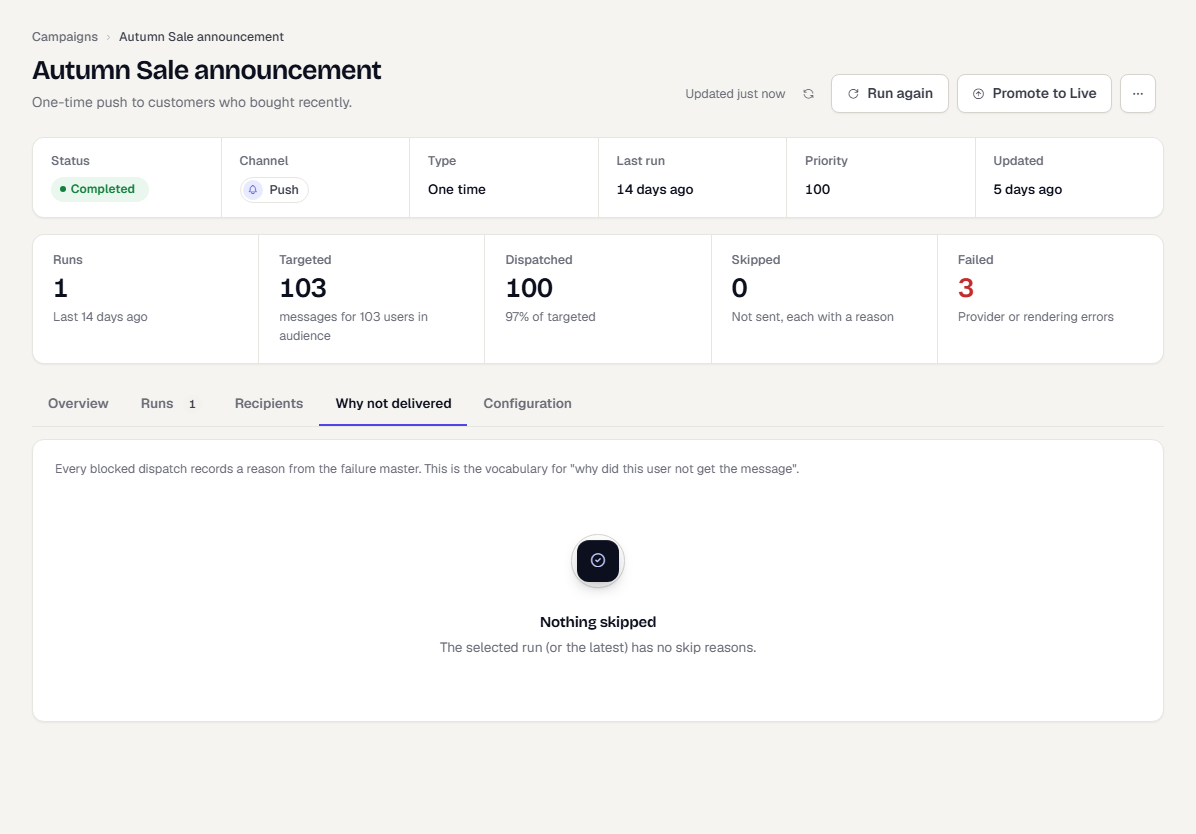
Why not delivered
This tab counts the skip reasons for the selected run, or the latest. Each row has a reason code, the number of users, and what it means, for example a user with no device on the selected platforms, one blocked by quiet hours or a frequency cap, or one who opted out of the campaign's subscription category (Opted out of this category). When nothing was skipped, the tab says Nothing skipped, as in the screenshot.
Configuration
The Configuration tab shows the campaign's full stored settings as JSON, useful when you contact support.
What happens next
To use a Test campaign in Live, see Promote a campaign from Test to Live. To change how it sends, edit the setup with the campaign wizard.
Was this page helpful?