Accept an invitation
Join an organisation from an email invitation, as a new or existing TrueEngage user.
When an Owner or Admin invites you, you get an email with a link. The link opens a page where you join the organisation.
Before you start: use the link from the email. It works once for the address it was sent to, and expires after a few days. If it has expired, ask the person who invited you to resend it from the Team page. If you never got an email, ask them to hand you the link directly: an Owner can copy one from the Pending invitations tab. Only the newest link for an invitation works, so use the latest one you were given. See Invite and manage your team.
Join as a new user
- Open the link in the email.
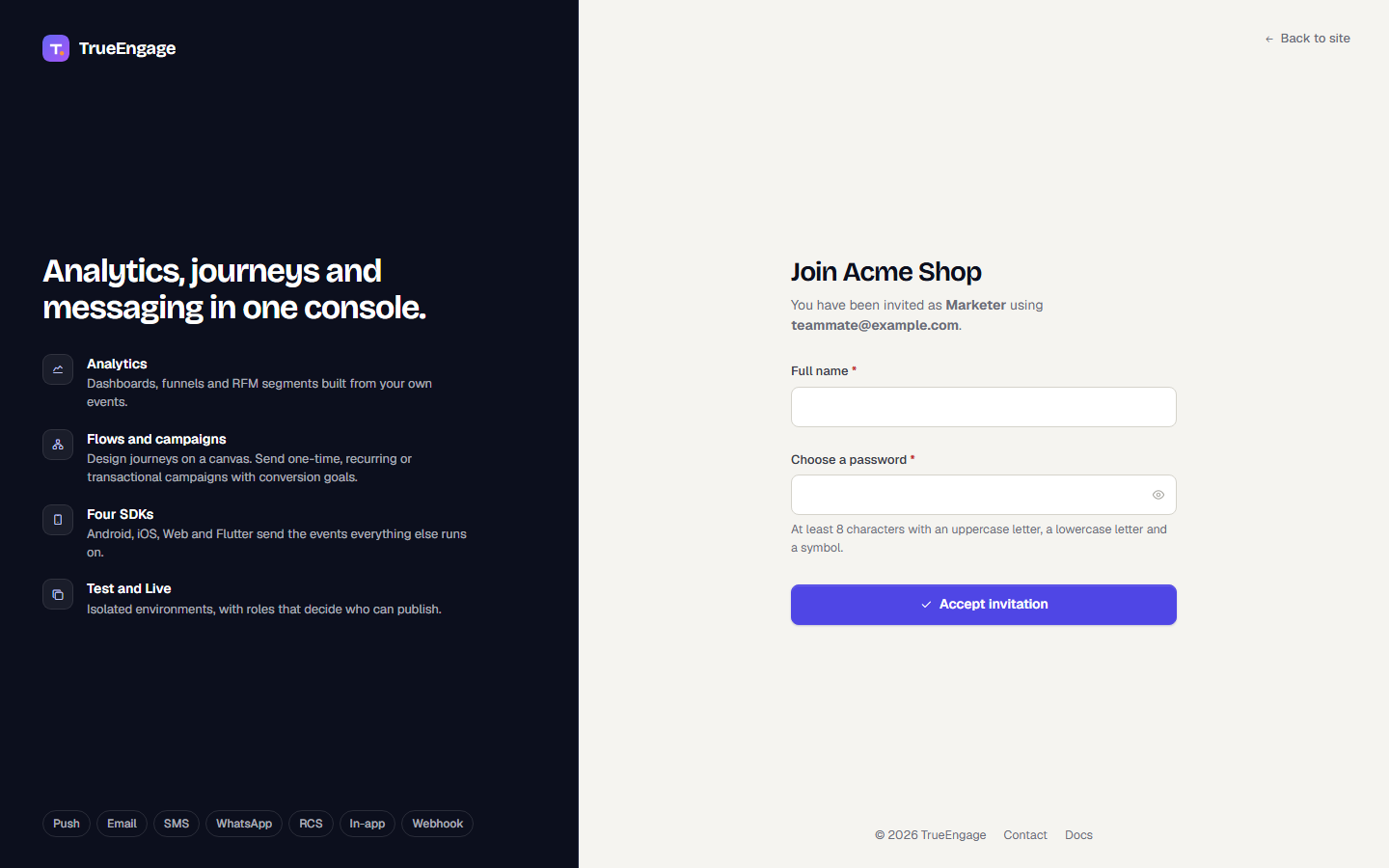
- Check the heading, Join followed by the organisation name. It also shows the role you were invited with and your email address.
- Enter your Full name.
- Under Choose a password, type a password.
- Select Accept invitation.
If the organisation enforces two-factor authentication, a note says you will be asked to enrol after joining. See Two-factor authentication.
You land in the console with access to the workspaces and environments the invitation granted.
Join with an existing account
If you already have a TrueEngage login with that email, the page asks you to Confirm your password instead of choosing one. Enter your current password and select Accept invitation.
If the link does not work
The page says Invitation unavailable and explains why, for example that the link is missing its token, has expired or was revoked. Select Go to sign in, or ask for a new invitation.
Related
Was this page helpful?