Templates overview
What a template is, how versions, checks and publishing work, and where to find each how-to.
A template is the content of a message for one channel: the push title and text, the email subject and HTML, the SMS text, or the WhatsApp message. You write it once, then campaigns and flows send it.
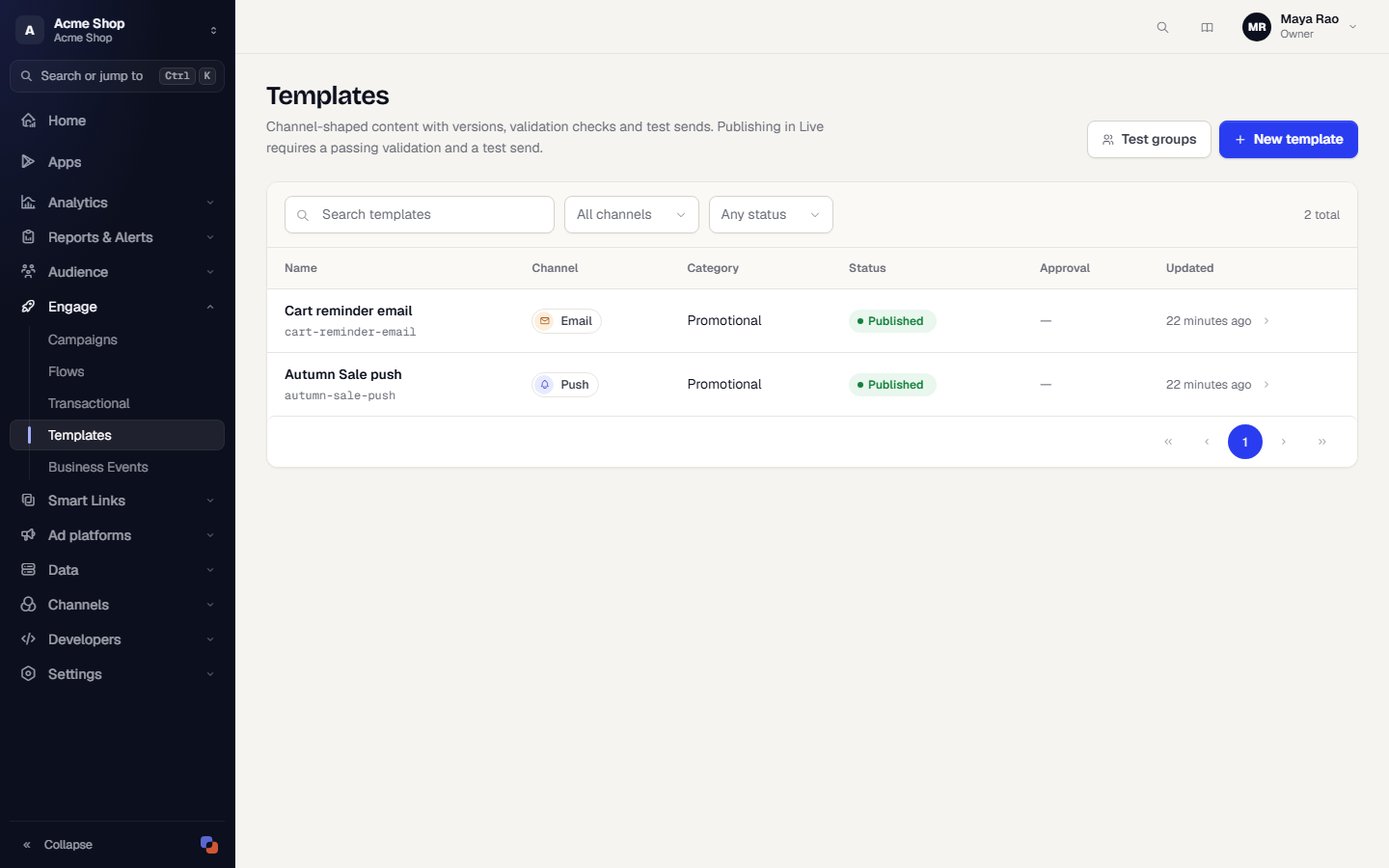
Open Engage → Templates to see every template in the current environment.
Key ideas
- One channel per template. You pick the channel when you create the template. You cannot change it afterwards. The channels offered are Push, Email, SMS, MMS, RCS and WhatsApp.
- Variables. Fields can contain placeholders such as
{{user.first_name | default: "there"}}. They are filled with the recipient's data at send time. See Personalise a template. - Versions. Each save of the content creates a new version. Campaigns and flows use the published version. See Versions, checks and publishing.
- Checks. Validation runs channel-specific checks, such as unresolved variables, asset reachability, push payload size and DLT patterns. Blocking failures stop publishing.
- Test sends. You send the saved version to a test group or to a few addresses before you publish. In Live, publishing needs a passed validation and a test send on that version.
- Environments. Test and Live each have their own templates. You can promote a Test template to Live. See Test and Live.
How-to guides
- Find and manage templates: search, filter, create.
- Create a template: details, channel and category.
- Write the content for each channel: push, email, SMS, MMS, RCS and WhatsApp fields.
- Personalise a template: variables and fallbacks.
- Preview a template with a real profile and send a test.
- Versions, checks and publishing.
- Manage test groups.
- Use files from the asset library in WhatsApp templates.
Permissions
You need the content templates permission to create and edit, and a separate publish permission to publish or deactivate. Without them the buttons are hidden. Owners and Admins have both.
Was this page helpful?