Send a recurring campaign
Set up a recurring campaign that sends daily, weekly or monthly on a repeating schedule, with start and end dates, timezone and local-time delivery.
A recurring campaign fires on a repeating schedule: daily, weekly or monthly. Every firing is its own run with its own counts and skip reasons. Use it for newsletters, weekly digests and regular reminders.
Before you start
- A published template and a segment, as for a one-time campaign.
Steps
- Click New campaign on the campaigns list.
- Enter a Name, choose the Channel, and set Campaign type to Recurring.
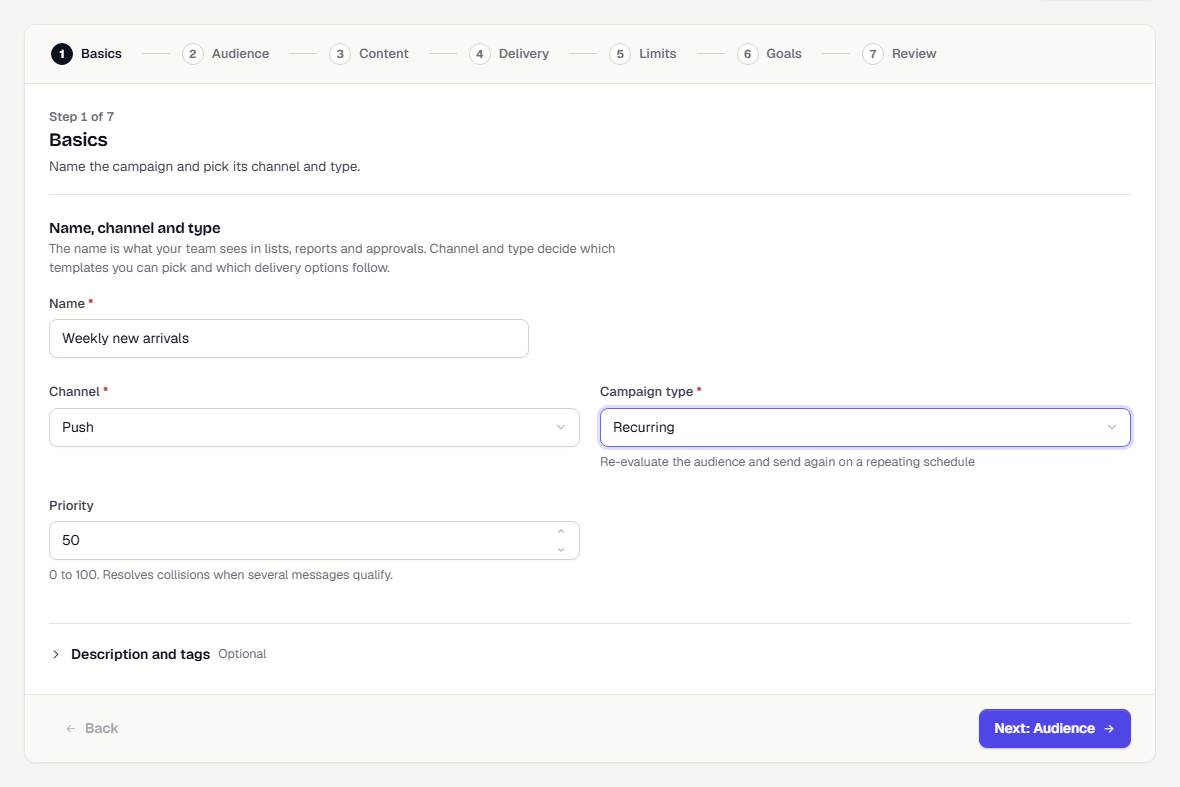
- Pick the audience and template. See The campaign wizard.
- On Delivery, switch the toggle from Send once to Recurring. Then choose a Frequency:
- Daily sends every day at the Time of day.
- Weekly adds a Days picker, Mon to Sun.
- Monthly adds Day of month. In shorter months it sends on the last day.
- Optionally set Starts and Ends. To skip particular days, such as exchange holidays, pick them under Skip dates. Each day is read in the schedule's timezone, so a date means that calendar day there. A skipped day sends nothing and creates no run, and the next day fires as normal. Remove a date with the x on its chip. Up to 400 dates. Skip dates apply to recurring schedules only.
- Check the Timezone. The time of day is a clock time in that zone. Tick Send in each user's local timezone to send at that clock time wherever each user is.
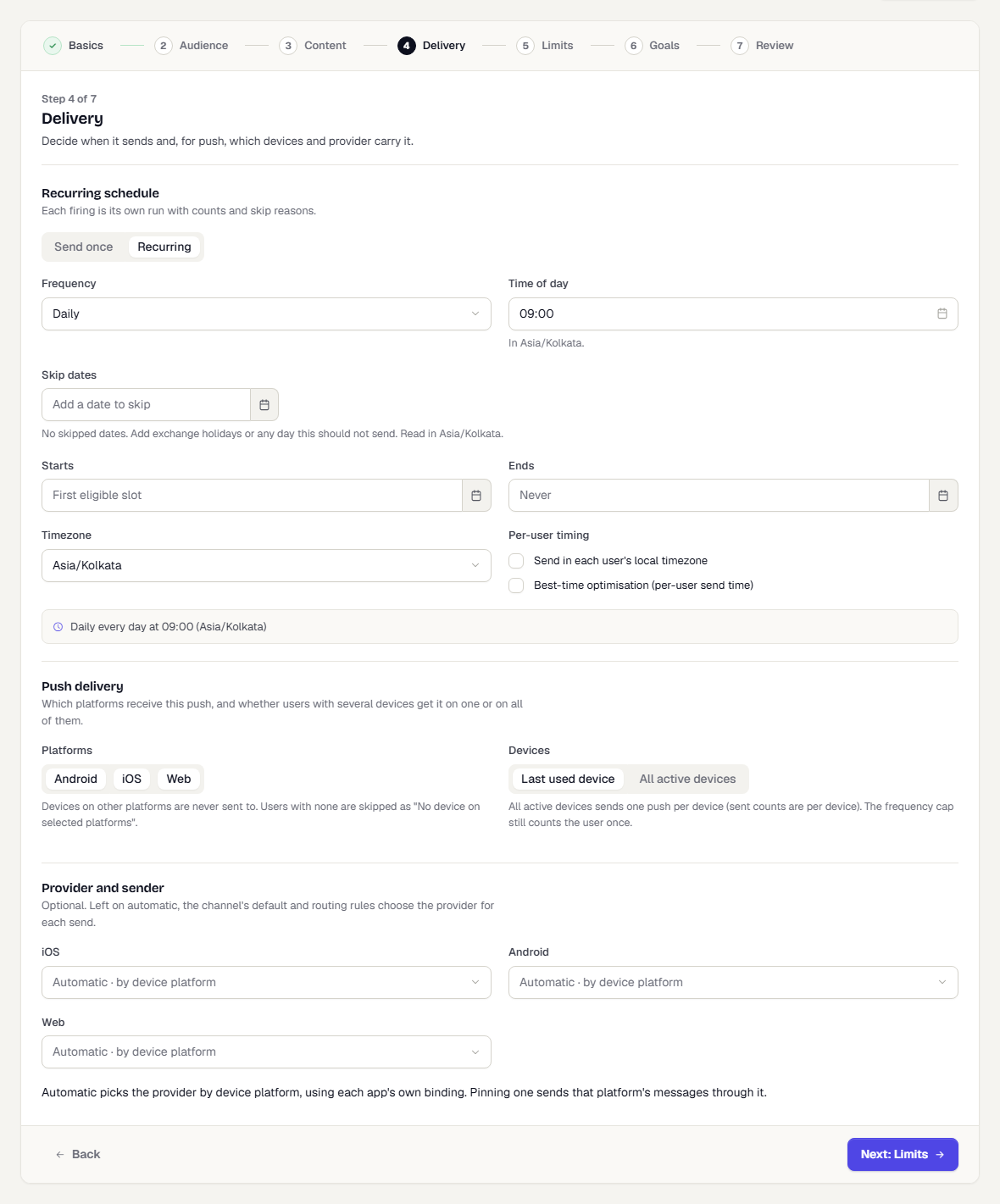
- Continue to Limits, Goals and Review, then click Save & publish.
What happens next
The campaign shows Scheduled, with the next run time on the list. Each firing adds a run on the campaign page. To skip a while, choose Pause in the More actions menu and Resume later. See Read a campaign's results.
Was this page helpful?