Find and manage templates
Search and filter the template list, read its columns, and open or create a template.
Use the template list to find a template, check its status, and open it for editing.
Before you start
You can view the list with read access. To create a template you need permission to manage templates.
Search and filter
- Open Engage → Templates.
- Type in Search templates and press Enter to match by name.
- Choose a channel in All channels to show one channel only.
- Choose a status in Any status: draft, in review, published, deactivated or archived.
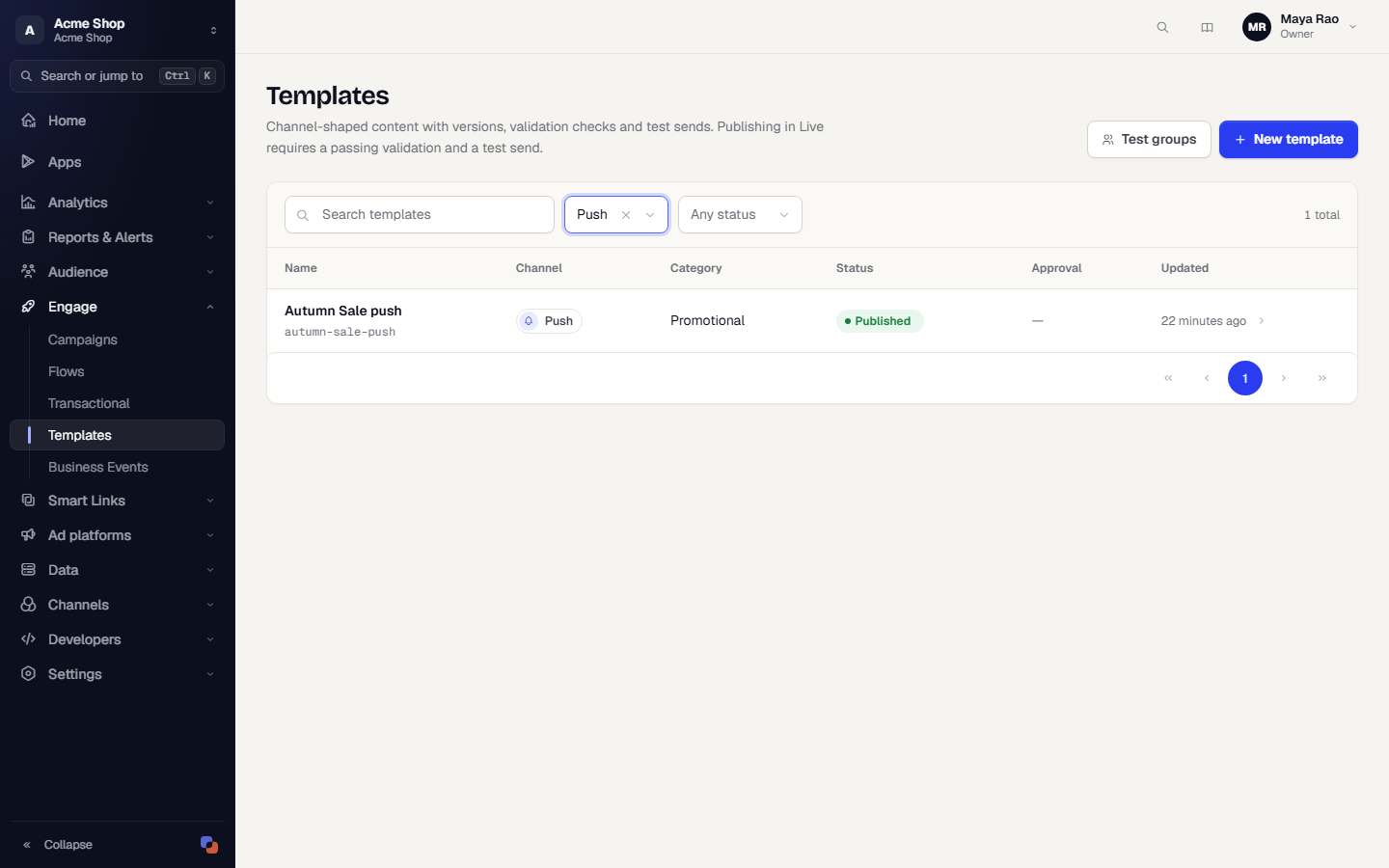
Clear a filter with the small cross in its field. The count on the right, for example 1 total, shows how many templates match. The list shows 25 templates per page.
Read the columns
| Column | What it shows |
|---|---|
| Name | The template name and its slug underneath. |
| Channel | Push, Email, SMS, MMS, RCS or WhatsApp. |
| Category | Promotional, Transactional, OTP or Service. |
| Status | Draft, published and so on. A Promoted badge shows when the template was promoted from Test to Live. |
| Approval | The approval state for channels that need it, such as WhatsApp (Meta review) and SMS (DLT). Other channels show a dash. |
| Updated | When the template last changed. |
Select a row to open the template editor.
Open the test groups page
Select Test groups at the top right. See Manage test groups.
Create a template
Select New template. See Create a template.
Sync WhatsApp templates from your provider
When you filter the list to WhatsApp, a Sync from provider button appears. It pulls templates that you created on the vendor's portal, with their approval state, and updates the ones that already exist. It never pushes anything to the vendor. The button is disabled until an active WhatsApp provider exists for the environment. The demo workspace has no providers, so it stays disabled there.
Related
Was this page helpful?