Steps reference
Reference for every flow step type, from send message, webhook and wait to splits, goal checks, call API and segment steps, with each step settings.
This page describes each step in the step list. To add a step, see Build a flow on the canvas.
Every step has a Step name, which appears on the canvas and in reports. The inspector header shows the step name and its type.
Entry
The first step of every flow. It has no settings of its own. A note points you to the Entry tab, where you choose the entry type, trigger events, schedule and audience. See Set the entry.
Exit
Ends the journey for a person and records why. A flow can have several exits. Exit criteria and goals are set on the Goals & exits tab. See Set goals and exits.
Messaging
Send message
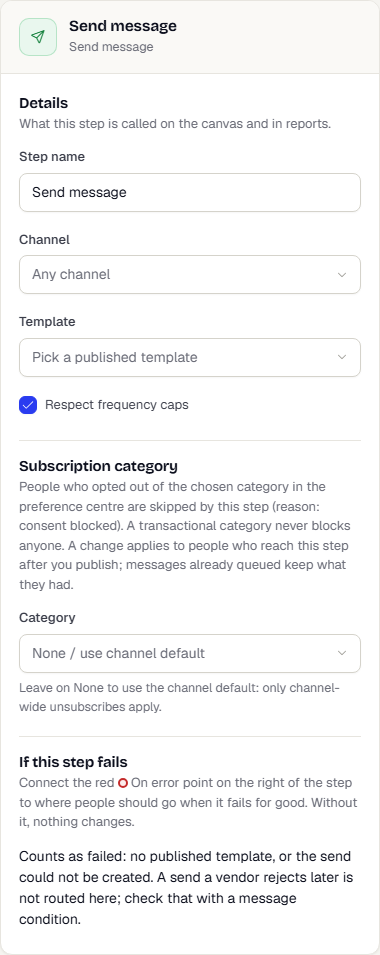
Sends one message and moves the person on straight away, without waiting for delivery.
| Setting | What it does |
|---|---|
| Channel | Limits the Template list to one channel. Clear it to see all. |
| Template | The template to send. Shown as name, channel and status. |
| Provider | Appears once you pick a Channel that uses a vendor. Automatic follows your routing rules, then the channel default. Pick one to send this step through it only. If none are active, add one under Channels, Providers. |
| Respect frequency caps | On by default. Turn it off to let this step ignore caps. |
| Category (under Subscription category) | Skips people who opted out of this subscription category in the preference centre. The skip reads Opted out of this category in Debug and Dry run. Leave it on None / use channel default to apply only channel-wide unsubscribes. A transactional category never blocks anyone. Publishing checks that the category exists, is not archived and that the step's channel supports opt-outs. |
The flow's Ignore quiet hours and Ignore frequency caps settings also apply. See Flow settings. People in the flow's control group skip the send.
Webhook
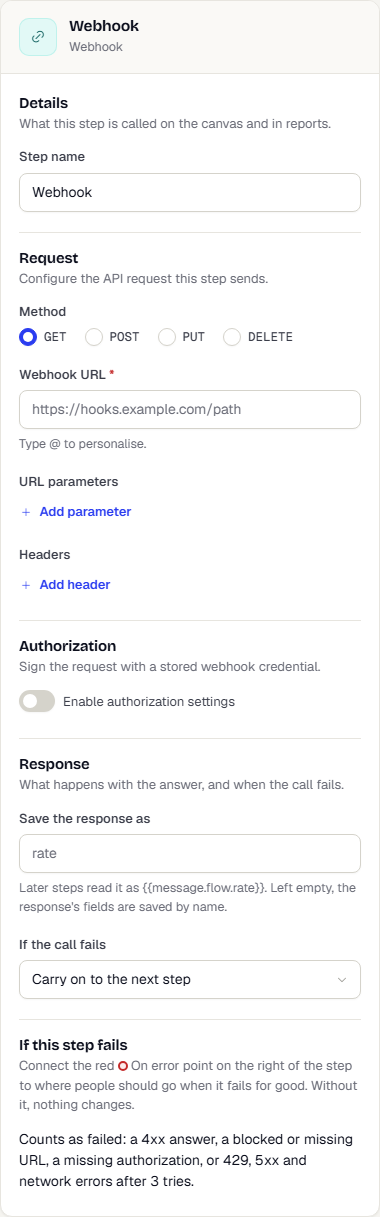
Calls an HTTP endpoint for each person who reaches the step.
| Setting | What it does |
|---|---|
| Method | GET, POST, PUT or DELETE. |
| Webhook URL | Required. Type @ to insert a personalisation token such as a user attribute, a flow variable or a business event attribute. |
| URL parameters | Key and value pairs added to the query string. Select Add parameter. |
| Headers | Request headers. Select Add header. |
| Body | JSON body. Shown for POST and PUT only. Wrap tokens in double curly braces, for example {{customer.email}}. |
| Enable authorization settings | Turn on to sign the request with a stored credential. |
| Authorization setting | Required once authorization is on. Pick a webhook credential. If the list is empty, add one under Channels, Providers. |
Timing
Wait
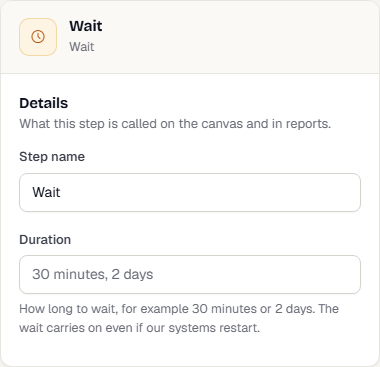
Holds the person for a fixed time.
| Setting | What it does |
|---|---|
| Duration | A number and a unit: second, minute, hour, day, week or month. For example 30 minutes or 2 days. |
Waits are durable. They keep their place if the system restarts.
Wait until time
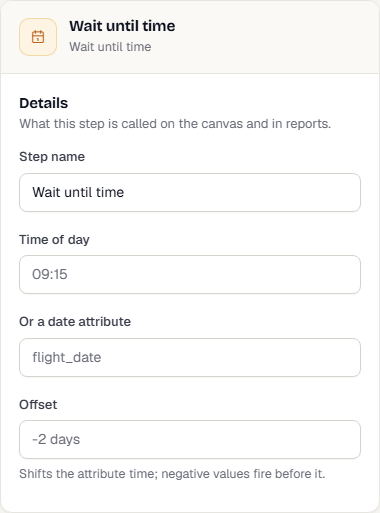
Holds the person until a time of day, or until a time derived from a date attribute.
| Setting | What it does |
|---|---|
| Time of day | A time such as 09:15, in the person's time zone. |
| Or a date attribute | The key of a date attribute on the user, such as flight_date. |
| Offset | Shifts the attribute time. A negative value fires before it, for example -2 days. |
Wait for event
Waits for the person to perform an event. It has two branches: yes if the event happens in time and no if the window ends first.
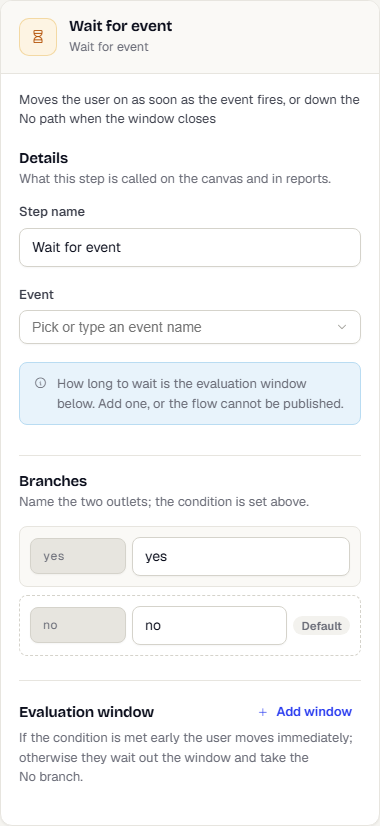
| Setting | What it does |
|---|---|
| Event | Pick or type an event name. Required. |
How long to wait is the evaluation window. Select Add window and set Wait up to. A flow with a Wait for event step and no window cannot be published. If the event arrives early, the person moves on at once down yes. Otherwise they wait out the window and take no.
Wait for a time window
Holds each person until their local time is inside the hours and days you allow, then moves them on. People who arrive inside the window move on at once. People who arrive outside it wait for the next opening. For example, only 10:00 to 20:00, Monday to Saturday.
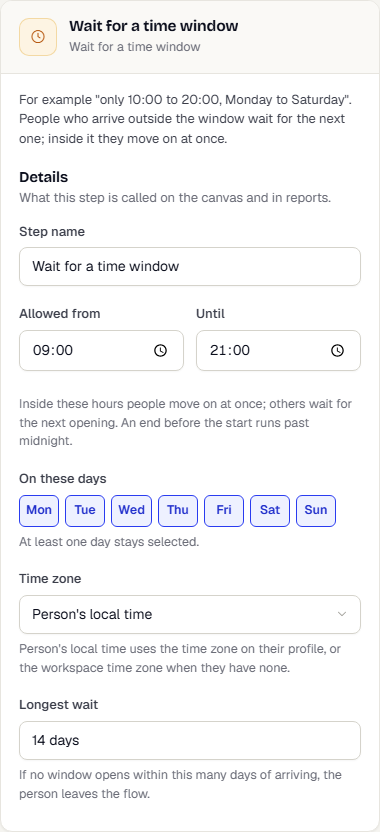
| Setting | What it does |
|---|---|
| Allowed from and Until | The hours of the window, in 24-hour time. An end before the start runs past midnight. |
| On these days | The days of the week. At least one stays selected. |
| Time zone | Person's local time uses the time zone on the person's profile, or the workspace time zone when they have none. Or pick one time zone for everyone. |
| Longest wait | If no window opens within this many days of arriving (up to 14), the person leaves the flow. |
Conditions and splits
Steps that branch show a Branches section. Each branch has a key, a Display name of up to 20 characters, and a Default tag when it catches everyone else. Use the + under a branch on the canvas to build that path.
Steps with a yes and a no outlet have their own settings above the Branches section: the event, the attribute condition, the message outcome or the goal to check. yes takes everyone who matches and no takes everyone else. Under Branches you can rename the two outlets.
Conditional split
Sends each person down the first branch whose condition they match. Branches are tried from top to bottom, and the Default branch takes everyone else.
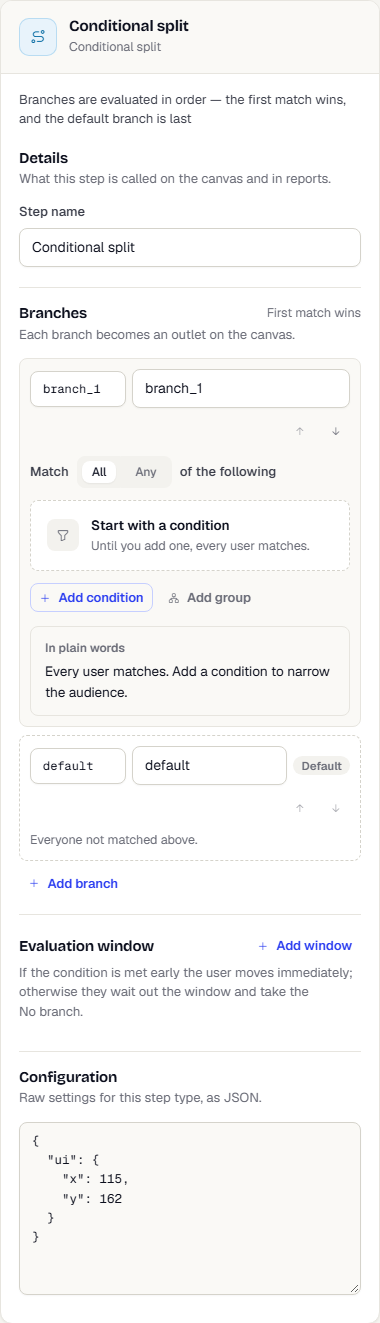
- Build the condition for a branch with the query builder inside it.
- Use the up and down arrows to reorder branches. Select Add branch for another one. A split has up to 25 branches. Remove a branch with the bin icon.
- Add an evaluation window to hold lower branches while a higher branch might still match.
A/B split
Divides people between branches by percentage. The same person always lands in the same branch.
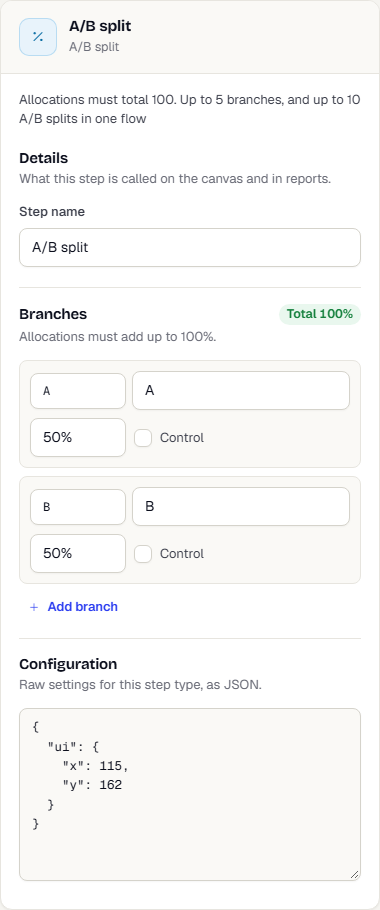
- Each branch has an allocation. The header shows Total and turns green at 100%. Allocations must add up to 100.
- Tick Control on a branch to mark it as the comparison group.
- A split has up to five branches.
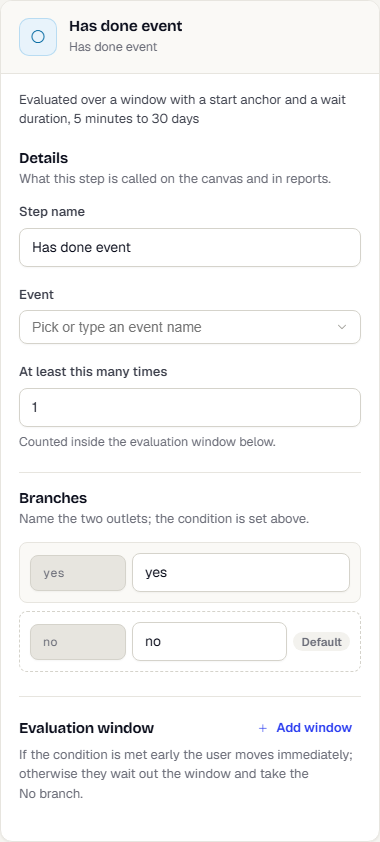
Has done event
Checks whether the person performed an event. Branches: yes and no. It supports an evaluation window.
| Setting | What it does |
|---|---|
| Event | Pick or type an event name. Required. |
| At least this many times | How often the event must happen inside the window. Default 1. |
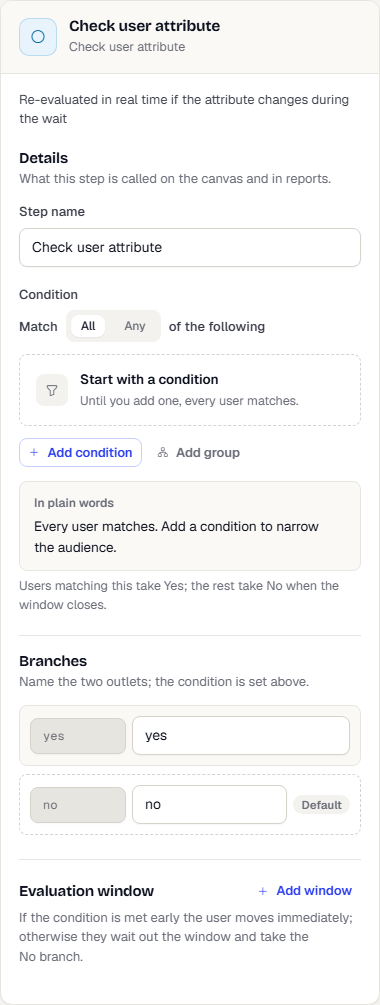
Check user attribute
Checks the person's attributes. Branches: yes and no. It supports an evaluation window.
| Setting | What it does |
|---|---|
| Condition | A query builder: Match All or Any of the following, then Add condition or Add group. People who match take yes. |
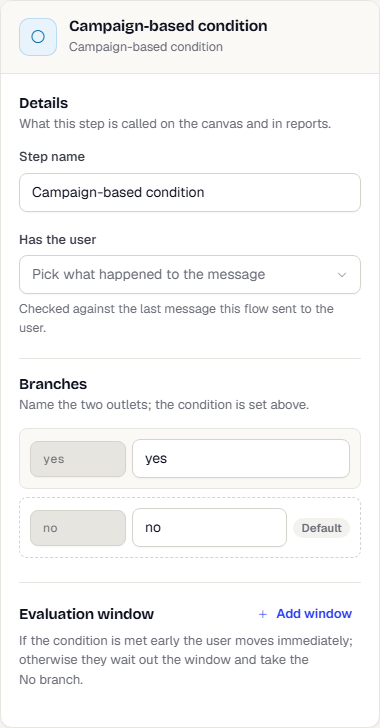
Campaign-based condition
Checks what the person did with a message, for example whether they opened or clicked it. Branches: yes and no. It looks at the last message the flow sent to that person. It supports an evaluation window.
| Setting | What it does |
|---|---|
| Has the user | What happened to the message, such as Email opened, Push clicked or WhatsApp read. Required. |
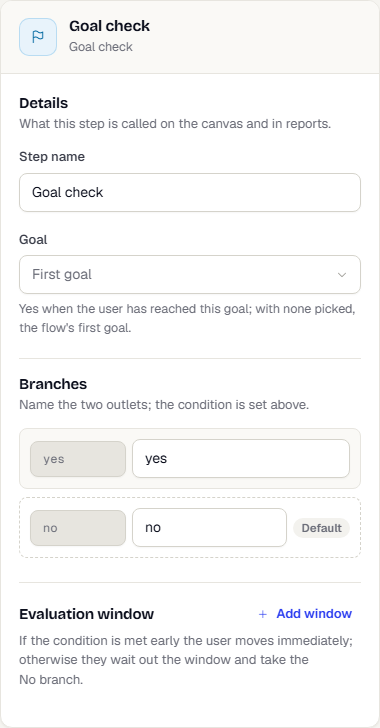
Goal check
Branches yes if the person already reached a flow goal and no if not. It supports an evaluation window.
| Setting | What it does |
|---|---|
| Goal | One of the goals from the Goals & exits tab. Leave it empty to check the flow's first goal. |
Frequency check
Sends people who are over their frequency cap down no instead of failing the send. Everyone else takes yes. Put one before a message in an event-triggered flow that has overlapping waits.
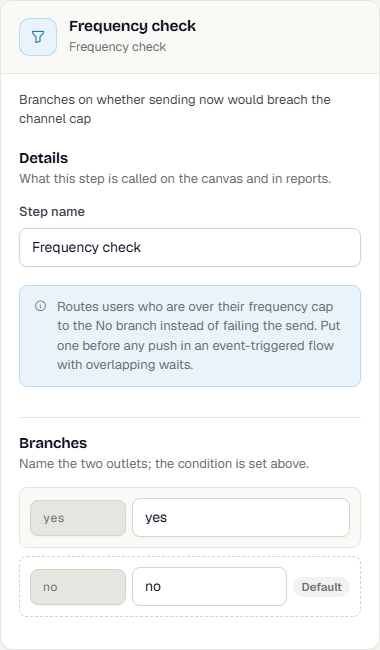
It has no settings besides Step name and its branches, and it does not use up the cap. A note in the inspector explains what it does.
Evaluation window
Conditional split, Has done event, Check user attribute, Campaign-based condition and Goal check can wait before they decide. Wait for event always needs one. Under Evaluation window, select Add window.
| Setting | What it does |
|---|---|
| Start anchor | From flow entry, From previous stage exit or Fixed time before this stage. |
| Wait up to | How long the step waits for the condition to become true. Between 5 minutes and 30 days. |
| Lookback | How far back to look for events, for example 7 days. |
If the condition is met early, the person moves on at once. Otherwise they wait out the window and take the no branch. Select Remove to delete the window.
Merge paths
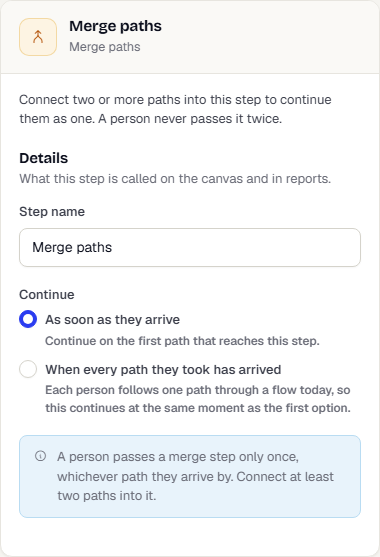
Where two or more paths meet. Connect the paths you want to join into this step, and each person continues once, whichever path they arrive by. A person never passes a merge step twice.
| Setting | What it does |
|---|---|
| Continue | As soon as they arrive continues on the first path that reaches this step. When every path they took has arrived waits for every path the person took. Because each person follows one path through a flow, both choices continue at the same moment today. |
The inspector shows how many paths lead in. Connect at least two.
Data and actions
Call API
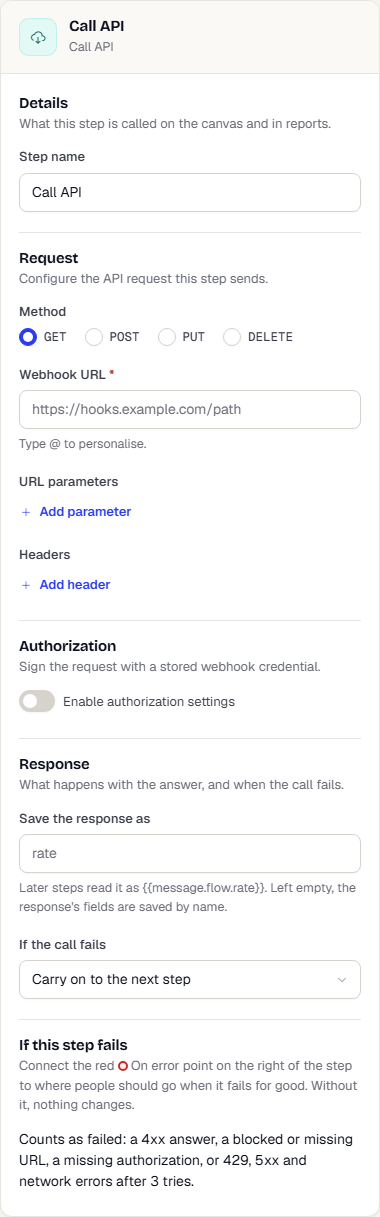
Calls an HTTP endpoint for each person and saves the answer for later steps. It sends the request the same way as Webhook, so it has the same Request and Authorization settings, plus a Response section.
| Setting | What it does |
|---|---|
| Save the response as | A name such as rate. Later steps and messages read it as {{message.flow.rate}}. Left empty, the fields of the response are saved by their own names. |
| If the call fails | Carry on to the next step (default, nothing is saved) or Exit the flow. |
The call times out after five seconds and is tried up to three times. To send people somewhere else when the call fails, see Send failures down an error path. For a value you want on every person from the start, use an API variable instead. See Use flow variables.
Alert team
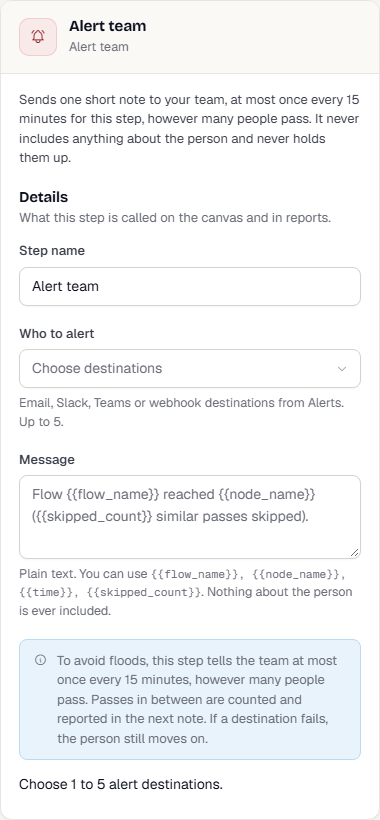
Tells your team through the alert destinations you already set up: email, Slack, Teams or a webhook. The person always moves on, and the step never holds anyone up.
| Setting | What it does |
|---|---|
| Who to alert | One to five destinations from Alerts. Needs permission to view alerts. |
| Message | Plain text, up to 500 characters. You can use {{flow_name}}, {{node_name}}, {{time}} and {{skipped_count}}. Nothing about the person is ever included. |
To avoid floods, this step tells the team at most once every 15 minutes, however many people pass. Passes in between are counted and reported in the next note as the skipped count. If a destination fails, the person still moves on. A dry run never sends the note.
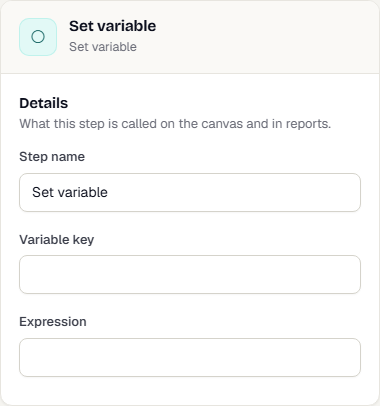
Set variable
Sets a flow variable from an expression.
| Setting | What it does |
|---|---|
| Variable key | The variable to set. |
| Expression | The value or expression. |
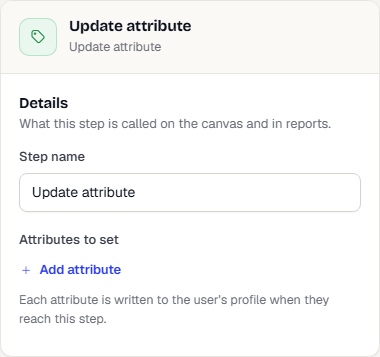
Update attribute
Writes one or more values to user attributes.
| Setting | What it does |
|---|---|
| Attributes to set | Key and value pairs. The key is the attribute, such as kyc_status. The value is a literal, or a token such as {{customer.first_name}} (type @ to insert one). Select Add attribute for more. |
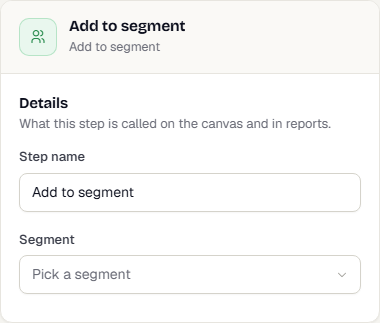
Add to segment and Remove from segment
Adds the person to a saved segment, or removes them from it.
| Setting | What it does |
|---|---|
| Segment | Pick a segment. |
Remove from segment has the same single setting.
Ad audience
Adds the person to a Google Ads or Meta audience, or removes them from it. The flow continues at once, and changes reach the ad platform in batches.
| Setting | What it does |
|---|---|
| What should this step do? | Add to audience or Remove from audience. |
| Ad audience | Pick an audience made for flows, or select Create an audience. |
For consent, timing and publish checks, see Add people to ad audiences from a flow.
Send failures down an error path
A Send message, Best channel, Webhook or Call API step can send people down a separate path when it fails for good. The step then shows a red On error point on its right side.
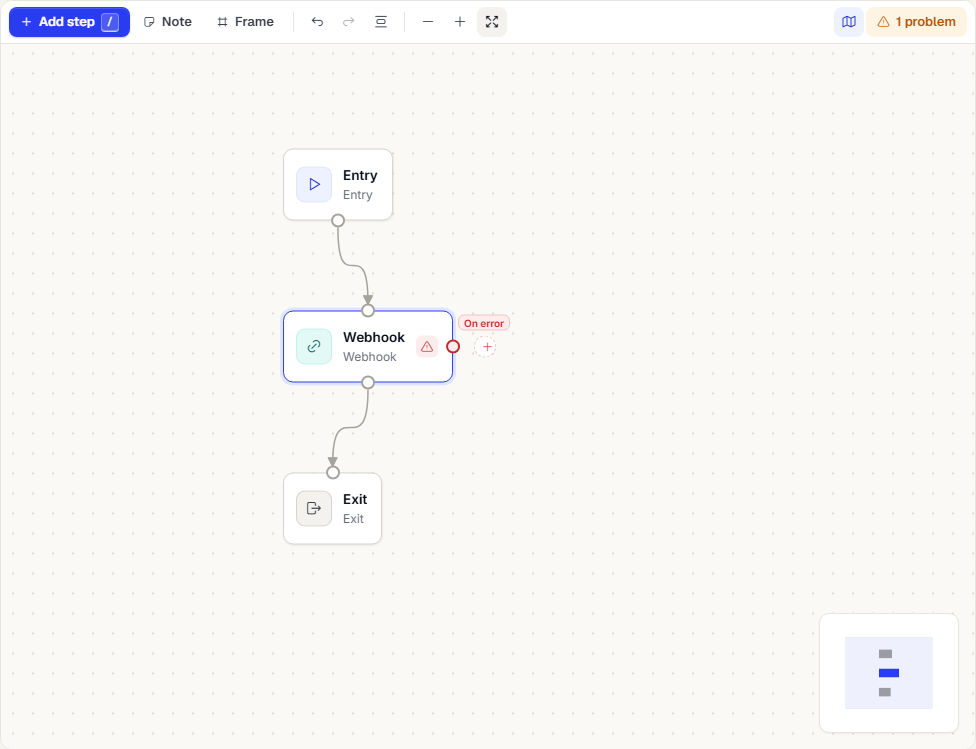
- Select the step. The inspector has a section named If this step fails.
- Drag from the red On error point to the step where failed people should go, or select the + next to it to add one. A Send message step with an error path could, for example, lead to a Webhook that tells your support tool.
What counts as failed:
- For a Webhook or Call API step: a 4xx answer, a blocked or missing URL, a missing authorization, or a 429, a 5xx or a network error after 3 tries.
- For a message step: no published template, or the send could not be created.
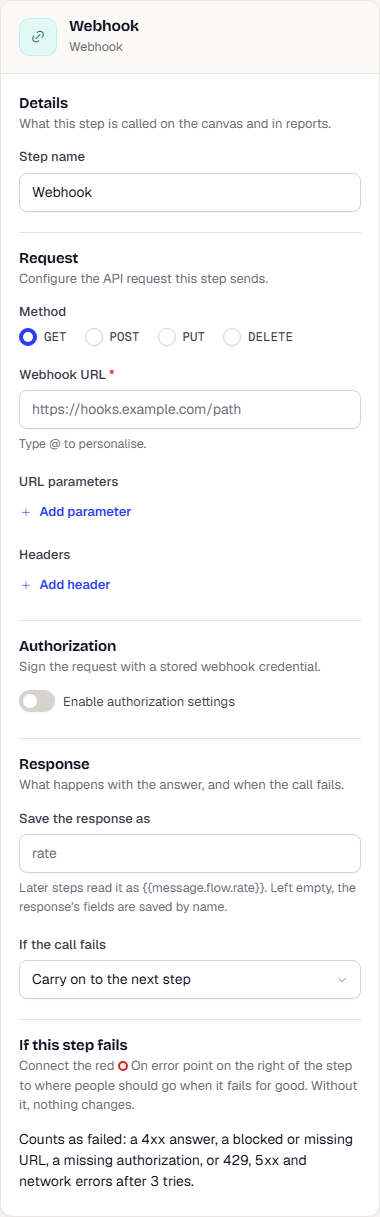
Without an error path, nothing changes: the step behaves as before. When an error path is connected, the If the call fails setting on a Webhook or Call API step is replaced by it. A send that the vendor rejects later is not a failure of the step.
Other steps
These steps are edited as JSON in a Configuration box. Change the JSON and the step updates.
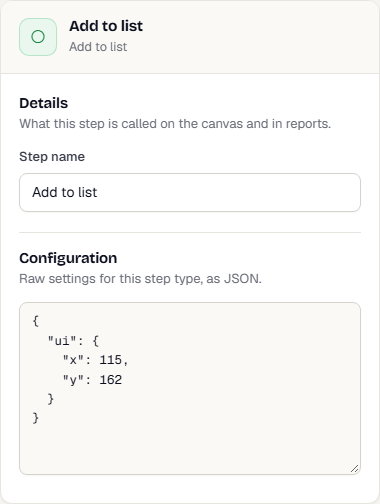
| Step | Setting keys | What it does |
|---|---|---|
| Add to list | listId |
Adds the person to a list. |
| Trigger campaign | campaignId |
Hands the person to an event-triggered campaign. Its own audience and dedupe rules still apply. |
| Trigger another flow | flowId |
Enters the person into another flow and carries on. |
| Call flow | flowId |
Same as Trigger another flow. |
| Best channel | templateId, channels |
Sends one message on the channel the person is most likely to use. It has the same Subscription category setting as Send message. |
| Best time to send | channelTypeCode, fallbackHour |
Waits until the person's best hour, or the fallback hour if unknown. |
Flows built earlier may still contain Force move users, Intelligent path optimizer or Next best action steps. These are no longer offered in the step list because they only pass people on to the next step. Existing ones still open and run the same way. You can delete them or leave them.
What happens next
Was this page helpful?