Read a user profile
See who a person is, how to reach them and what they did, and reveal masked contact details with a recorded reason.
A profile gathers everything TrueEngage knows about one person: the ids they go by, whether you can reach them, what they did in your app, the messages you sent and held back, and their devices.
Before you start
- You need permission to view users to open a profile.
- To show a person's full email or mobile number you also need the Users › Download permission. Without it the contact details stay masked and the profile says so.
- Open a profile by searching for the user, from a segment's Members tab, or from an RFM drill-down.
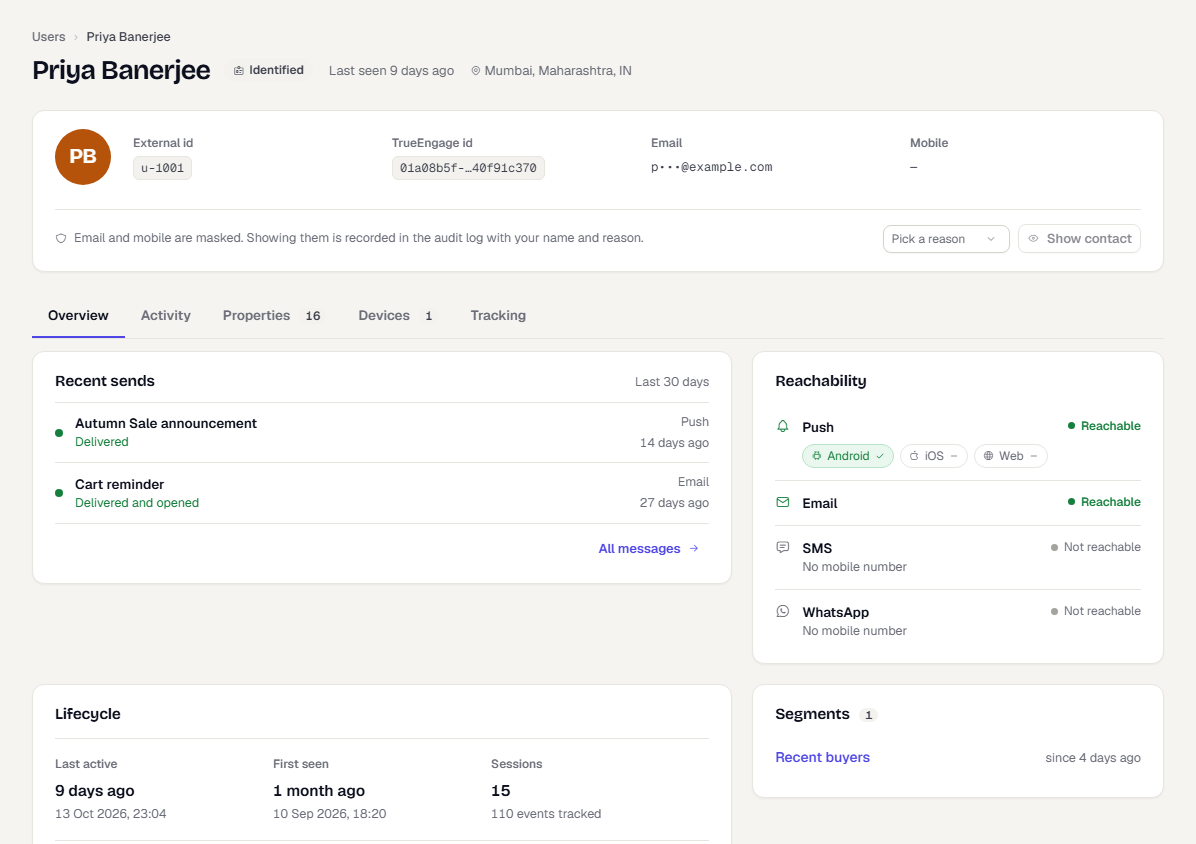
Read the header and identity card
The title is the person's name, or Anonymous user / Unnamed user when there is none. Under it you see:
- Identified or Anonymous. Anonymous profiles come from a device that has not called
identifyyet. - Last seen, and the person's location when known.
The identity card lists External id, TrueEngage id, Email and Mobile. Select an id to copy it. Email and mobile are masked.
If you see This profile was merged into another one, select Open current profile. New events, devices and messages go to that profile. The current profile also shows the history up to the merge. The retired page keeps its own history.
Show masked contact details
TrueEngage masks email and mobile by default. Showing them is allowed, but it is recorded in the audit log with your name and your reason.
- In the identity card, open Pick a reason.
- Choose one of Verify a caller, Support ticket, Delivery issue, Data request or Other. If you choose Other, a What for? field appears. Enter a few words.
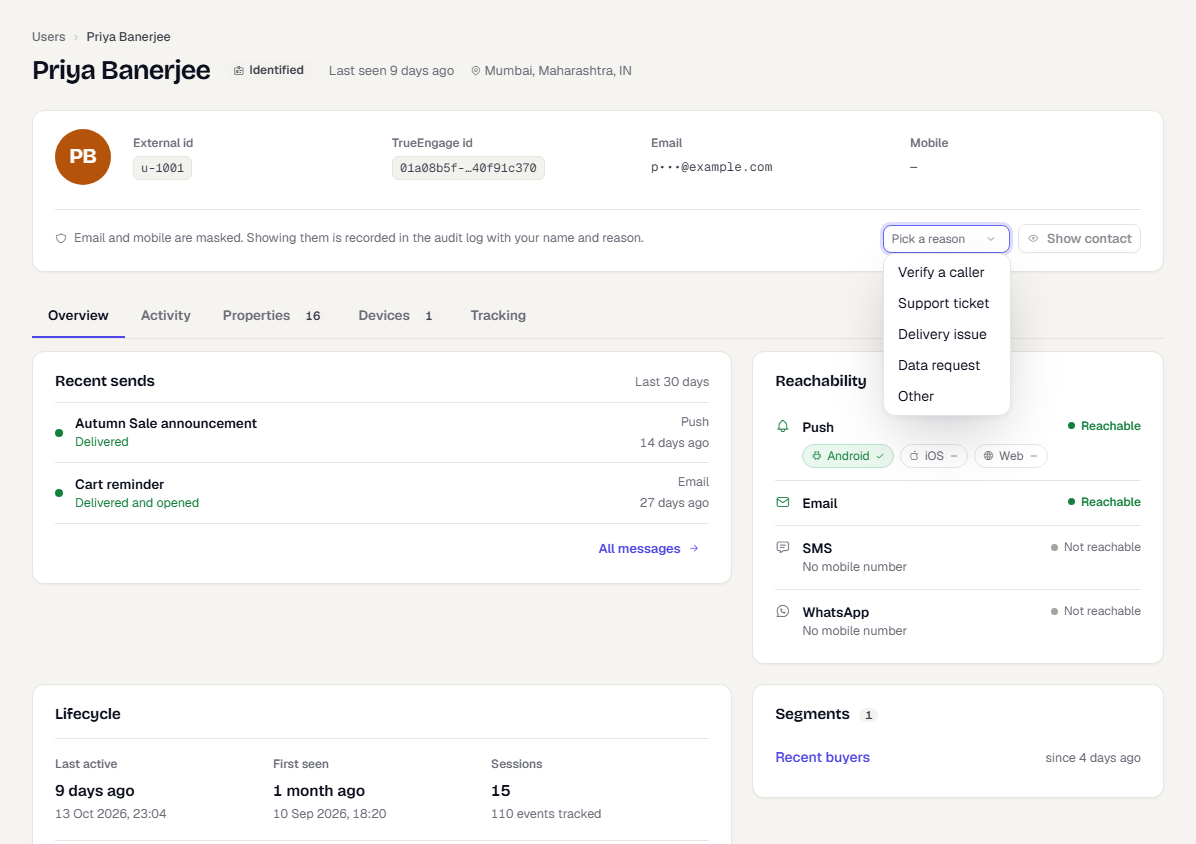
- Select Show contact.
The full email and mobile replace the masked values. A note reads "Shown to you at HH:mm and recorded in the audit log" and counts down from 2 minutes.
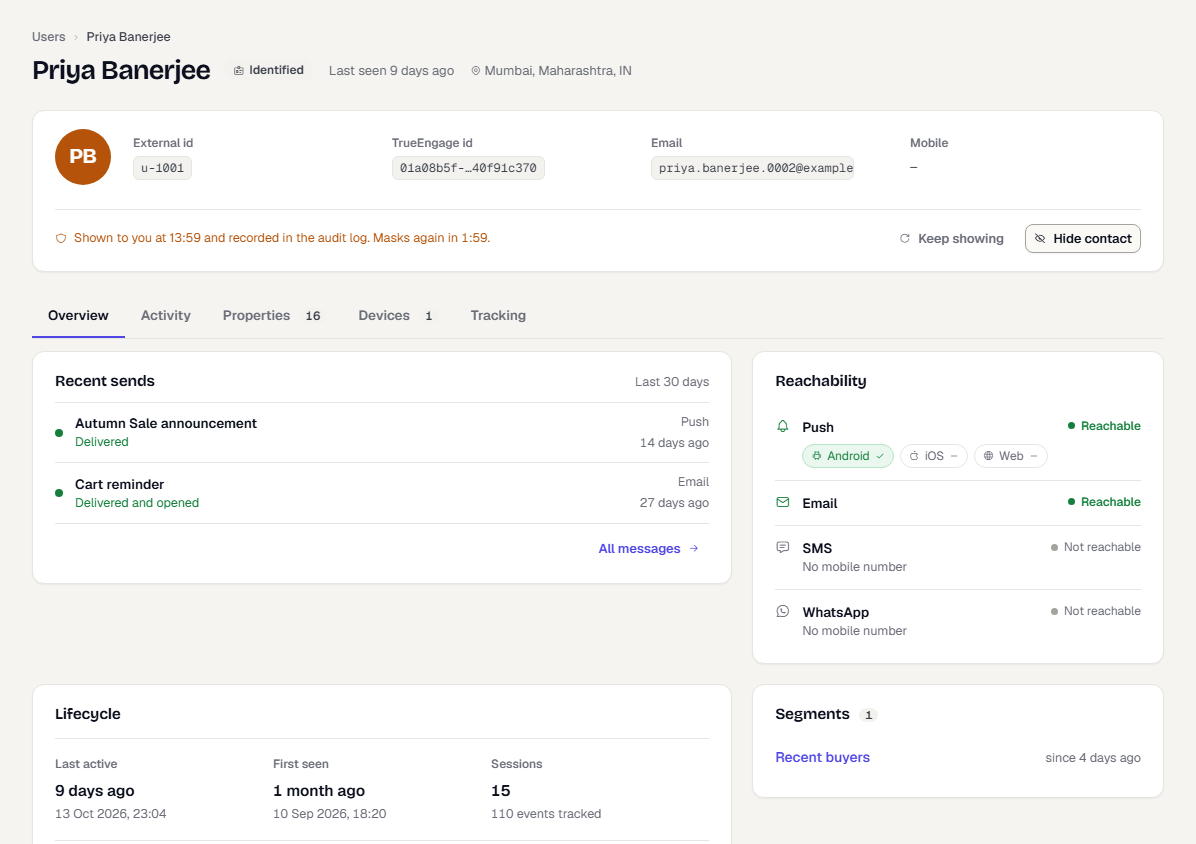
- When you are done, select Hide contact. To keep them visible for another 2 minutes, select Keep showing.
After 2 minutes the details mask again on their own, and the card reads "Contact details are masked again."
Use the tabs
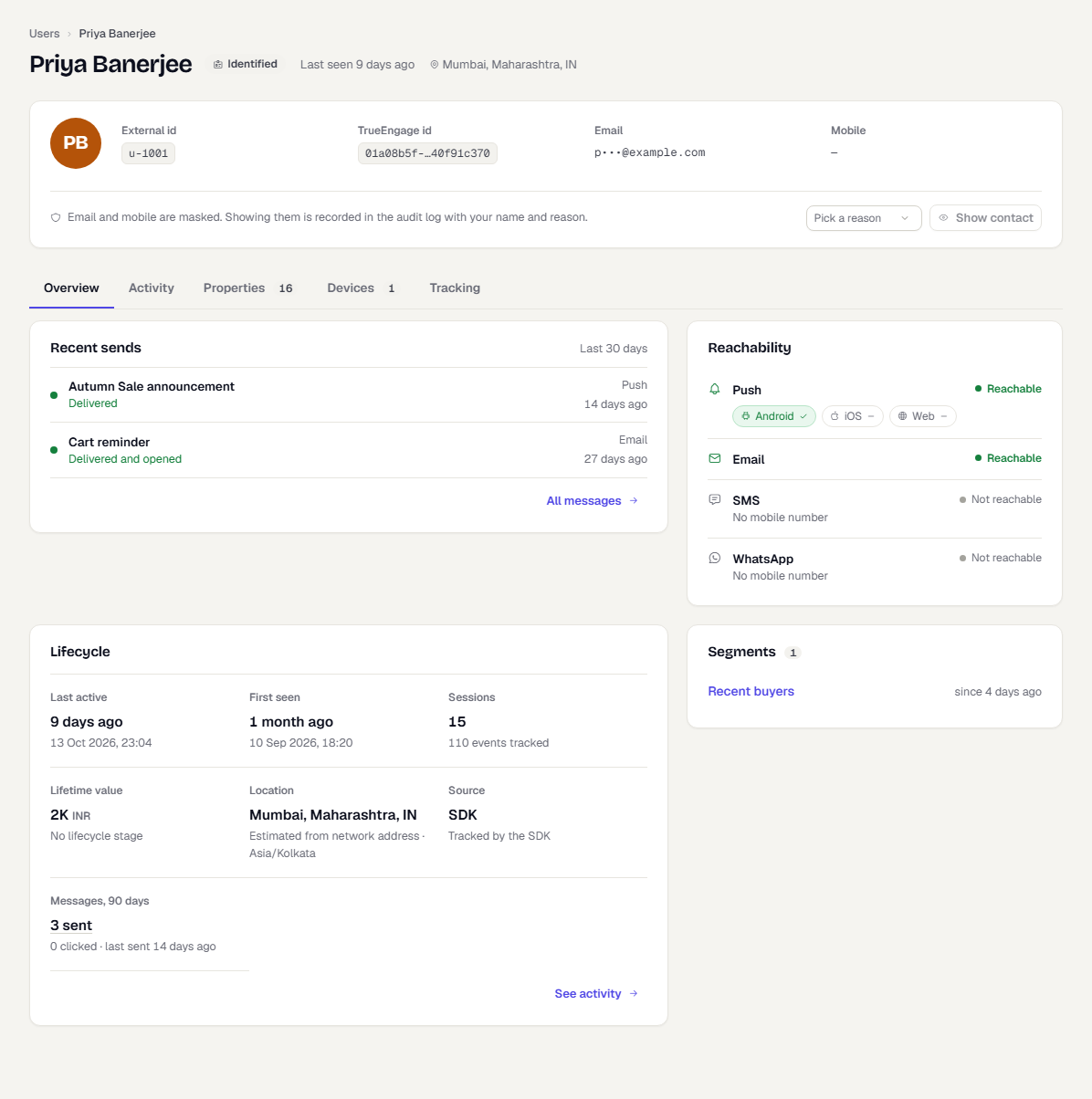
Overview
- Recent sends lists messages from the last 30 days, including sends that were held back, with the reason. Select All messages to open them in Activity.
- Reachability shows each channel and whether the person can receive it now. For push it lists each platform. Select See devices to jump to the Devices tab.
- Lifecycle shows Last active, First seen, Sessions, Lifetime value, Location, Source and Messages, 90 days. Location comes from the device when the person allowed it, or an estimate from the network address otherwise.
- Segments lists the stored segments the person belongs to, with how long ago they entered. On-demand segments are not listed because they are worked out when they run.
Activity
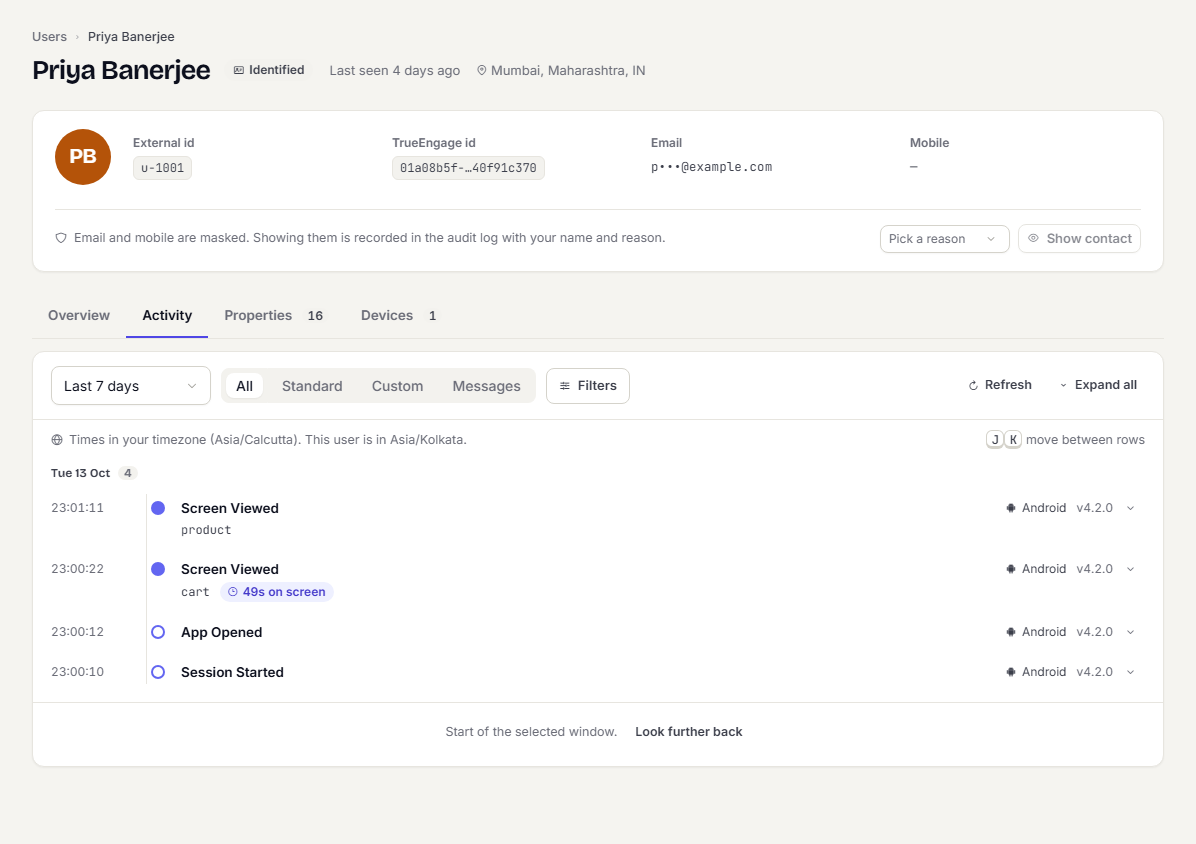
A timeline of events and messages. Use the date range (Last 24 hours, Last 7 days, Last 30 days, Last 90 days or Custom range; the default is Last 7 days and a window covers at most 90 days), the All / Standard / Custom / Messages switch, and Filters for platform, device and event name. Select Expand all to open every row.
Properties
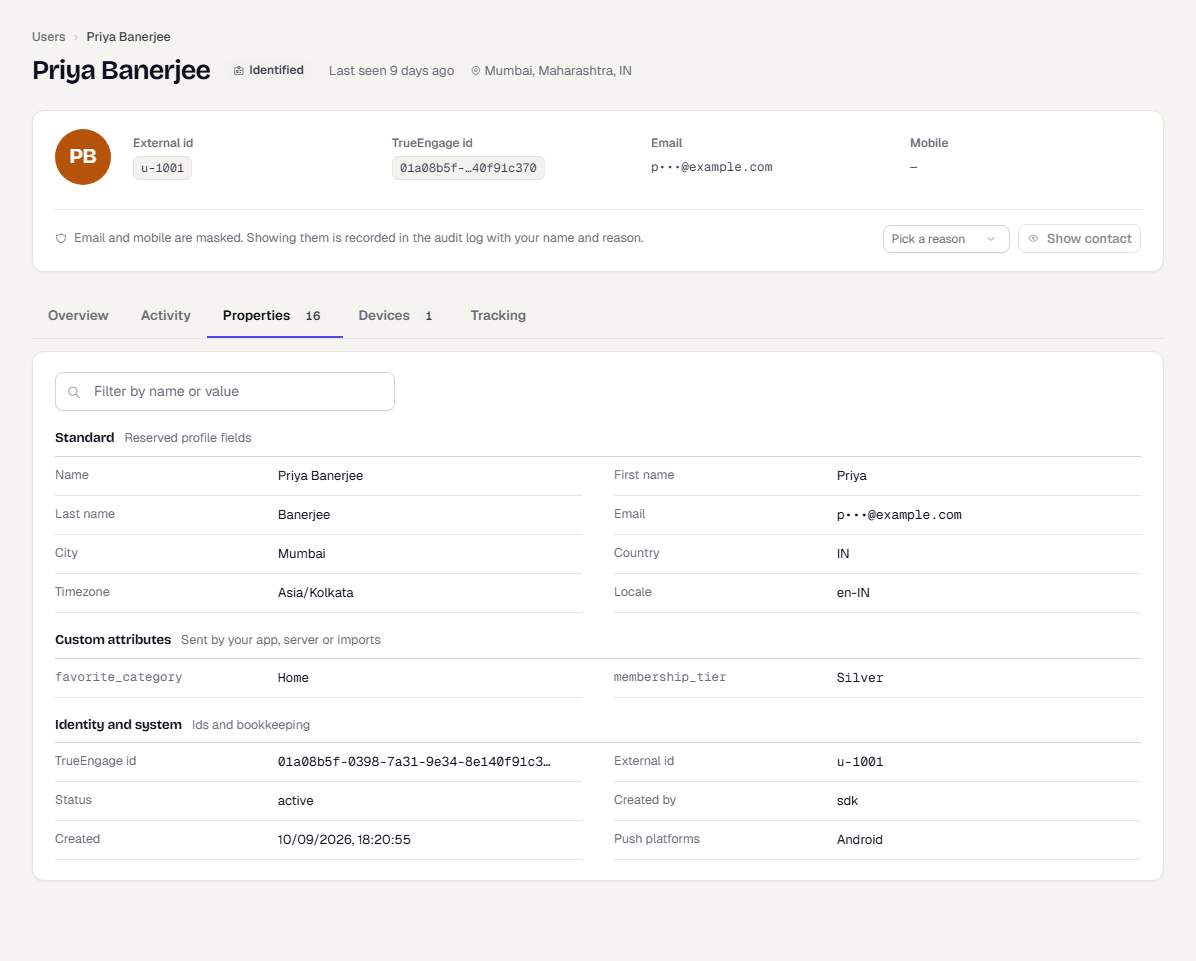
Every attribute on the profile, in three groups: Standard (reserved profile fields such as name, city and locale), Custom attributes (sent by your app, server or imports) and Identity and system (ids and bookkeeping). Use Filter by name or value to narrow the list. Long values have an expand button, and each row has a copy button except masked values.
Devices
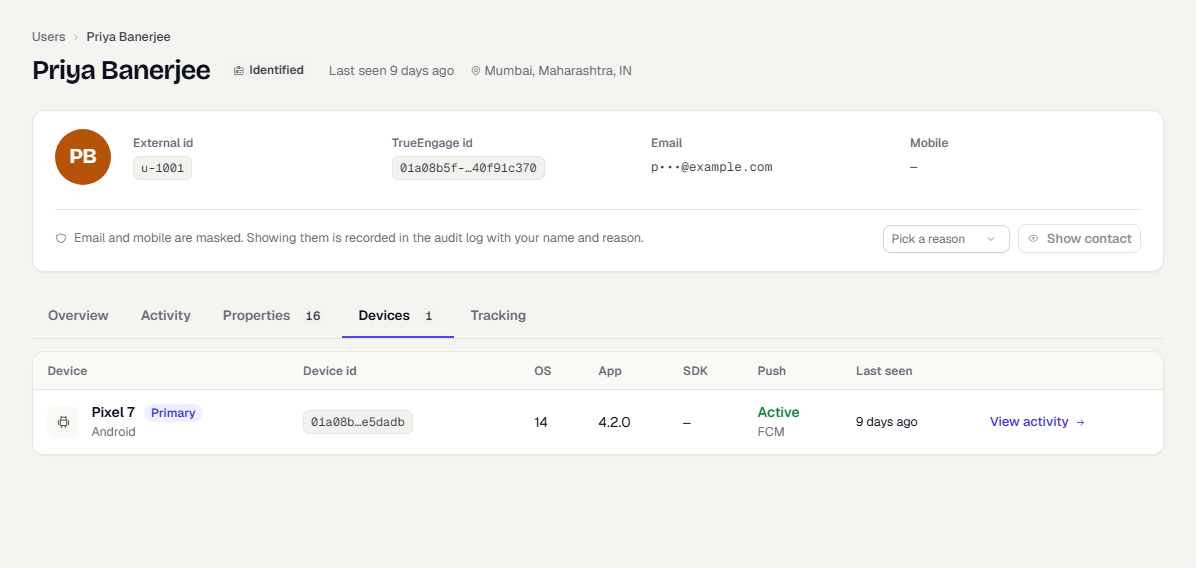
One row per device with its platform, OS, app version, SDK version and push status (Active, Notifications off, or a token state). Primary marks the person's main device. Select View activity to see only that device's activity.
Tracking
Shows the first and last touch (campaign, source and the channel the person arrived through), the click ids and device ids held for ad platforms with masked values, and the person's ad consent. Showing an identifier needs Users › Download and is recorded in the audit log. See See where each user came from.
What happens next
- Every reveal is in the audit log with your name, the reason and the time.
- Use what you learned to fix a send: check the segment the person should be in.
- Look up another person: Find a user.
Was this page helpful?