Fix connection errors and reconnect
How TrueEngage checks a connection, what pauses when it stops working, and how to reconnect so sending resumes.
TrueEngage checks every connection every 6 hours. When an ad platform stops accepting the saved sign-in, token or secret, TrueEngage pauses what depends on it and asks you to reconnect. After you reconnect, sending resumes on its own.
Connection statuses
| Status | Meaning |
|---|---|
| Connected | The last check passed |
| Reconnect needed | The platform no longer accepts the saved credentials |
| Error | The last check failed for another reason. The page shows the code |
| Disabled | The connection is switched off |
Only a rejected sign-in, token or secret changes the status to Reconnect needed. A busy platform, a missing permission on our side or a setup problem is recorded as the last error, but changes nothing else.
What pauses
When a connection needs a reconnect:
- Every active mapping is paused.
- Every audience shows Needs reconnect and stops updating.
- New events for paused mappings are not queued, so conversions that happen during the pause are never sent.
- Events already queued wait. They are retried after you reconnect, until they pass the platform's maximum age. Past it, they expire. See Send events as conversions.
- An amber banner shows on the connection page.
Mappings and audiences you paused yourself stay paused after a reconnect.
Reconnect
- Open Data, then Ad platforms, and select the connection with Reconnect needed.
- Select the button in the banner. Its label depends on how you connected:
- Reconnect with Google Ads or Reconnect with Meta (connections made earlier with a sign-in)
- Enter a new access token
- Enter a new API secret
- Enter new credentials (Google Ads, Snap Ads and X Ads)
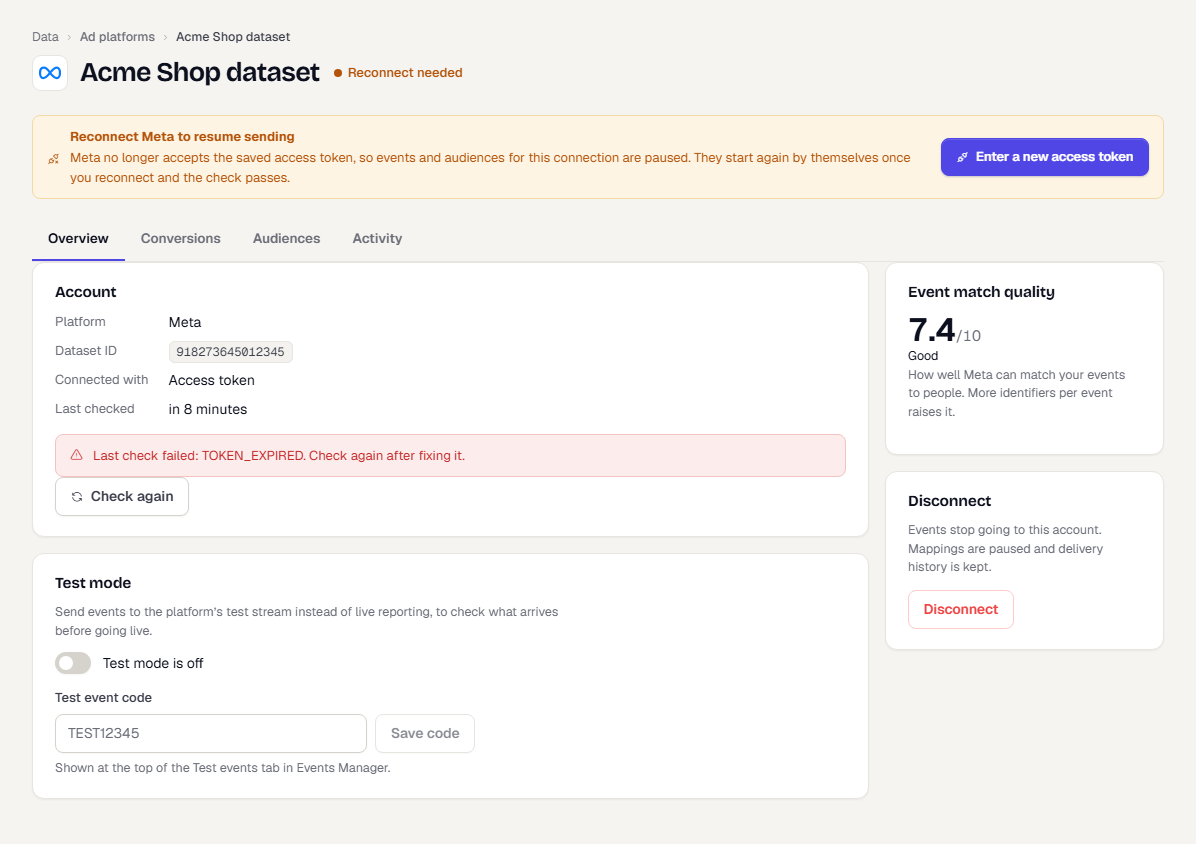
- For a connection made with a sign-in, sign in with a user who can reach the same account. A different account is refused and nothing changes.
- For a token, secret or set of credentials, paste the new value and select Reconnect and check.
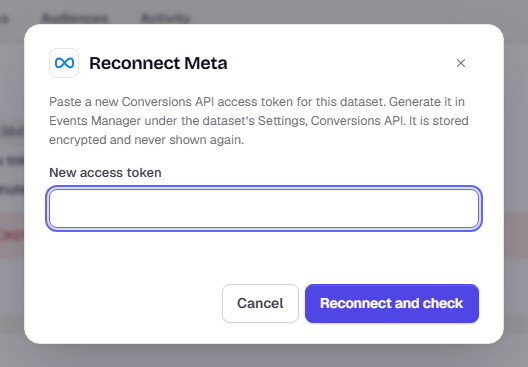
TrueEngage checks the new credentials first. If the platform refuses them, nothing is changed and the connection keeps what it had. When the check passes, the status returns to Connected, and the mappings and audiences that were paused by the connection resume.
People without permission
You need Create and manage on Ad platforms to reconnect. With View only, the banner tells you to ask someone who can.
Check a connection now
Select Check again on the Overview tab to run the checks without waiting. A passing check on a connection that needs a reconnect also resumes it.
Disconnect
Disconnect on the Overview tab stops events going to the account. Mappings are paused and delivery history is kept. The account can be connected again later.
If the connection has audience syncs, the dialog shows how many and asks what happens to the people TrueEngage added to the audiences on the platform:
- Remove people from the platform audiences too (recommended, the default). TrueEngage takes out everyone it added before disconnecting. The audiences stay on the platform, empty.
- Keep the audiences on the platform. Everyone stays in them and ads that use them keep working. After you disconnect, TrueEngage can no longer update them. When someone withdraws consent or asks to be erased, they stay in the audience until you remove them on the platform yourself.
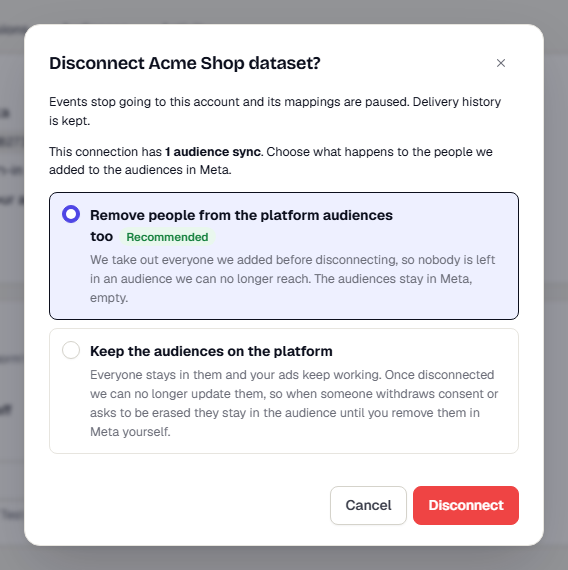
A connection with no audience syncs has nothing to choose.
Related pages
Was this page helpful?