Find and filter campaigns
Search and filter the campaigns list by channel and status, and read the Name, Channel, Type, Status, Next or last run and Updated columns.
The campaigns list shows every campaign in the current environment, newest changes first.
Before you start
You need permission to view campaigns. To create one, you also need permission to manage campaigns.
Read the list
- Open Engage, then Campaigns.
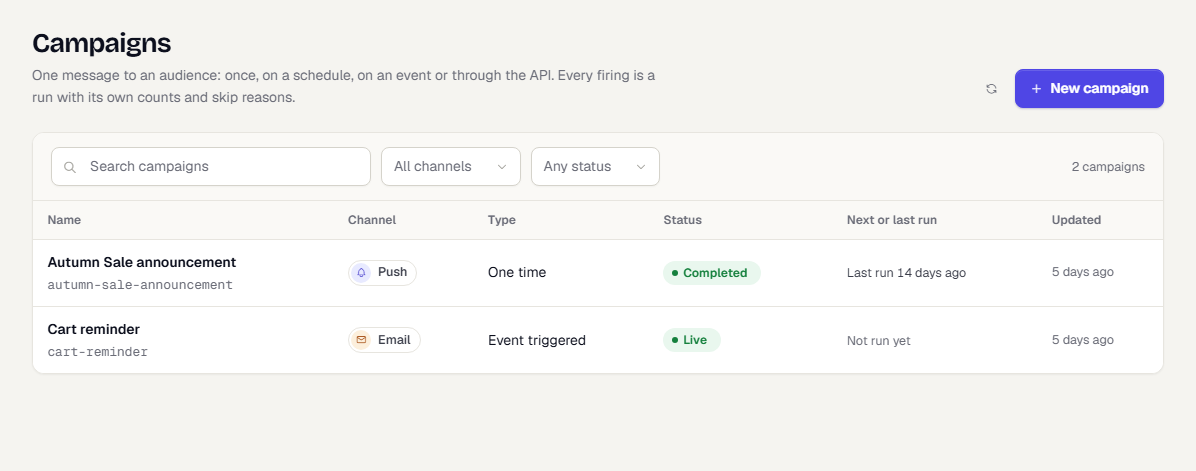
Each row shows:
| Column | What it shows |
|---|---|
| Name | The campaign name and its slug |
| Channel | Push, email, SMS or another channel |
| Type | One time, recurring, event triggered, API triggered or transactional |
| Status | Draft, Scheduled, Running, Completed and so on. A published event-triggered or API-triggered campaign shows Live, because it waits for a trigger and nothing is running. A Promoted badge appears here too; see Promote a campaign |
| Next or last run | The next scheduled run, or when it last ran |
| Updated | When someone last changed it |
Search and filter
- Type in Search campaigns and press Enter.
- Open All channels and pick a channel.
- Open Any status and pick a status.
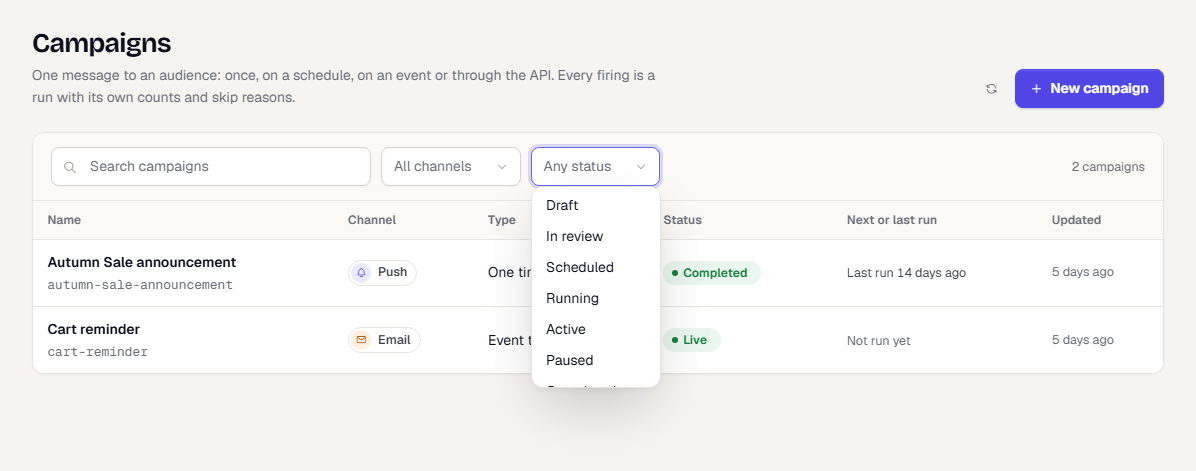
The filters combine. The count at the right, for example 2 campaigns, shows how many match. If nothing matches, the list says No campaigns match. Clear the filters with the x in each box.
The status filter offers Draft, In review, Scheduled, Running, Active, Paused, Completed, Stopped and Archived.
Select the refresh button at the top right to reload the list.
What happens next
Click a row to open the campaign. See Read a campaign's results. To make a new one, click New campaign and follow the campaign wizard.
Was this page helpful?