See where each user came from
What TrueEngage records about the ad behind a user, where it comes from, and how to use it on profiles, in segments and in analytics.
TrueEngage records a touch whenever it learns which campaign or ad brought a person. It keeps the first touch and the last touch on the profile, plus the click ids and device ids it needs to send conversions. This page lists what is captured, where it comes from, and where you can use it.
What a touch contains
A touch can carry these values. Anything missing is left empty.
- Campaign:
utm_source,utm_medium,utm_campaign,utm_content,utm_term - Google click ids:
gclid,gbraid,wbraid,gad_source,gad_campaignid - Meta click ids:
fbclid(stored asfbc) andfbp - Analytics ids:
ga_client_idfor web,firebase_app_instance_idfor apps - Device ids:
gaidon Android andidfaon iOS - Context: the last IP address and user agent, used to improve Meta match quality
TrueEngage also works out a normalised media source and an ad platform (google, meta, organic or other) from these values.
Where touches come from
| Source | What happens |
|---|---|
| Web SDK | Reads the landing URL and the _fbp and _ga cookies once per new touch. Nothing is captured while tracking is opted out |
| Android SDK | Reads the Play install referrer on first launch, and the parameters of every http(s) link that opens the app |
| iOS SDK | Reads the parameters of every link that opens the app. Installs through a smart link are recorded by TrueEngage, not the SDK |
| Flutter SDK | Uses the Android and iOS code |
| Smart links | A click stores the ad click ids. The touch is recorded when the install is matched, dated at the click. See Smart links and ad conversions |
| Your server | Send an event named $acquisition with the values above |
| CSV import | See Import past ad tracking data |
A link with no tracking parameters records nothing. The SDK sends the reserved event $acquisition, and your own code cannot send that name from the SDK.
First touch and last touch
- First touch keeps the earliest touch, by the time the click or visit happened.
- Last touch keeps the latest.
Touches can arrive late or out of order, for example from an import. The result is the same in any order.
Read a profile
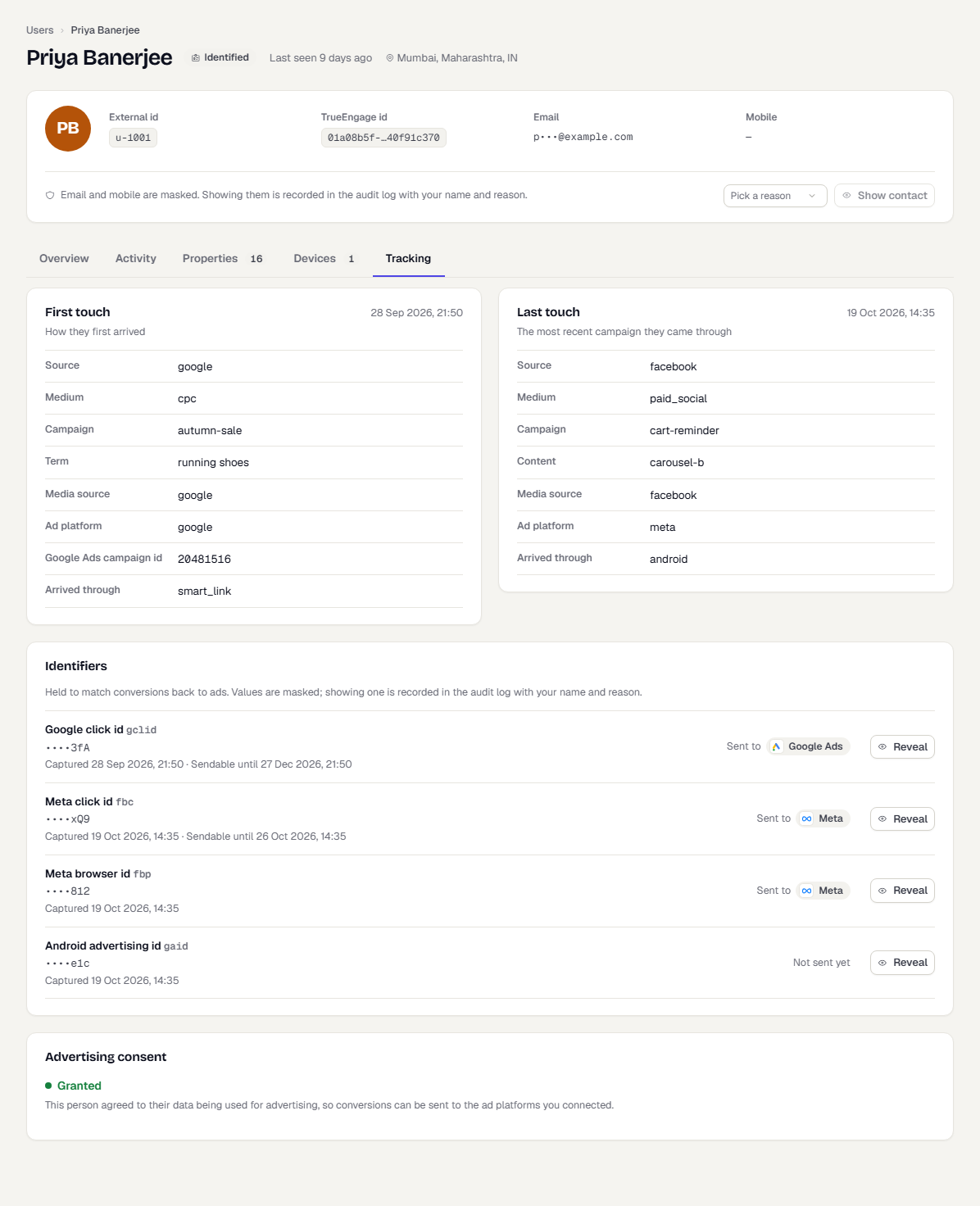
Open a user and select the Tracking tab.
- First touch and Last touch show source, medium, campaign, content, term, media source, ad platform, Google Ads campaign id and the channel it arrived through: web, Android, iOS, smart link, import or API.
- Identifiers lists click ids and device ids, masked, with the capture date and a Sendable until date. Each row shows which platforms received it. Expired ids are marked Expired.
- Advertising consent shows the consent value. See Ad consent.
Show a masked value
You need the Users › Download permission.
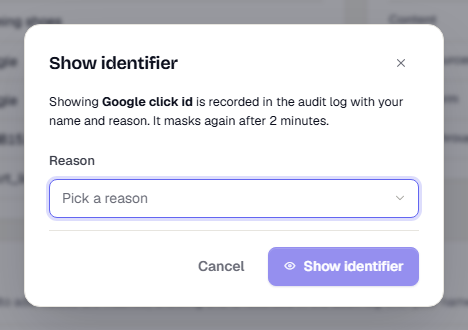
- Select Reveal on the identifier row.
- Choose a Reason. If you choose Other, say what it is for.
- Select Show identifier.
The value shows for 2 minutes, then masks again. The audit log records your name and reason.
How long click ids can be sent
| Id | Sent for |
|---|---|
gclid, gbraid, wbraid |
90 days from the click |
fbc |
7 days from the click |
TrueEngage keeps an id after that, until a newer one replaces it. It stops sending it. The conversion still counts in TrueEngage.
Use tracking data
The tracking attributes appear in the attribute lists wherever you choose a user attribute:
- Segments: for example, users whose
first_ad_platformismeta. - Analytics: break funnels, reports and dashboards down by the first or last touch values.
- Imports: users imports route tracking columns to the touch.
First and last touch attributes are read only. Only a touch can set them. The attributes are first_ or last_ followed by utm_source, utm_medium, utm_campaign, utm_content, utm_term, media_source, ad_platform, gad_campaignid, touch_channel or touch_at.
Identifier attributes, such as gclid, can be tested as set or not set. They are not offered as breakdowns, because each user has a different value.
SDK details
- Firebase. Call
setFirebaseAppInstanceIdif your app uses Firebase Analytics. GA4 needs it. See Send events to Google Analytics 4. - Android advertising ID. The SDK reads it only if your manifest declares the
AD_IDpermission and the user has not limited ad tracking. Limiting ad tracking clears a stored ID. See When ad identifiers are cleared. - iOS advertising ID. Your app asks for App Tracking Transparency permission. Pass the ID with
setAdvertisingIdentifieronly after the user allows it. The SDK never shows the prompt. - Web store links.
storeLinkreturns your Play Store URL with the visitor's campaign values in the install referrer, so the install keeps its source.
For setup, see Android SDK, iOS SDK, Web SDK and Flutter SDK.
When ad identifiers are cleared
TrueEngage deletes an identifier when the person takes it back. The SDKs report this, and the server removes the stored value.
| What happened | What is cleared |
|---|---|
| The person denies App Tracking Transparency, or turns it off later (iOS) | The IDFA |
| The person limits ad tracking (Android) | The Google advertising id |
| The advertising id is reset | The old id is removed and the new one is stored |
Your app passes null to setAdvertisingIdentifier or setFirebaseAppInstanceId |
That id |
Your app calls optOut for tracking |
Every ad identifier |
Web only: your site calls clearAdIdentifiers |
The kinds you name, or all |
The SDK sends a clear only for an identifier it reported earlier, so a person who never had one costs nothing. A clear only removes values captured at or before the moment it happened, so a newer id is never deleted by a late message.
Separately, TrueEngage deletes all stored identifiers for a person whose ad consent is withdrawn or who was deleted. This runs hourly, after their audience removals finish. See Control which users ad platforms receive.
If the person was in a Meta audience matched on device advertising id, TrueEngage removes the old id from the audience first. It then adds the person again with their current identifiers if they still qualify, so a reset does not leave the old device in the list.
A cleared identifier disappears from the profile's Tracking tab.
For the calls, see Clearing ad identifiers.
What happens next
Was this page helpful?