Link settings
Set the redirect allowlist, install matching, click filtering and retention, links created in your app, and the signing key.
Smart Links > Settings holds the settings that apply to every link in the environment. Settings about one host name, such as redirects, slugs, QR style and webhooks, are on the domain instead. See Link domains.
Before you start
- You need Create and manage permission on Smart Links to open Settings.
- Test and Live have separate settings.
- The page has a section menu. The section stays in the address (
?section=). A dot marks a section with unsaved changes. Select Save changes at the bottom to keep them.
Redirect allowlist
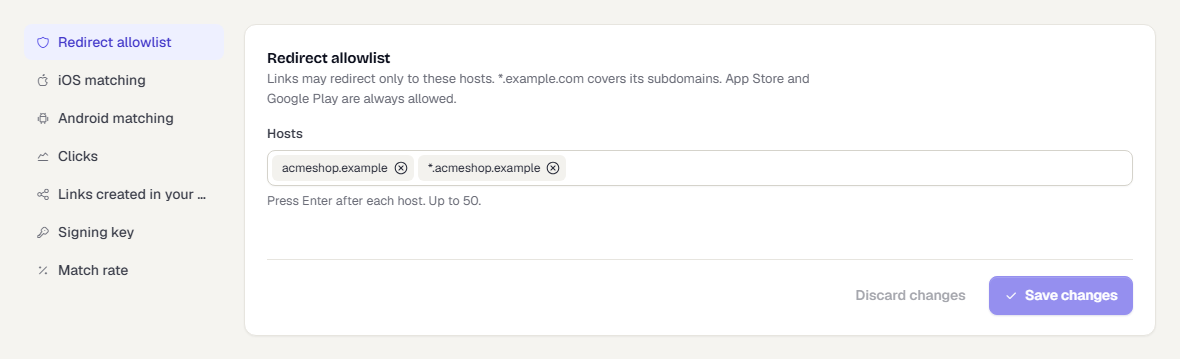
Links may redirect only to the hosts on this list. It applies to every web address a link, template or rule can send people to, and to a domain's root and not-found redirects. It is checked when you save and again at every click.
- Enter a host such as
shop.acmeshop.example, or*.acmeshop.exampleto cover its subdomains. - You can add up to 50 hosts. Press Enter after each one.
- The App Store and Google Play are always allowed. A verified web app in Connect > Apps needs no entry.
An empty list means no web address is allowed yet. Forms that need one tell you so and link here.
Platform matching
After someone installs, TrueEngage compares the device with recent clicks to find the one that led to it. This section has a tab for each platform, iOS and Android. The tab stays in the address (?section=platform-matching&platform=android). See Deep links and deferred deep links.
iOS
| Setting | Meaning |
|---|---|
| Match window | How long after a click an install can still be matched. 15 to 240 minutes. The default is 60. |
| Strictness | Strict credits only clear matches. Balanced (default) credits most real installs and keeps wrong credits rare. Lenient credits the most installs and the most wrong ones. |
A lenient setting shows a warning. The page shows Custom if a value was set outside these choices.
Android
Match window is how long after a click an install can still be matched through the Play Install Referrer. 1 to 30 days. The default is 7.
Clicks
| Setting | Meaning |
|---|---|
| Filter bots | Does not count clicks from known bots and link scanners. On by default. |
| Click retention | How long click records are kept, 30 to 400 days. Older clicks are deleted. |
Links created in your app
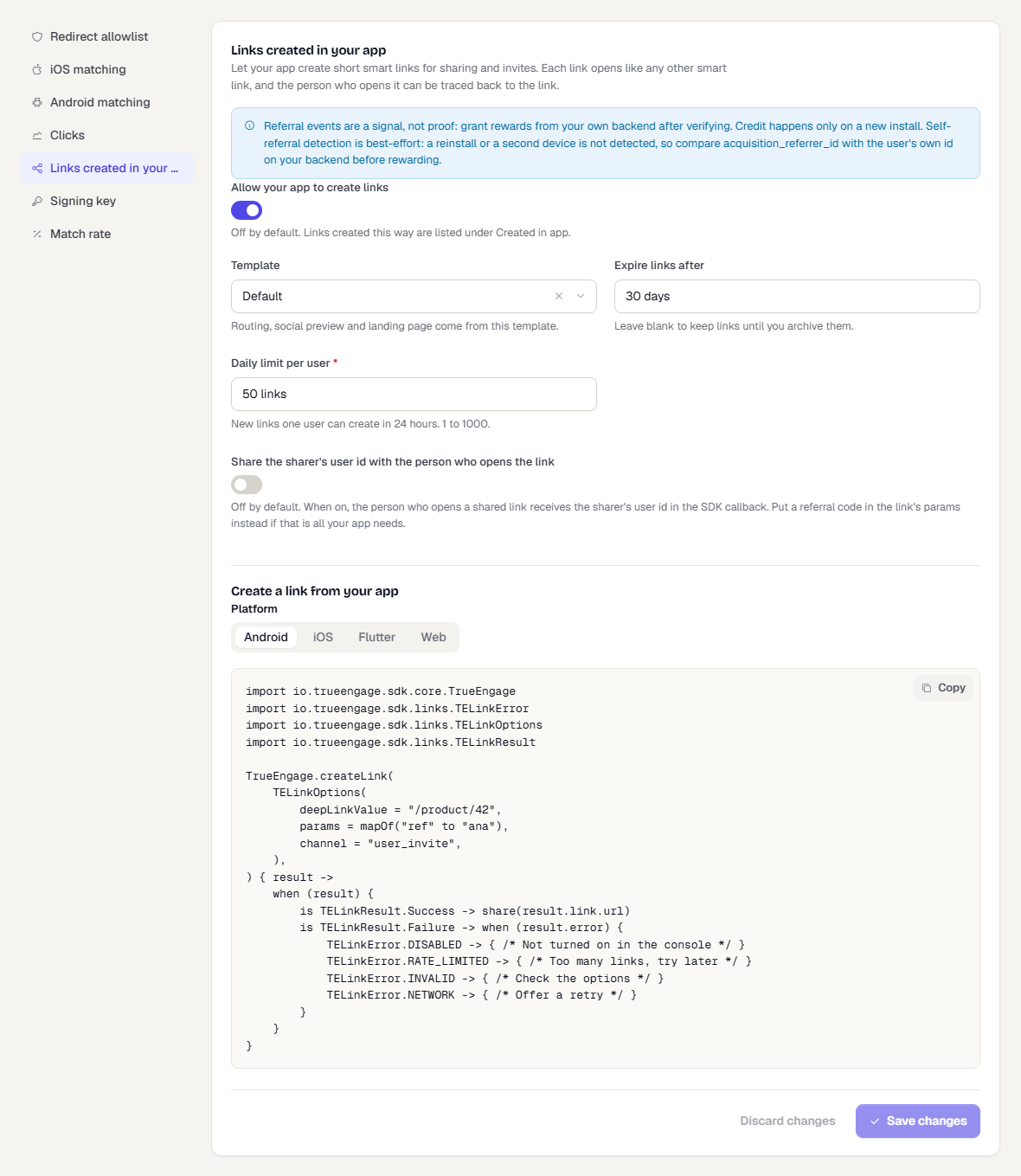
Lets your app create short smart links for sharing, referrals and invites. See Links API and webhooks.
| Setting | Meaning |
|---|---|
| Allow your app to create links | Off by default. Until it is on and a template is chosen, the SDK call fails with disabled. |
| Template | Routing, social preview and landing page for these links come from this template. |
| Expire links after | Days until the link expires. Leave it blank for links that never expire. |
| Daily limit per user | How many new links one person can create in 24 hours. 1 to 1000. The default is 50. |
| Share the sharer's user id with the person who opens the link | Off by default. When on, the person who opens a shared link receives the sharer's user id in the SDK callback. If your app only needs a referral code, put that code in the link's values instead. |
Links made this way are listed under Created in app on the Links page. Treat a referral as a signal, not proof: grant rewards from your own backend after checking. Credit happens only on a new install. A reinstall or a second device is not detected as a self-referral, so compare acquisition_referrer_id with the person's own id on your backend before you reward anyone.
Signing key
Use a signing key for links your own server builds, such as one link per person in an email. A template with Require a signature blocks any link that is unsigned, changed or expired. See Templates and bulk creation.
- Select Create signing key.
- Copy the key. It is shown once. Store it in your server's secrets, never in an app.
- Sign each link on your server.
To Rotate key, confirm the dialog. The previous key keeps working for 24 hours so links you already sent still open. After that, links signed with it are blocked. Update your server before then.
How to sign a link:
- Add
te_exp, the expiry as Unix seconds. Links without it never expire on their own. - Remove any existing
te_sig. - Sort all parameters by name, then by value. Percent-encode names and values like JavaScript
encodeURIComponent, and join them asname=valuewith&. - Compute HMAC-SHA256 of
<host in lower case><path>?<sorted query>with your key. Encode the result as base64url without padding. - Add it as
te_sig.
import { createHmac } from 'node:crypto';

const KEY = process.env.TE_SIGNING_KEY;

export function signLink(url, ttlSeconds = 3600) {
  const u = new URL(url);
  u.searchParams.delete('te_sig');
  u.searchParams.set('te_exp', String(Math.floor(Date.now() / 1000) + ttlSeconds));

  const query = [...u.searchParams]
    .sort(([a, x], [b, y]) => (a < b ? -1 : a > b ? 1 : x < y ? -1 : x > y ? 1 : 0))
    .map(([k, v]) => `${encodeURIComponent(k)}=${encodeURIComponent(v)}`)
    .join('&');

  const sig = createHmac('sha256', KEY)
    .update(`${u.hostname.toLowerCase()}${u.pathname}?${query}`)
    .digest('base64url');

  u.searchParams.set('te_sig', sig);
  return u.toString();
}
The console shows the same recipe for Node, Java and Python.
Match rate
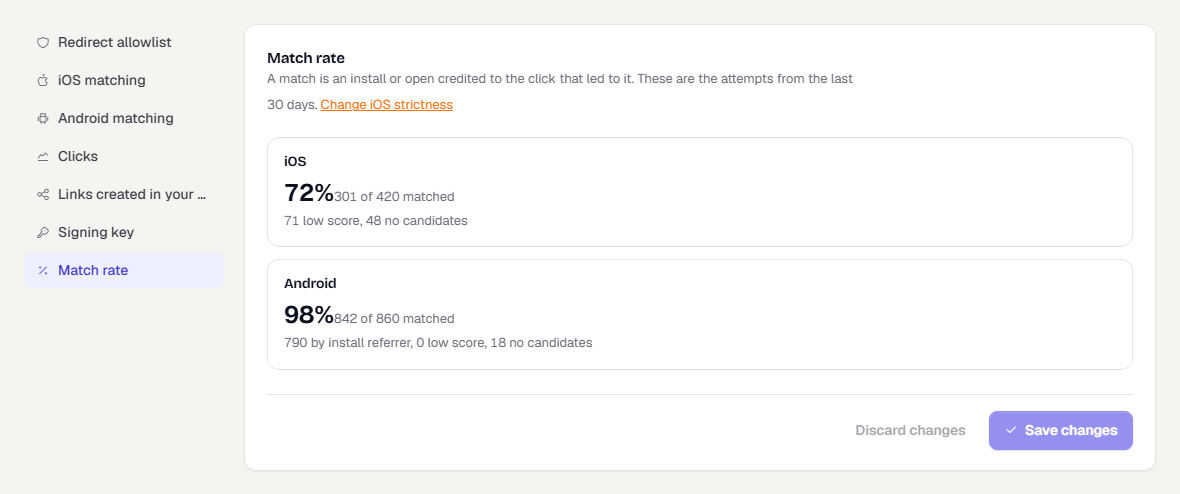
A read-only card with the last 30 days, per platform: the share of attempts that matched, and how the rest failed (low score, no candidate). Android shows how many matched by install referrer. Use it with Platform matching to tune strictness. Change iOS strictness opens the iOS tab of that section.
Related pages
Was this page helpful?