Manage user attributes
Review the attributes stored on user profiles, give them display names, hide them from pickers or block them.
The User attributes tab lists every attribute stored on user profiles, such as city or loyalty_tier. Attributes are created the first time your app, server or an import sets one.
Before you start
- You need permission to manage data to edit, hide or block attributes. Without it, you can open an attribute to view it.
Review attributes
- In the sidebar, open Data, then Data Management, and select the User attributes tab.
- Search by name or key. Filter by type, status, or Standard and custom.
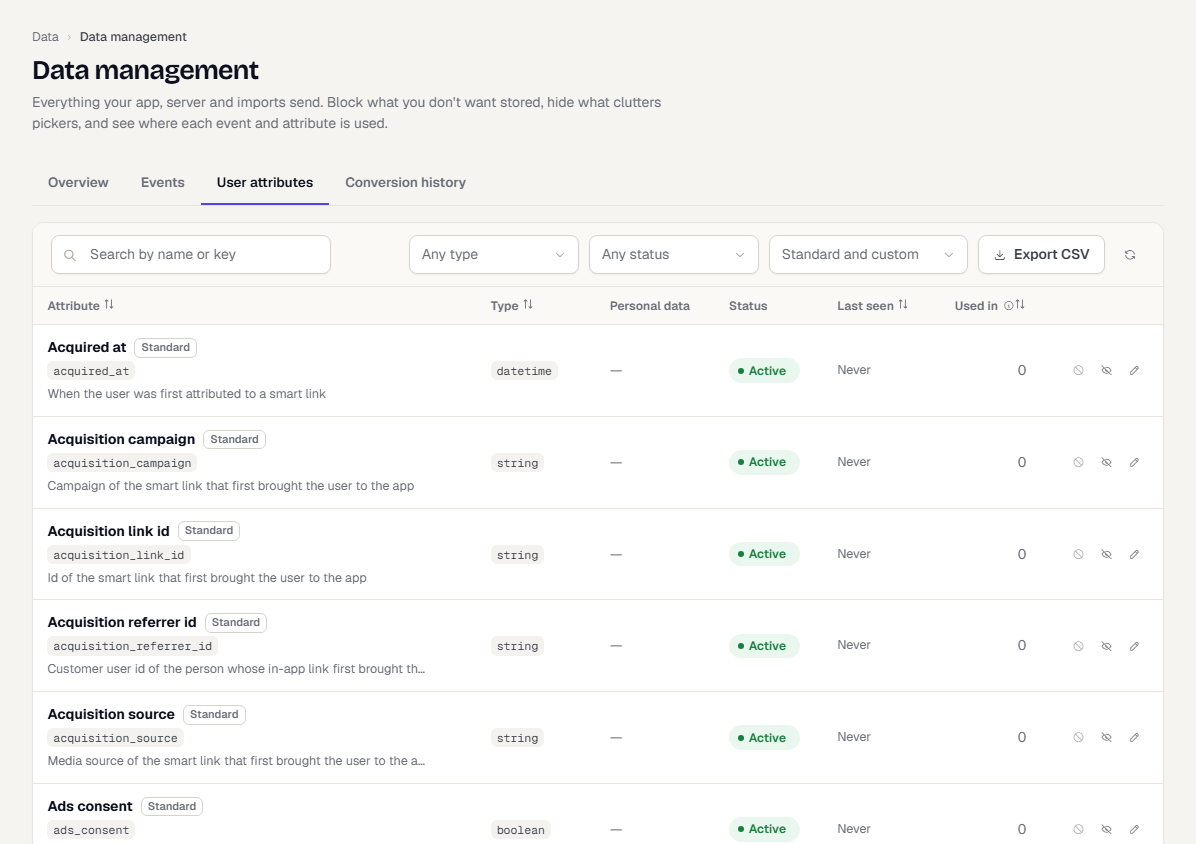
Each row shows the attribute, its type, whether it holds Personal data, its status, when it was last seen, and how many places use it. Standard attributes are part of every profile.
Rename or describe an attribute
- Select a row (or its pencil icon) to open Edit attribute.
- Enter a Display name. It replaces the key in segment, campaign and report pickers.
- Add an optional Description of what it holds and where it comes from.
- To leave it out of pickers, switch on Hide from pickers. It is still collected and still works in saved segments and campaigns.
- Select Save changes.

Hide or block an attribute
- Hide from pickers only changes what pickers offer.
- Block stops saving values for the attribute from the next one received. Values already stored stay. Choose Allow to save it again.
If an attribute is in use, the block dialog lists where and offers Block anyway. Standard attributes cannot be blocked, but you can hide them.
What happens next
- Use attributes when you build segments and campaigns.
- Bring attributes in at scale with a CSV import.
Was this page helpful?