Import past ad tracking data
Load first and last touch data for users you already have, from a CSV file, without creating users.
Use an Ad tracking import to record where existing users came from, such as the campaign and click id behind a signup. Each row adds one touch to a user that already exists. The import never creates users.
Before you start
- You need permission to manage data.
- Your file needs one column with the user's external ID, and at least one column of tracking values.
- Users that are not in TrueEngage yet are skipped and counted. Import them first. See Import users or events from a CSV.
- Imported touches fill in profiles and segments. They do not send conversions to ad platforms.
The sample ad-tracking-import.csv has the columns customer_id, utm_source, utm_medium, utm_campaign, gclid and captured_at.
Columns you can use
| Column | Meaning |
|---|---|
utm_source, utm_medium, utm_campaign, utm_content, utm_term |
Campaign values |
gclid, gbraid, wbraid, gad_source, gad_campaignid |
Google click ids and campaign |
fbclid or fbc, fbp |
Meta click id and browser id |
ga_client_id, firebase_app_instance_id |
GA4 ids |
gaid, idfa |
Device advertising ids |
client_ip, client_user_agent |
Last seen IP address and user agent |
captured_at |
When the click or visit happened |
Header names are not case sensitive. A row needs at least one value other than client_ip and client_user_agent.
Create the import
- Go to Connect, open Data imports, then select Import.
- Enter an Import name.
- Choose Ad tracking as the Import type. The identifier is fixed to External ID.
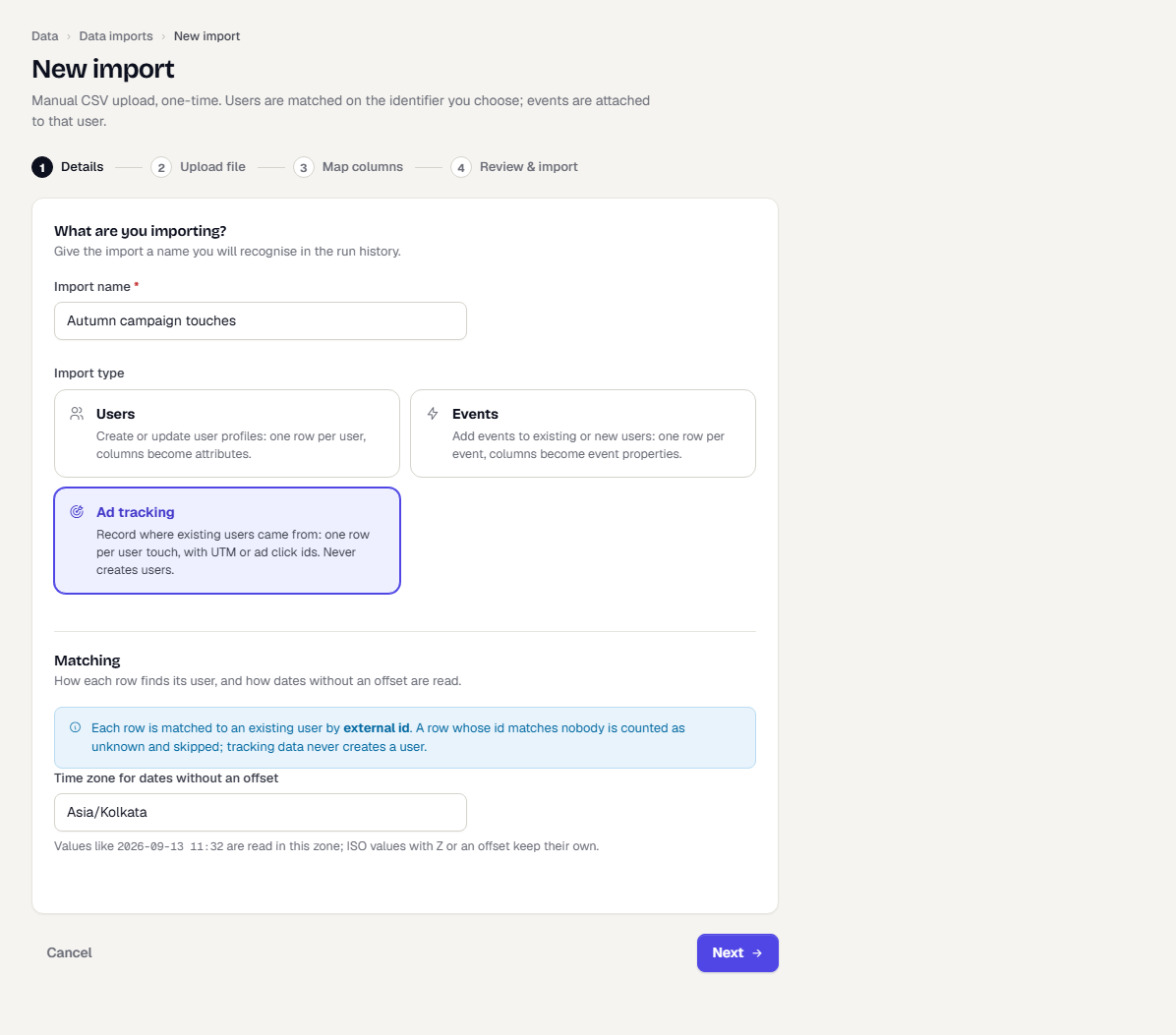
- Select Next, then drop your CSV on the page and select Next again.
- On the mapping step, choose the Primary key column, the one with the external ID.
- For every other column, choose what it maps to in Map to:
- Tracking field, then pick the field in Tracking field
- Captured at · when the touch happened, for the date column
- Skip column
TrueEngage fills these in from your header names. Check them.
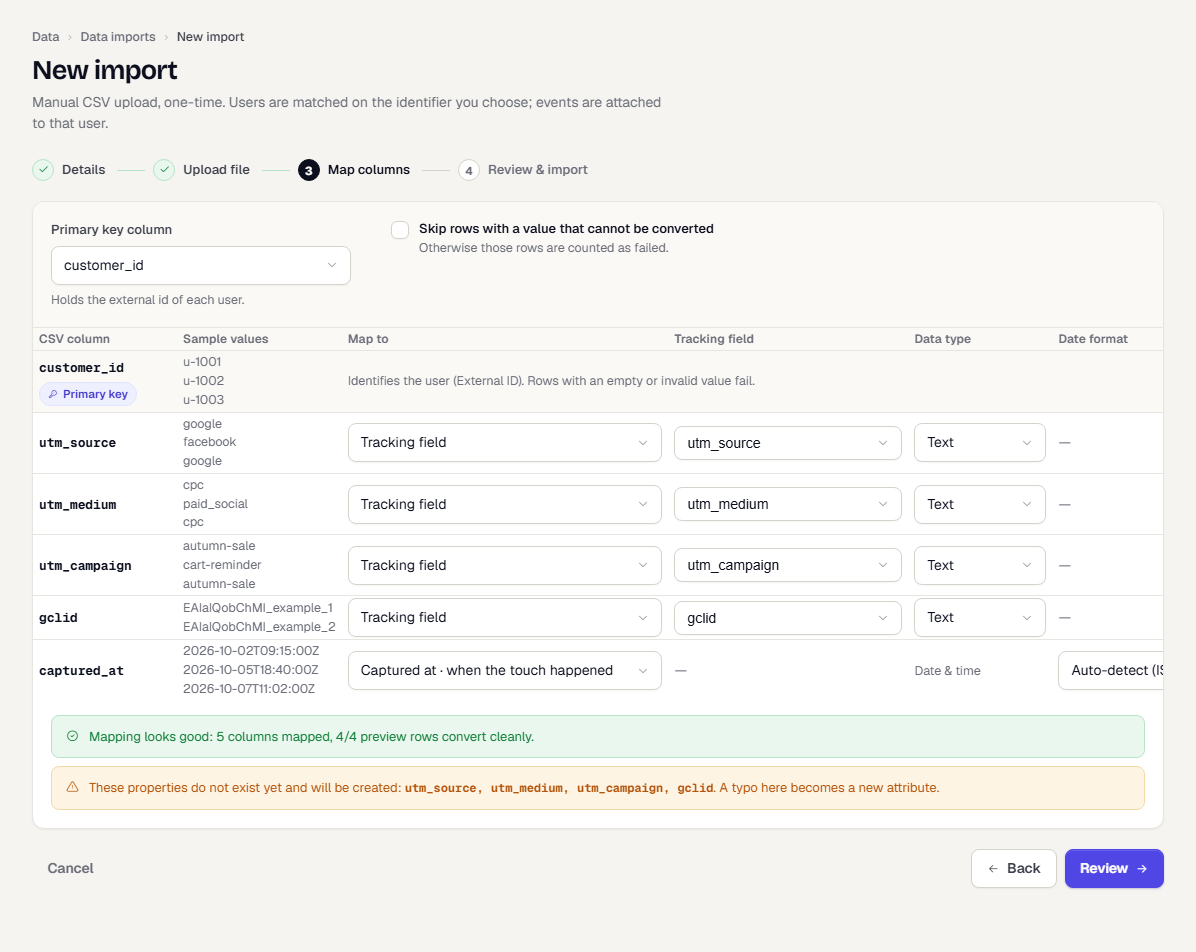
- Check the Touch time note. With a Captured at column, each touch is dated from the file. Without one, every touch is dated the moment the import runs, which can put an old click after a newer one.
- Select Next and review. Create the import, then run a Dry run from its page to see the counts before the real run.
Read the result
A run reports three counts:
- Matched: users found and given the touch
- Unknown: the external ID matches no user, so nothing was created
- Invalid: no tracking field was filled, a date could not be read, or the row was not recorded
Rows are checked against these limits: captured_at cannot be more than 5 minutes in the future, or before 2010.
Open Run history and a run's menu to see row failures. For details, see Read a run's results.
Order does not matter
First touch keeps the earliest captured_at and last touch keeps the latest. You can import an older file after a newer one, and the result is the same.
Tracking columns in a users import
A users import can also carry tracking columns. TrueEngage moves them out of the user's attributes and records them as a touch. Without a Captured at column, the touch is dated now. A column whose name matches an existing custom attribute shows a warning, because its values become a touch and not that attribute.
To backfill history, use the Ad tracking import.
What happens next
Was this page helpful?