Promote a campaign from Test to Live
Copy a tested template, segment or campaign into the Live environment and read the Promoted badge.
Promotion copies something you built and tested in Test into Live, so you don't rebuild it. You can promote templates, segments and campaigns. The Test copy doesn't change.
Before you start
- You work in the Test environment. The Promote to Live button doesn't appear in Live.
- You need permission to manage campaigns in Live as well as Test.
- The campaign should be in good shape. Promotion runs checks first and blocks if any fail.
Steps
- Switch to Test with the environment switch in the top bar.
- Open the campaign from Engage, then Campaigns.
- Click Promote to Live in the page header.
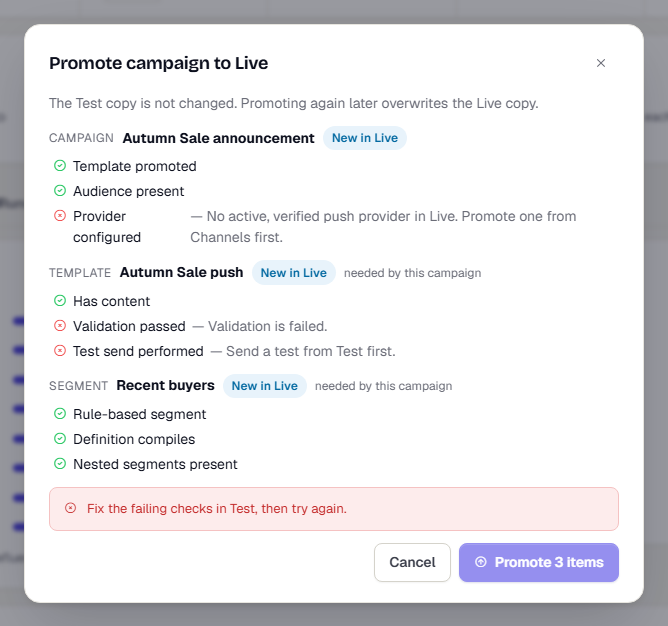
- Read the report. It lists everything that will be created in Live. Each item is tagged New in Live or Overwrites Live copy. If the campaign needs a template or segment that isn't in Live yet, those appear too, marked as needed by the campaign.
- Check the list of checks under each item. A failing check blocks promotion and shows a red cross with the reason. Fix it in Test and try again. A warning (orange triangle) doesn't block. In the Acme Shop demo, promotion is blocked: Live has no verified push provider, the template has no recorded test send, and the segment definition fails a check.
- Click Promote, or Promote 3 items when dependencies come along. To back out, click Cancel.
The dialog then says Promoted to Live. For a campaign it adds that the Live copy is a draft: open it in Live, review it, and publish it there. Open in Live takes you straight to it.
Promote a template or segment
The same button and dialog appear on a template and on a segment. Promote those first if you want to control exactly what goes to Live. Promoting a campaign brings any missing ones along.
Read the Promoted badge
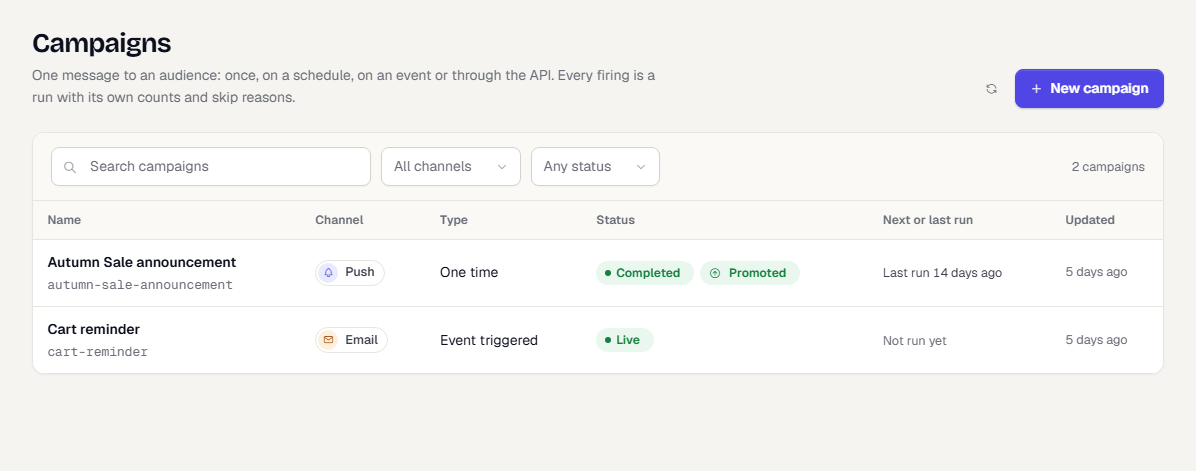
After you promote, a Promoted badge appears next to the status on the campaigns list and on the campaign page in Test.
| Badge | Where | Meaning |
|---|---|---|
| Promoted | Test | A Live copy exists. Click the badge to open it |
| Changed since promotion | Test | You edited the Test campaign after promoting. Promote again to update Live |
| Promoted from Test | Live | This item was created by promotion |
Promoting again overwrites the Live copy with the current Test version. The screenshot above uses sample status data, because promoting from the Acme Shop demo would create a real record in Live.
What happens next
Open the Live copy, check the audience, schedule and provider, then publish. See The campaign wizard and Test and Live.
Was this page helpful?