Channels overview
How providers, routing rules, sending domains and delivery controls decide how a message is sent.
The Channels section is where you connect the vendors that deliver your messages and decide how they are used. Campaigns and flows choose a channel (push, email, SMS, RCS, WhatsApp or webhook). Everything on this page decides which vendor sends it, from which address, and whether it is allowed to go out at all.
You need permission to view channels to see these pages, and permission to manage channels to change them. Everything here is per environment, so Test and Live each have their own setup.
The pages
| Page | What it does | Guide |
|---|---|---|
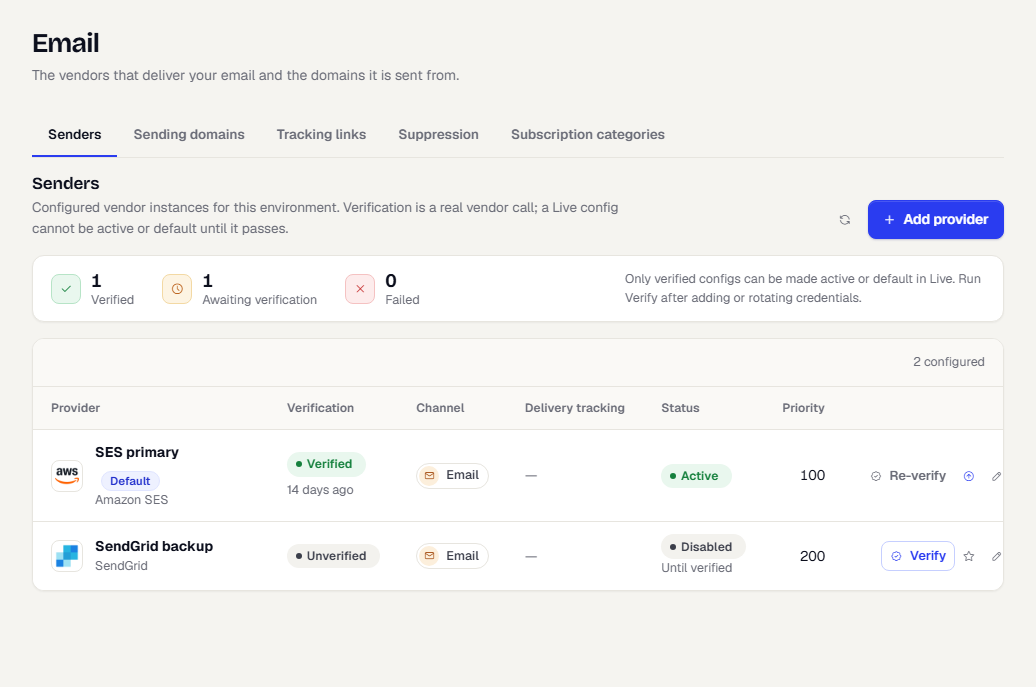
| Push, Email, SMS & RCS, WhatsApp (Senders tab) | Stores vendor credentials, verifies them, and sets the default per channel. | Add and verify a provider |
| Any sender, Delivery tracking tab | Gives your vendor the callback URL so messages move past Sent to Delivered, Failed or Read. | Track delivery for a sender |
| WhatsApp (Templates and General tabs) | Brings in approved templates and sets the contact attributes. | Set up WhatsApp |
| Advanced (Routing rules tab) | Sends some recipients through a different vendor, with a fallback or a weighted split. | Route sends with rules |
| Email (Sending domains tab) | Gives email its own verified subdomains and sets who handles unsubscribe. | Set up a sending domain |
| Email and SMS & RCS (Tracking links tab) | Shows your own domain on tracked links. | Use your own domain for tracked links |
| Email, SMS & RCS, WhatsApp (Subscription categories tab) | Lets people keep some kinds of message and drop others. | Subscription categories |
| Email, SMS & RCS, WhatsApp (Suppression tab) | Blocks addresses and numbers, and imports many from a CSV. | Manage the suppression list |
| Delivery Controls | Frequency caps, quiet hours, throttling, minimum delay, expiry and the Test allowlist. | Set delivery controls |
| Advanced (Custom vendors tab) | Adds a vendor that is not in the catalog. | Add a custom provider |
In the sidebar, the Channels group has one page each for Push, Email, SMS & RCS and WhatsApp, then Delivery Controls and Advanced. Storage & Assets is now in Settings. The old addresses (/channels/providers, /channels/sending-domains, /channels/controls, /channels/routing, /channels/custom) still open the right page. For storage, see Storage and assets.
How a send picks a provider
For each message, TrueEngage works through these steps in order:
- Send gate. A message that waited past its expiry is dropped. In Test, the allowlist applies. The recipient must have consent and must not be on the suppression list or opted out of the message's subscription category. Then frequency caps, minimum delay and quiet hours apply. Transactional messages skip caps and quiet hours.
- A provider you chose. If the campaign or flow step names a provider, that provider sends. The Provider picker defaults to automatic, which skips this step. For push, a campaign can pin a provider for each platform. See Create a campaign.
- The template's vendor. A WhatsApp or RCS template, or an SMS template with a DLT template id, stays with the vendor it was approved with. If that provider is missing or disabled, the send fails instead of moving to another vendor.
- The app's push provider. For push, if the recipient's app has a Push provider set and its vendor matches the device's token, that provider sends. See Register your apps.
- Routing rules. Rules for the message's channel run from the lowest priority number up. The first rule that matches picks the provider, or splits the message between providers by weight.
- Default provider. If no rule matches, the channel's default provider sends.
- Fallback. If the chosen provider returns an error and the rule names a fallback provider, the message is retried through it.
A provider must be verified to send in Live. In Test, messages go only to recipients on the allowlist.
Test and Live
Providers, rules, domains and controls are separate in each environment. Set up and try everything in Test first. For providers, you can promote a verified Test provider to Live instead of entering credentials again. For more on environments, see Test and Live.
Set up a new workspace
- Add and verify a provider for each channel you use, and make it the default.
- For email, register a sending domain and publish its DNS records.
- Give each vendor its delivery callback so messages report Delivered and Read.
- Review the delivery controls, and add your own address to the Test allowlist.
- Add routing rules if you use more than one vendor on a channel.
Was this page helpful?