Find a user
Look up one person by mobile number, email, external id or TrueEngage id.
Use Users to look up one person and open their profile. It is the page to start from on a support call or when you want to check why a message did or did not reach someone.
Before you start
- You need permission to view users. If Users is missing from the sidebar, ask an Owner or Admin.
- Have one identifier ready: the person's mobile number, email address, external id or TrueEngage id. (The external id is the id your app passes to
identify.) - Users belong to an environment. A person who exists in Live does not show up when you search in Test, and the other way round.
Search for a user
In the sidebar, open Audience, then Users.
Type the identifier into the search field. The field accepts all four kinds, so you do not choose a type first.
Identifier Example Mobile +91 98200 12345Email name@company.comExternal id M06935TrueEngage id 01a0b5cb-8157-…
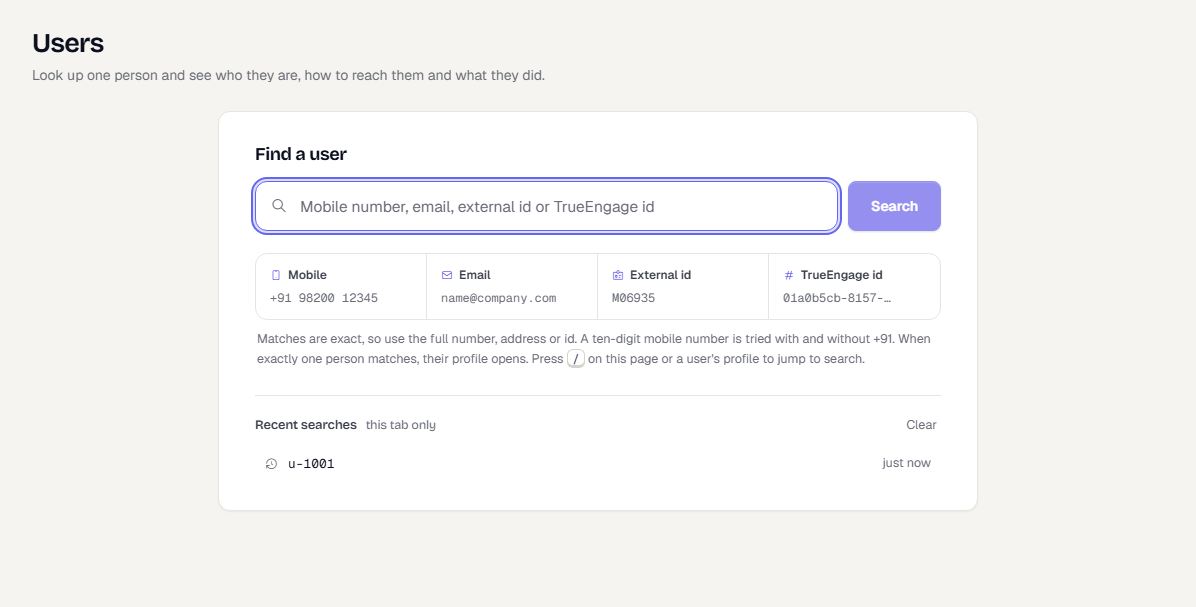
- Select Search, or press Enter. The button turns on once you type two characters.
Search is exact. Use the whole number, address or id. A ten-digit mobile number is tried both with and without +91.
Read the results
When exactly one person matches, their profile opens straight away. When more than one person matches, you see a table:
| Column | What it shows |
|---|---|
| User | Name, what the search matched on (for example "Matched on External id") and a push icon per platform the person can receive push on. Select the name to open the profile. |
| Email and Mobile | Masked, for example p•••@example.com. You reveal the full value on the profile. See Read a user profile. |
| External id and TrueEngage id | Copy either with one click. |
| First seen and Last seen | When the person first and last sent data. |
| Sessions | How many sessions the SDK recorded. |
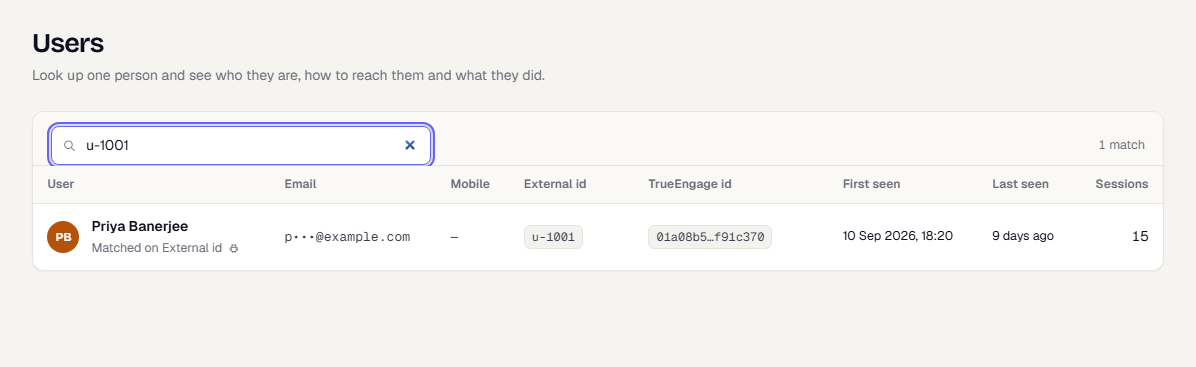
Select a row to open that person's profile.
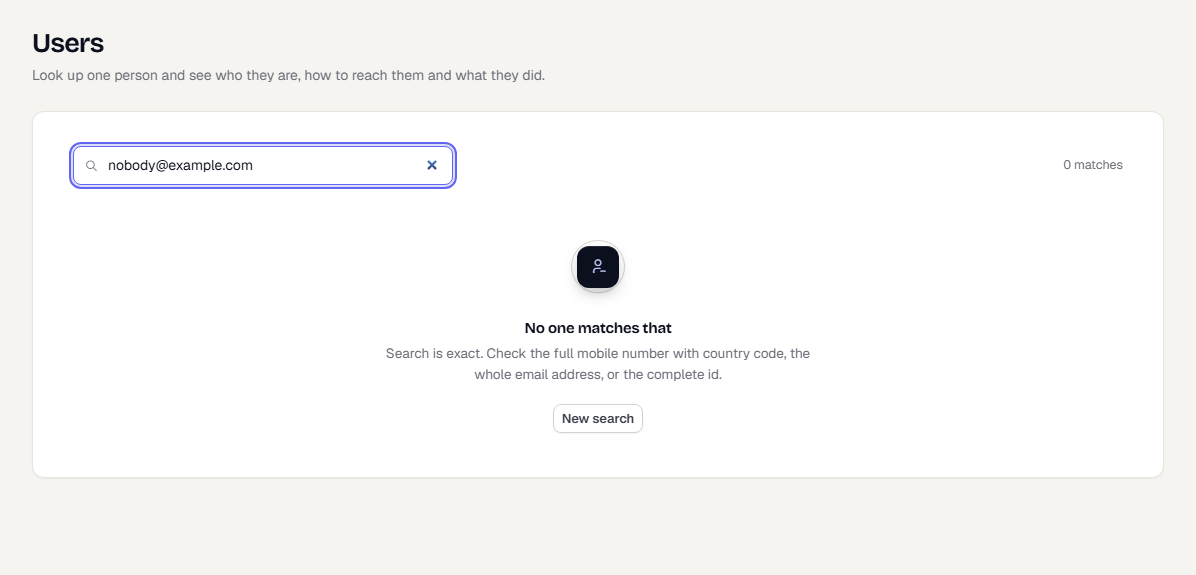
If nobody matches
You see No one matches that. Check the full mobile number with country code, the whole email address, or the complete id. Select New search to try again.
Good to know
- Mobile numbers and emails are kept out of the page address, so a search by contact detail cannot be shared as a link or reopened in another tab. Searches by external id or TrueEngage id can.
- Recent searches lists your last searches for this browser tab only. Select Clear to remove them.
- Press
/anywhere on Users or on a profile to jump to the search field. - Merged profiles are found under the person they were merged into.
What happens next
- Open the profile to see identity, reachability, activity and devices: Read a user profile.
- See which users a segment holds: Open a segment.
Was this page helpful?