Build a segment
Create a segment with the query builder using attributes, events, occurrence operators, nested groups and other segments, and check its size with a live count.
The segment builder turns plain choices into a saved audience. You describe the rule, see how many users match, then save it. After that you can use the segment in campaigns, flows and routing rules.
Before you start
- You need permission to manage segments. If New segment is missing from Segments, ask an Owner or Admin.
- The builder offers the attributes and events your workspace already receives. If one you want is missing, you can type its name instead.
- Counts run in the background. A large event history can take a moment.
Start a new segment
- In the sidebar, open Audience, then Segments.
- Select New segment.
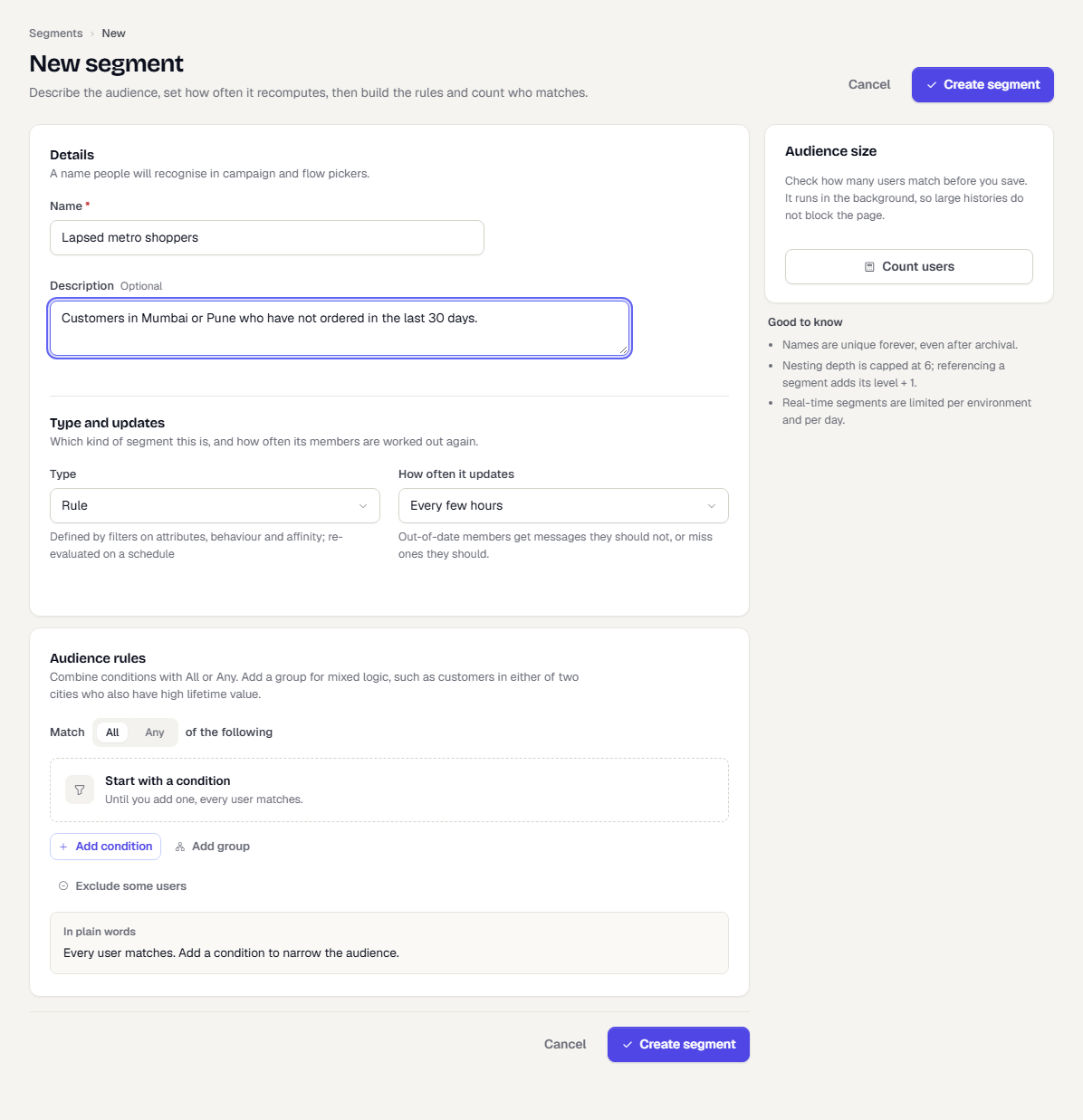
- Under Details, enter a Name. Names are unique forever, even after a segment is archived. Add a Description if it helps your team (optional).
- Under Type and updates, choose what kind of segment this is and how often its members are worked out again.
- Type is fixed once the segment exists. Rule defines the audience by filters on attributes, behaviour and affinity, and re-evaluates it on a schedule. The list shows the other types your workspace can use.
- How often it updates sets how fresh membership stays: Every few hours, As people change (limited per environment) or Only when I refresh it. Out-of-date members get messages they should not, or miss ones they should.
Add a condition
Under Audience rules, the top line reads Match All of the following. Choose All when every condition must be true, or Any when one is enough.
- Select Add condition. A row appears with a type, then fields that depend on the type.
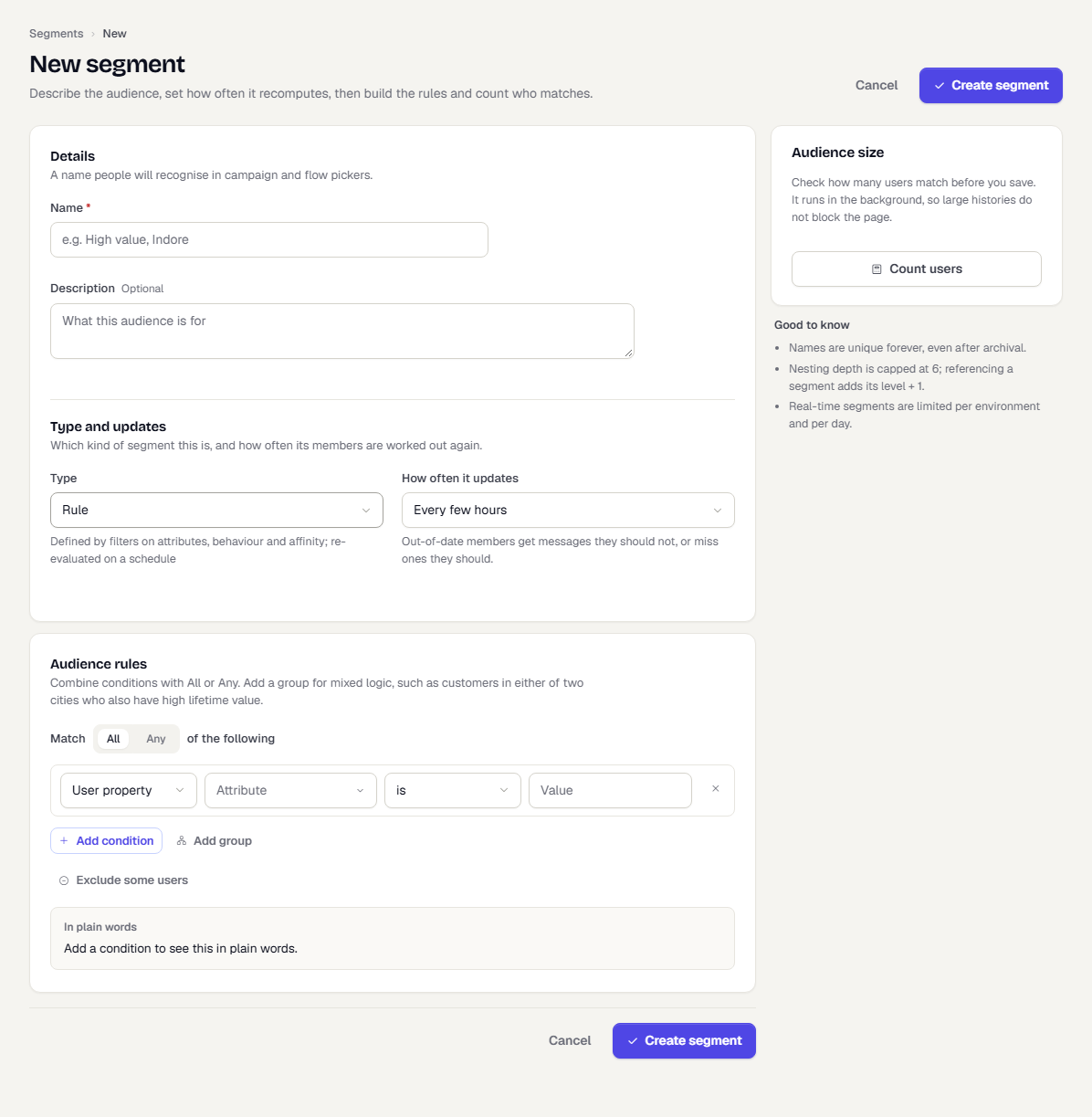
Open the first drop-down to choose the condition type. Types are grouped:
Group Types Profile User property, User affinity, Computed attribute, Predictive score, Special date filter, Location Events User behaviour, Event property Audiences Custom segment, RFM segment
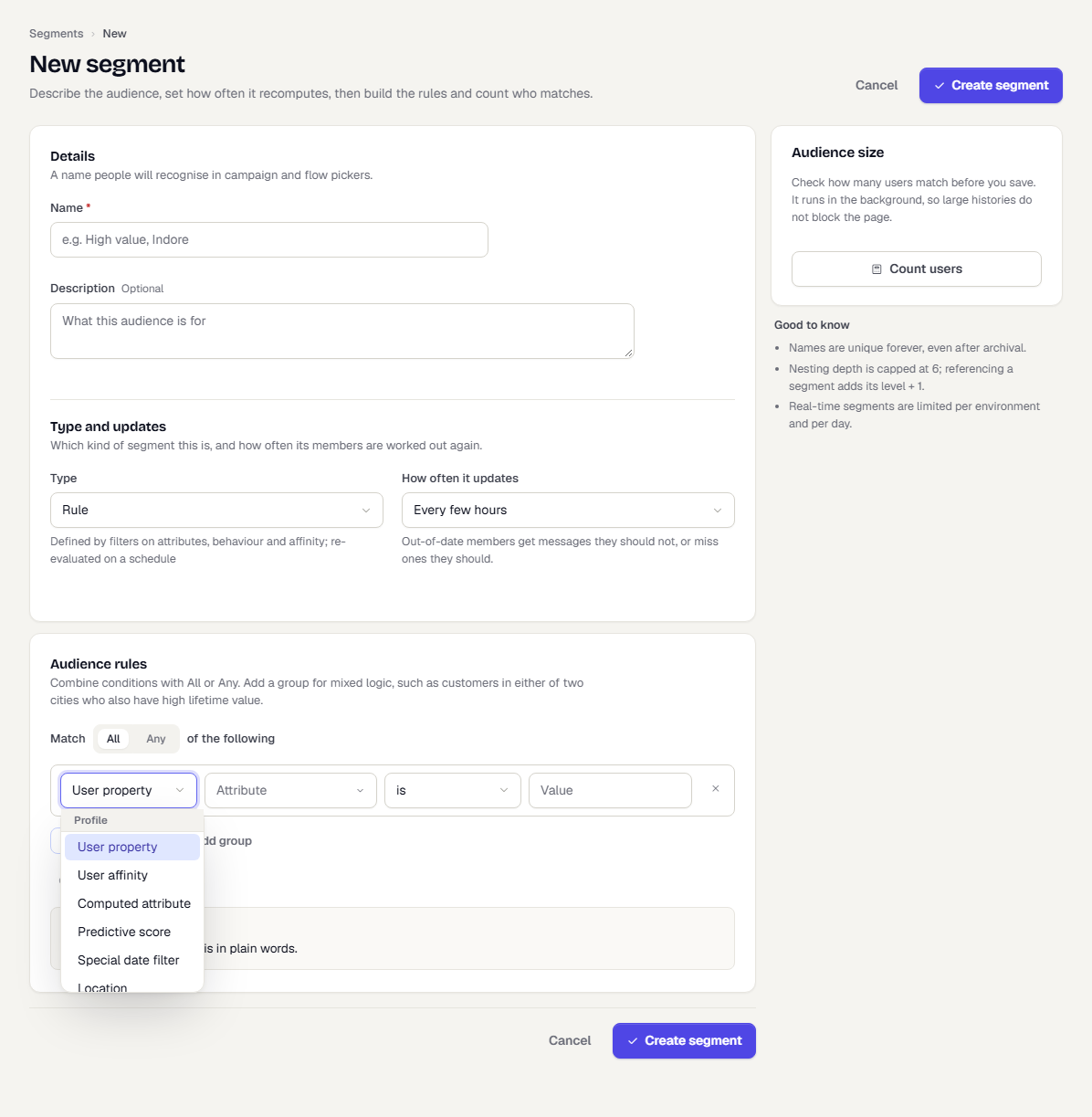
- Fill in the rest of the row, then add more conditions with Add condition. Remove one with the x at the end of its row.
The In plain words box under the builder rewrites the rule as a sentence. Read it before you save. If a row is unfinished, the box shows [unfinished condition] and the row says what is missing.
Filter on attributes
Use User property to filter on what the profile says about a person, such as city or membership tier.
- Set the type to User property.
- Open the attribute field. It lists Reserved attributes (such as City, Country code, Email and Lifetime value) and your Custom attributes (such as Favourite category and Membership tier). Each shows its key beside the name, and a side panel shows its data type. Type to search.
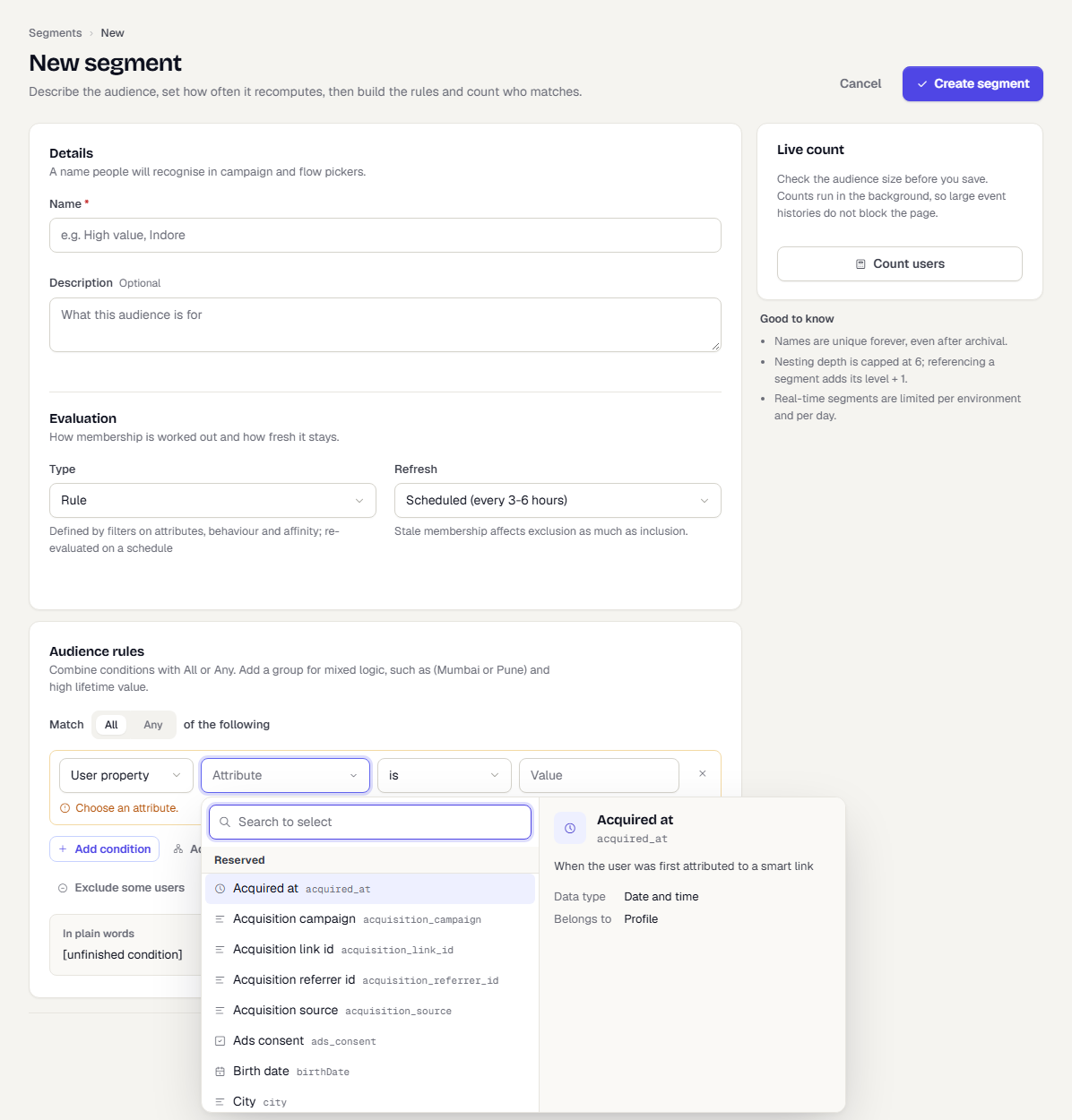
- Choose an operator, such as is. The operators offered depend on the attribute's data type.
- Enter or pick the value. The control follows the operator: free text, a number, a date picker, a list of tags, or a number of days for relative-date operators.
Attributes that hold personal data carry a Personal data label. You can filter on them. The profile still masks their values.
Filter on what people did
Use User behaviour to filter on events, for example "placed an order in the last 30 days".
- Set the type to User behaviour.
- Open the event field. Events are grouped, with your conversion events first under Conversions, then groups such as Browsing, Checkout and Other. A green dot marks a conversion.
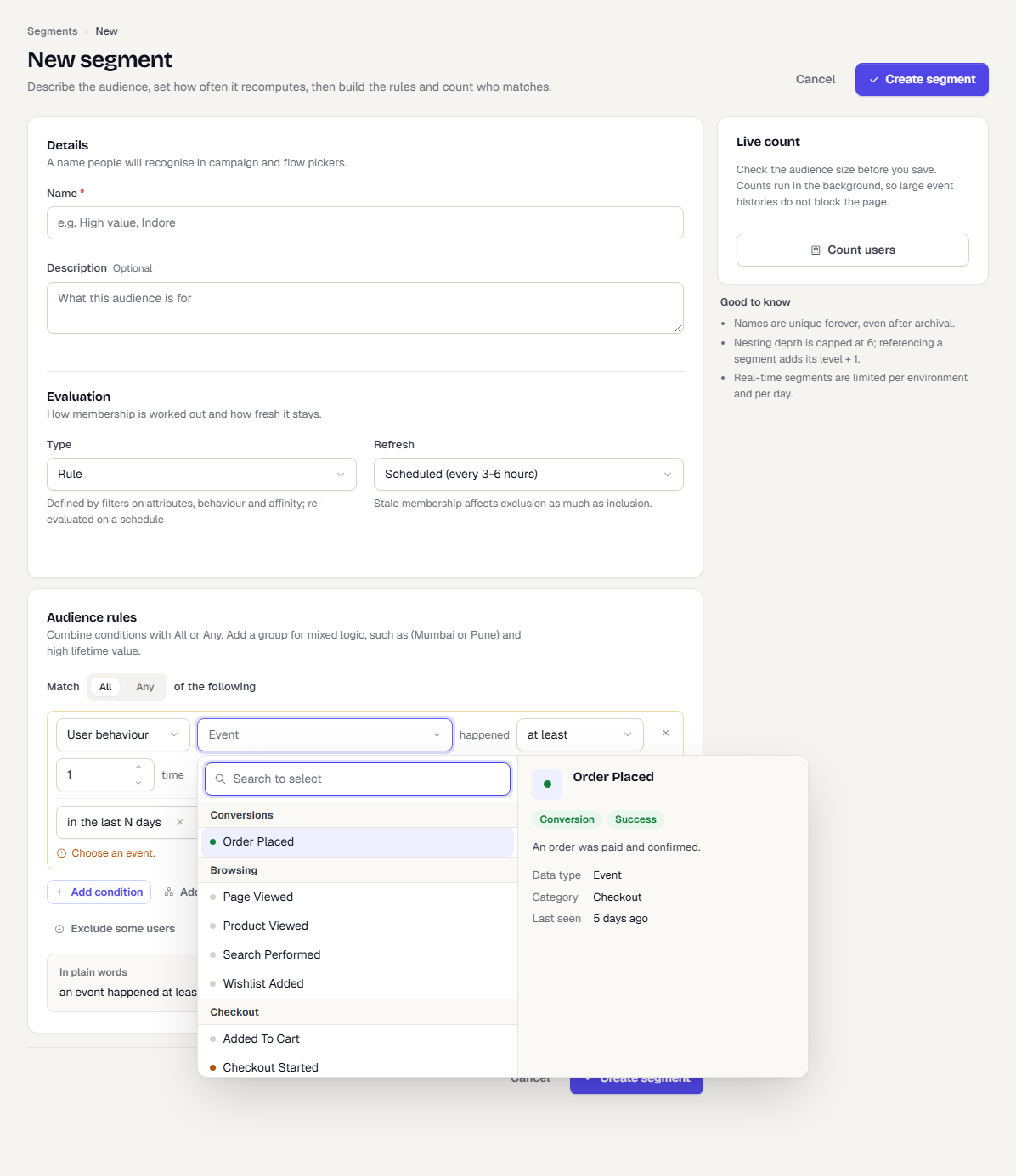
- Choose how often it happened. See Occurrence operators.
- On the second line, choose a time window, such as in the last N days, and enter the number. Clear the window to look at all time.
- Optionally turn on Aggregate to compare a sum, average or similar over an event property, such as total order value. Turn on Event properties to narrow to events with certain properties, such as "where category is Footwear". Select Add property filter to add more than one.
Occurrence operators
Occurrence operators say how many times the event happened in the window.
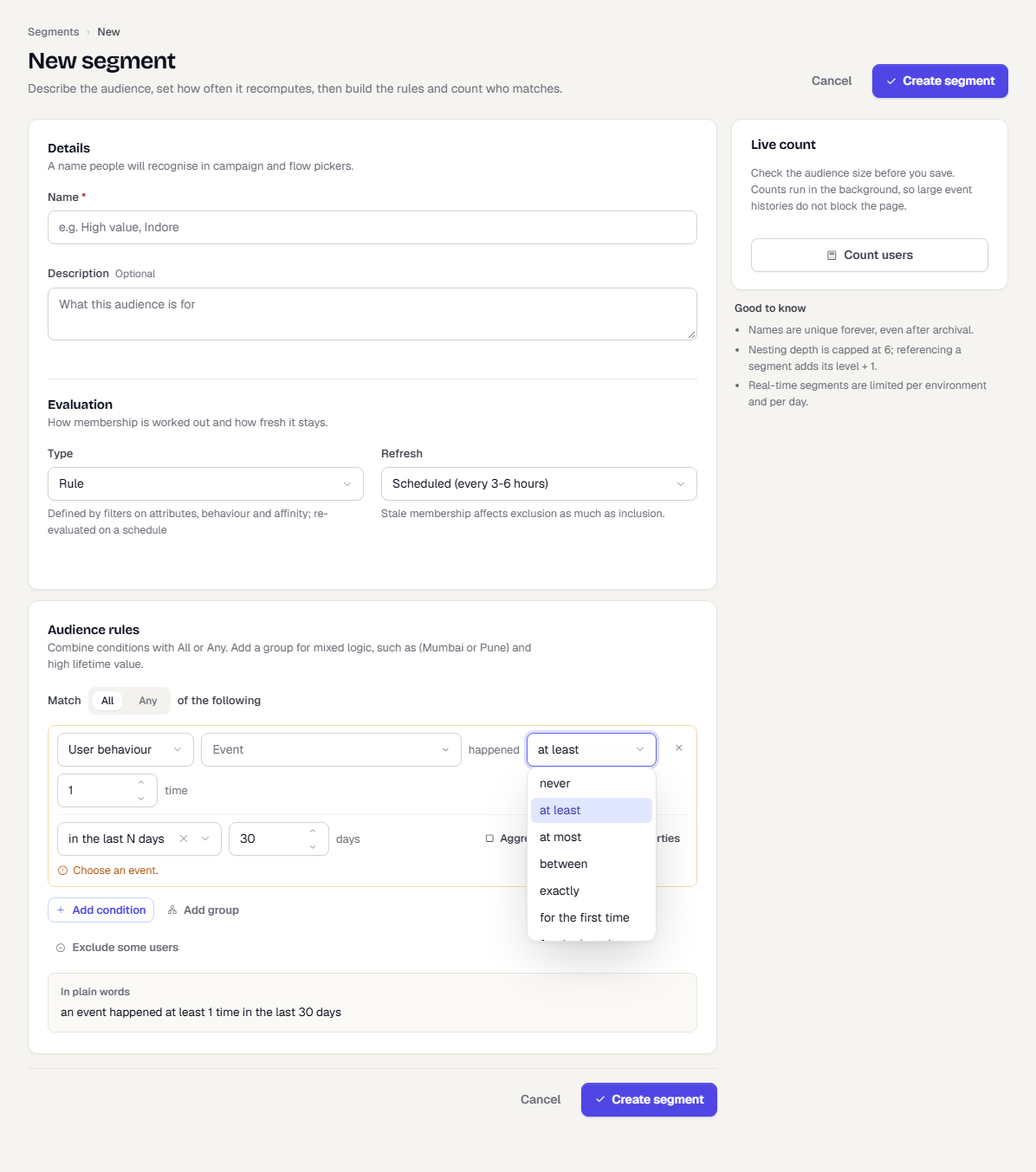
| Operator | Meaning | You enter |
|---|---|---|
| never | The event did not happen in the window. | Nothing |
| at least | It happened this many times or more. | One number |
| at most | It happened this many times or fewer. | One number |
| between | It happened a number of times within a range. | Two numbers |
| exactly | It happened exactly this many times. | One number |
| for the first time | The window holds the person's first ever occurrence. Limited to the events your workspace keeps. | Nothing |
| for the last time | The window holds the person's most recent occurrence. | Nothing |
The sentence under the builder shows the result, for example "Order Placed happened never in the last 30 days".
Combine rules with groups
Real audiences mix logic, such as "(Mumbai or Pune) and no order recently". Use a group for the "or" part.
- At the end of the list, select Add group.
- In the group, choose All or Any. A new group starts on Any.
- Select Add condition inside the group and build each row.
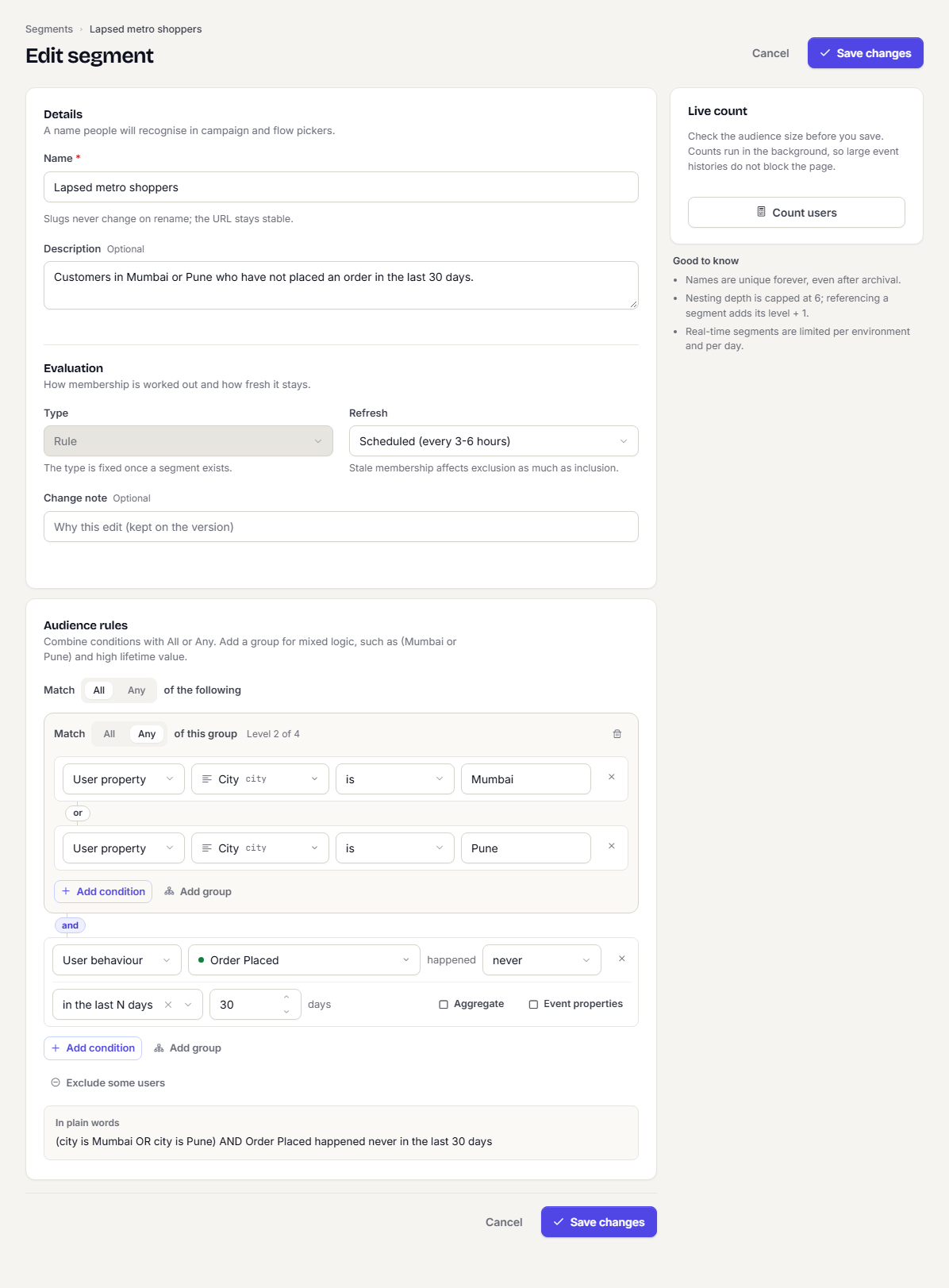
Each group shows Level N of M. At the deepest level Add group is disabled and reads Deepest level reached. Remove a whole group with the bin icon in its header.
Exclude some users
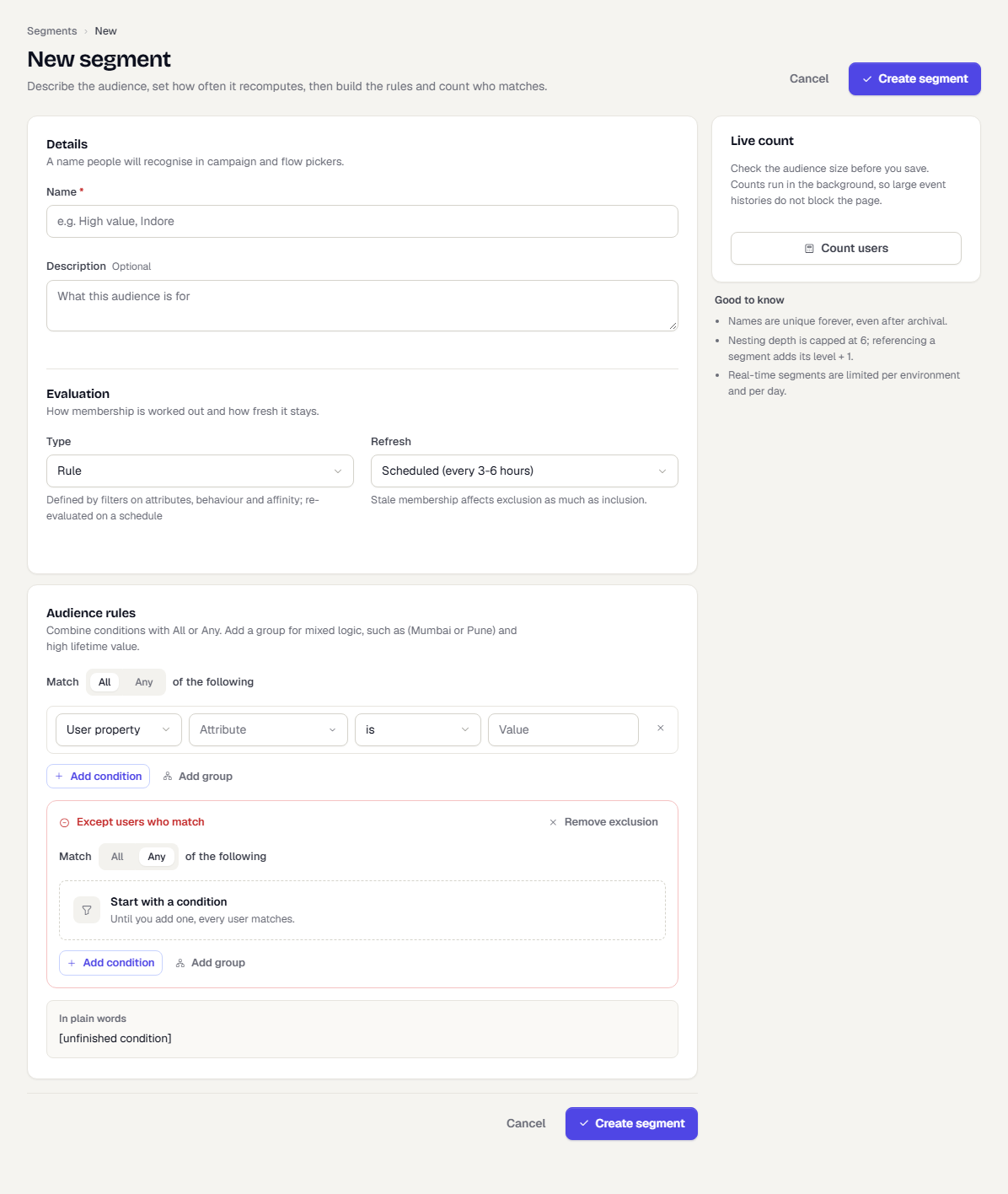
To take people out of the audience, select Exclude some users. A red Except users who match block appears. Build conditions in it the same way. Select Remove exclusion to drop it.
Use another segment
Use Custom segment to build on a segment you already saved. Use RFM segment to pick groups from an RFM model.
- Set the type to Custom segment.
- Choose is one of or is not one of.
- Open the Saved segment list and pick a segment. Type to search.
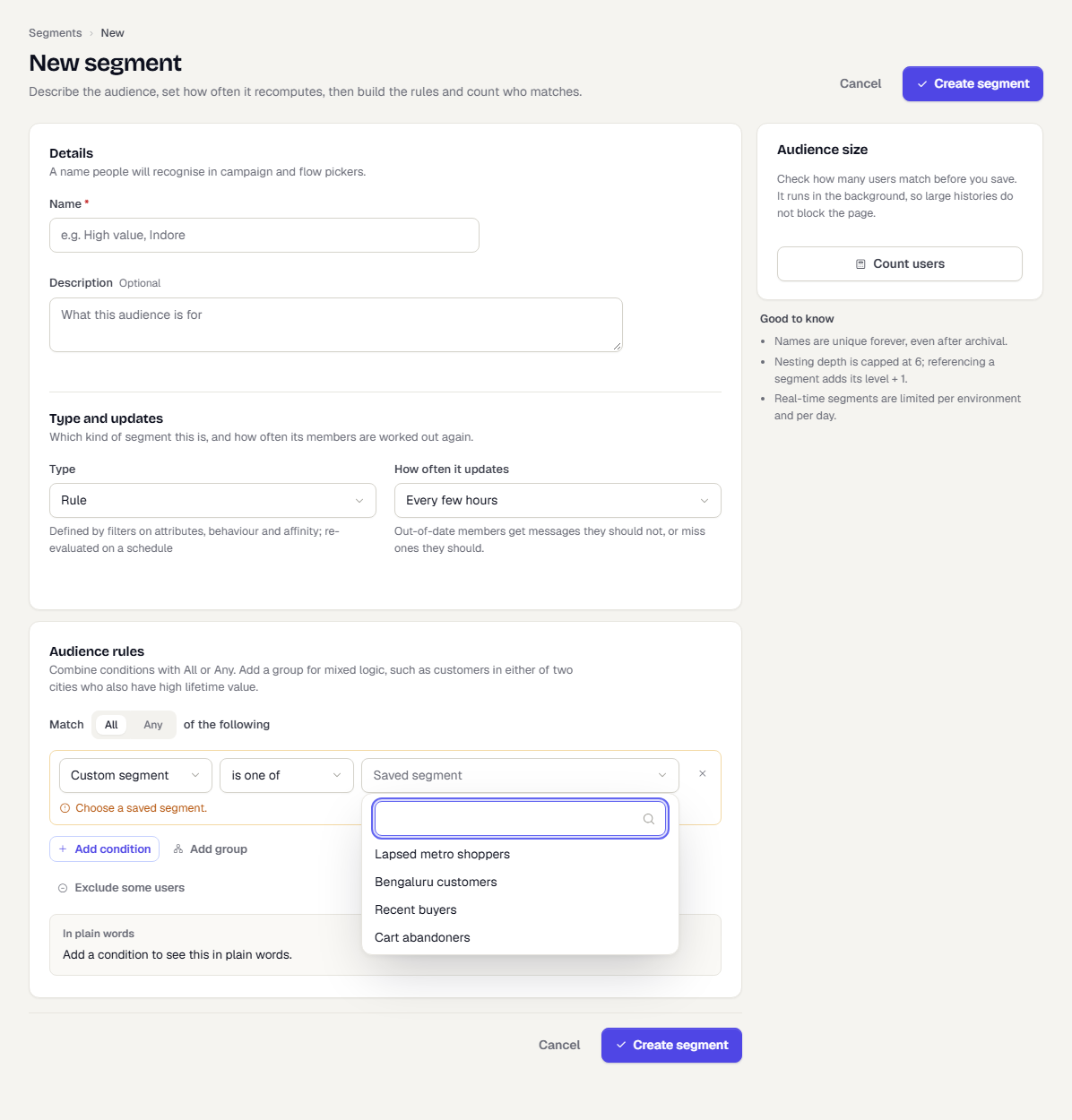
Referencing a segment adds its nesting level to yours, and the groups' Level N of M label counts it. Nesting is capped, and a segment cannot depend on itself.
Count who matches
Before you save, check the audience size.
- In the Audience size card, select Count users. On a wide screen the card sits on the right. On a narrow one it sits directly under the rules.
- Wait a few seconds. The card shows how many users match, out of how many in total, how long the count took, and the share of all users as a bar.
- Reachable by channel lists how many of the matches you can reach on each channel.
- Example users lists a few matching user ids. Each opens that person in a new tab, so your unsaved rule stays put.
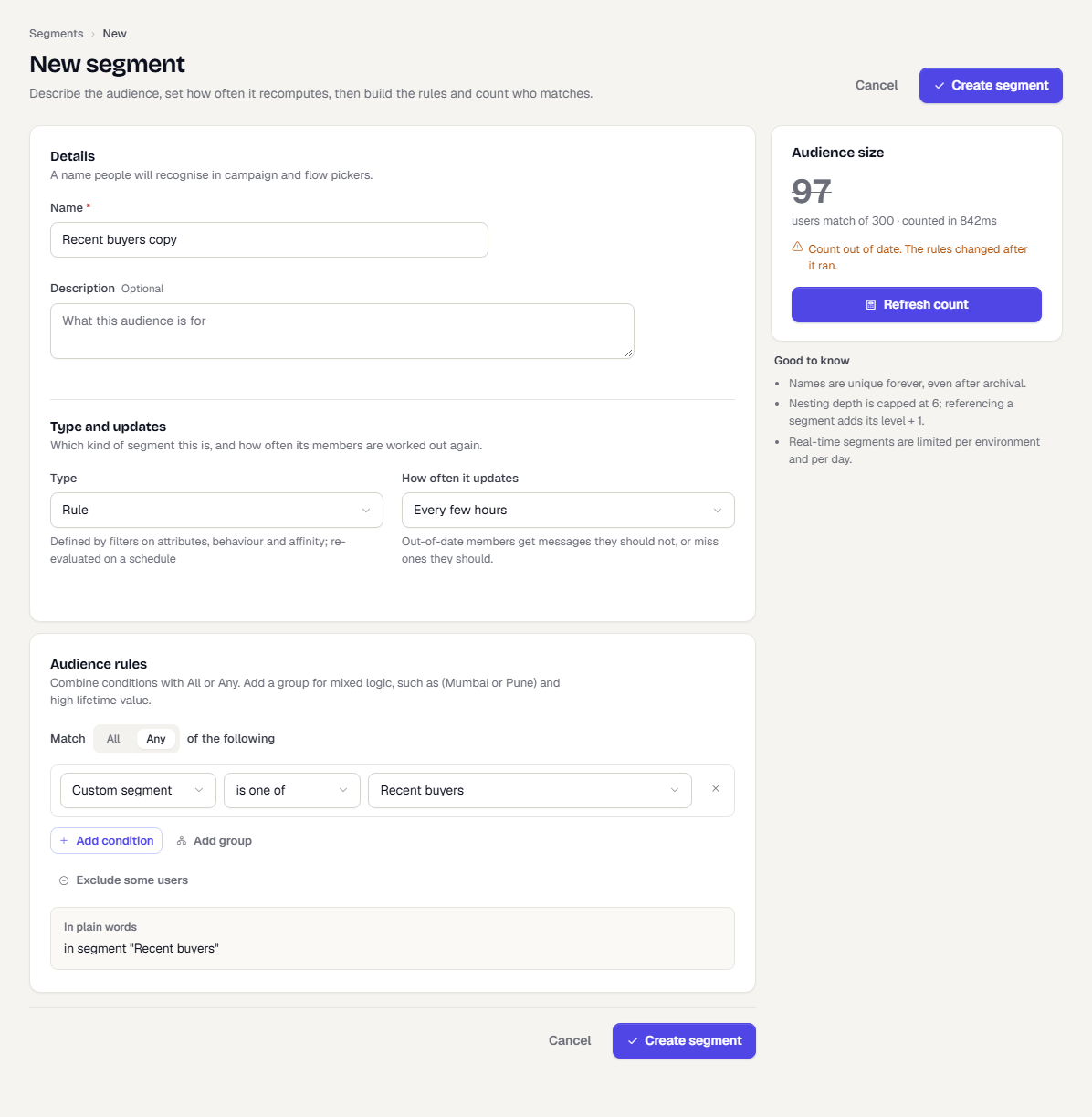
The count does not re-run while you edit, because each count queries your whole user base. When you change a rule after counting, the number is struck through and the card says Count out of date. Select Refresh count to run it again. If a count fails, the card shows the reason.
Save the segment
Select Create segment. If a condition is still incomplete, the builder shows what is missing on each row and moves you to the first one; fix or remove those rows to save. A segment with no conditions matches every user, so you are asked to confirm before it saves. If you leave the page with unsaved changes, you are asked whether to keep editing. When you edit a saved segment, the button reads Save changes and a Change note field lets you record why you changed it.
What happens next
- The new segment opens on its detail page: Open a segment.
- Membership is computed on the next scheduled refresh. Until then Members shows a dash.
- Pick the segment as the audience of a campaign or flow.
Related
Was this page helpful?