Pull ad spend into TrueEngage
Turn on spend sync for a connection, choose how far back the first sync reads, and understand the sync state.
Spend sync reads daily spend, impressions, clicks and results for the campaigns, ad sets and ads in an ad account. The numbers appear on the Campaigns and Audience pages. Spend sync is off until you turn it on, one connection at a time.
Who can use this. To see the Spend sync tab you need Ad platforms, View. To change it you need Ad platforms, Create and manage (ad_platforms:create_manage). Owner, Admin, Manager and Developer have that by default. Reading the numbers on Campaigns and Audience needs a different permission, Acquisition & Spend, View spend (acquisition:view_spend), which Owner, Admin, Marketer and Analyst have. See Roles and permissions.
Before you start
- Connect Google Ads, Meta, Snap Ads or X Ads. GA4 does not report spend. See Ad platforms.
- A Meta connection needs its ad account set. Conversion-only Meta connections send events but cannot read spend until you add the ad account on the connection.
- The platform sign-in must be active. If the connection needs a reconnect, see Fix connection errors and reconnect.
Turn on spend sync
- In the sidebar, open Ad platforms, then Connections, and select the connection.
- Open the Spend sync tab.
- Switch on Spend sync. The label changes to Spend sync is on.
- Under First sync reaches back, choose 30 days, 60 days, 90 days, 180 days or 365 days. The default is 90 days.
- Optional: under Count as a result, type the platform action to count, such as a purchase or a lead. Leave it empty to use the platform's default.
- Select Save spend sync.
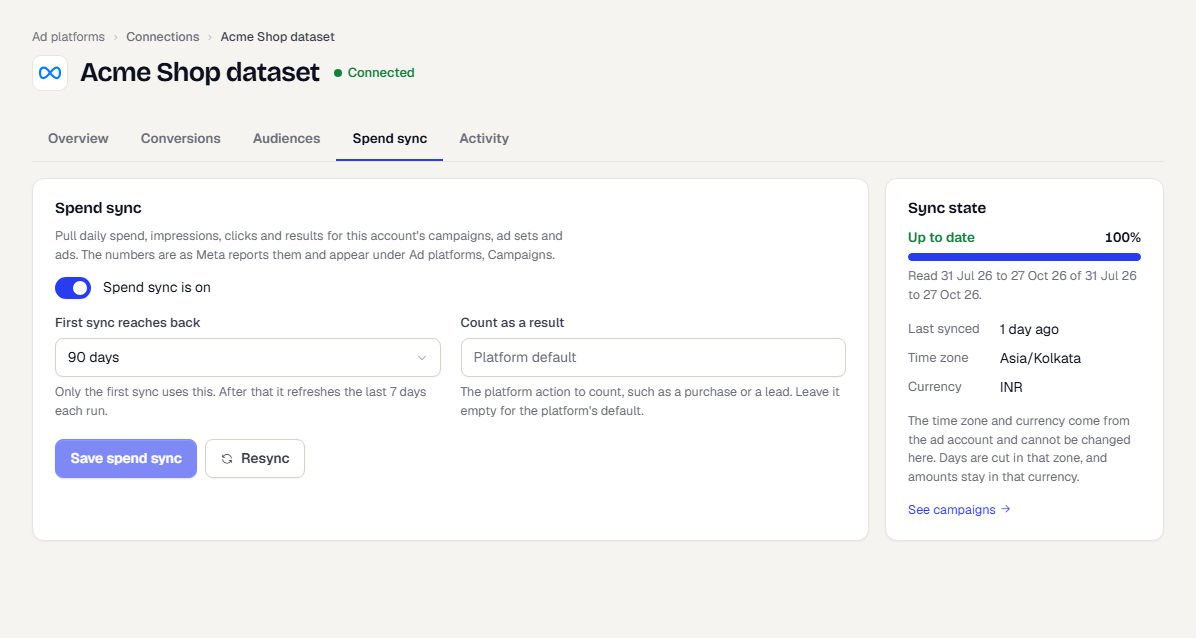
Notes on these settings:
- First sync reaches back applies to the first read only. After that, each run refreshes the last 7 days, because platforms keep adjusting recent numbers.
- Changing Count as a result changes the Results column for the whole read window. Run Resync to apply it to older days.
- A longer reach back takes longer to read on a big account.
Read the sync state
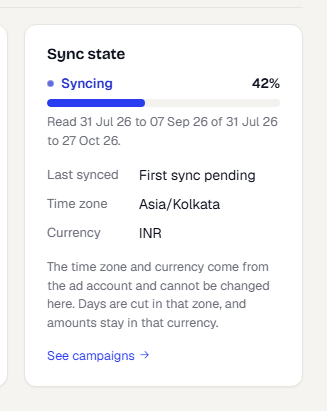
The Sync state card shows where the sync stands, with a percentage and a bar.
| State | Meaning |
|---|---|
| Syncing | TrueEngage is still reading the window. The text under the bar says which days have been read, for example "Read 31 Jul to 7 Sep of 31 Jul to 27 Oct" |
| Waiting to retry | The latest refresh failed or hit the platform's request limit. TrueEngage carries on by itself on the next run |
| Up to date | The window is read and the last 7 days are fresh |
A Waiting to retry state can show 100%. That is expected when the first read finished and a later refresh failed: the percentage counts the window already read, and the retry only has to catch up the last days. Above the card, a red notice gives the reason, such as the request limit being reached or a sign-in that expired.
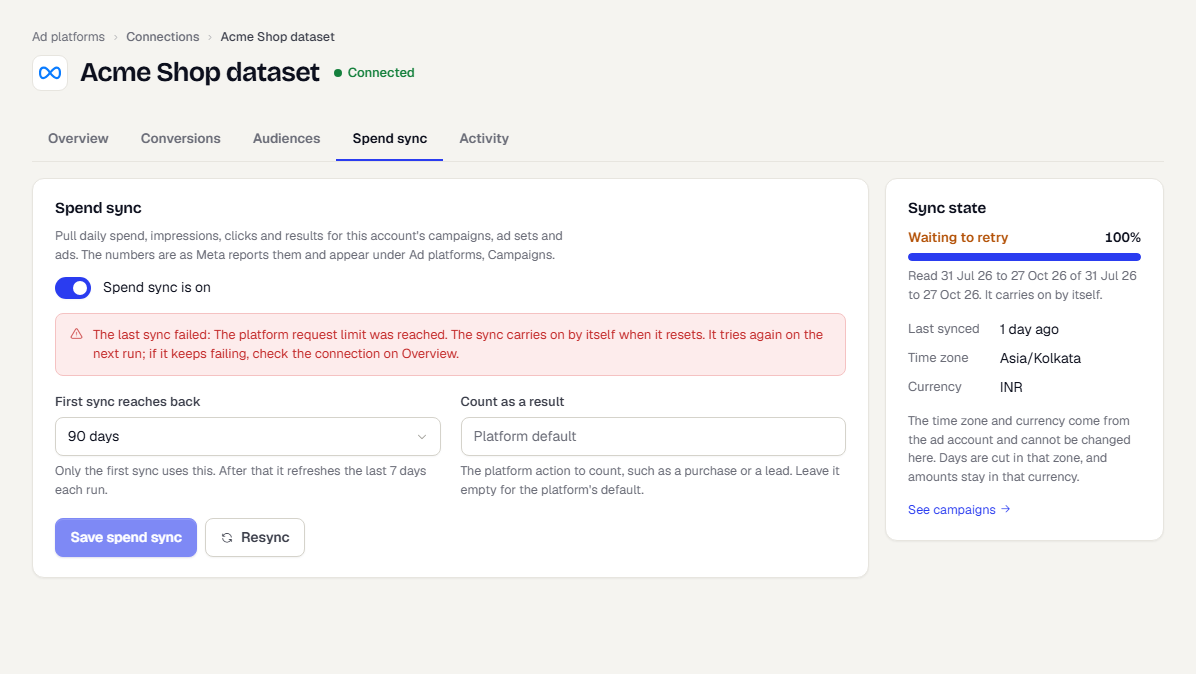
Below the bar, the card lists Last synced, Time zone and Currency. The time zone and currency come from the ad account, so you cannot change them. Days are cut in that zone, and amounts stay in that currency.
Resync
Select Resync to read the whole window again. Use it after you change Count as a result, or when numbers on the platform changed a long way back. It is safe to repeat: stored numbers are replaced, not doubled. The button is off while the connection is syncing or you have unsaved changes. The state shows Syncing until the window is read again.
Fix a failed sync
| Message | What to do |
|---|---|
| The platform request limit was reached | Nothing. The sync carries on when the limit resets |
| The platform was unreachable | Nothing. It retries by itself |
| The sign-in expired | Reconnect the account |
| The platform rejected the request | Check the account on Overview |
| No ad account | Add the ad account, or reconnect with the platform sign-in |
| Meta is missing a permission | Reconnect and accept every permission |
| The Google developer token only works on test accounts | Use a developer token approved for live accounts. See Connect Google Ads |
If a sync keeps failing, see Troubleshoot ad platforms.
Differences between platforms
- Google Ads is the only platform that reports cities. See See who your ads reached.
- Meta reads spend from the ad account you set on the connection, not from the dataset.
- Snap Ads and X Ads sync spend and demographics through the same tab.
- Results use each platform's own default action unless you set Count as a result.
What happens next
Was this page helpful?