Set the entry
Choose how people enter a flow, and set trigger events, schedule, audience and entry filters.
The Entry tab decides who gets into the flow and when. Open it in the flow editor, next to the Canvas tab.
Before you start
- You need the create and manage permission for flows.
- For a business event entry, define the event first. See Business events.
- For an audience from a saved segment, create the segment first.
Name the flow and pick an entry type
- In the flow editor, select the Entry tab.
- Under Basics, type a Flow name.
- Open Entry type and choose one.
| Entry type | Who enters |
|---|---|
| Event | A person enters when they perform a trigger event. |
| Fixed time | Everyone in the audience enters in bulk, once or on a schedule. |
| Flow exit | A person enters when they leave another flow. |
| Business event | One business event admits many people at once. |
| Segment membership | A person enters when a refresh of a segment finds them newly in it. |
| Api | Your backend admits people with an API call. |
You can also add a Description and Tags. The entry type is locked once the flow has been published.
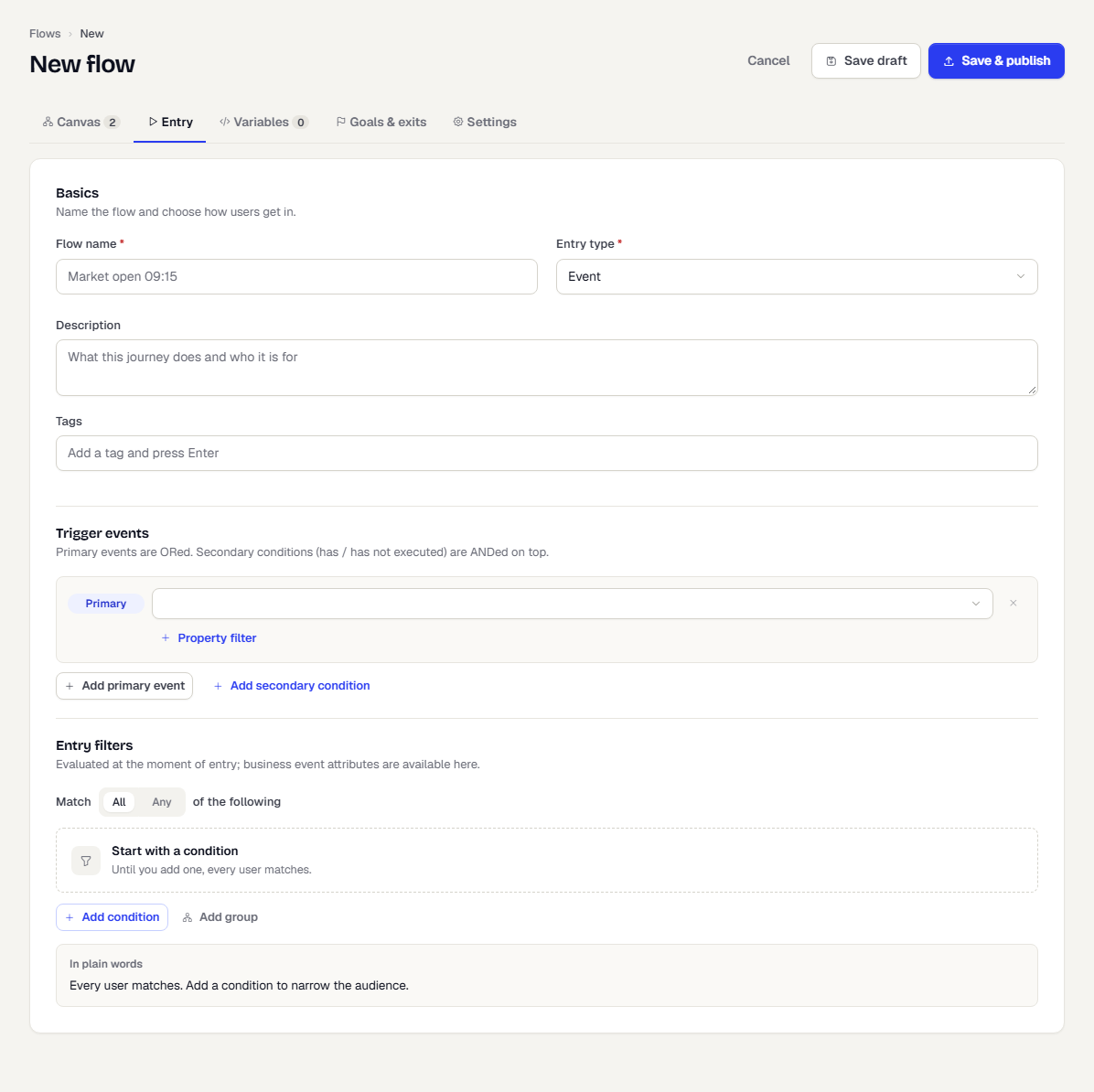
Event
Under Trigger events, pick the event that starts the flow.
- Pick or type an event name in the first row. It is a Primary event.
- To start the flow on any of several events, select Add primary event. Primary events are ORed.
- To require more, select Add secondary condition and choose Has executed, Has not executed or Has exited flow. Secondary conditions are ANDed on top of the primary events.
- To narrow a trigger, select Property filter, then fill property, the operator and value. Operators: equals, does not equal, greater than, at least, less than, at most, contains, is one of, exists.
- Remove a row with the cross. At least one row stays.
Fixed time
Under Schedule, set when each run fires. Under Audience, choose who enters.
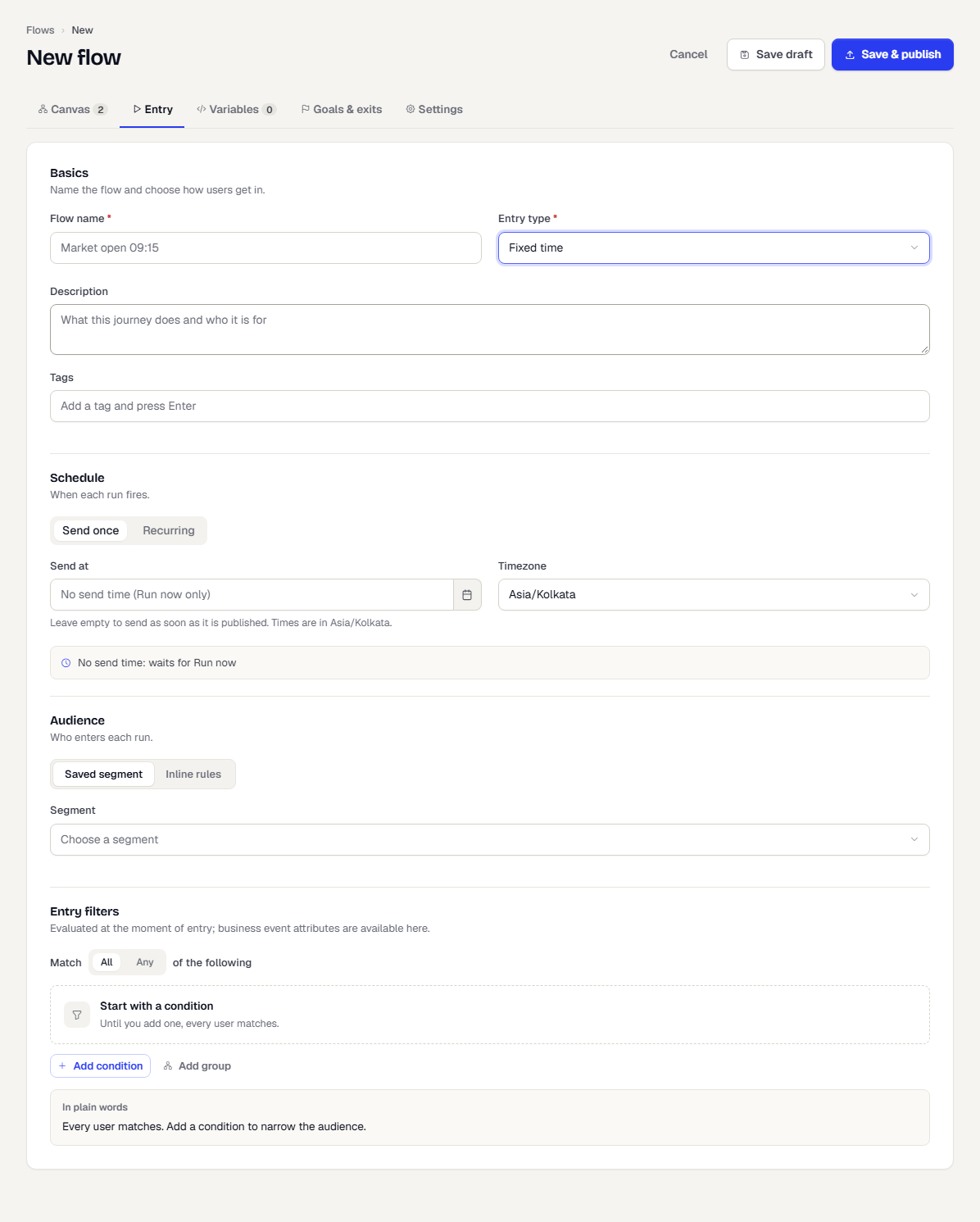
- Under Schedule, choose Send once or Recurring. Set Send at and the Timezone. Without a send time, the flow waits for Run now on its page. For a recurring schedule, add days under Skip dates (for example exchange holidays) to fire no run on them. Dates are read in the schedule's Timezone, up to 400, and the next day fires as normal.
- Under Audience, choose Saved segment and pick a Segment, or choose Inline rules and build the rules in place.
Each firing is a run. See Monitor a flow.
Two schedule settings are API-only for now. Set them in entryDefinition.schedule:
jitterSecondsspreads the first message of a run across this many seconds. The default is 300. Use0for time-critical alerts so everyone is sent at once.maxLateSecondsis how late a run may still start. The default is 86400 (a day). A slot later than this is skipped, not sent late, so a market-open alert is never sent after the close. Set it low (for example 600) for alerts that go stale quickly.
If a worker stops in the middle of a large run, the run resumes where it left off and nobody receives the flow twice.
Segment membership
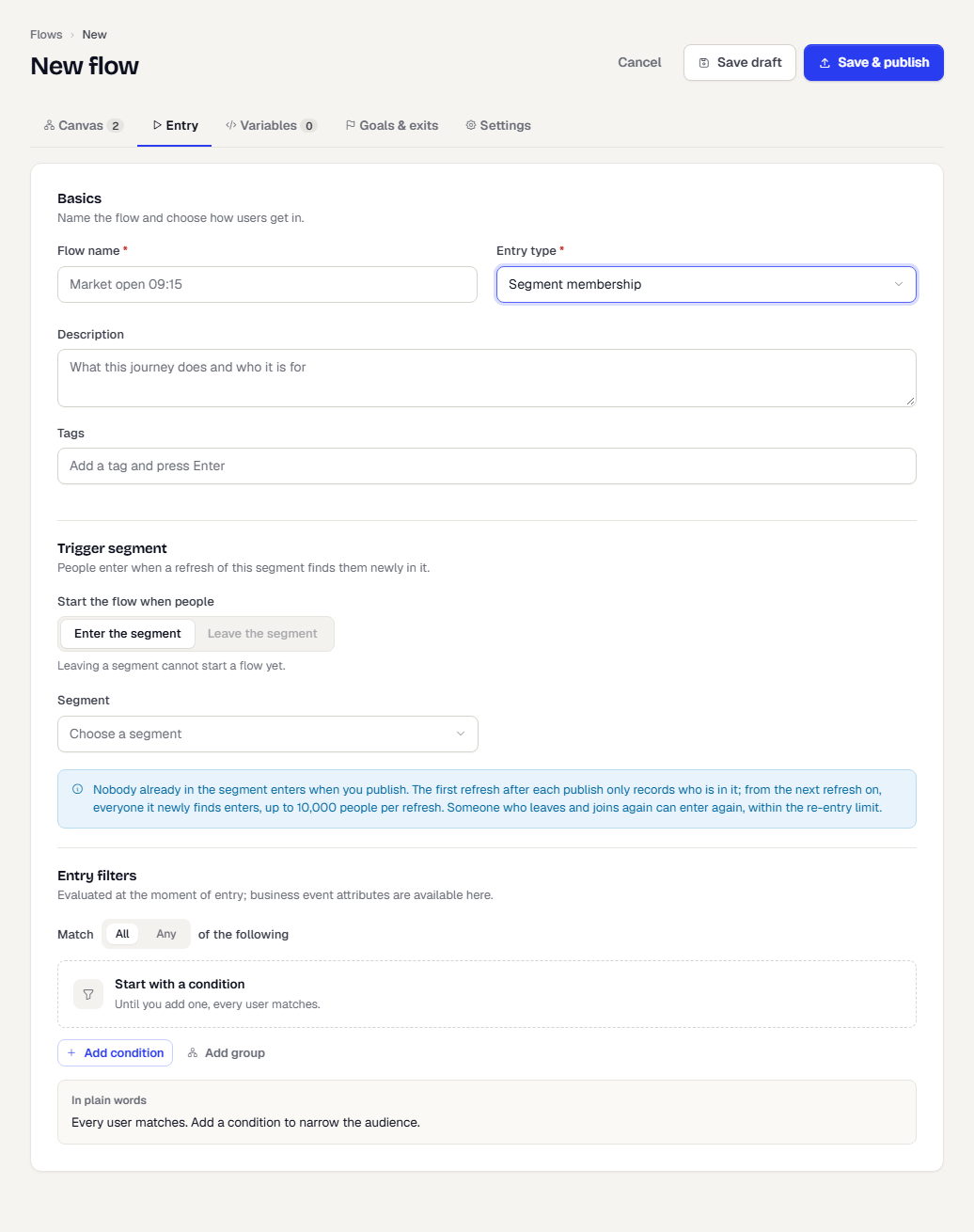
Choose Segment membership to start the flow when people newly join a segment. Use it for journeys such as "welcome everyone who becomes a high-value customer".
- Under Trigger segment, leave Start the flow when people on Enter the segment. Leave the segment is shown but turned off, because leaving a segment cannot start a flow yet.
- Open Segment and pick one. The list shows segments that cannot be used greyed out, with the reason. Choose a rule segment that refreshes on a schedule. A segment built from an uploaded list, a static segment, or a segment that updates in real time cannot trigger a flow.
How it works:
- Nobody already in the segment enters when you publish. The first refresh of the segment after each publish only records who is in it. From the next refresh on, everyone it newly finds enters.
- At most 10,000 people enter per refresh. Any others are counted as skipped on that run.
- Someone who leaves the segment and joins again can enter again, within the flow's re-entry limit. Entry filters and control groups apply as for any other entry.
- Pausing the flow loses the people who joined while it was paused.
- Each refresh that finds new members creates a run, listed on the flow's Runs tab. There is no Run now for this entry type.
Flow exit
Under Source flows, open Flows and pick one or more flows. People who leave any of them enter this flow.
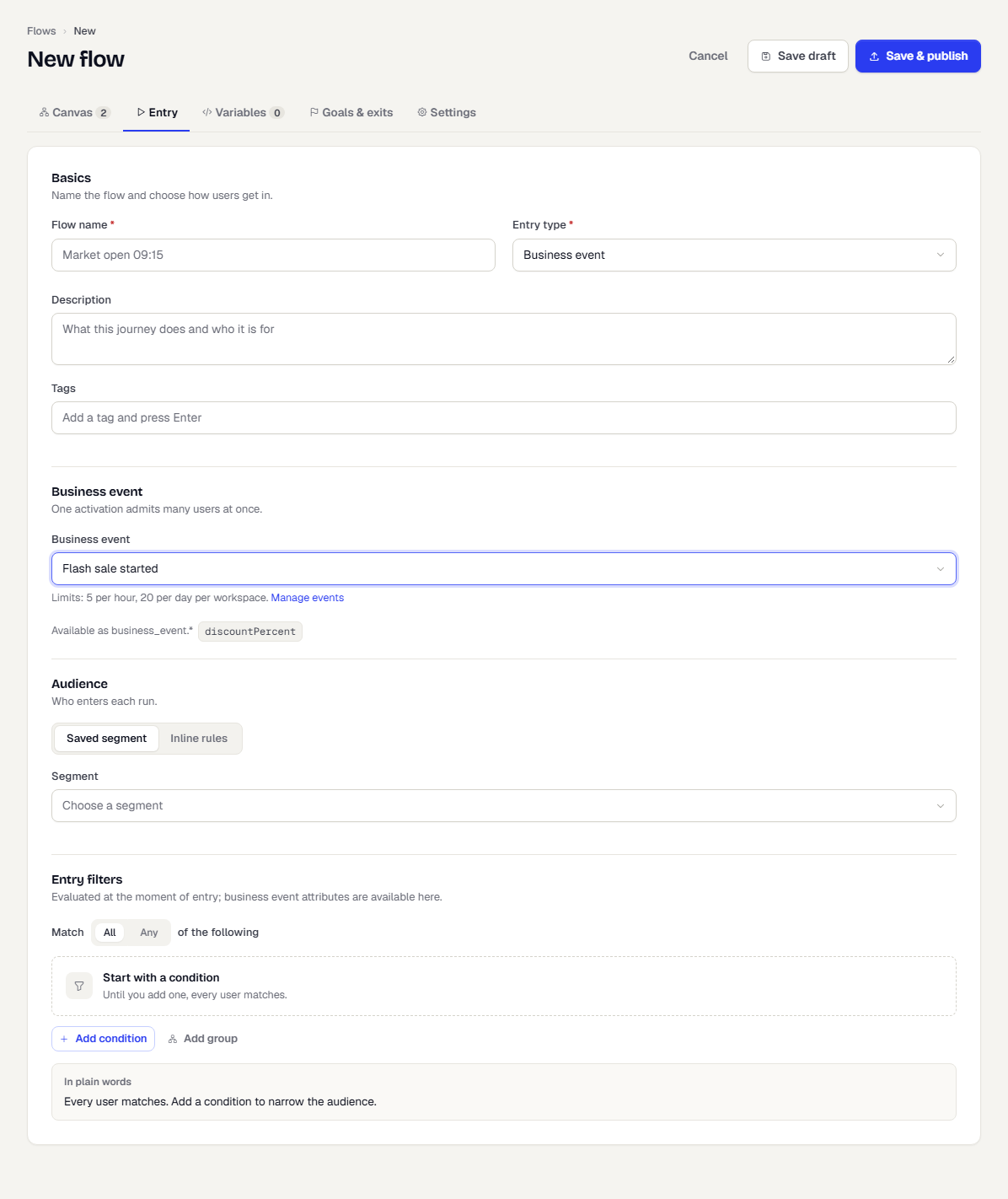
Business event
Under Business event, open Business event and pick one. The attributes it carries are listed as Available as business_event.*; use them in entry filters, conditions and messages. Each workspace is limited to 5 activations per hour and 20 per day. Select Manage events to open the list.
Api
There is nothing more to set. After you publish, open the flow and select Enter a user, or call the API from your backend. See Enter a user into a flow.
Entry filters
Every entry type has an Entry filters section. Build rules that are checked at the moment of entry. People who do not match do not enter. Business event attributes are available here.
What happens next
Add variables, goals and exits, then save and publish.
Was this page helpful?