Data management overview
See what your apps, servers and imports send, and turn on auto-block for new event names.
Data management shows everything your apps, servers and imports send to this environment. It has four tabs: Overview, Events, User attributes and Conversion history. This page covers Overview.
Before you start
- You need permission to view settings. To change anything (such as auto-block), you need permission to manage data.
- Overview shows the environment you are in. Switch between Test and Live from the top bar. See Test and Live.
Read the Overview tab
- In the sidebar, open Data, then Data Management. The Overview tab opens first.
- Choose 7 days, 30 days or 90 days, and use the Events (All, Custom, Standard) and Severity filters to narrow the charts.
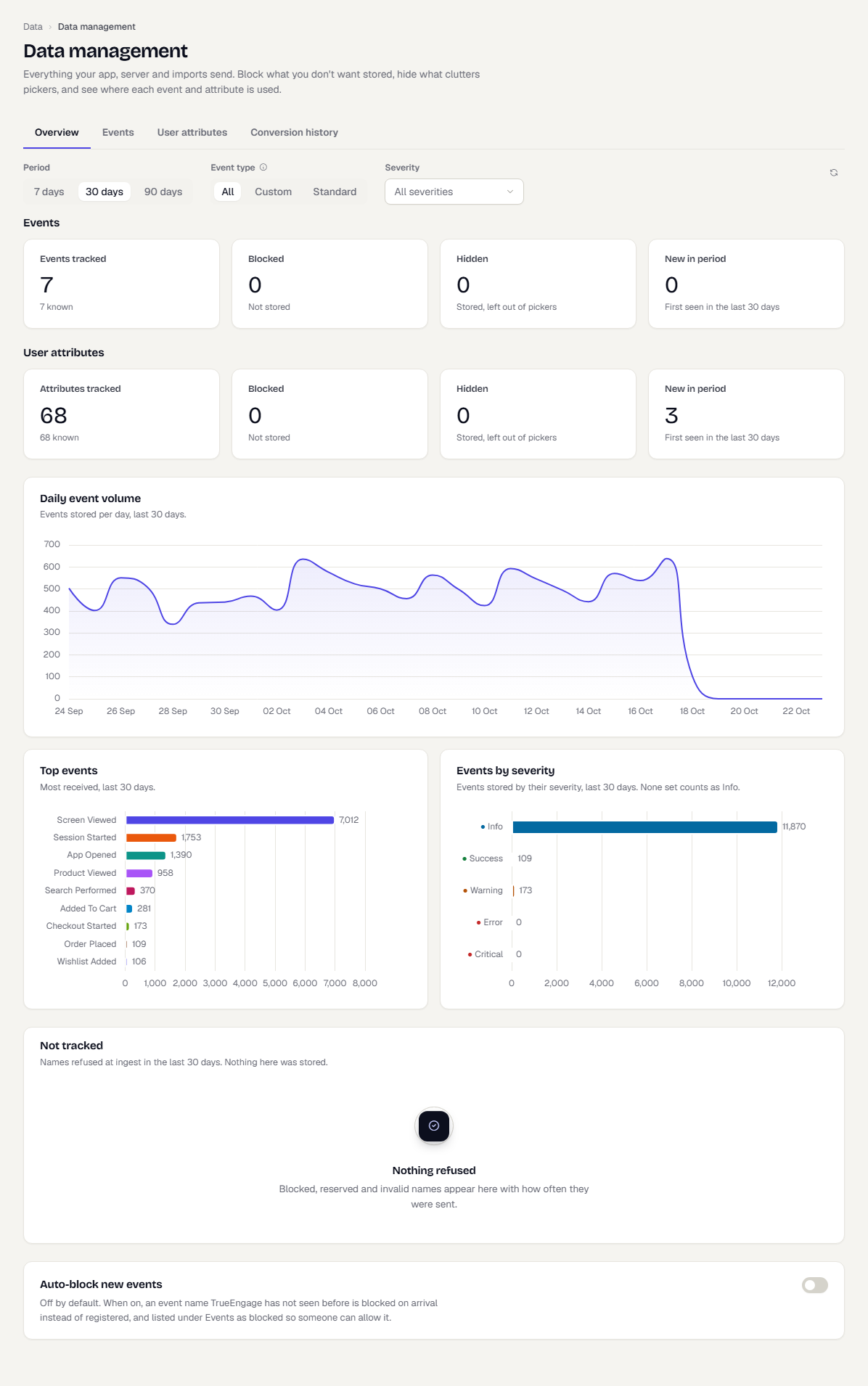
The page has these parts:
| Part | What it shows |
|---|---|
| Events tiles | Events tracked, Blocked, Hidden and New in period (first seen in the period). |
| User attributes tiles | The same four counts for attributes. |
| Daily event volume | Events stored per day. |
| Top events | The most received events. |
| Events by severity | Events grouped by severity. An event with no severity counts as Info. |
| Not tracked | Names refused at ingest, with the reason and how often each was sent. Nothing listed here was stored. |
Use the refresh button to reload the numbers.
Turn on auto-block for new events
By default, a new event name is registered the first time it arrives. With Auto-block new events on, a name TrueEngage has not seen before is blocked on arrival instead. It then appears on the Events tab as blocked, so someone can review it and allow it.
- At the bottom of the Overview tab, find Auto-block new events.
- Switch it on.
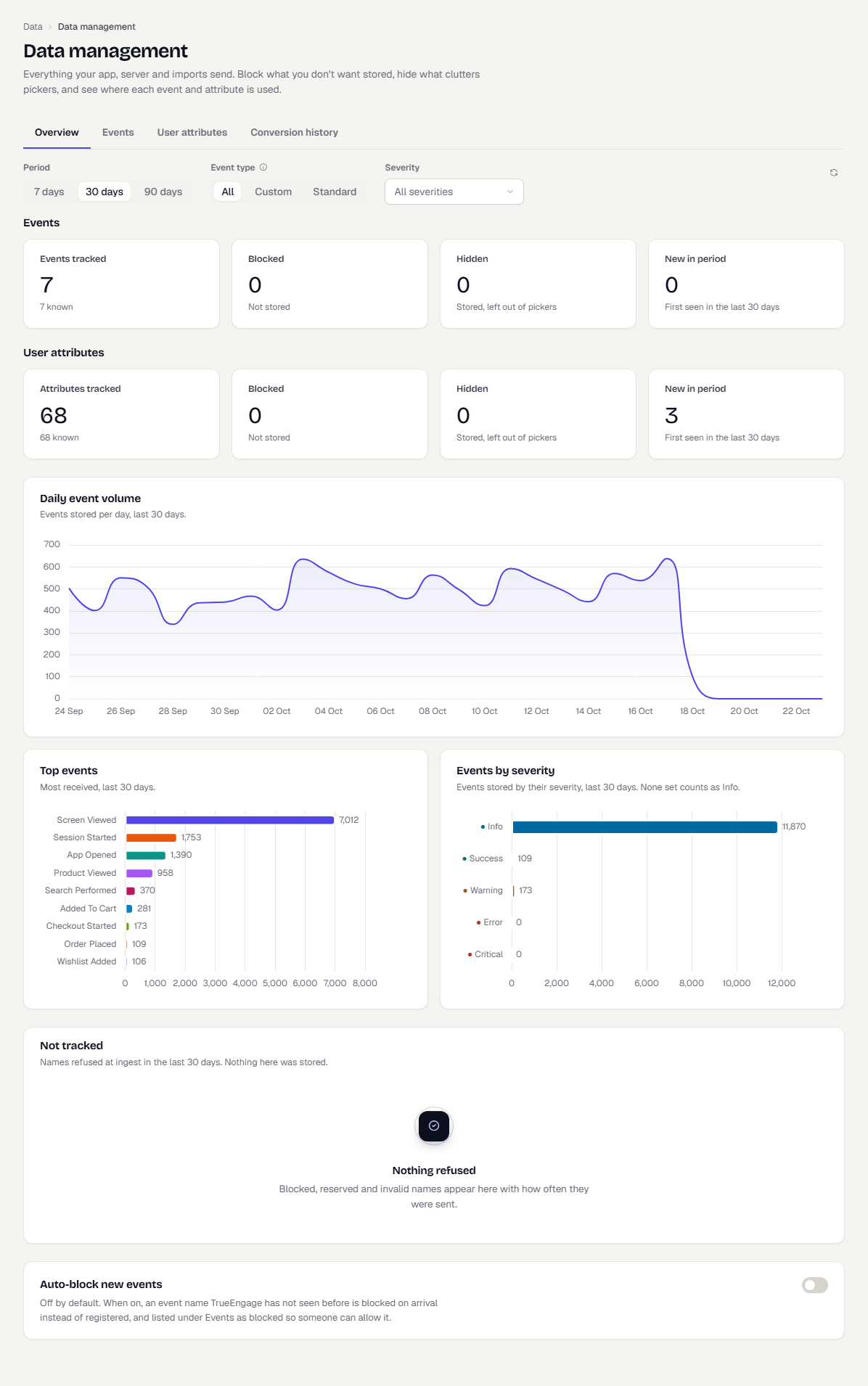
Use this when you want every event name reviewed before it is stored. To review and allow blocked names, see Manage events.
What happens next
- Give events clear names and categories in Manage events.
- Review attributes in Manage user attributes.
Was this page helpful?