UTM defaults
Add UTM values to the links in your campaigns and flows, choose which sites get them, and override them for one campaign or one flow.
UTM values are small tags added to the end of a link, such as utm_source=trueengage. Your analytics tool reads them to tell which message a visit came from. UTM defaults sets them once for the whole workspace, so you do not add them to every link by hand.
Before you start
- You need permission to manage settings to change the defaults. With only view permission you can read them.
- Nothing is tagged until you switch Add these UTM values to links on and name at least one site.
- Defaults apply to email, SMS and push messages sent from campaigns and flows.
Set the defaults
- In the sidebar, open Settings, then All settings, and select UTM defaults.
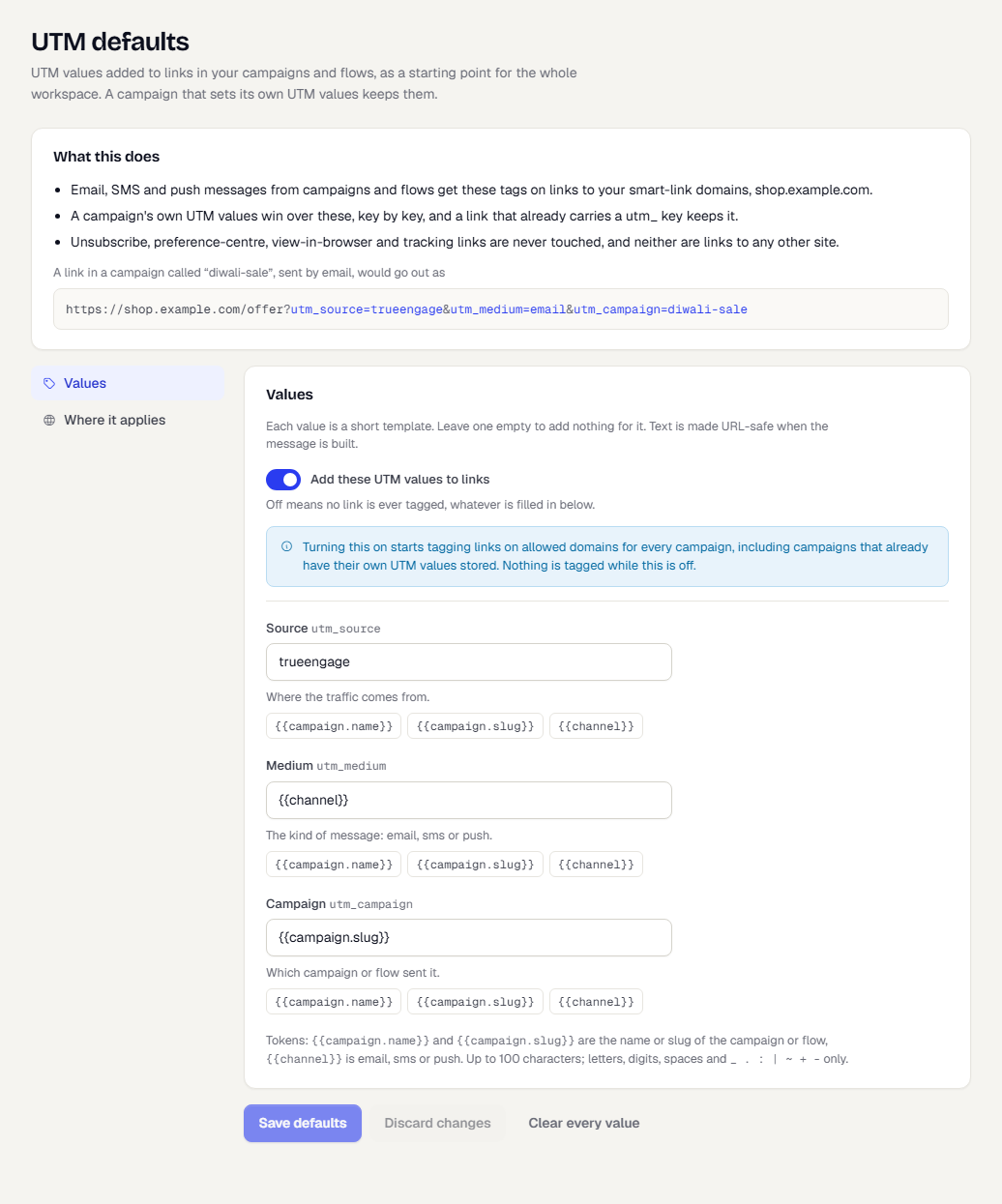
- The What this does card describes what your saved settings do, in words, and shows an example link for a campaign called "diwali-sale" sent by email. It updates as you type.
- On the Values section, turn on Add these UTM values to links. Off means no link is ever tagged, whatever is filled in below. A note explains that turning this on starts tagging links on allowed sites for every campaign, including campaigns that already store their own UTM values.
- Fill in Source (
utm_source), Medium (utm_medium) and Campaign (utm_campaign). Each is a short template. Leave one empty to add nothing for it. Select a token under the field to insert it.
| Token | What it becomes |
|---|---|
{{campaign.name}} |
The name of the campaign or flow. |
{{campaign.slug}} |
The slug of the campaign or flow. |
{{channel}} |
email, sms or push. |
A value can be up to 100 characters. Use letters, digits, spaces and _ . : | ~ + - only. Text is made safe for a web address when the message is built.
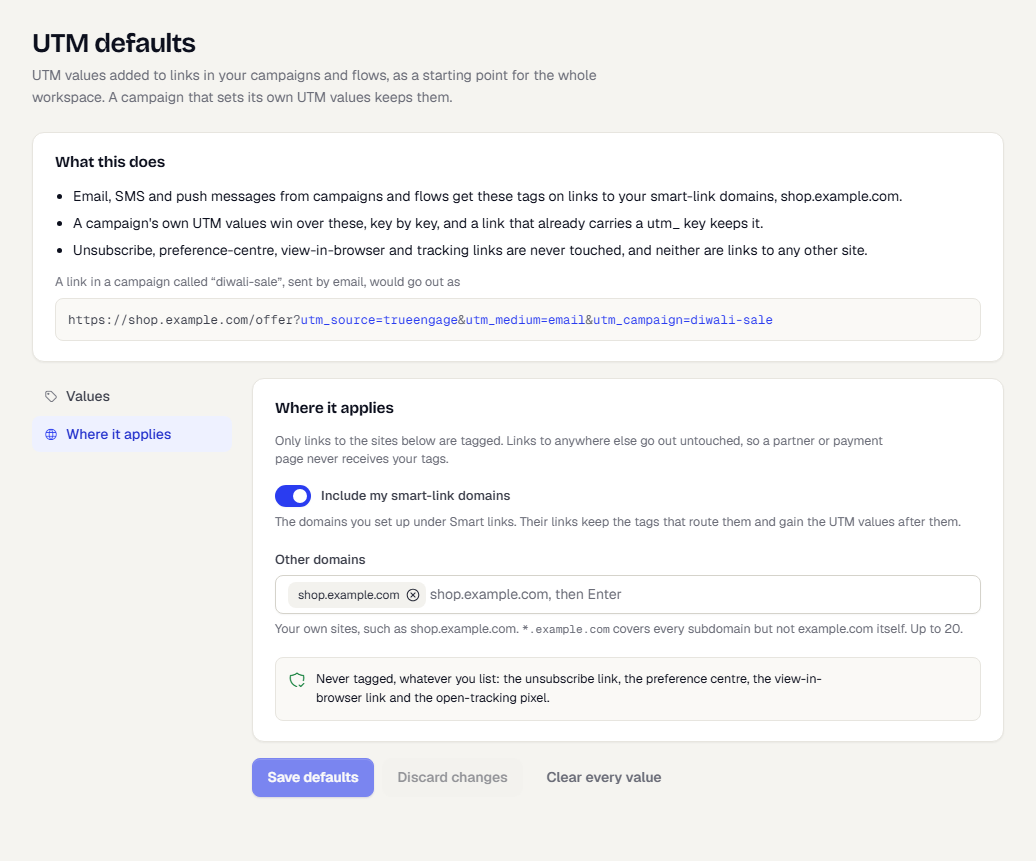
- Open Where it applies. Only links to the sites listed here are tagged. Links to anywhere else go out untouched, so a partner or payment page never receives your tags.
- Turn on Include my smart-link domains to tag links on the domains you set up under Smart Links. Their links keep the tags that route them and gain the UTM values after them.
- Under Other domains, enter your own sites, such as
shop.example.com, and press Enter after each.*.example.comcovers every subdomain but notexample.comitself. You can add up to 20.
- Select Save defaults. Discard changes returns to what was saved. Clear every value empties all of them.
These links are never tagged, whatever you list: the unsubscribe link, the preference centre, the view-in-browser link and the open-tracking pixel.
Override for one campaign or one flow
A campaign that sets its own UTM values keeps them. On the campaign's Content step, UTM parameters override the defaults key by key, and a link that already carries a utm_ key keeps it.
A flow has its own override on its Settings tab. See Settings for a flow.
Which value wins, for each key:
- The campaign or flow value, if it set one.
- The workspace default.
An override does nothing while Add these UTM values to links is off or no site is listed.
Related
Was this page helpful?