Templates and bulk creation
Create link templates that hold routing and appearance, and create or export many links at once with a CSV file.
A link template holds everything links have in common: which apps they open, where people without the app go, what a computer visitor sees, and how the link looks when shared. A link starts from its template and can override parts of it.
Use one template for most links. Add another when a group of links needs different routing, for example links that must open a web page on every platform.
Before you start
- You need Create and manage permission on Smart Links.
- A link domain must be active. A template belongs to one domain and cannot move to another.
- Register your apps in Connect > Apps. See Register your apps.
Create a template
- Open Smart Links, then Templates.
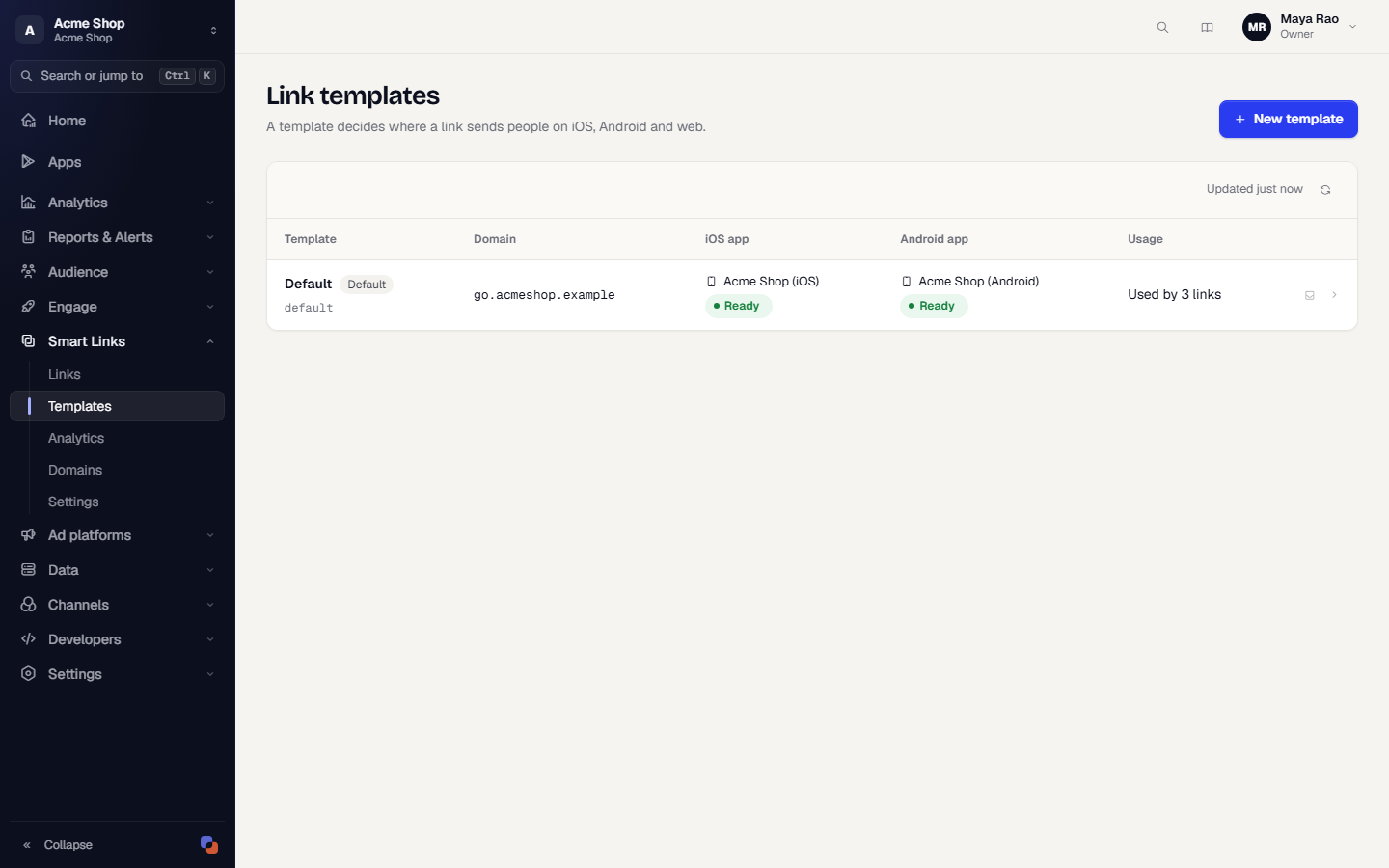
- Select New template. If you have no template yet, you can also open a domain and select Create default template, which builds one from your registered apps.
- Under Basics, fill in Details:
- Name. Your team sees it.
- Key. A short code used in imports and dynamic links. It follows the name until you edit it, and cannot change after creation.
- Domain. Only active domains are listed.
- Description. Optional.
- Under Apps, switch on Open the app on iOS, Open the app on Android and Open the app on Web as needed. Each switch shows the registered app. Turn one off if you only have one app. An app without its Team ID or signing fingerprint shows a warning with Open app settings.
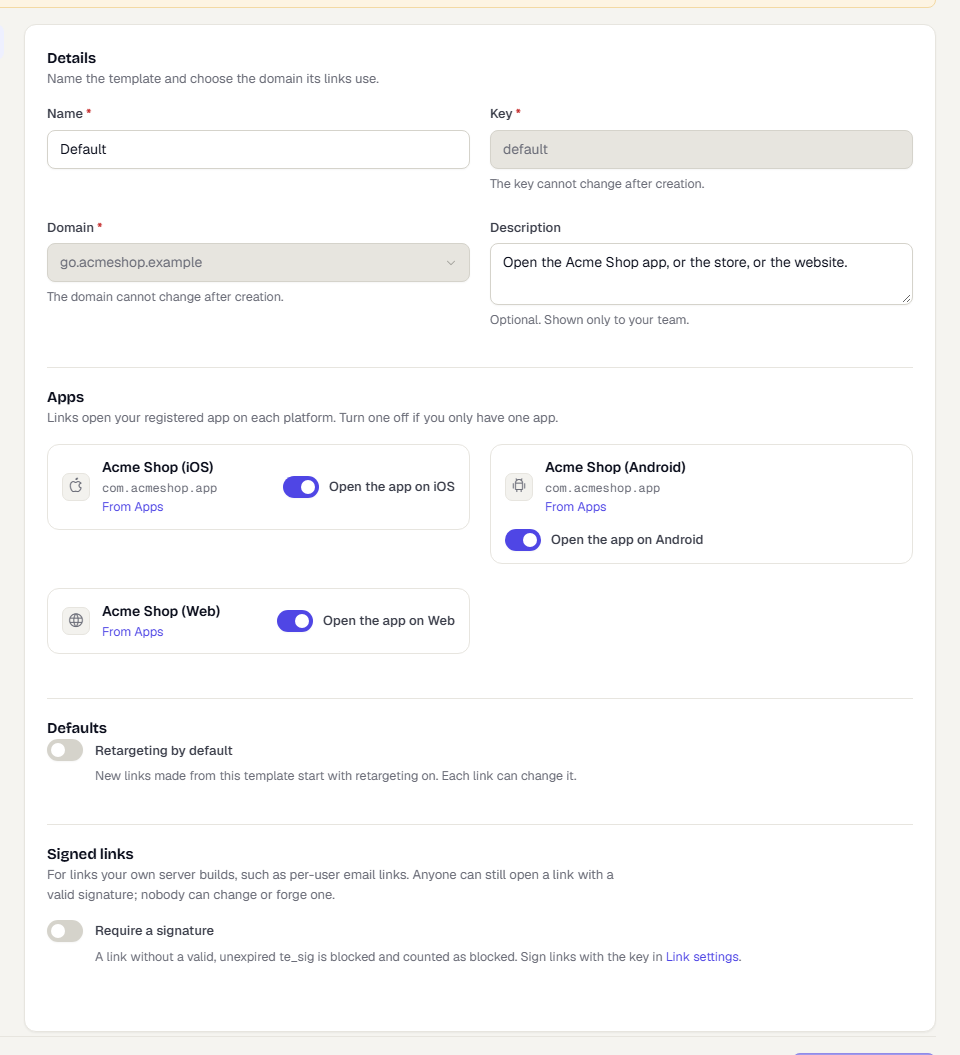
- Set Defaults. Retargeting by default makes new links from this template start as retargeting links.
- Optional: under Signed links, switch on Require a signature. A link without a valid, unexpired
te_sigis then blocked. Use it for links your own server builds. See Link settings for the signing key. - Open Routing, Rules, Social preview and Landing page and set them. See Routing and rules.
- Select Create template.
Social preview and landing page
- Social preview is the title, description and image shown when a link is shared. Without your own, the app's name and icon are used.
- Landing page replaces the redirect inside in-app browsers that block it. You set a Headline, Body, Button label, a Theme and an optional logo. Its button opens the link on the alternate host.
Change a template
Open the template, change it and select Save changes. A banner shows how many links use it. A routing change applies to all of them on their next click. Domain and key cannot be changed.
Archive a template you no longer use with the Archive button at the end of its row. You cannot archive the default template of a domain, or a template that links still use. Archived templates cannot be chosen for new links or edited. Turn on Show archived in the list to see them.
If a template points to an app that is no longer your current app, the editor says so and offers Use .
Create links in bulk
To create many links at once, import a CSV file.
- Open Smart Links, then Links.
- Select Import CSV.
- Select Download the template to get a file with the right columns.
- Fill it in and select Choose a CSV file. The file can have up to 10,000 rows. Nothing is created yet. TrueEngage checks every row the way a single new link is checked.
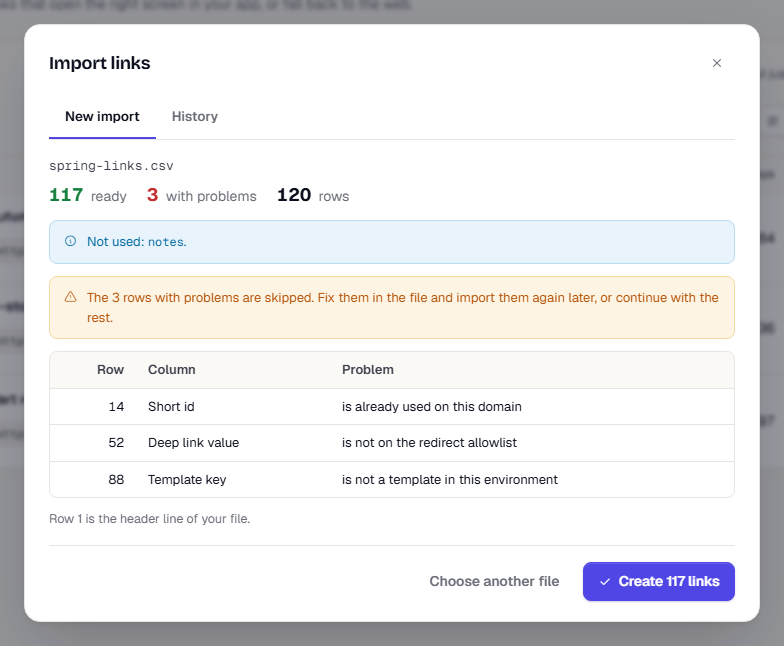
- Read the summary: rows ready, rows with problems and the total. A table lists every problem with its row, column and reason. Columns the import does not read are listed too.
- Select Create N links. You can close the window while the import runs.
The file's columns:
| Column | Notes |
|---|---|
name |
Optional. |
domain |
The host name. Optional when you have one domain. |
short_id |
Optional. A taken id is a row error and is never overwritten. |
intent |
social, referral, email, sms, qr, push or custom. |
template_key |
Optional when the domain has a default template. |
deep_link_value |
The path or URL for your app. |
media_source, campaign |
Attribution. |
tags |
Separated by a vertical bar. |
expires_at |
A date such as 2027-01-31T10:00:00Z. |
max_clicks |
Expire after that many clicks. |
deep_link_sub1 to deep_link_sub5 |
Additional values. |
utm_source, utm_medium, utm_campaign, utm_term, utm_content |
UTM values. |
Rules are not part of the file. Set them on the template or link.
Common row problems: a short id already used on the domain or twice in the file, a template key or domain that does not exist, a suspended domain, a web address that is not on the redirect allowlist, or a date in the wrong form.
The History tab of the dialog lists past imports with their status and the number of links created.
Export links
Export CSV on the Links page downloads the links that match your current filters. It has the import columns plus url, status, clicks_30d, installs_30d, opens_30d and created_at. It holds links and counts only, never information about people.
Related pages
Was this page helpful?