Roles and permissions
Review the role catalogue, read the permission grid, set Test and Live overlays and create a custom role.
A role is a named set of permissions. The Roles page lists every role. Opening a role shows a grid of what it can do in each area of the console.
Before you start: Roles is visible to Owners, Admins and Managers. Only an organisation Owner can create roles, change a grid or reset a role to its default. Every change is logged. Every member, whatever their role, can see their own permissions under Account, then My permissions.
Who can do this
| Action | Permission | Default roles |
|---|---|---|
| Open the Roles page | Roles: View (roles:view) |
Owner, Admin, Manager |
| Create a role, edit a grid, reset to default | Owner only (no permission to grant) | Owner |
| See your own permissions under Account, My permissions | Always visible | Every member |
For every permission in the console, see Permissions reference.
The role catalogue
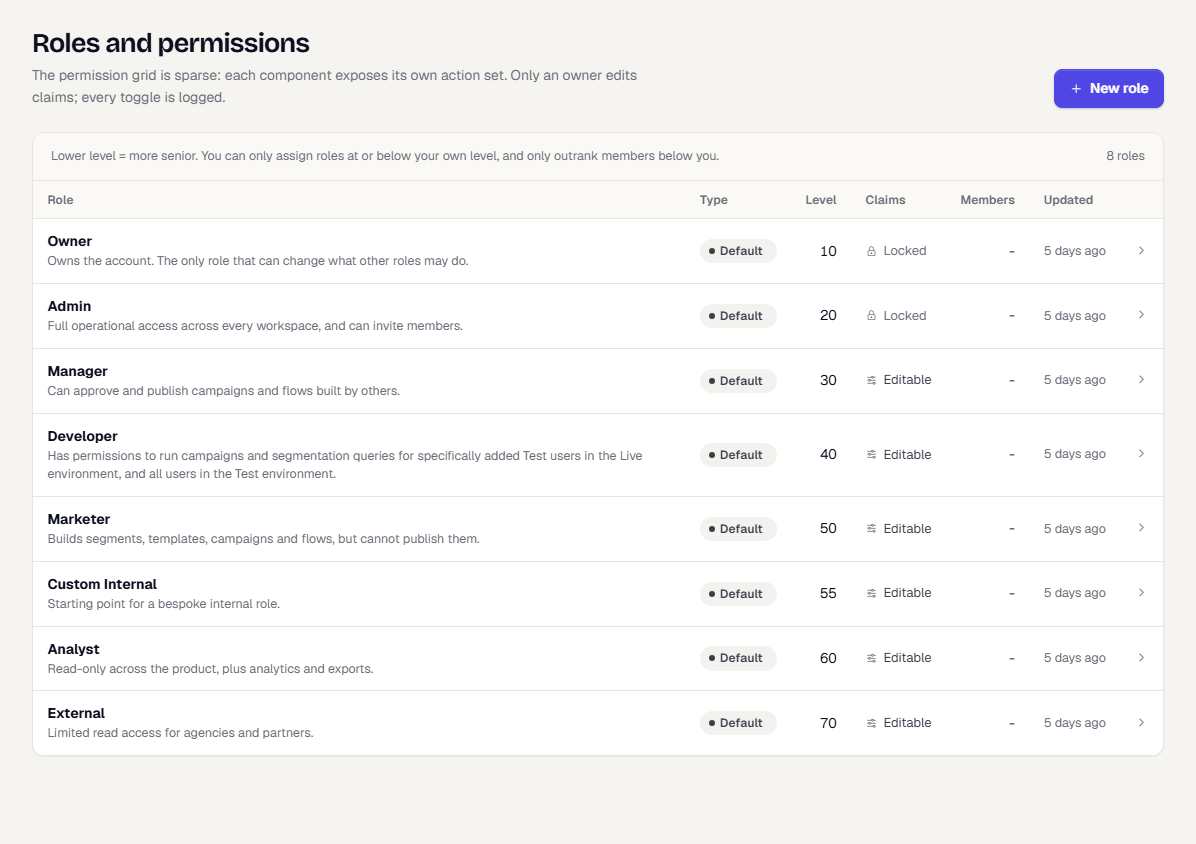
Open Settings, then Roles. Each row shows the role's Type, its Level, whether its claims are Locked or Editable, how many Members use it and when it was Updated.
A lower level means more senior. You can only assign roles at or below your own level, and can only outrank members below you. Owner and Admin are built in and locked.
Read a role's permission grid
- Select a role in the list.
- Read the grid. Rows are areas of the console, such as campaigns or segments. Columns are actions, such as view or create and manage. A tick means allowed. Hover a row or column name for a description.
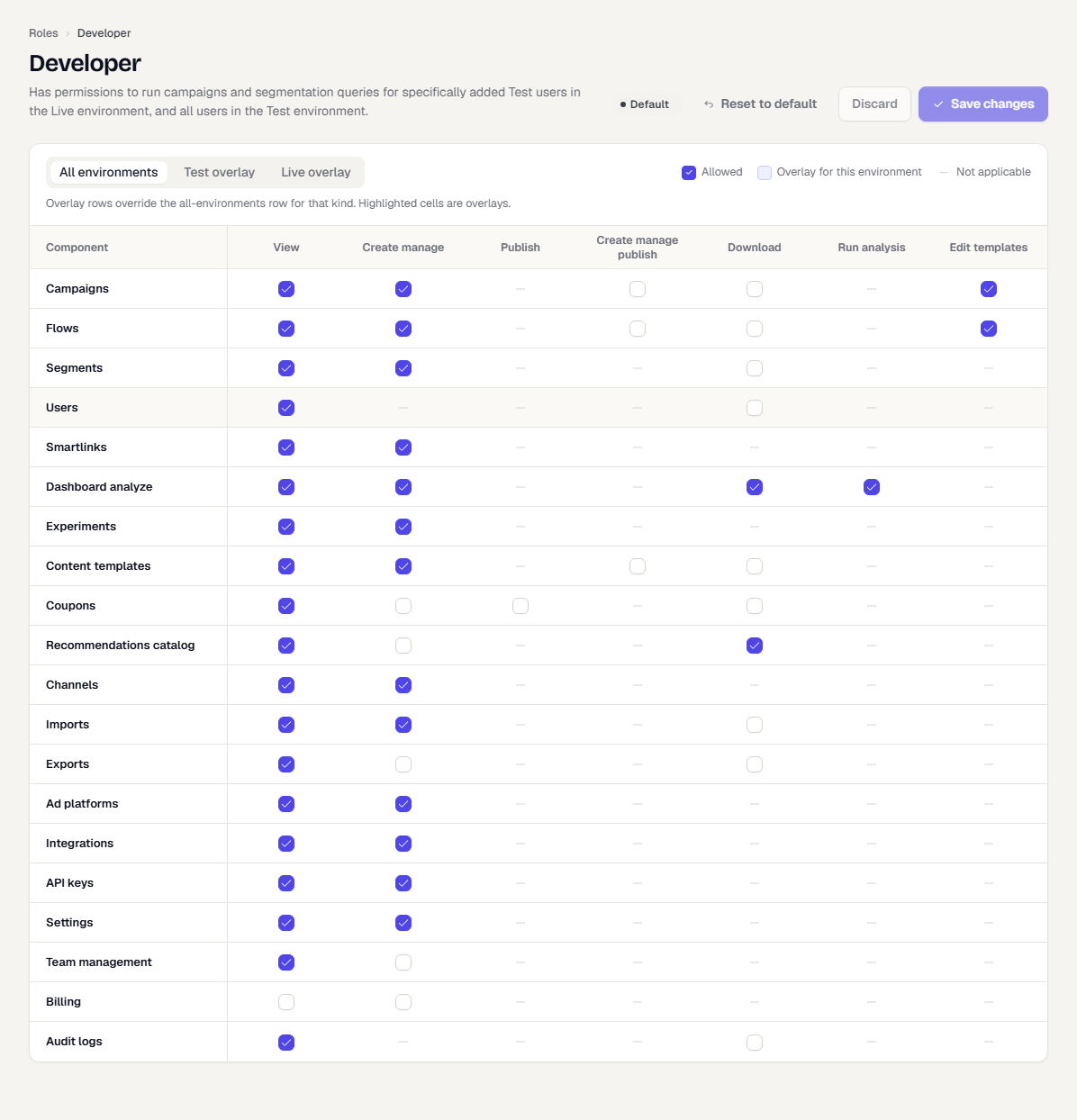
If you are not an Owner, a note at the top says only an account Owner can change claims. Locked roles show a lock note instead.
Give a role different access in Test and Live
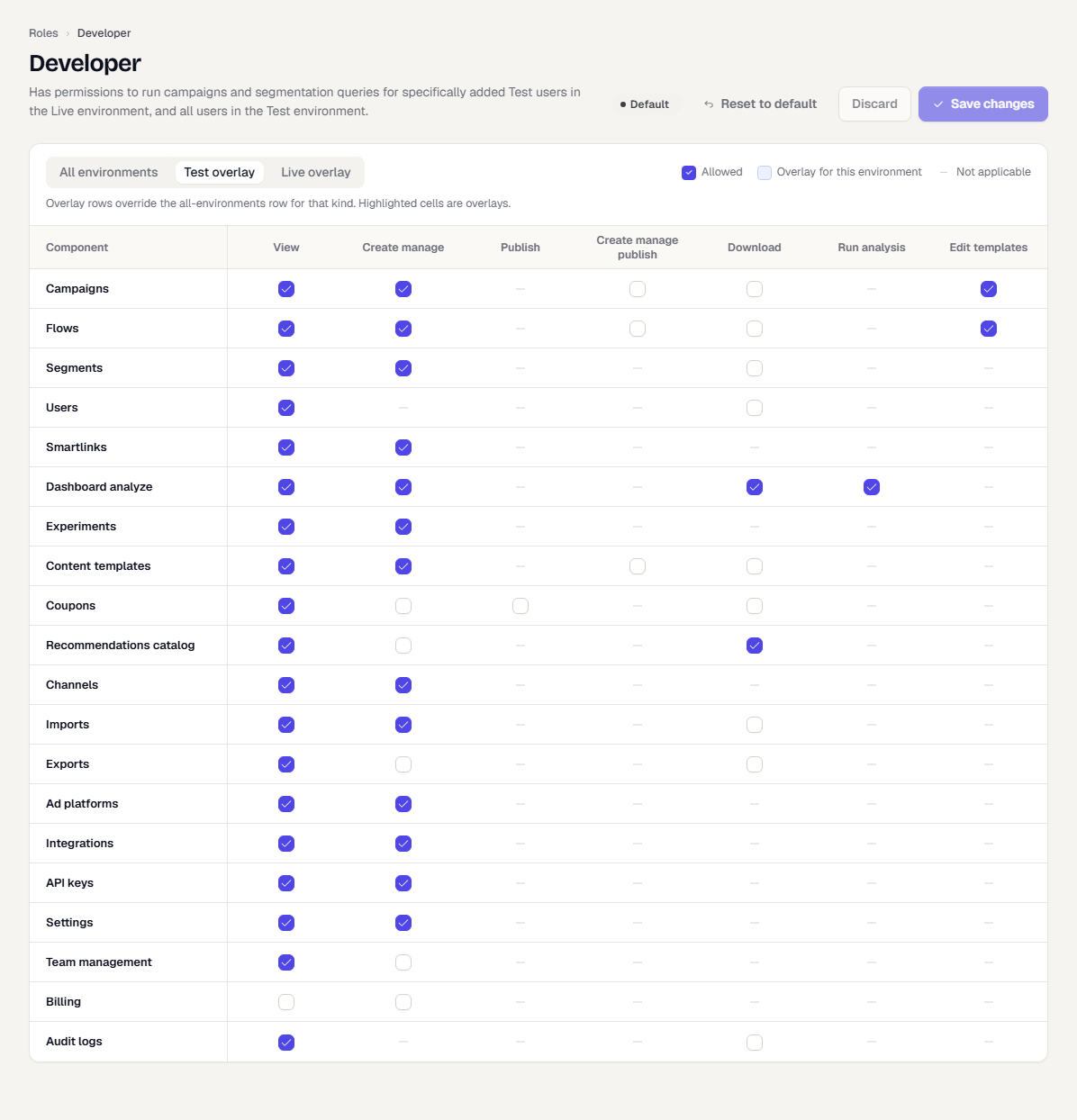
The switch above the grid has three options: All environments, Test overlay and Live overlay.
- Select Test overlay or Live overlay.
- Change the cells you want to differ from the base grid. Overlay cells are highlighted.
- Select Save changes.
For example, you can let a role create campaigns in Test but only view them in Live. An overlay row overrides the All environments row for that environment.
Cells you changed but have not saved show as an unsaved change. Use Discard to drop them or Reset to default to restore the built-in grid. The Change log at the bottom lists who changed which cell, and when.
Create a custom role
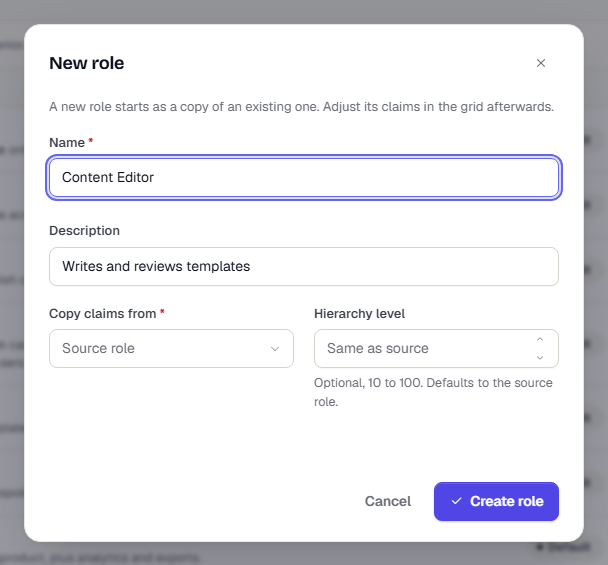
- Select New role.
- Enter a Name and a Description.
- Under Copy claims from, pick the role to start from.
- Optionally set a Hierarchy level, from 10 to 100. If you leave it empty, it matches the source role.
- Select Create role.
- Open the new role and adjust its grid as above.
Related
- Invite and manage your team
- Account and profile, where My permissions shows what your own role allows.
Was this page helpful?