Set goals and exits
Define the events that count as success, and the conditions that remove people from a flow early.
Goals are the events that mean the flow worked, such as Order Placed. Exit criteria remove people from the flow before the end, for example once they have bought.
Before you start
- You need the create and manage permission for flows.
- Events appear in the pickers once your app has sent them. You can also type a name. See Manage events.
Add a goal
- In the flow editor, select the Goals & exits tab.
- Under Goals, select Add goal. A flow can have up to 5.
- Fill in the row.
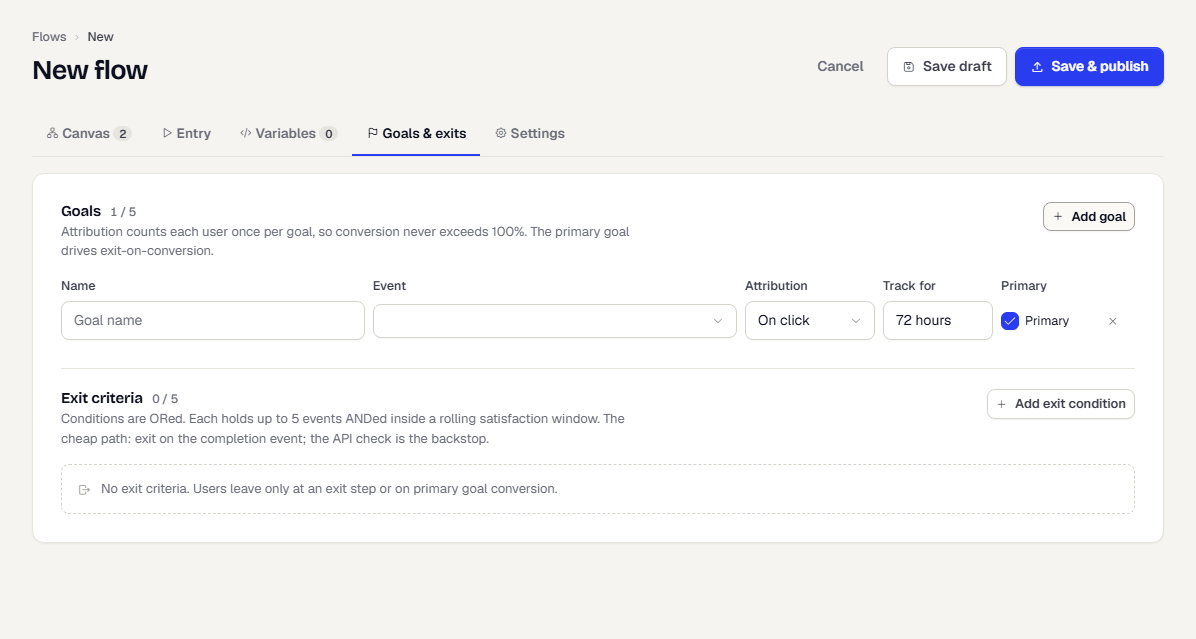
| Field | What it does |
|---|---|
| Name | A label for reports. |
| Event | The event that counts as the goal. |
| Attribution | Which touch earns the credit: On click, On view, On send or In-session. |
| Track for | How long after the message to look for the event, for example 72 hours. |
| Primary | Mark one goal as primary. Conversion rate and exit on conversion use it. |
Each person counts once per goal, so conversion never goes above 100%. Remove a goal with the cross.
When you change goals on a flow that already ran, a Past events control appears. Use it to choose whether to count past events against the new goals. See Conversion history.
Add an exit condition
- Under Exit criteria, select Add exit condition. A flow can have up to 5.
- In within, type the satisfaction window, for example
30 days. - Pick an Event next to when.
- To need more than one event, select And event. Up to 5 events are ANDed inside a condition.
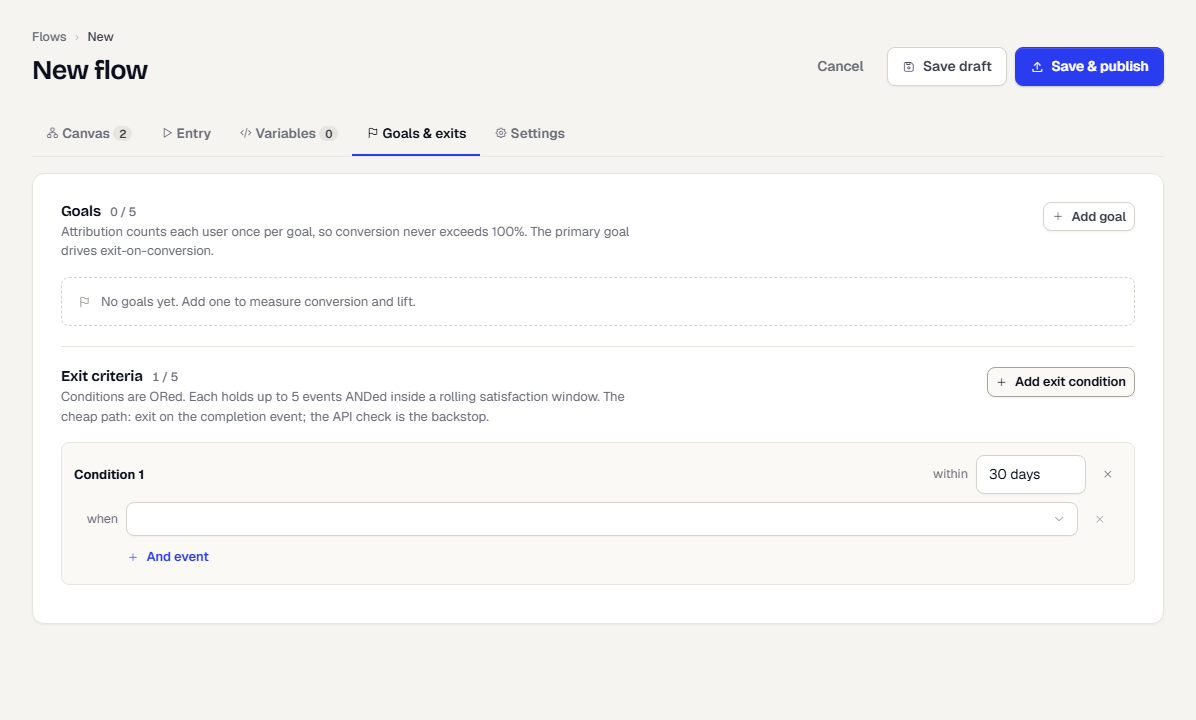
Conditions are ORed with each other: meeting any one removes the person. Exiting on the completion event is the cheap path, and the check at delivery is the backstop.
With no exit criteria, people leave only at an Exit step, or when they reach the primary goal if Exit on primary goal conversion is on. See Flow settings.
What happens next
Goal results show on the flow's Goals tab, with lift against the control group. See Monitor a flow.
Was this page helpful?