Sign up and sign in
Create a TrueEngage account, sign in to the console with your email and password, and reset a forgotten password, step by step.
Use these pages to create an account, sign in to the console and recover access.
Create an account
- Open the TrueEngage sign-up page.
- Enter your Full name and Work email.
- Choose a Password. TrueEngage checks it against known breaches and never stores it in plain text.
- Select the box to agree to the Terms of Service, Acceptable Use Policy and Privacy Policy.
- Select Create account.
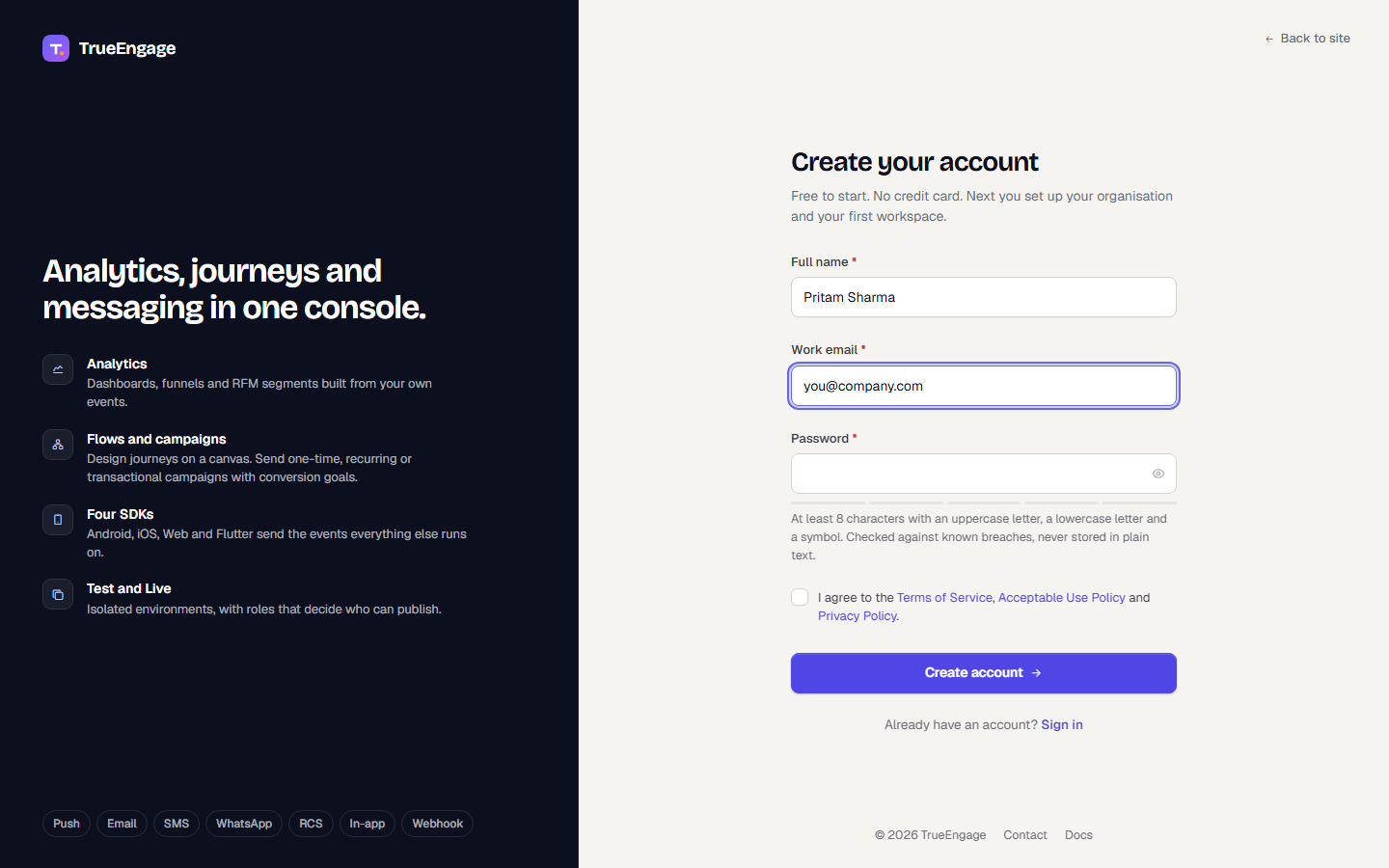
After you sign up, you set up your organisation and first workspace. See Set up your organisation and workspace.
Sign in
- Open the sign-in page.
- Enter your Email and Password.
- Select Sign in.
- If you turned on two-factor sign-in, enter the code from your authenticator app. See Two-factor authentication.
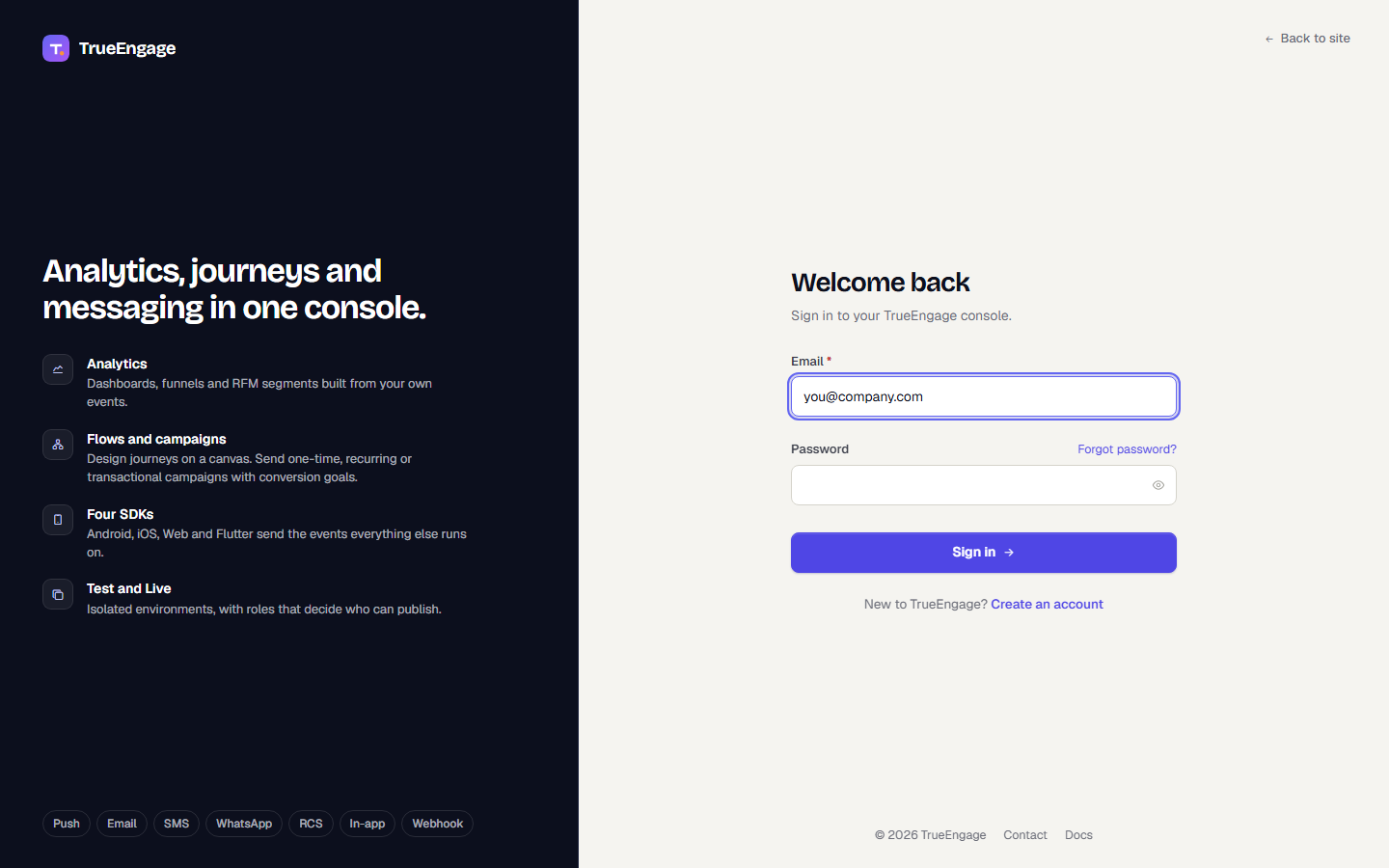
After several failed attempts, sign-in pauses for a short time. Wait and try again.
Reset a forgotten password
- On the sign-in page, select Forgot password?.
- Enter your Email.
- Select Send reset link.
- Open the email and follow the link. It works once and expires after an hour.
- Choose a new password.
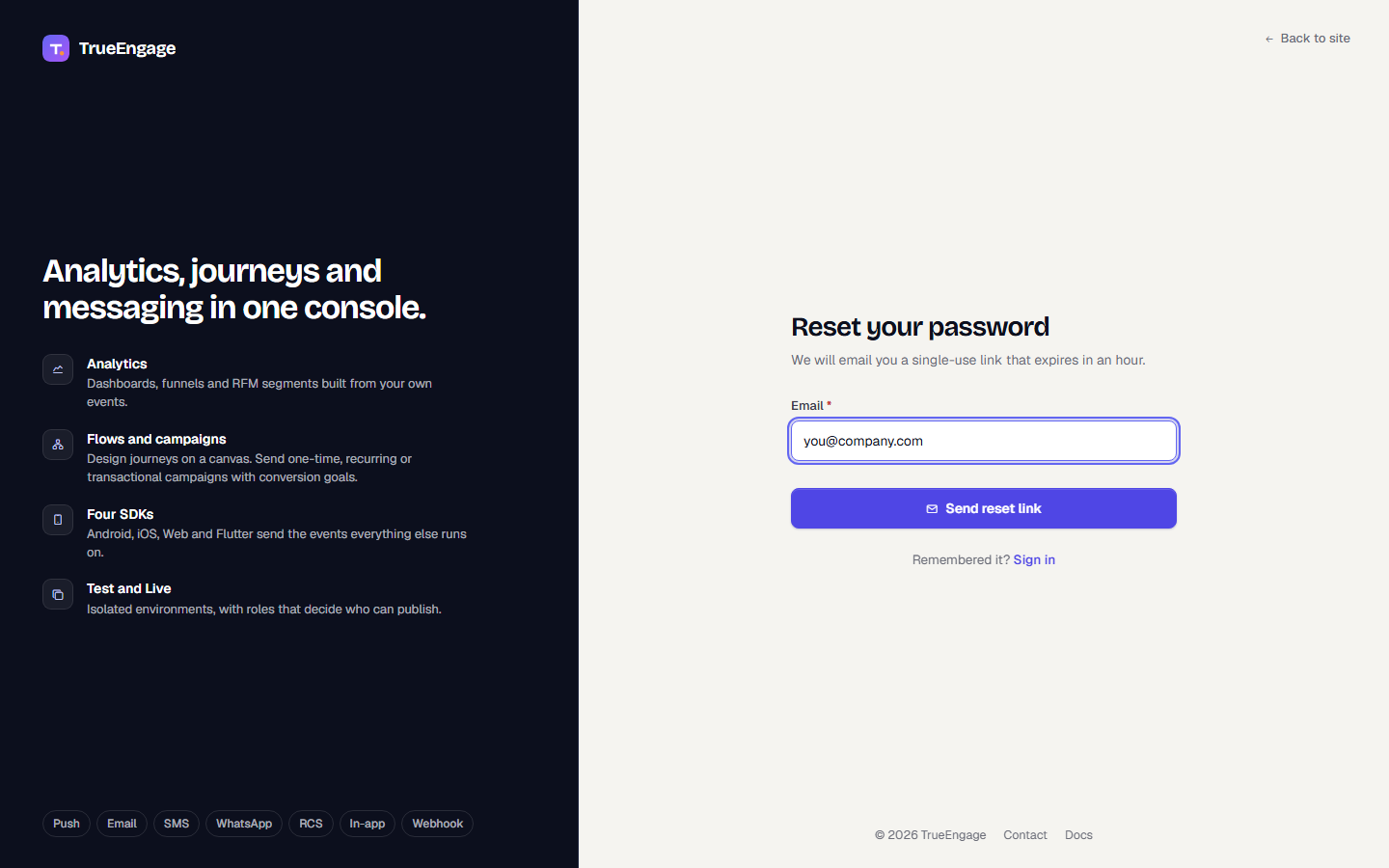
To change a password you know, use the Security tab. See Account and profile.
Related
Was this page helpful?