Privacy requests
Follow every erasure request in an environment, see who made it and where it stands, and fix what is holding it up.
Privacy requests lists the erasure requests for the environment you are in, whoever made them. Use it to check that a request finished, see who asked and why, and find out what is holding one up.
Before you start
- You need View on Privacy requests. Owners and Admins have it by default, and Managers can view. Without it the page is missing from the sidebar.
- Open Settings, then Privacy Requests.
The page never shows a person's name, email or phone. It shows an internal reference only.
Read the list
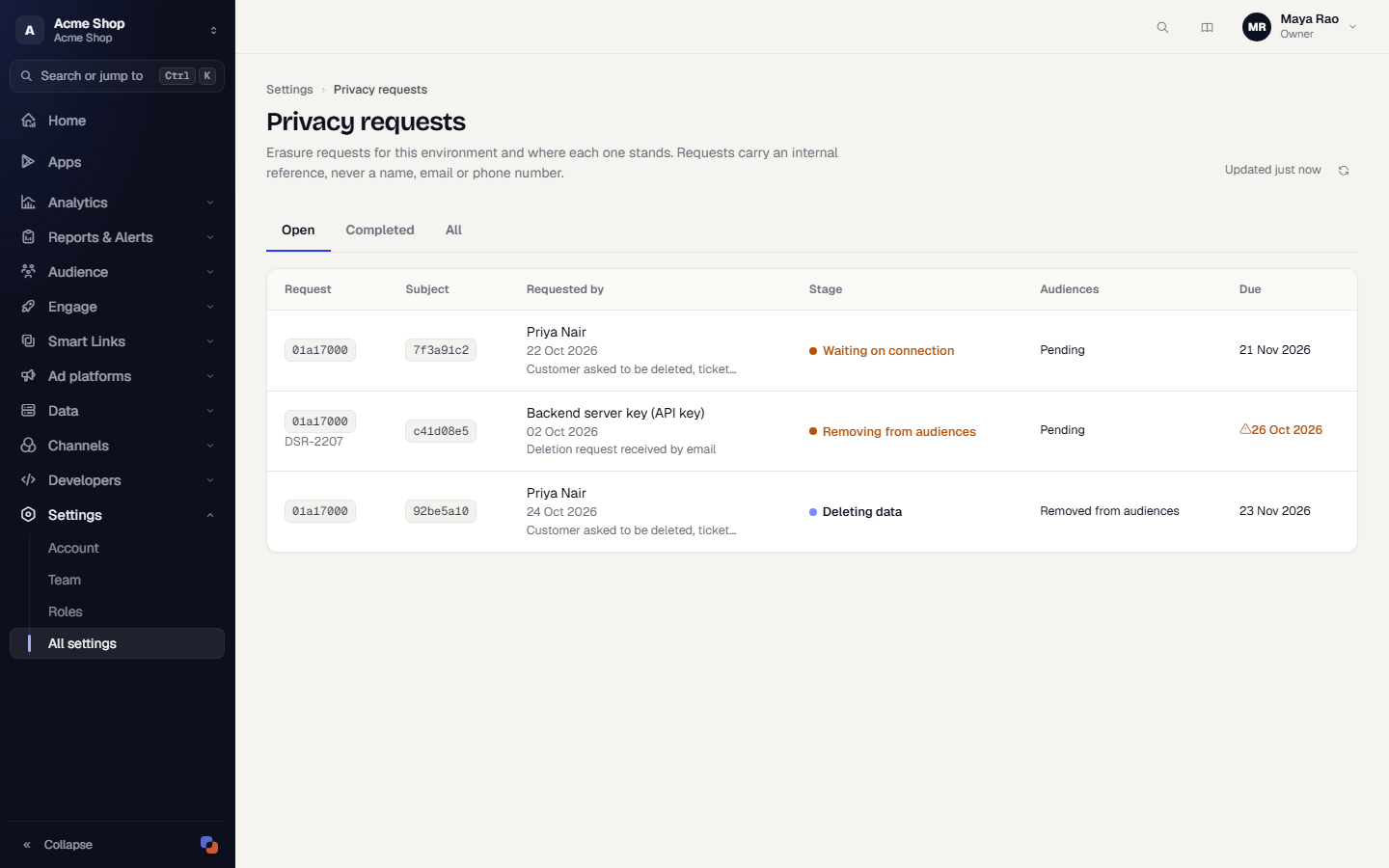
Use the tabs to filter: Open, Completed or All. Select Refresh to reload. Select Load more at the bottom for older requests.
| Column | What it shows |
|---|---|
| Request | A short id, and the reference you gave if any. |
| Subject | An internal short id for the person. It reads No profile found or No matching person when no profile matched. |
| Requested by | The console user's name, or the API key's name followed by (API key), with the date and the reason. |
| Stage | The current stage. Waiting on connection means an ad platform connection needs attention. |
| Audiences | Pending, Not in any audience, Removed from audiences or Some audiences may still hold them. |
| Due | The date the request must finish by. A warning icon and amber text mean it is within a few days of that date and at risk. Completed requests show Done and the date. |
With no requests the page explains how to send one from your backend and shows an example call.
Open a request
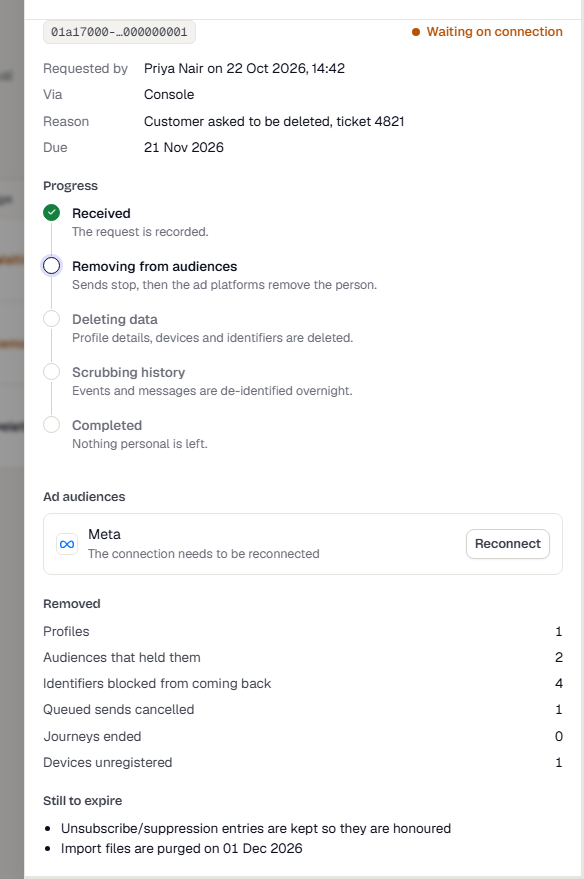
Select a row to open the Erasure request drawer. The address gains ?request=<id>, so you can share the link with a teammate who has access.
The drawer shows:
- The request id with a copy button, and the current stage.
- Requested by with the date, Via (Console or API), Reason, Reference, Due and Completed.
- Progress: five steps (Received, Removing from audiences, Deleting data, Scrubbing history, Completed). Between steps the drawer says Next step shortly and refreshes itself every few seconds until the request ends.
- Ad audiences: each audience still holding the request up, with the platform and the cause, such as The connection needs to be reconnected or The audience is paused. Where you can fix it, a Reconnect or Open audience button takes you to the connection's Audiences tab. You need View on Ad platforms to see these buttons.
- Removed: counts of what was deleted, such as profiles, devices unregistered and queued sends cancelled.
- Still to expire: what stays for now, such as the suppression list and import files, with dates where there are any.
If no person was found
A request for an identifier that matches no profile completes at once. The drawer says that no matching person was found and that the identifiers were recorded so they cannot be re-created for the retention period. See Erasing a person.
Fix a request that is waiting
A request waits when an ad platform has not confirmed the removal. Fix the cause shown in the drawer:
- Open the request.
- Under Ad audiences, read the cause.
- Select Reconnect to reconnect an expired connection, or Open audience to resume a paused or failed audience.
Erasure continues on its own once the platform confirms. If nothing changes, it goes ahead after 14 days and the request reads Some audiences may still hold them. Check the audiences marked with a warning on your ad platform connections.
There is no cancel button, because erasure cannot be undone. There is no export of the list.
Related
Was this page helpful?