QR codes
Create a QR code for a smart link, style it, count scans separately from clicks, and download it as SVG or PNG.
A QR code is a picture of a smart link's address. Scanning it behaves exactly like tapping the link, so one code opens your app, or the store, or your website, depending on the phone. There is no separate QR list or page. Every QR code belongs to a link.
Before you start
- You need Create and manage permission on Smart Links to create or style a code. Anyone with View can download one.
- Pausing or archiving the link also stops its printed codes. They send people to the template's expired target.
Create a QR code
- In the sidebar, under Smart Links, choose New QR Code. This opens the link builder with the QR code intent already chosen.
- Fill in the link as usual. See Create your first link. The suggested media source is QR, and Fill from this link on the UTM section suggests
utm_medium=qr_code. - Select Create link.
- Open the QR code tab of the new link.
You can open the QR code of any existing link the same way, and in the Links list you can select the QR icon beside the address for a quick view and download.
Style the code
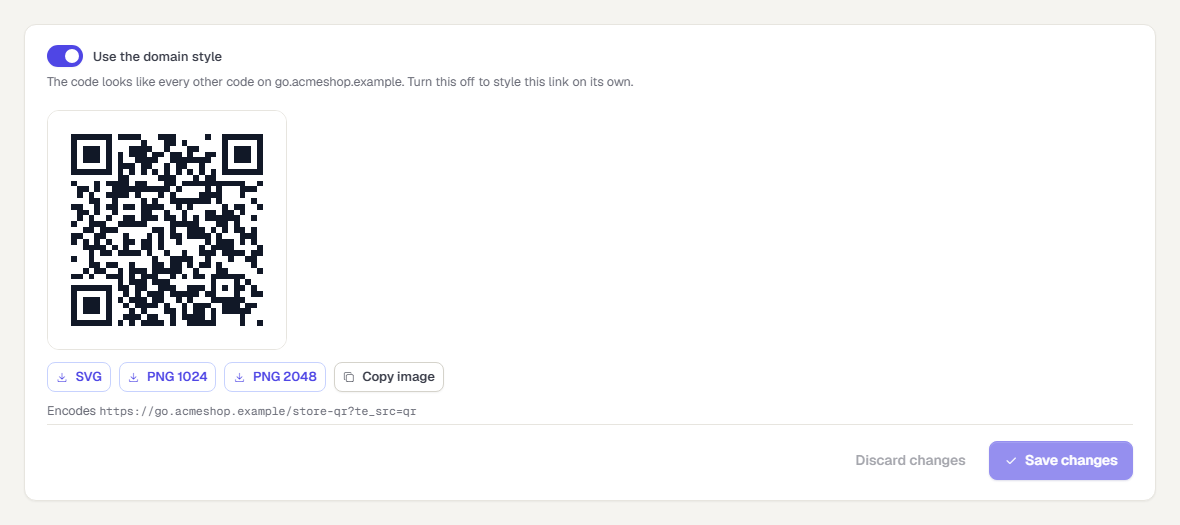
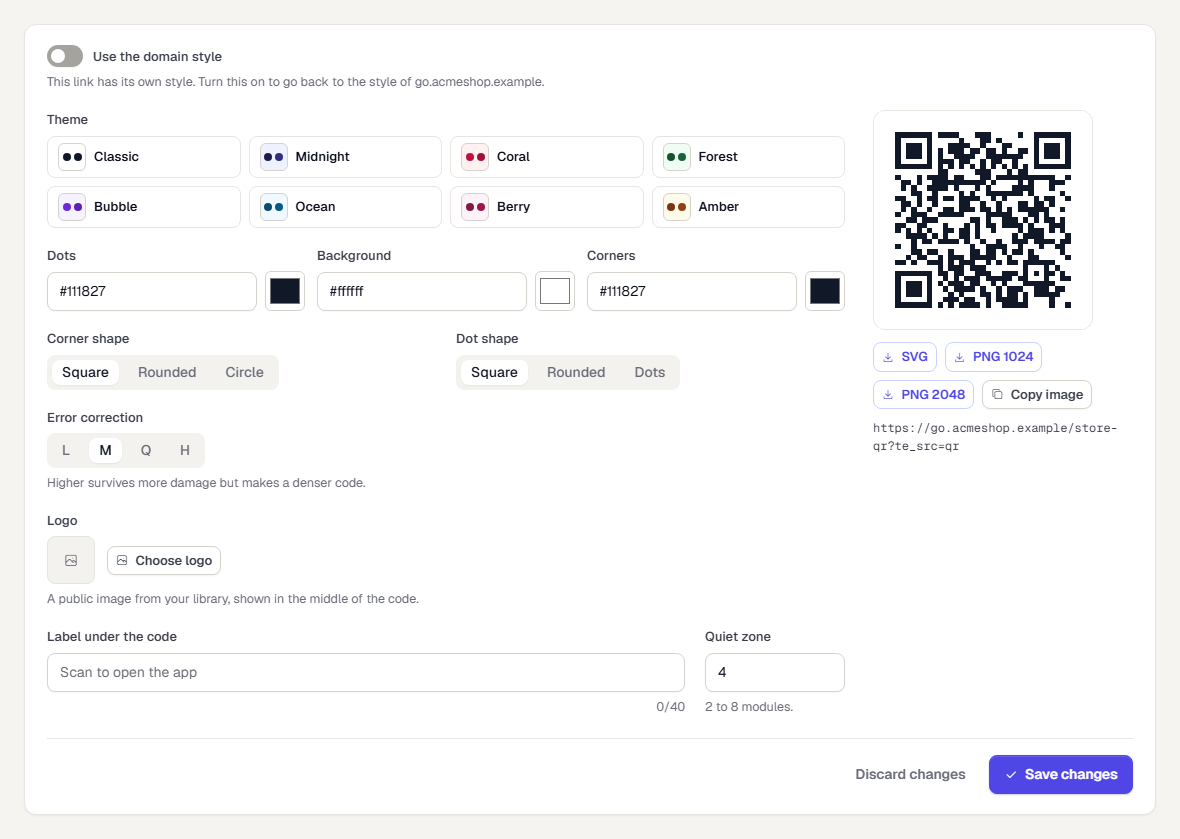
By default a link uses its domain's QR style. On the link's QR code tab, turn off Use the domain style to style this link on its own.
| Control | What it does |
|---|---|
| Theme | A preset: Classic, Midnight, Coral, Forest, Bubble, Ocean, Berry or Amber. Choosing one fills the colours and shapes. |
| Dots, Background, Corners | Colours as #rrggbb. |
| Corner shape | Square, Rounded or Circle. |
| Dot shape | Square, Rounded or Dots. |
| Error correction | L, M, Q or H. A higher level survives more damage but makes a denser code. It is set to H when a logo is used. |
| Logo | A public image from your asset library, shown in the middle. Logo size is 15 to 30 percent of the code. |
| Label under the code | Up to 40 characters, such as "Scan to open the app". |
| Quiet zone | The blank margin, 2 to 8 modules. |
The preview updates as you change a control. If the dots are too close to the background colour, the preview warns that phones may not scan the code. Scan a printed proof before you print many copies.
Select Save changes to keep the style.
Set one style for a whole domain
Open Smart Links > Domains, choose the domain and open QR codes. The style you save here applies to every link on the domain that has not set its own. The preview shows the domain's main page.
Download
Below the code, choose:
- SVG for print. It scales without losing sharpness.
- PNG 1024 or PNG 2048 for slides, documents and web.
- Copy image to paste the PNG into another app.
If the logo cannot be loaded, the file is exported without it and a note says so.
Count scans separately
With Count scans separately on (the default, in the domain's QR codes section), the code carries ?te_src=qr. TrueEngage then counts a scan as a QR scan as well as a click. The link's Overview shows QR scans, and the Links list has a QR scans, 90 days column and a QR codes filter.
If you turn it off, new codes carry the plain link and a scan counts as an ordinary click. Codes you already printed with the parameter keep counting as scans. Codes printed without it count as clicks.
Scan counts are totals. They say nothing about who scanned.
Related pages
Was this page helpful?