Subscription categories
Let people keep some kinds of message and drop others, then choose a category on a campaign or a flow step so opt-outs are respected.
A subscription category is a kind of message that people can choose to keep or drop, such as Offers or Product updates. People make their choice in the preference centre, a page linked from your emails. A campaign or flow step that picks a category skips everyone who has opted out of it. Everyone else still receives the message. Each skip is recorded with the reason Opted out of this category, which you can see in the campaign's runs and recipients and in a flow's Debug replay and Dry run.
Categories belong to the whole workspace. The Subscription categories tab on Email, SMS & RCS and WhatsApp shows the same list, with counts for that channel.
Before you start
- You need permission to manage channels to create, edit or archive categories. With only view permission you can read the list.
- The counts show how many people in this environment have opted out, on this channel. They are counts only. No one is listed, and there is no export.
- A new workspace starts with Newsletter, Promotional and Transactional.
Read the list
- In the sidebar, open Channels and choose Email, SMS & RCS or WhatsApp.
- Select the Subscription categories tab.
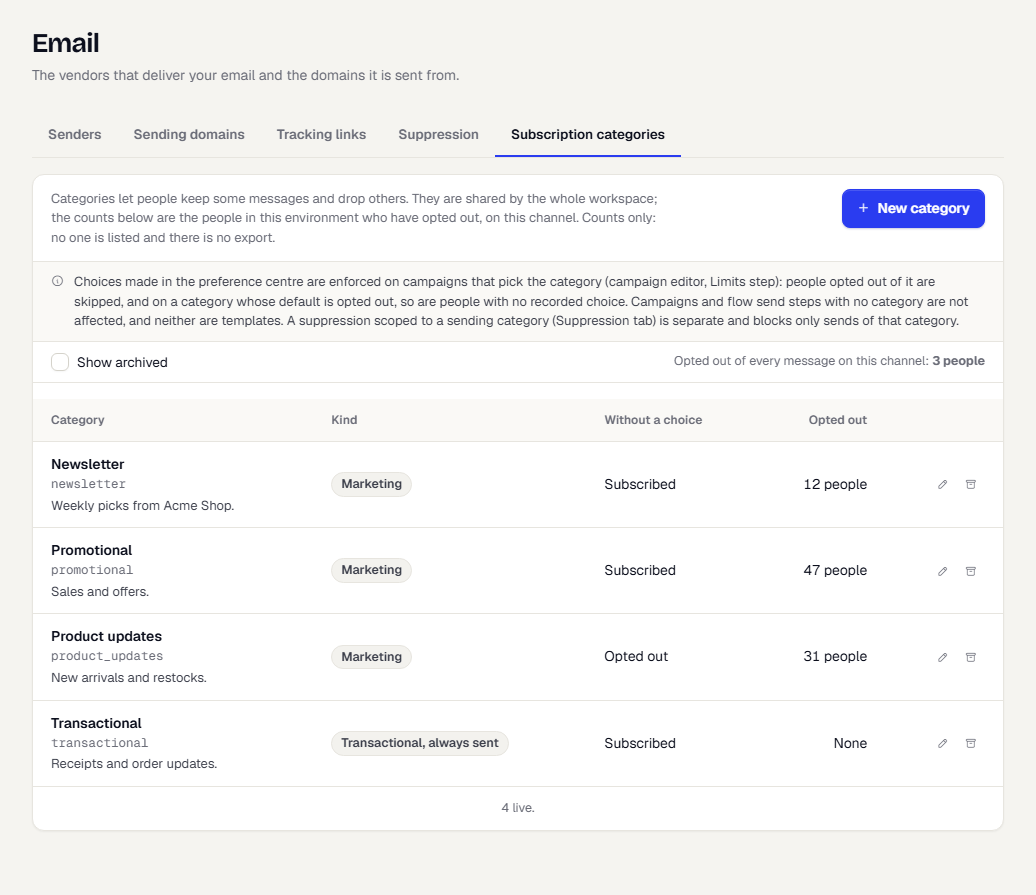
| Column | What it shows |
|---|---|
| Category | The name, the key and an optional description. |
| Kind | Marketing, or Transactional, always sent. |
| Without a choice | What a person with no recorded choice counts as: Subscribed or Opted out. |
| Opted out | How many people opted out of this category. |
Above the table, Opted out of every message on this channel shows how many people turned off the whole channel. Tick Show archived to include archived categories.
Create a category
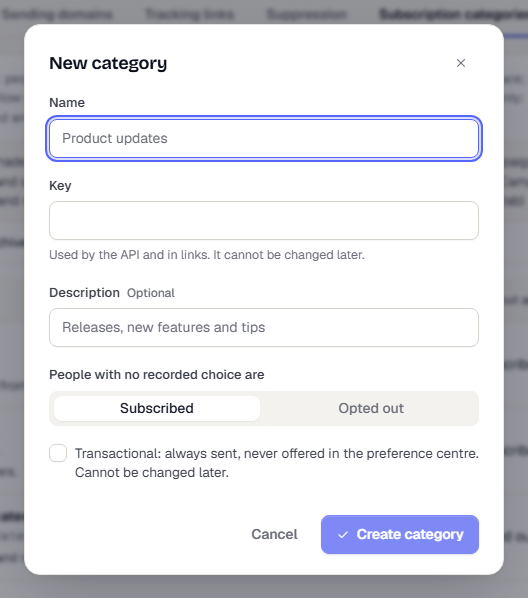
- Select New category.
- Enter a Name, such as "Product updates".
- Enter a Key. It is used by the API and in links, and it cannot change later.
- Optionally add a Description.
- Under People with no recorded choice are, choose Subscribed or Opted out. Choose Opted out for a category people must opt in to.
- Tick Transactional: always sent, never offered in the preference centre for messages such as receipts. This cannot be changed later.
- Select Create category.
Use the pencil icon (Edit) to change the name, description or default. Use the archive icon (Archive) to retire a category. An archived category disappears from the preference centre, so nobody can newly choose it. Every recorded choice is kept and you can select Restore at any time. The key stays reserved.
Use a category on a campaign
- Open the campaign and go to the Limits step.
- Under Subscription category, choose the Category.
People who opted out of that category are skipped, and the run records the reason as Opted out of this category. A person who opted out of the whole channel shows the channel reason instead. On a category whose default is Opted out, people with no recorded choice are skipped too. A transactional category never blocks anyone. The step appears for channels that support opt-outs.
For the rest of the step, see Create a campaign.
Use a category on a flow step
- In the flow editor, select a Send message or Best channel step.
- In the inspector, find Subscription category and choose a Category.
Leave it on None / use channel default to apply only channel-wide unsubscribes. A change applies to people who reach the step after you publish. Messages already queued keep what they had. Publishing checks that the category exists, is not archived and that the step's channel supports opt-outs.
What does not change
- Campaigns and flow send steps with no category are not affected by category opt-outs, and neither are messages sent from templates outside a campaign or flow.
- A suppression scoped to a sending category (see Manage the suppression list) is separate. It blocks only messages of that category.
Related
Was this page helpful?