Browse your segments
Find saved segments, see their size and status, and recompute membership.
A segment is a saved audience: a rule that picks out users, such as "people who placed an order in the last 30 days". Segments lists every segment in the environment. You pick segments when you target a campaign, set a flow's entry, or write a routing rule.
To build a segment from a CSV of IDs, emails or phone numbers instead of rules, select Upload a list. See Create a segment from a file.
Before you start
- Anyone who can view segments sees the list. New segment and the recompute button appear only if you can manage segments.
- Segments are per environment. A segment in Test does not exist in Live until you promote it.
Read the list
- In the sidebar, open Audience, then Segments.
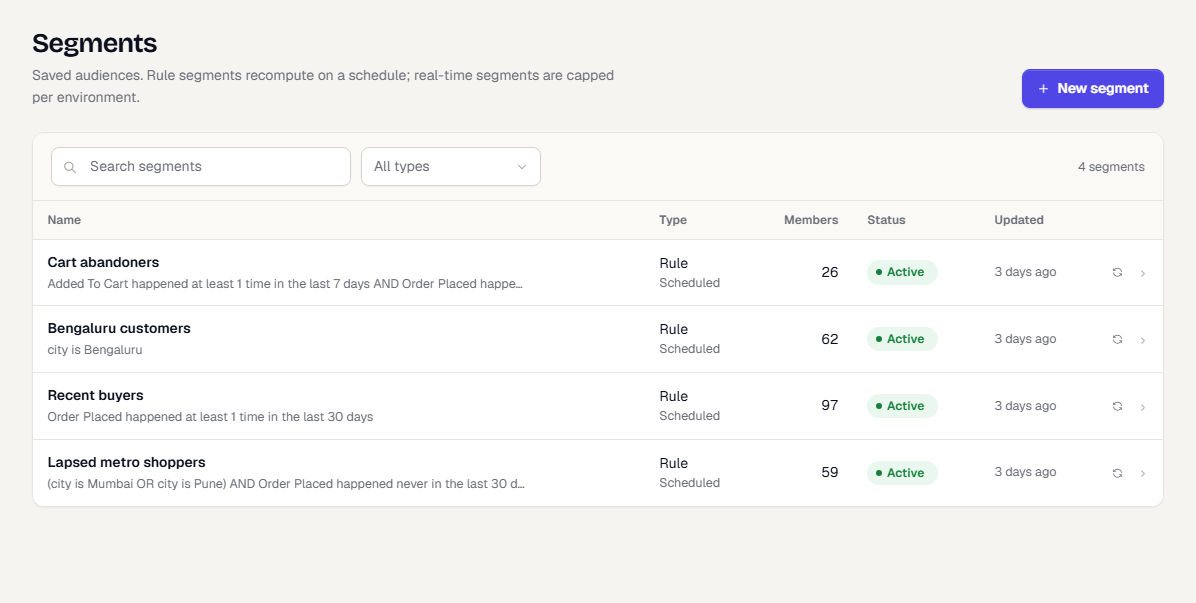
Each row shows:
| Column | What it shows |
|---|---|
| Name | The segment name, with its rule written in plain words underneath. |
| Type | The segment type, with how it is refreshed beneath it. See Build a segment. |
| Members | How many users the last computation found. A dash means it has not been computed yet. |
| Status | Active or Archived. In Test, a Promoted badge shows a segment that has a Live copy. |
| Updated | When the segment last changed. |
The count in the corner is the number of segments that match your search and filter.
Search and filter
- Type in Search segments and press Enter to search by name.
- Open All types to show only one type. Clear it to see everything again. The filter applies to the page you are looking at, so the corner shows how many of that page match instead of the total.
- Select a segment name to open it. The name is a real link, so you can reach it with the keyboard and open it in a new tab.
If nothing matches, the list says No segments match. Change the name or clear the type filter.
Recompute one segment
Membership is stored and refreshed on a schedule, so the Members count can be a few hours old. To refresh one segment now:
- Hover the refresh icon at the end of its row. The tooltip reads Recompute membership.
- Select it.
A message says Refresh queued. The new count appears on the row once the computation finishes. Snapshot segments, which hold a fixed list of people, have no refresh button.
Open a segment
Select any row to open its detail page: Open a segment.
Create a segment
Select New segment. If the list is empty, select Create your first segment instead. The builder is described in Build a segment.
What happens next
- Use a segment as the audience of a campaign or flow.
- Check one person's membership on their profile: the Segments card lists the segments they are in.
Was this page helpful?