Developer tools
Build a call to the server API from your own endpoints and events, turn SDK logging on, and watch the events your apps send arrive.
The Developer page has three tabs for the people who build the integration: API request builder, SDK debug guide and Live events. Use them to write a correct call to the server API, find out why an SDK is quiet, and see what reached TrueEngage.
Before you start
- You need permission to view API keys to open the page.
- A server call needs a server key. Create one under API keys. The page never shows a secret.
- The page follows the environment you are in. Test and Live share one host. The key you use decides which environment a call lands in, so a
test_key never touches Live data.
To open the page, select Developers, then Developer Tools. It used to be under Settings; the old address still works.
Build an API request
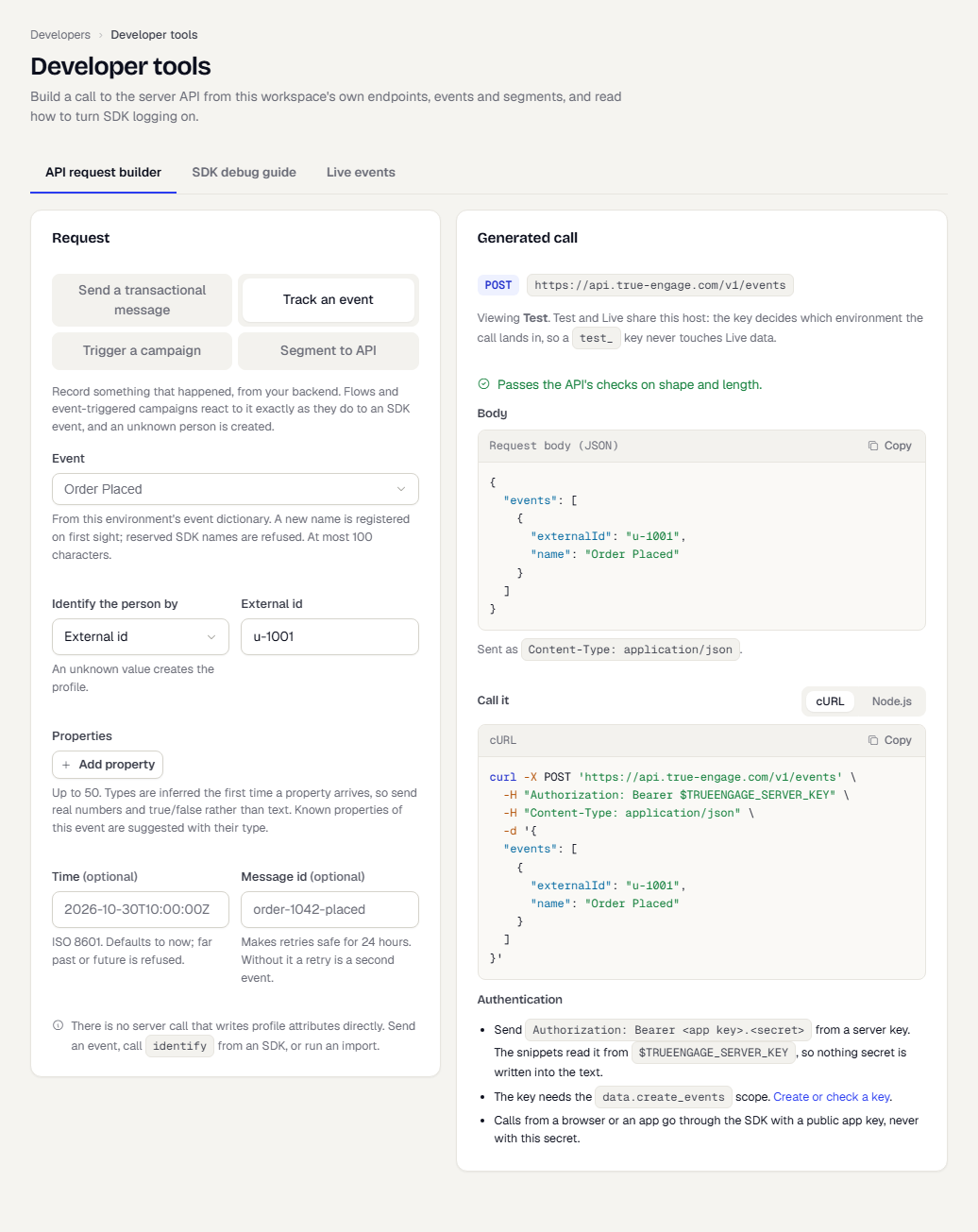
The API request builder writes the call for you, from your workspace's own transactional endpoints, events, campaigns and segments.
- Open the API request builder tab.
- Under Request, choose what you want to do:
- Send a transactional message sends one message to one person through a transactional endpoint, such as an OTP or a receipt.
- Track an event records something that happened, from your backend.
- Trigger a campaign starts an API-triggered campaign.
- Segment to API starts an API-triggered campaign for the people in a segment.
- Fill in the fields. The lists offer your own endpoints, events, campaigns and segments, and each field says what it is for. For a transactional message you pick the Transactional endpoint and enter the User id and an Idempotency key. For an event you pick the Event, say how to identify the person and add Properties.
If your role cannot read a list, a note above the fields reads You don't have access to followed by the lists, such as transactional endpoints or segments, so those lists are empty. The matching fields take typed text instead. Each affected field repeats it, for example You don't have access to transactional endpoints, so none are listed. Type the endpoint slug. Type the value yourself and the generated call works as usual. Ask a workspace admin if you need the lists.
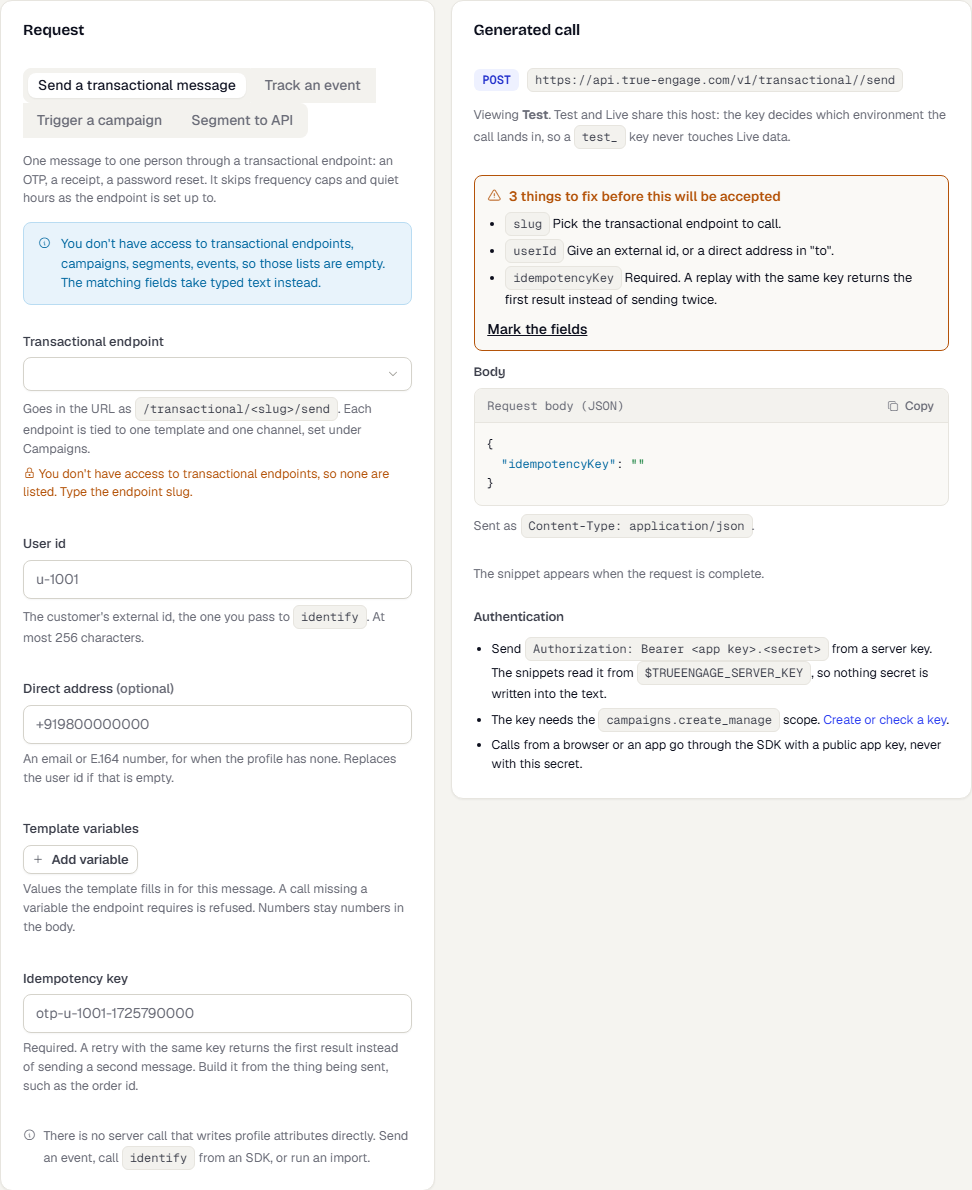
- Read Generated call on the right. It shows the method and address, any things still to fix, the Body as JSON, and a snippet under Call it that you switch between cURL and Node.js.
The snippet is shown only when the request is complete, and a line tells you it passes the API's checks on shape and length. The snippets read the key from an environment variable, so nothing secret is written into the text. The Authentication notes list the scope the key needs.
Calls from a browser or an app use an SDK with a public app key, never a server secret.
There is no server call that writes profile attributes directly. To change attributes, send an event, call identify from an SDK, or run an import.
For the endpoints themselves, see API overview.
Turn SDK logging on
The SDK debug guide tab shows how to raise the log level in each SDK, so you can see why events are not arriving.
- Open the SDK debug guide tab.
- Read the table of log levels, from quiet to loud:
none,error,warn,infoandverbose. The default iserror.verboseprints every queued item in full and can include event payloads, so keep it out of release builds. - Choose your platform tab: Android, iOS, Web or Flutter.
- Follow the three steps for that platform: set the level when you initialise the SDK, call
enableValidationto log whether each event name and property type is known to your workspace, and read the SDK's state withdebugInfo.
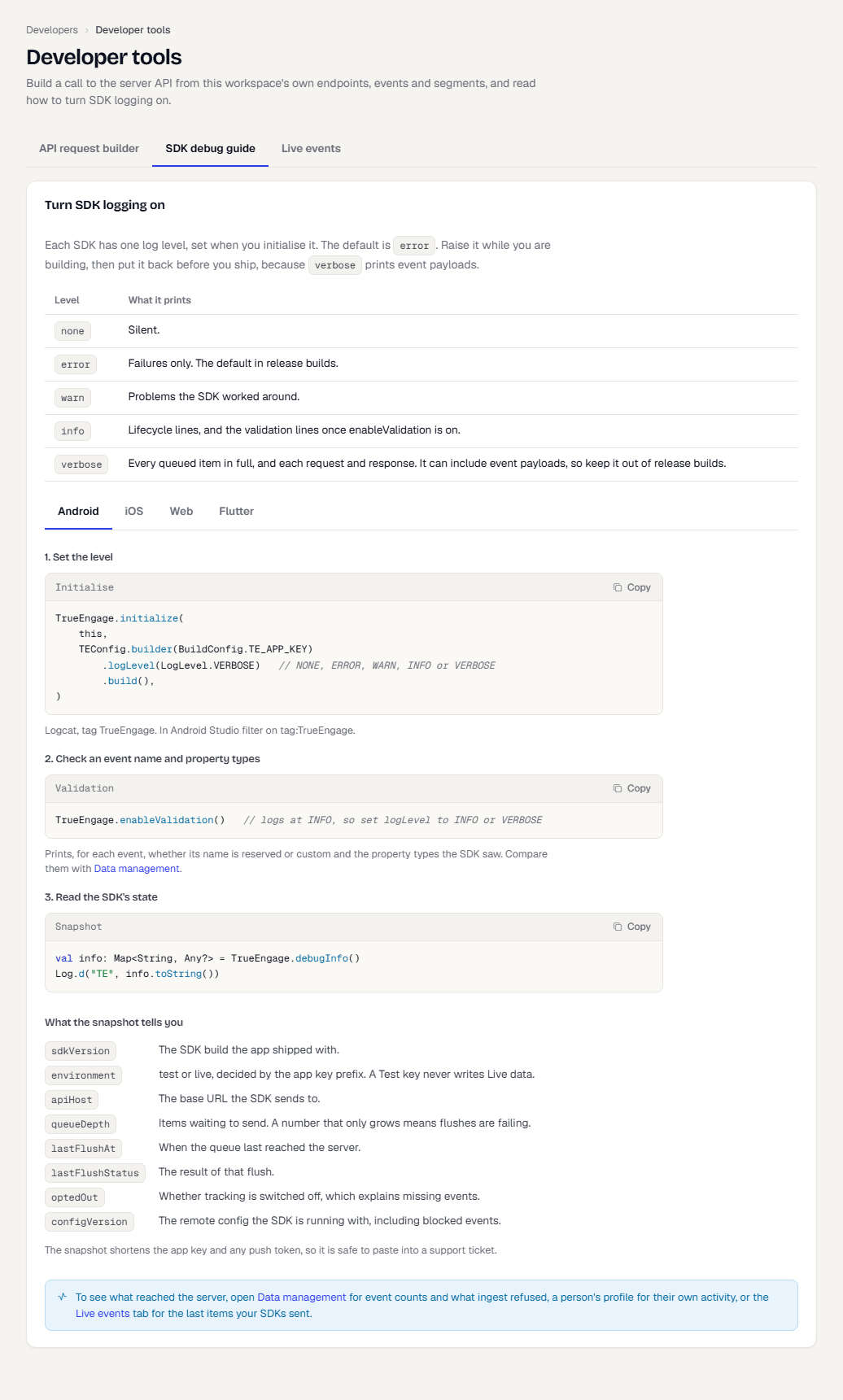
The snapshot from debugInfo tells you:
| Field | What it tells you |
|---|---|
sdkVersion |
The SDK build the app shipped with. |
environment |
test or live, decided by the app key prefix. |
apiHost |
The base URL the SDK sends to. |
queueDepth |
Items waiting to send. A number that only grows means flushes are failing. |
lastFlushAt, lastFlushStatus |
When the queue last reached the server, and the result. |
optedOut |
Whether tracking is switched off, which explains missing events. |
configVersion |
The remote config the SDK runs with, including blocked events. |
The snapshot shortens the app key and any push token, so it is safe to paste into a support ticket.
Watch events arrive
The Live events tab lists what your SDKs sent to this environment in the last 24 hours, newest first, and whether each item was accepted.
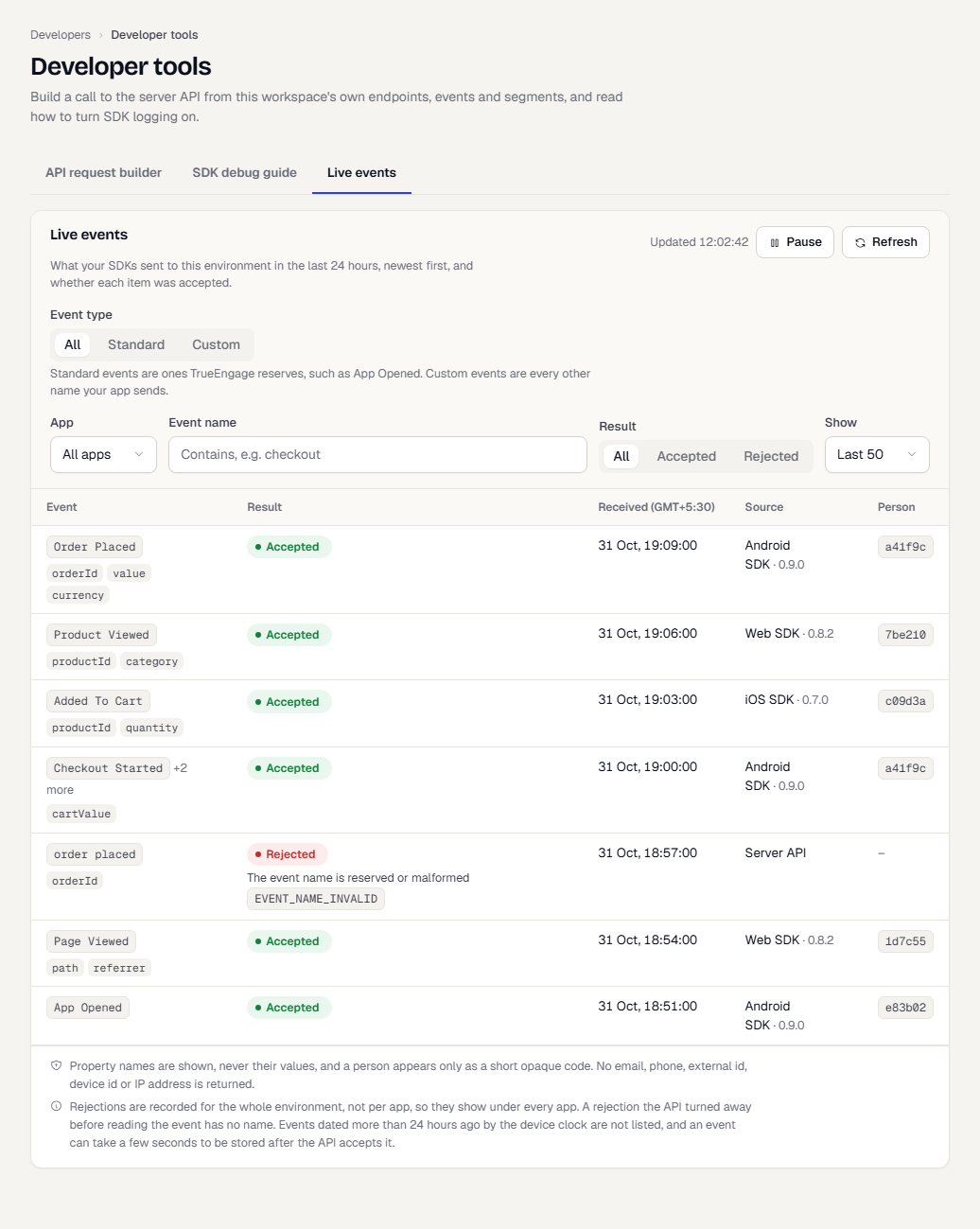
- Use App, Event name (contains), Result (All, Accepted or Rejected) and Show (the last 25, 50 or 100) to narrow the feed. Clear filters resets them.
- Event type (All, Standard or Custom) splits the feed by event name. Standard shows events TrueEngage reserves, such as App Opened. Custom shows every other event name. Both hide rejected items, because a rejection may name several events or none. The choice is kept in the page address as
kind, so a link opens the same view. - The feed refreshes by itself. Pause stops it and Resume restarts it. Refresh reloads it once.
- Each row shows the Event and the names of its properties, the Result, when it was Received, the Source and a short code for the Person. A rejected item shows the reason.
Property names are shown, never their values. A person appears only as a short code made from a hash, the same for every event they send. No email, phone number, external ID, device ID or IP address is returned.
Rejections are recorded for the whole environment, not per app, so they show under every app. A rejection that the API turned away before reading the event has no name.
If the feed is empty, open your app with the SDK installed or send an event from the request builder. It appears within a few seconds.
Related
Was this page helpful?