Read import results and fix failed rows
Open an import to see its runs, dry-run predictions and row failures, and run it again.
An import's detail page shows what each run did, which rows failed and why, and lets you add more files, dry-run or retry.
Before you start
- You need an existing import. To make one, see Import users or events from a CSV.
- You need permission to manage data to run, retry, archive or delete. Without it you can view results.
Open an import
- In the sidebar, open Data, then Data Imports.
- Select an import, for example
Loyalty members - October.
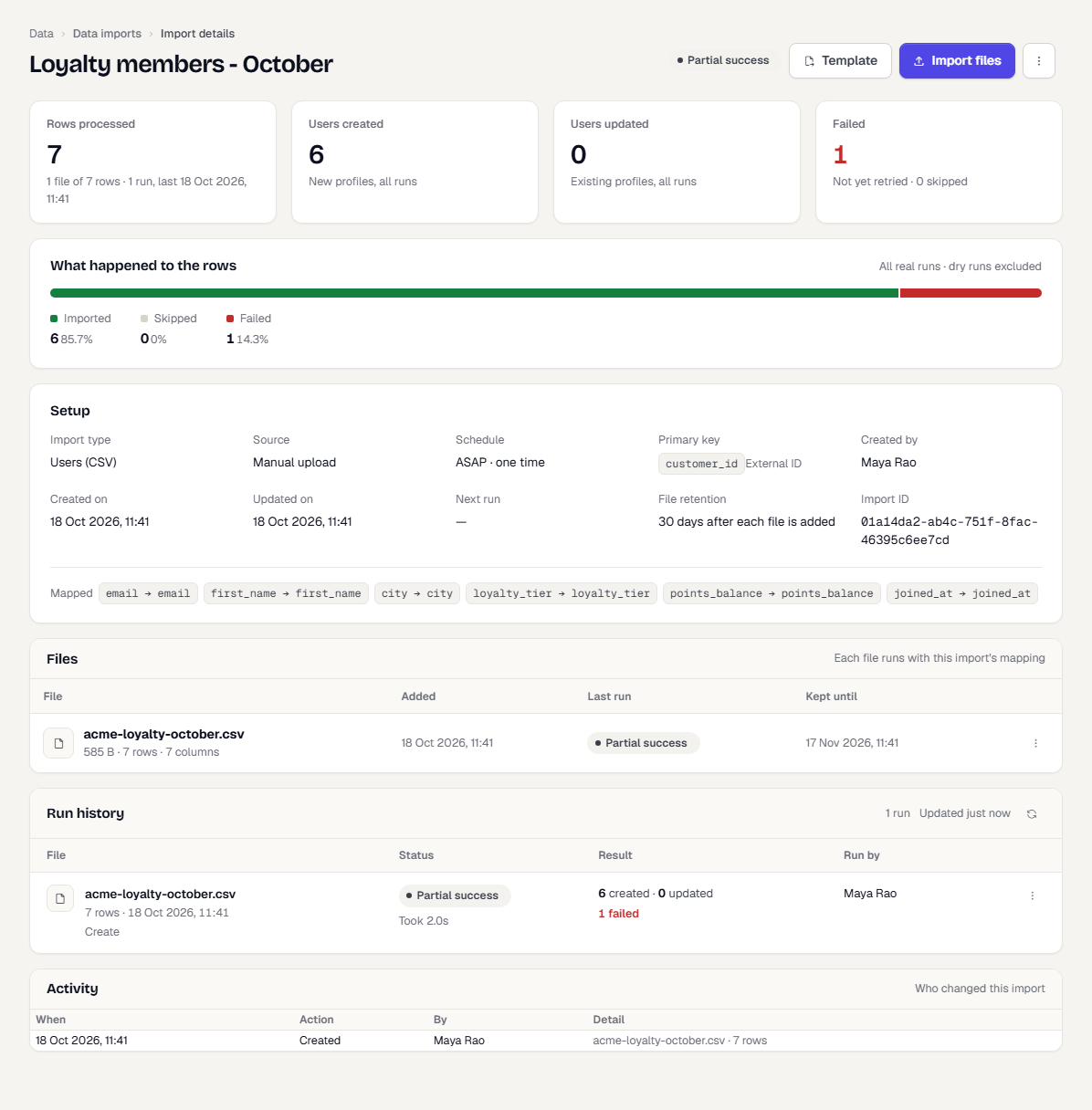
The page has these parts:
| Part | What it shows |
|---|---|
| Header | The import's status, Download template (a CSV laid out like the mapping), Import files, and a more-actions menu. |
| Totals | Rows processed, users created and updated (or events created), and failed rows across all real runs. |
| What happened to the rows | A bar splitting rows into imported, skipped and failed. Dry runs are excluded. |
| Setup | Type, source, primary key, who created it, and the mapped columns. Files are kept for 30 days after they are added. |
| Files | Each uploaded file with its last run. Use its menu to run, dry-run or download. |
| Run history | Every run with its status, result counts and who started it. |
| Activity | Who created, ran, renamed or archived the import. |
See row failures
- In Run history, select the number of failed rows on a run.
- Row failures opens with the row number, the column and the reason for each failure.
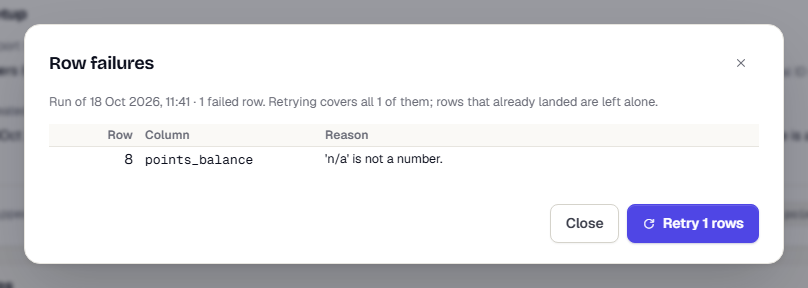
- Fix the rows in your file and import it again. Or select Retry to retry all failed rows. Rows that already landed are left alone.
Add or re-run files
- Select Import files to add more CSVs. Each file is checked against the saved mapping before it runs. A file missing a mapped column is left out.
- Open a file's menu to Run again or Dry run.
- A Dry run result shows what the file would create, update, skip or fail. Select Run for real when it looks right.
Archive or delete
Use the more-actions menu on the page, or the three-dot menu on the list, to Archive or Delete an import.
What happens next
- Check new attributes in Manage user attributes.
- Imported events can credit conversions. See Conversion history.
Was this page helpful?