Send events to Google Analytics 4
How GA4 receives events from TrueEngage, how to connect a data stream, which ids it needs, and the per-app Firebase app ID.
TrueEngage sends mapped events to Google Analytics 4 (GA4) through the Measurement Protocol, Google's server-side event API. GA4 takes events only. It has no audiences.
Connect a data stream
One connection covers one GA4 web data stream. You need two values from it:
- Measurement ID, for example
G-ABC123XYZ4. Open GA4, go to Admin, Data streams, choose your web stream, and copy it from the top right of the stream details. - API secret. On the same stream page, scroll to Measurement Protocol API secrets, select Create, name it, and copy the secret value from the list.
Then connect it in TrueEngage:
- Open Data, then Ad platforms.
- On the Google Analytics 4 card, select Connect with an API secret. You need permission to manage ad platforms.
- Enter a Name, the Measurement ID and the API secret. The API secret field hides what you paste. The Measurement ID must start with
G-. - Select Connect and check.
- Read the check, then select Open connection.
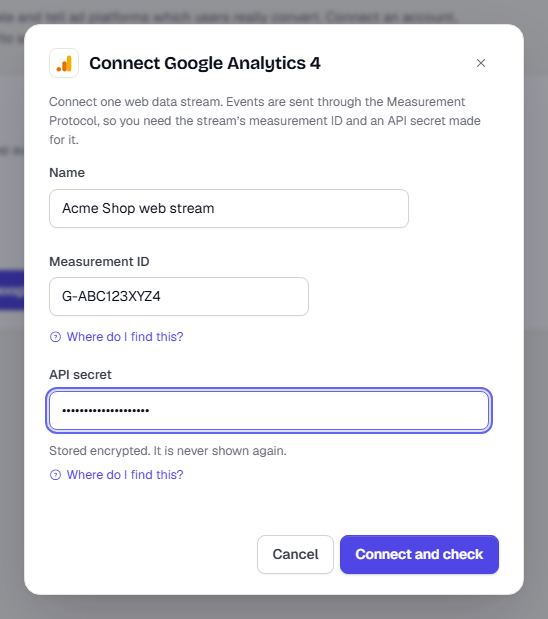
TrueEngage stores the secret encrypted and never shows it again. If the check fails, select Check again, or open the connection, choose Enter a new API secret, and paste a fresh one. See Fix connection errors and reconnect.
GA4 cannot confirm a secret or a Measurement ID until a real event arrives. A passing check means Google accepted the shape of a test event, not that your credentials are right. After your first send, open GA4 Realtime or DebugView and look for the event.
Apps use the same connection. Android and iOS events go to the app's own stream through its Firebase app ID, which you set on the app. See below.
Which ids identify the user
GA4 matches an event to a person with an id from the SDK, not with email or phone.
| Event comes from | Id GA4 needs |
|---|---|
| Web | ga_client_id, taken from the _ga cookie by the Web SDK |
| Android or iOS app | firebase_app_instance_id, plus the app's Firebase app ID |
An event with no usable id is skipped as Nothing to match the user on. It is still sent to your other platforms.
TrueEngage also sends the user's external id as GA4's user_id. It leaves user_id out when the value is longer than 256 characters, contains @, or looks like a phone number.
Add the Firebase app ID to an app
Each Android or iOS app needs its Firebase app ID, so GA4 can attribute events to the right app stream.
- Open Connect, then Apps, and select the app.
- Open the Ad platforms tab.
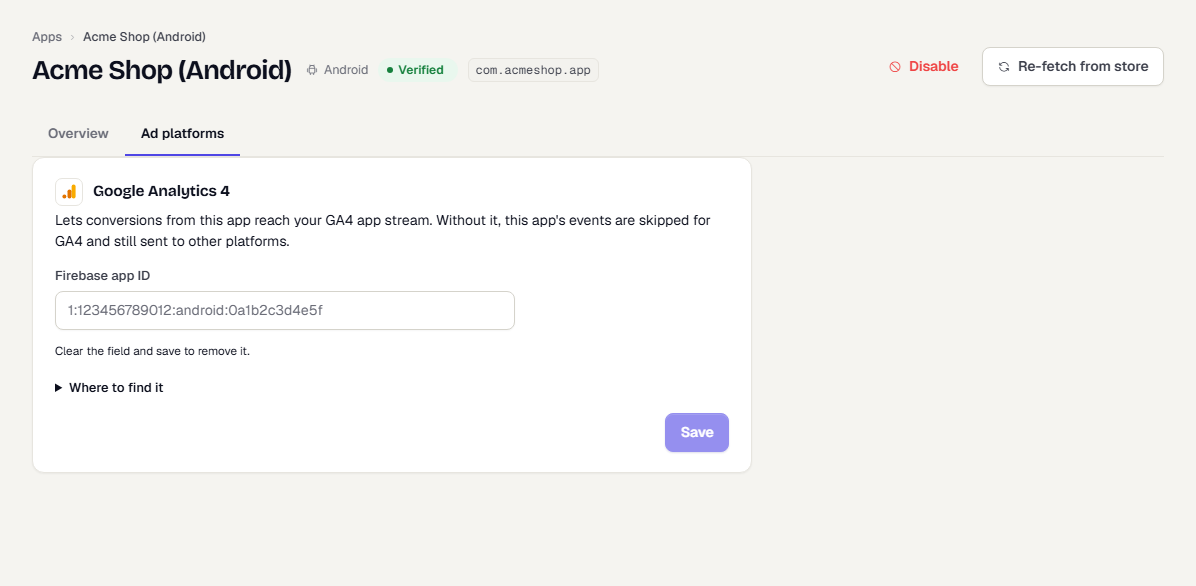
- Enter the Firebase app ID. It looks like
1:123456789012:android:0a1b2c3d4e5f. - Select Save.
To find the ID, open the Firebase console, go to Project settings, General, Your apps, and copy App ID. Clear the field and save to remove it.
Web apps need nothing here. The ID must belong to an app of the same platform, so an iOS app cannot hold an Android ID.
Your app also needs to pass the Firebase instance ID to TrueEngage. Call setFirebaseAppInstanceId once Firebase Analytics is set up. See Android SDK, iOS SDK or Flutter SDK.
Event rules
- Names. GA4 names must start with a letter and use letters, numbers and underscores, up to 40 characters. TrueEngage cleans the name, so
first purchase!becomesfirst_purchase. - Reserved names. Names GA4 reserves, such as
first_open, and prefixes such asga_,google_andfirebase_, are refused when you save the mapping. - Value.
purchaseandrefundneed a value, or GA4 drops them from reports. - Age. GA4 ignores events older than 72 hours, so TrueEngage queues only events from the last 70 hours.
- No dedupe key. GA4 cannot drop duplicates. TrueEngage sends each event once. If a request times out, TrueEngage does not retry it, because it may have arrived. Do not also send the same event from a GA4 tag on your site.
- Not sent. TrueEngage does not send UTM values or event IDs to GA4.
Test mode
In test mode, TrueEngage sends to GA4's validation endpoint. GA4 checks the shape of each event and records nothing. Deliveries show as Skipped with the reason Checked in test mode only. The validation endpoint does not check your API secret or Measurement ID, so a pass does not prove they are right.
What happens next
Was this page helpful?