Group customers with RFM models
Create, edit, pause, resume, score and delete an RFM model that sorts customers into groups like Champions and At risk.
RFM sorts customers into groups, such as Champions, At risk and Lost, by how Recently and how Frequently they did one event that means value to your business. For a shop, that event is usually Order Placed. An RFM model is that setup: one event and a look-back period. TrueEngage scores everyone against it every night.
Before you start
- You need permission to view analytics to see RFM Segments. Creating, editing, pausing and deleting models needs permission to manage analytics. Without it, the buttons below are hidden.
- Decide which single event shows that a customer gets value from your product. Choose one your app sends regularly, so people can be scored. See Find a user to confirm what a person has done.
- Models are per environment. A model you create in Test scores Test users only.
Create a model
- In the sidebar, open Audience, then RFM Segments.
- Select New RFM model. If you have none yet, the page says No RFM models yet and offers Create your first RFM model.
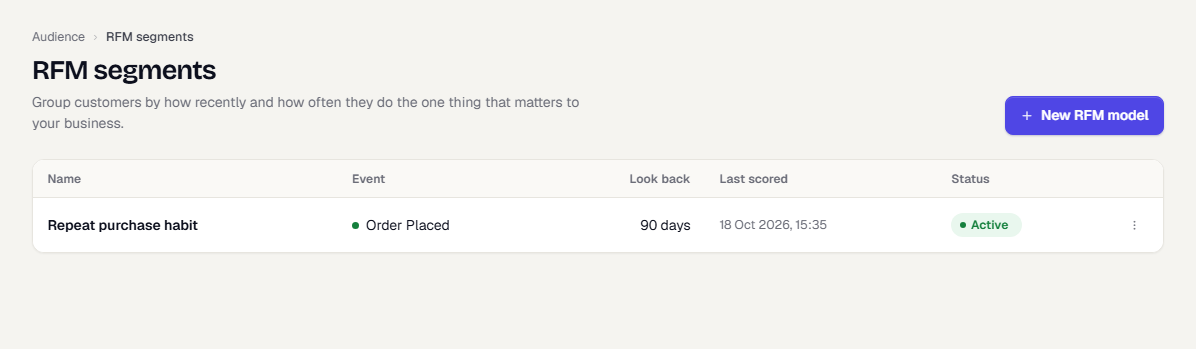
In the dialog, fill in the fields.
Field What to enter Name A name your team will recognise, such as "Repeat purchase habit". Up to 80 characters. Event that means value The action that shows a customer is getting value, such as a purchase. How recently and how often people do it sets their group. Look back (days) How far back to count the event, from 7 to 365 days. The default is 90. Include imported history Off by default. Turn it on if you imported past events that you want counted.
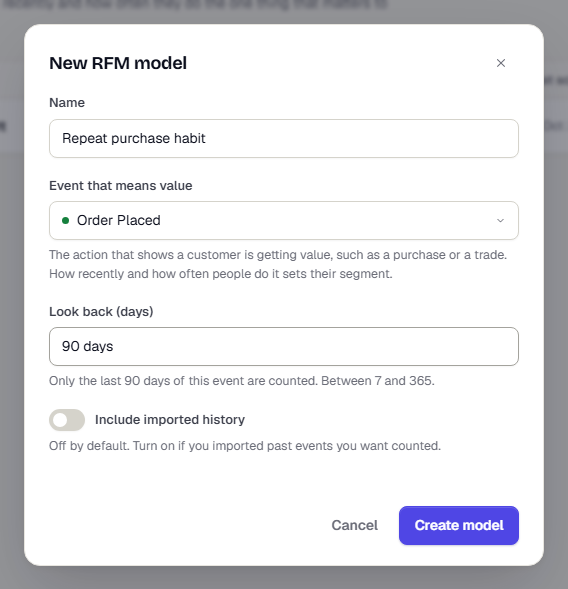
- Select Create model.
The model opens in the list with the status Active and Last scored set to Not yet. The first scores arrive within a minute or two. The results page shows Scoring your customers for the first time until then, and then Building history… while TrueEngage scores recent past days so that trends are not empty. See Read RFM results.
Use the row menu
Every model has an actions menu (the three dots at the end of its row). Select it to see the actions.
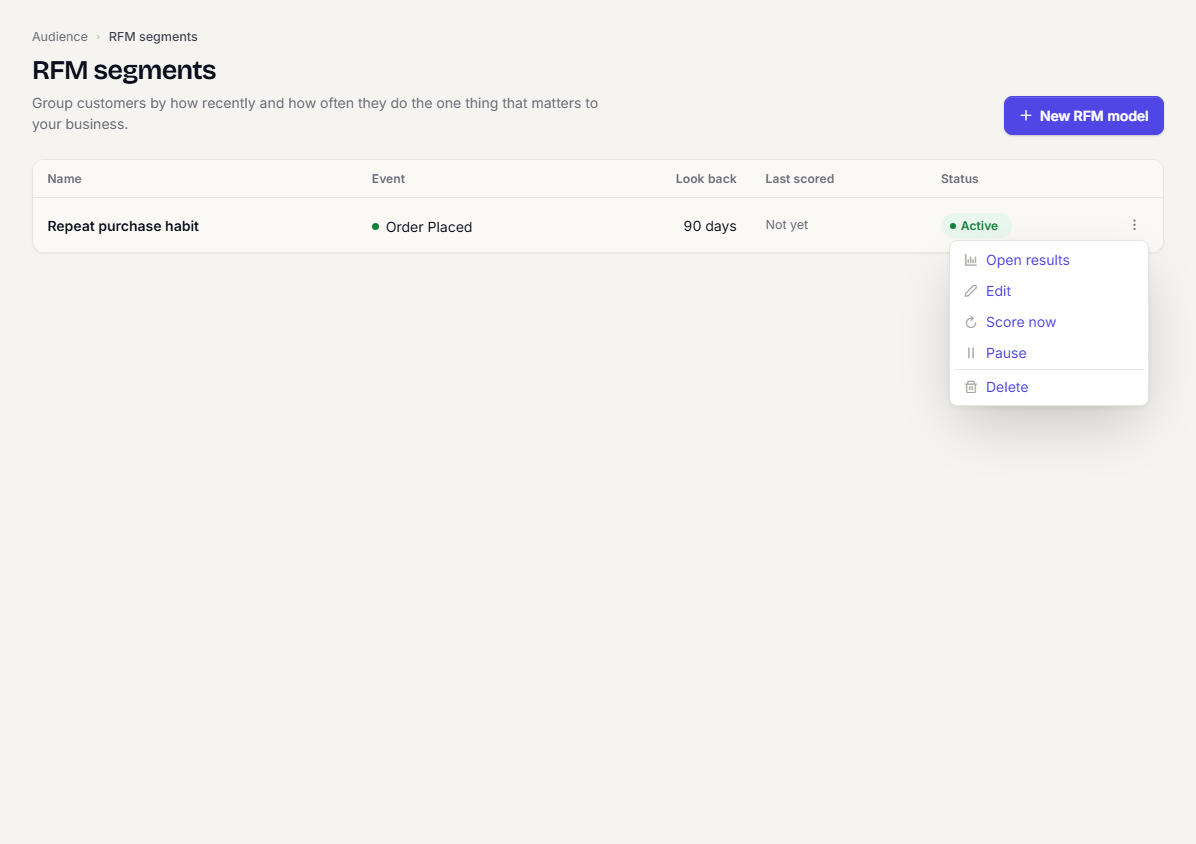
| Action | What it does |
|---|---|
| Open results | Opens the results page. Selecting the row does the same. |
| Edit | Opens the edit dialog. |
| Score now | Starts scoring straight away instead of waiting for the nightly run. A message says Scoring started. Disabled while the model is paused. |
| Pause / Resume | Stops or restarts scoring. See Pause and resume. |
| Delete | Removes the model and its history. See Delete a model. |
Edit a model
- Open the row menu and select Edit.
- Change the fields and select Save.
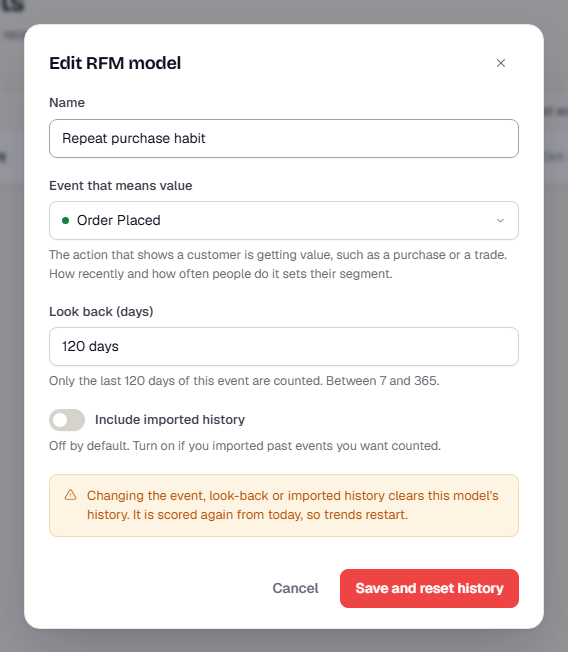
Renaming is safe. Changing the event, the look-back or imported history clears the model's history. TrueEngage scores it again from today, so trends restart. When you change one of those fields, the dialog warns you and the button becomes Save and reset history.
Pause and resume
Pausing stops the nightly scoring. The scores and history you already have stay, but they stop updating.
- Open the row menu.
- Select Pause. A message says Model paused, and the status changes to Paused.
- To start again, open the row menu and select Resume. A message says Model resumed.
While a model is paused, its results page shows This model is paused, so scores are not updating.
Delete a model
- Open the row menu and select Delete.
- Read the confirmation: Delete RFM model? It says the model and its scored history will be removed, and that this cannot be undone.
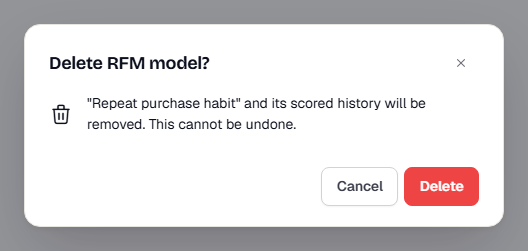
- Select Delete to confirm, or Cancel to keep the model.
What happens next
- Open the results to see where everyone stands: Read RFM results.
- Use RFM groups as a condition in a segment: Build a segment.
Was this page helpful?