Set up WhatsApp
Connect a WhatsApp vendor, bring in your approved templates by sync or by ID, and set the contact attributes on the General tab.
The WhatsApp page in Channels has five tabs: Senders, Templates, General, Suppression and Subscription categories. This page covers the first three.
WhatsApp messages use templates that Meta has already approved. You create and submit them at your vendor or in the template designer. TrueEngage needs to know which templates exist, and which vendor account sends them.
Before you start
- You need permission to manage channels.
- Have your vendor credentials ready. See Add and verify a provider.
- Set up Test first, then promote or repeat it in Live.
Connect a vendor
- In the sidebar, open Channels, then WhatsApp.
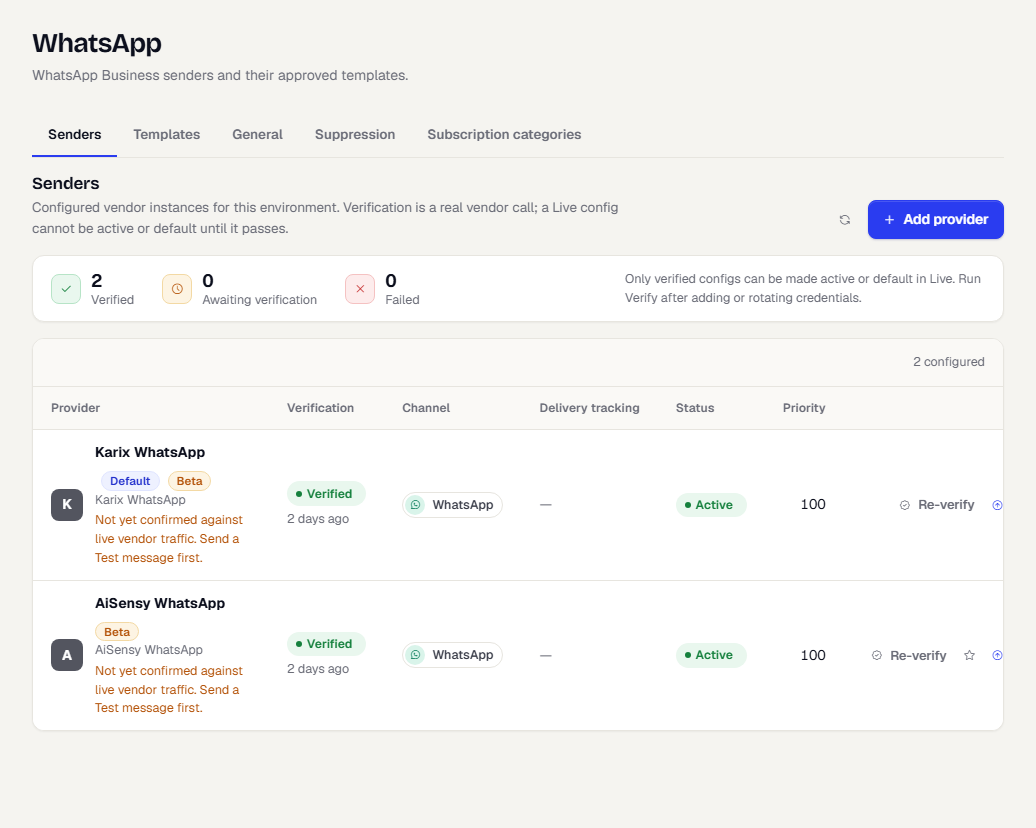
- On the Senders tab, select Add provider and follow the steps. In the vendor list, pick yours.
- Enter the credentials and select Create provider, then verify it.
Some vendors carry a Beta badge, such as Karix and AiSensy. A beta vendor is built from the vendor's published documentation but not yet confirmed against live traffic. Send a Test message first and check that the delivery status comes back. The badge shows on the list and in the sender's panel, with the note Not yet confirmed against live vendor traffic. Send a Test message first.
Select a sender to open its panel. The Overview tab repeats the Beta badge and the caution next to Vendor, and Verification history shows what the check said.
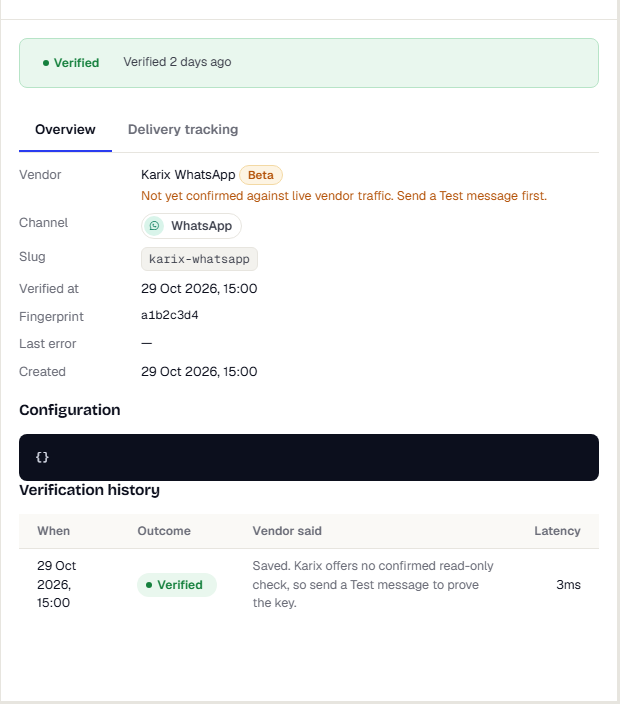
The verification for a beta vendor checks that the fields are filled in. It cannot prove the credentials work, because neither vendor offers a safe read-only check. The first Test send is the real proof.
To receive delivery and read statuses, give your vendor the callback URL. See Track delivery for a sender.
Bring in approved templates
Open the Templates tab. It lists the WhatsApp templates in this environment, with their status and approval.
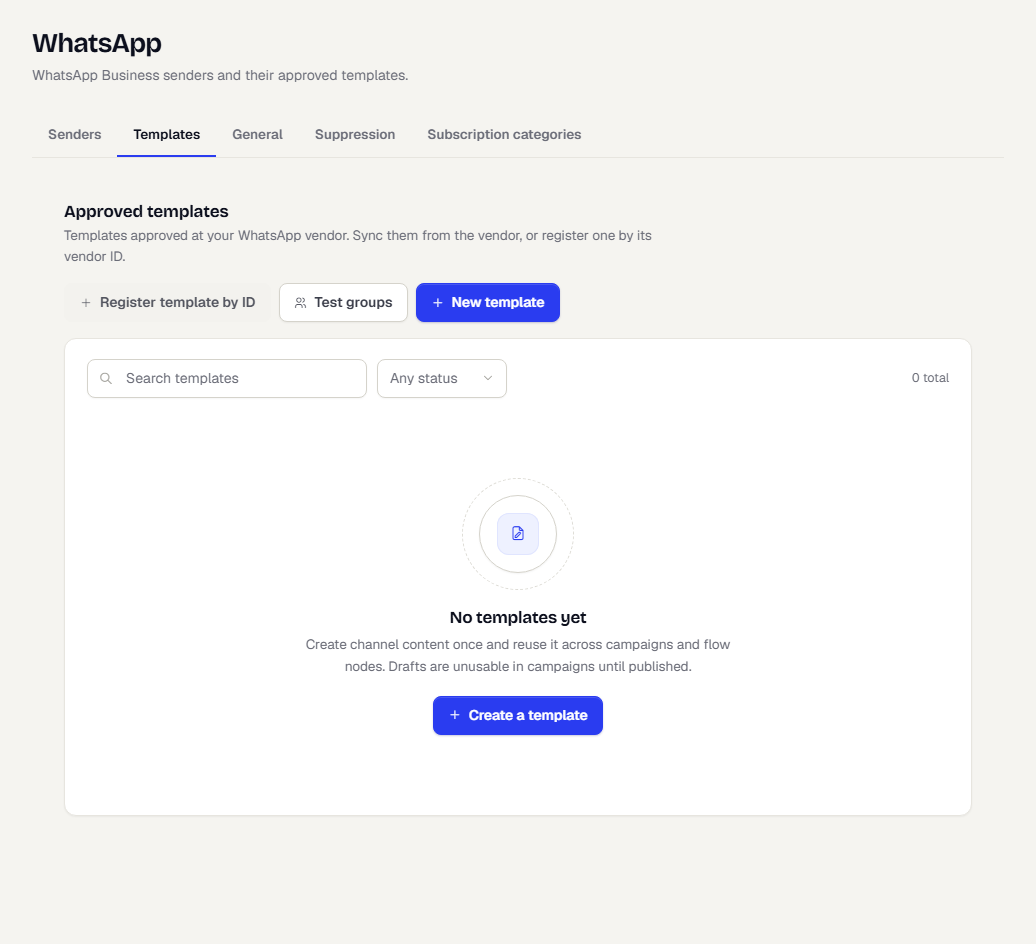
There are two ways to add a template that your vendor has already approved:
- Sync from provider pulls the templates created in the vendor's portal. It appears only when at least one of your senders can list its templates.
- Register template by ID adds one by its vendor ID. Use it for vendors that cannot list their templates, such as Karix, AiSensy and ValueFirst. When no sender can sync, this is the main button.
To register a template:
- Select Register template by ID.
- Choose the WhatsApp provider.
- Enter the Vendor template ID. For AiSensy, this is the name of the Live API campaign bound to the template. For ValueFirst, it is the template ID from the vendor portal.
- Enter the Name, Language (a Meta language code such as
enorhi), Category and Approval status. - Paste the Approved body text exactly as the vendor shows it, with
{{1}},{{2}}for variables. Optionally add a Header. - Select Register template.
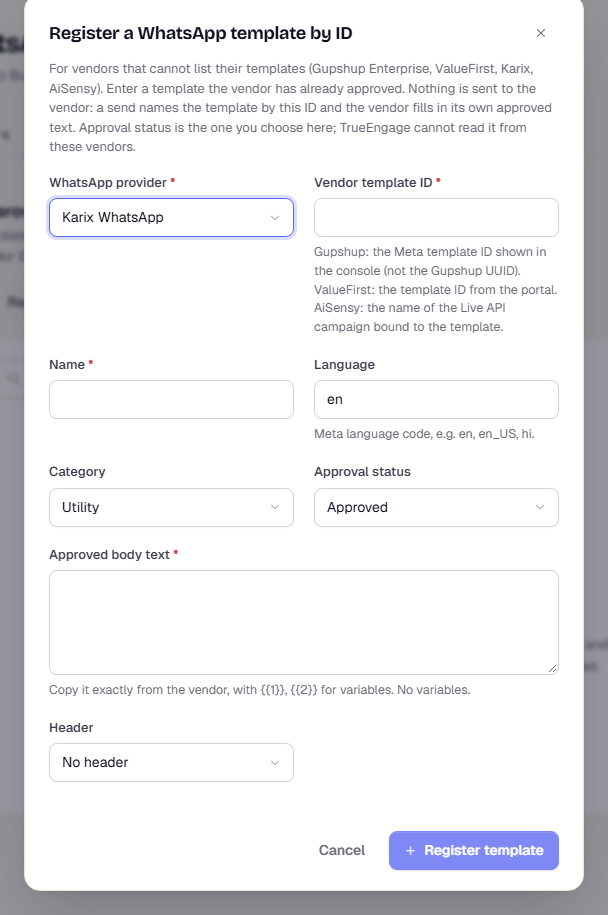
Nothing is sent to the vendor when you register. A send names the template by its ID, and the vendor fills in its own approved text. A send must fill every variable, or the vendor may accept the message and drop it.
For the designer and for submitting a new template for approval, see Write the content for each channel.
General settings
Open the General tab to set which profile attributes hold a person's WhatsApp number and consent, and what to do with messages people send to your number.
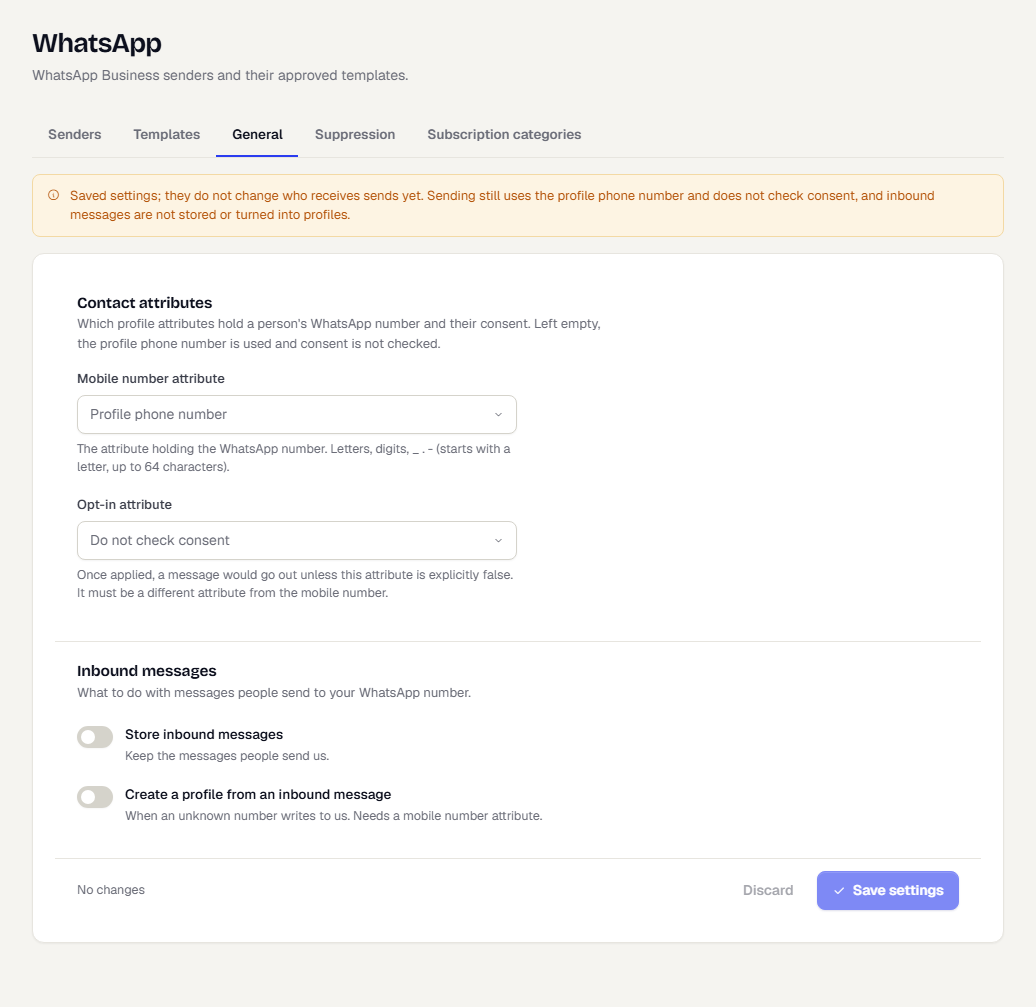
| Setting | What it is for |
|---|---|
| Mobile number attribute | The profile attribute that holds the WhatsApp number. Left empty, the profile phone number is used. |
| Opt-in attribute | The attribute that records consent. It must be different from the mobile number attribute. Left empty, consent is not checked. |
| Store inbound messages | Keep the messages people send to you. |
| Create a profile from an inbound message | When an unknown number writes to you. Needs a mobile number attribute. |
Attribute names use letters, digits and _ . -, start with a letter and run up to 64 characters. Select Save settings.
A banner at the top of the tab says that these settings are saved but do not change who receives sends yet. Sending still uses the profile phone number and does not check consent, and inbound messages are not stored or turned into profiles. Set them now so they are ready when that is switched on.
Related
Was this page helpful?