Connect Meta
Connect a Meta dataset to send conversions through the Conversions API, and optionally sync audiences.
You connect Meta by pasting a dataset ID and a Conversions API access token. This sends conversions. There is no Meta sign-in screen. Connections made earlier with a Meta sign-in keep working, including their audiences.
Each environment holds one Meta connection. Once it exists, the Meta card shows the connection instead of a connect button. To use a different dataset, remove the connection first.
Before you start
- You need Create and manage on Ad platforms.
- In Meta Events Manager, you need a dataset (also called a pixel) for your site or app.
- You need a Conversions API access token made for that dataset.
Connect with a dataset ID and access token
- On the Meta card, select Use an access token.
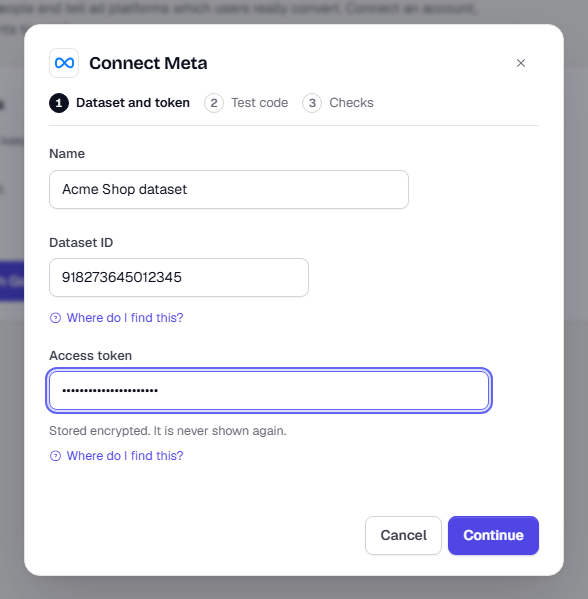
- Enter a Name you will recognise.
- Enter the Dataset ID. In Events Manager, open your dataset. The numeric ID is under its name.
- Enter the Access token. In Events Manager, open the dataset, go to Settings, then Conversions API, and select Generate access token. TrueEngage stores it encrypted and never shows it again.
- Select Continue.
- Optional: enter a Test event code. It is at the top of the Test events tab in Events Manager. With a code, the connection starts in test mode, and every event goes to the Test events tab instead of live reporting.
- Select Connect and check.
Read the checks
TrueEngage runs three checks and shows each result:
- Access to the dataset: the token can send events to this dataset. If it fails, generate a token for the dataset itself.
- Terms accepted: the ad account accepted Meta's terms. If it fails, select Fix it in Meta.
- Test event received: Meta accepted a test event. This check runs only when you entered a test event code.
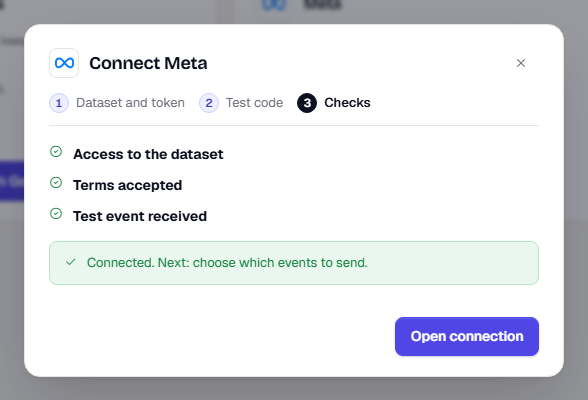
Select Open connection when the checks pass. Select Check again after you fix a failure. For code meanings, see Ad platform error codes.
Use the connection page
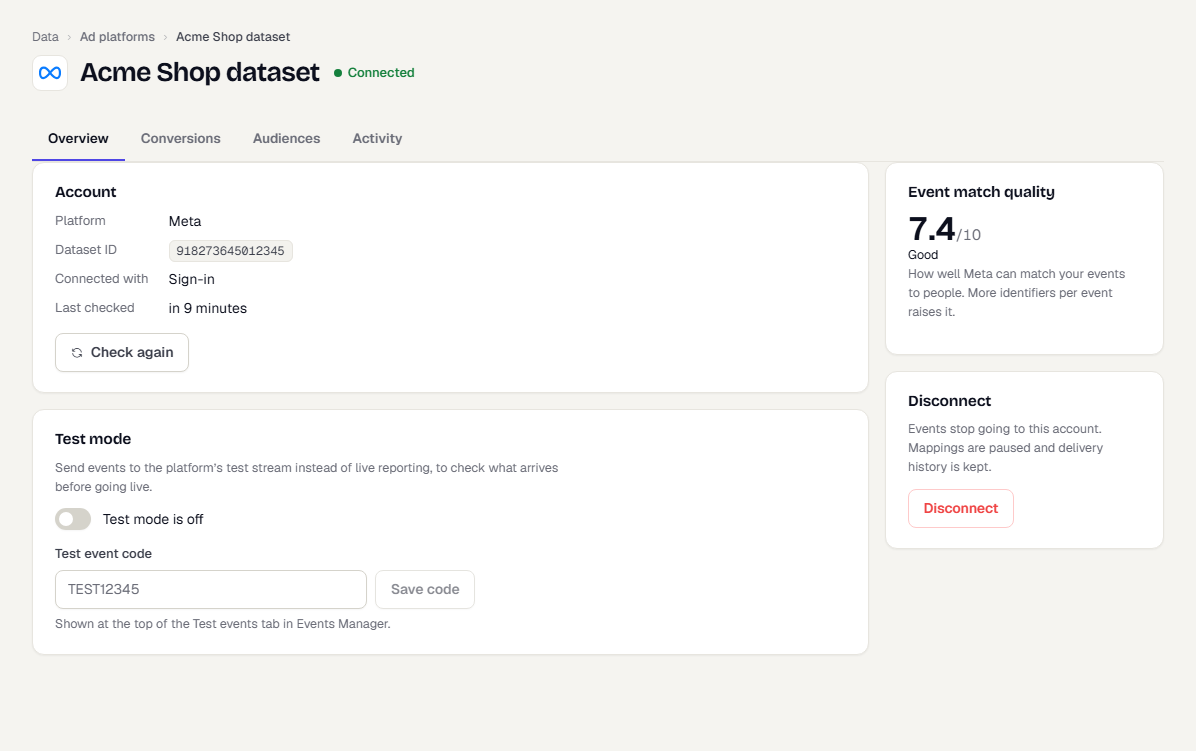
The connection page has four tabs: Overview, Conversions, Audiences and Activity. On Overview you can:
- Select Check again to re-run the checks.
- Turn Test mode on or off, and save the Test event code.
- Read Event match quality. Meta scores from 0 to 10 how well it can match your events to people. More identifiers per event raise it. The card appears only when your token is allowed to read it.
- Select Disconnect. Events stop going to this account, mappings are paused and delivery history is kept. If it has audience syncs, you choose whether to remove people from the platform audiences too (see Fix connection errors and reconnect).
Turn test mode off when you are ready to go live. A banner on the connection page reminds you while it is on.
Connections made earlier with Meta sign-in
They keep sending conversions and syncing audiences. The connection page shows how it was made, and Reconnect with Meta signs in again with a user that can reach the same account. A token connection syncs no audiences, and you reconnect it by pasting a new token.
What happens next
Was this page helpful?