Send events as conversions
Map a TrueEngage event to a platform conversion, choose its value and event ID, test it, and read the results.
A mapping tells TrueEngage to send one event, such as Order Placed, to one connection as a conversion, such as Purchase. This page covers creating a mapping, every option, and how to read what was sent.
Before you start
- You need Create and manage on Ad platforms and a connected account.
- Your users need something the platform can match on: a hashed email or phone, a click id, or an app or browser id. The drawer shows how many recent events have one.
- Your users need ad consent. See Ad consent.
- Only live events are sent. Events from CSV imports and conversion history runs are never sent, and neither are events with no known user.
Create a mapping
- Open Data, then Ad platforms, and select the connection.
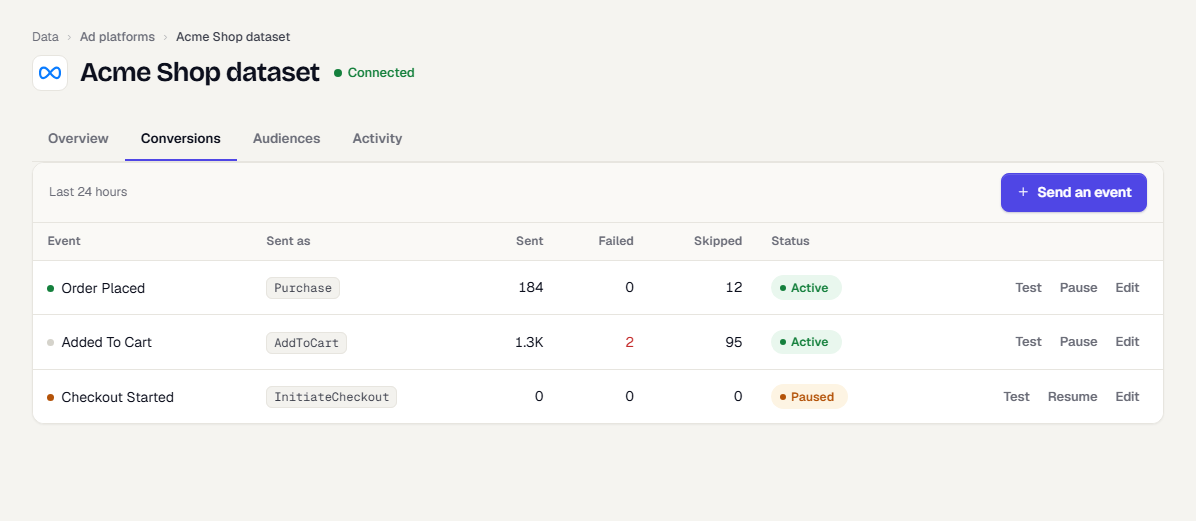
- Open the Conversions tab and select Send an event. On the first mapping, select Send your first event.
- Work through the four tabs of the drawer: Event, Destination, Details and Test.
- Select Save.
Each connection can map the same event to the same destination once.
The Event tab
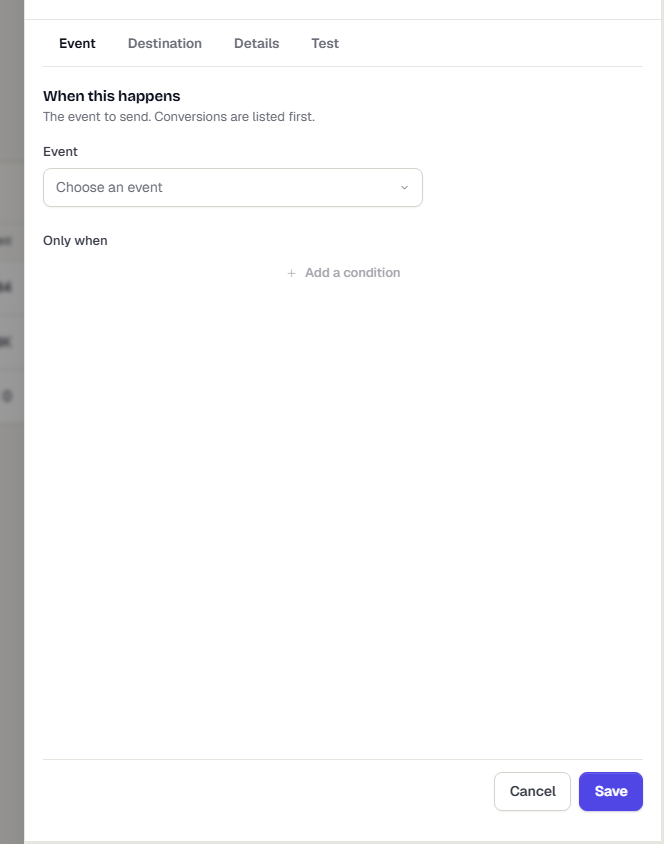
Choose what triggers the send.
- Event: the TrueEngage event. Conversions are listed first.
- Only when: conditions on event properties. Select Add a condition and pick a property, a comparison and a value. All conditions must be true.
The comparisons are is, is not, is greater than, is at least, is less than, is at most, contains, is one of, is set and is not set. Is not and is not set also match events that do not have the property at all.
Conditions are checked when the event is stored.
Under the conditions, a readiness bar shows what share of recent events have something the platform can match on. Below 50% it lists which identifiers are missing.
The Destination tab
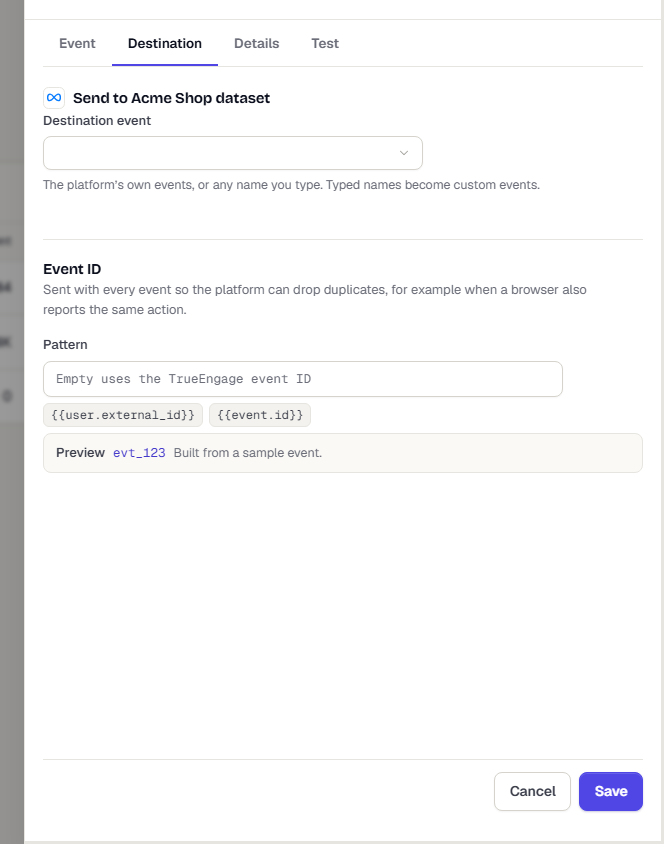
- Destination event: for X Ads, type the ID of the conversion event set up for your website tag in the X ads account. X has no list to pick from. For the other platforms, the platform's own event, such as
Purchasefor Meta orpurchasefor GA4. Type any other name to send a custom event. For Google Ads, pick one of the account's conversion actions. - Pattern (under Event ID): the ID sent with every event so the platform can drop duplicates. Leave it empty to use the event’s
event_idproperty, or the TrueEngage event ID when it has none. Use the chips to insert a value, and read the Preview to see the result for a sample event. See Avoid duplicate events with your browser pixel.
The Details tab
Where it happened
- Action source: Website, App, Server, no user present or Other. Meta uses it to judge the event. The default is Website.
- Source URL: the page where the action happened. Optional.
- Only the first time per user: later occurrences for the same user are skipped.
- Include UTM: adds the user's source and campaign when known. GA4 ignores this option.
Value
- Value property: the event property that holds the amount, such as an order total. Required for Meta
Purchase, and for GA4purchaseandrefund. Google Ads conversion actions carry their own value setting. - Currency property: the event property that holds the currency. Optional.
- Fixed currency: used when the event has no currency. Empty uses your account currency.
The Test tab
Select Save and send test. TrueEngage saves the mapping, then sends your latest real event for it. Two panels show What we sent and What the platform replied. Identifiers are shortened and secrets are removed.
- Meta needs a test event code on the connection first. The event goes to the Test events tab.
- Google Ads tests are validate-only. Google records nothing.
- GA4 tests go to the validation endpoint. GA4 records nothing.
- If you cancel after a test on a new mapping, TrueEngage removes the mapping again.
If no recent event has a known user, the test reports that nothing matched yet.
Read the results
The Conversions tab lists each mapping with Sent, Failed and Skipped counts for the last 24 hours. Use Test, Pause or Resume, and Edit on each row.
The Activity tab has two views:
- Daily counts: sent, failed, skipped and expired events for the last 30 days, in your display time zone, and the reasons for skips.
- Calls: the requests TrueEngage sent and the replies, for the last 7 days. See Troubleshoot ad platforms.
Why an event is skipped
| Reason shown | Meaning | What to do |
|---|---|---|
| The user has not agreed to share data with ad platforms | No consent | Set ads_consent. See Ad consent |
| Nothing to match the user on | No email, phone, click id or app id | Capture identifiers. See Tracking attributes |
| The event ID pattern needs a property this event does not have | A token in your pattern is empty | Fix the pattern or send the property |
| Not the first time for this user | Only the first time per user is on | None, this is expected |
| The event came from an app that has not been verified yet | Test builds do not send | Verify the app. See Apps |
| Two verified apps on this platform have different Firebase app IDs | GA4 cannot pick a stream | Fix the Firebase app IDs |
| Checked in test mode only | Test mode on GA4 or Google Ads | Turn test mode off |
| Filtered | A condition on the Event tab was false | None, this is expected |
Age limits and retries
Each platform accepts events only up to a maximum age. TrueEngage queues only events inside it, and skips events dated more than 1 hour in the future.
| Platform | Maximum age |
|---|---|
| Meta | 7 days |
| GA4 | 70 hours |
| Snap Ads | 28 days |
| X Ads | 90 days |
| Google Ads | 29 days |
If a send fails in a way that can succeed later, TrueEngage retries after 1 minute, 5 minutes, 30 minutes, 2 hours and 6 hours, then every 6 hours. When the event passes the maximum age, it is marked Expired. Failures that cannot succeed, such as a refused event, are marked Failed.
What happens next
Was this page helpful?