Register your apps
Register your Android, iOS and web apps in a TrueEngage workspace, verify each one with its first SDK event or a domain record, and manage its statuses.
Register each app that sends data to a workspace. TrueEngage uses the registration to check that events come from your app and to know where push messages go.
Before you start
- You need permission to manage apps. If Add app is missing, ask an Owner or Admin.
- Have your Android package name, iOS bundle ID or website URL ready.
- A workspace holds one app per platform: one Android, one iOS and one Web app. When all three exist, Add app is disabled. To replace one, disable it first.
Add an app
- In the sidebar, select Apps.
- Select Add app.
- Under Platform, choose Android, iOS or Web. A platform that already has an app is greyed out.
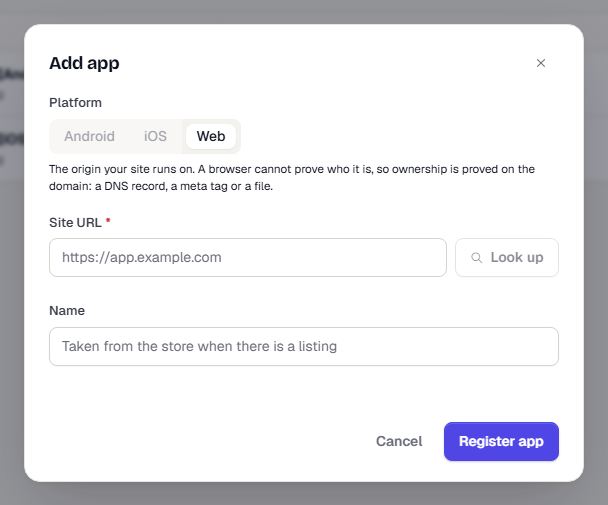
- Fill in the fields for your platform.
| Platform | Identifier field | Example | Where to find it |
|---|---|---|---|
| Android | Package name | com.example.app |
The applicationId in your build.gradle |
| iOS | Bundle ID | com.example.app |
The bundle identifier in Xcode |
| Web | Site URL | https://app.example.com |
The address your site runs on, with no path |
- Look up (optional) fetches the app's name and icon from its store listing. The icon is copied into your own storage. Use it for Android and iOS apps.
- Name is filled from the store listing when one exists. Otherwise enter it yourself. It appears in campaign pickers.
- Not published to the store yet (Android and iOS only) skips the lookup. Enter the Name yourself and upload an icon later.
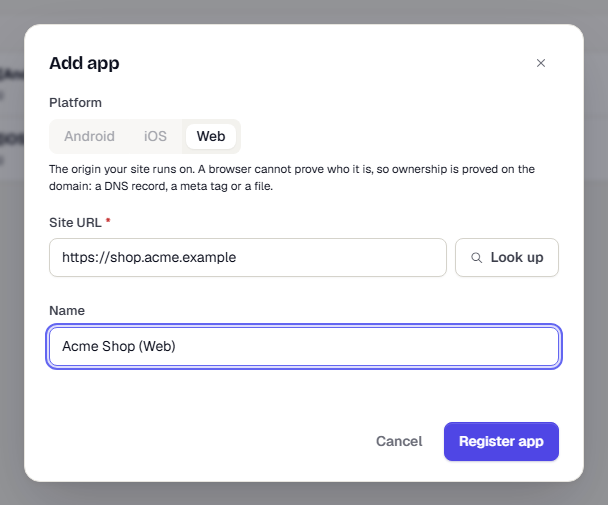
- Select Register app.
If an identifier is not in the right format, the field shows a message. Package names and bundle IDs look like com.example.app. Site URLs need http:// or https:// and a domain.
Verify the app
Registering an identifier is not proof that you own it, so every new app starts as Pending verification.
Android and iOS. The app verifies itself on its first SDK event. There is nothing to press.
- Add the SDK to your build and initialise it with your workspace's SDK app key. See API keys.
- Check that the build's package name or bundle ID is exactly the one you registered.
- Run the app once.
Web. A browser cannot prove who it is, so you prove you own the domain. Publish any one of the three records shown on the app's page. All three are checked each time.
- Open the app from the Apps list.
- Under Verification, choose one record. Each shows Where to put it and the Value to use. Select the copy button to copy the value.
- Publish the record: a DNS TXT record, a meta tag on your home page, or a file on the site.
- Select Verify.
If the check fails, the page shows what it found next to the record. DNS changes can take time to spread, so try again later.
The app page
Select an app in the list to open it.
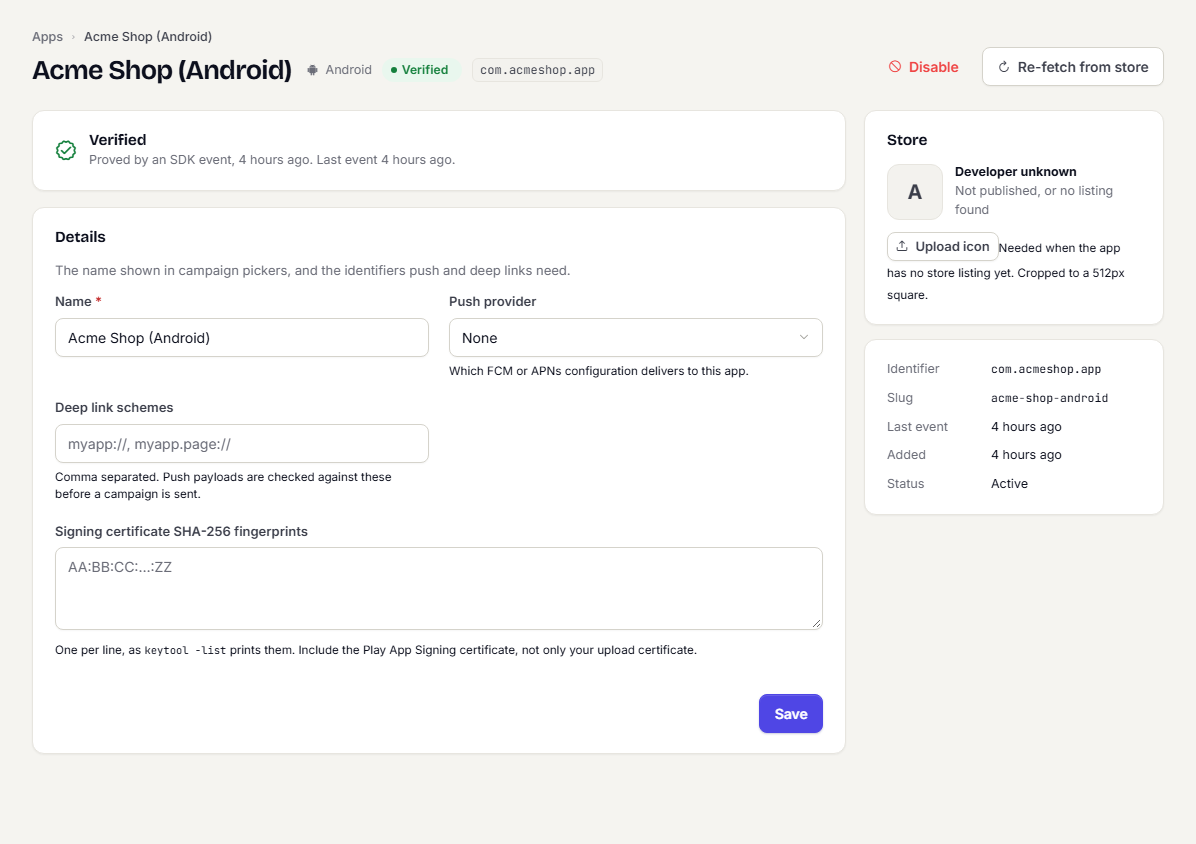
- Verification shows how the app was verified and when. Web apps also have Show records, Re-check now and Issue a new token.
- Details holds the Name, Push provider, Deep link schemes (comma separated; push links are checked against them before a campaign is sent) and, for Android, the Signing certificate SHA-256 fingerprints or, for iOS, the Apple Team ID. Select Save to keep changes.
- Store shows the listing, with Upload icon or Replace icon. Select Re-fetch from store at the top to refresh the name and icon.
- Deep linking lists the smart link templates that open this app, and whether the app has the Team ID or signing fingerprints those links need. It shows Ready or Not ready for each. You need permission to view smart links to see it. See Deep links and deferred deep links.
- Disable turns the app off. Enable turns it back on.
The app page has two tabs, Overview and Ad platforms. The Ad platforms tab holds the app's Firebase app ID, which lets its conversions reach your GA4 app stream. See Ad platforms overview.
Statuses
| Status | Meaning |
|---|---|
| Pending verification | The app is waiting for its first SDK event (mobile) or for you to publish a record (web). |
| Verified | The app has proved itself. The page shows how and when. |
| Mismatch detected | Events arrived under this workspace's app key with an identifier that is not registered here. |
| Failed | The last check did not succeed. The page shows the reason. |
| Disabled | You turned the app off. This also frees its platform for another app. |
Troubleshooting
- Add app is disabled. The workspace already has an app for every platform. Disable one to register another.
- A mobile app stays pending. Check that the SDK uses this workspace's app key and that the build's package name or bundle ID matches exactly. Use the Test key in debug builds.
- Mismatch detected. The build uses a different identifier, or the key was pasted into another project. Fix the build, or register the identifier it sends.
- A web check fails. Publish the record on the exact domain you registered, then select Verify again. For a DNS record, wait for it to spread.
- Look up finds nothing. A missing listing is not an error. Enter the Name and register the app anyway.
What happens next
- Install the SDK and send your first event. See the Quickstart.
- Set the app's Push provider and Deep link schemes before you send push.
Was this page helpful?