Settings overview
What lives under Settings, who can open each page, and where to go for accounts, teams, roles, identity verification, tracking defaults and storage.
Settings is where you manage who you are, who else can use the console and what they can do. It also holds the defaults for tracking links and attribution. API keys and developer tools have their own Developers group in the sidebar: see API keys and Developer tools.
The pages
| Page | What you do there | Guide |
|---|---|---|
| Account | Edit your profile, change your password, set up two-factor sign-in, review your sessions and see your permissions. Owners also edit the organisation and workspace. | Account and profile |
| Team | Invite people, change roles and decide which workspaces and environments each person can open. | Invite and manage your team |
| Roles | See every role and set which actions each one can take, separately for Test and Live. | Roles and permissions |
| Privacy Requests | Follow erasure requests and fix what holds one up. Shown only if your role can view them. | Privacy requests |
| Storage & Assets | Bring your own bucket for the images and files in your messages. | Storage and assets |
| Identity Verification | Make sure a user id sent by your app belongs to the person using it. | Identity verification |
| UTM defaults | UTM values added to the links in your campaigns and flows. | UTM defaults |
| Attribution | How conversions are credited, as a starting point for the workspace. | Attribution defaults |
The Settings hub
The Settings group in the sidebar lists the three pages you use every day: Account, Team and Roles. Select All settings for the hub, a page that lists every settings page in four groups with a line about each:
- Workspace: Account, Team, Roles and Storage & Assets.
- Security: Identity Verification.
- Tracking: UTM defaults and Attribution.
- Privacy: Privacy Requests.
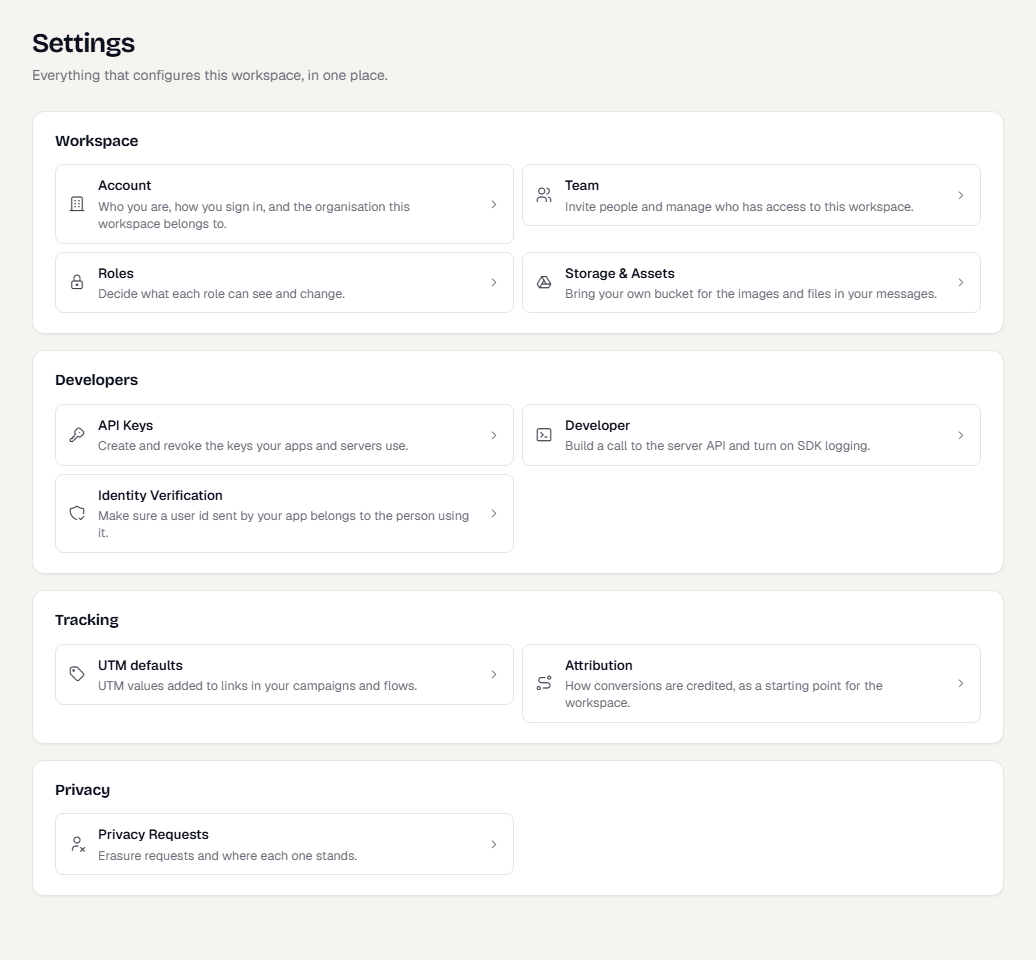
The command palette (Ctrl K or Cmd K) finds every settings page by name or by a related word, such as "theme" or "curl".
Account is available to everyone. The other pages appear only when your role allows them: Team for Owners, Admins, Managers and Developers, and Roles for Owners, Admins and Managers. If a page is missing from the sidebar, ask an Owner or Admin to change your role.
Key ideas
- Organisation. Your company. It owns billing, policy, team members and every workspace.
- Workspace. One product or app. It has its own data, and a Test and a Live environment. See Test and Live.
- Role. A named set of permissions. Every member has one role for the organisation, and can have a different role in a specific workspace.
- Owner. A flag on a membership, not a role. Owners can edit roles and the organisation profile, and are never locked out of a page.
Signing in and setting up
The pages you see before you reach the console are covered separately:
- Sign up and sign in, including password reset.
- Two-factor authentication.
- Accept an invitation.
- Set up your organisation and workspace.
Related
- Team and roles in Get started.
- A tour of the console.
Was this page helpful?