Create a template
Create a template, choose its channel and category, and save the first version.
Create a template to hold the content for one channel. This page covers the Details section. Content fields for each channel are on Write the content for each channel.
Before you start
You need permission to manage templates. For WhatsApp and SMS you may also need a provider and DLT details. See the channel sections.
Steps
Open Engage → Templates and select New template.
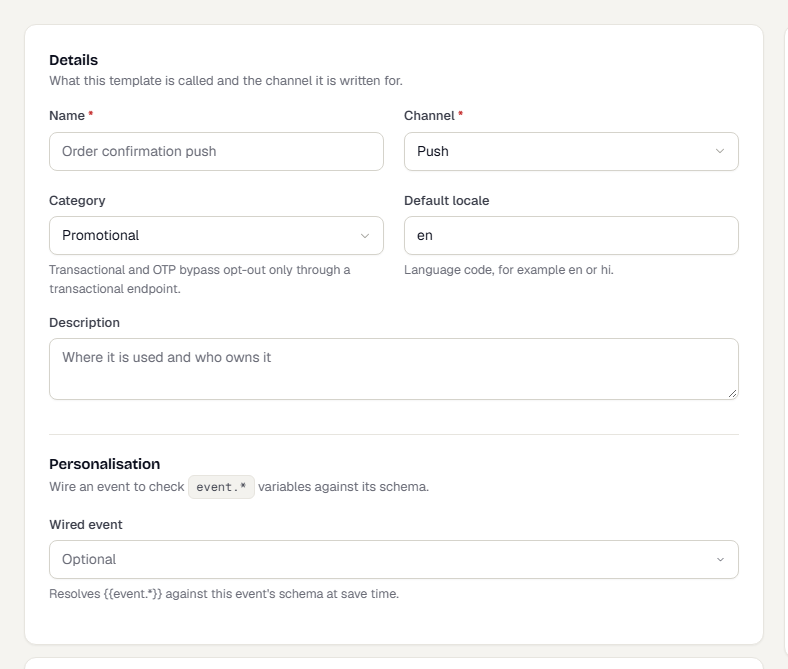
Enter a Name, for example
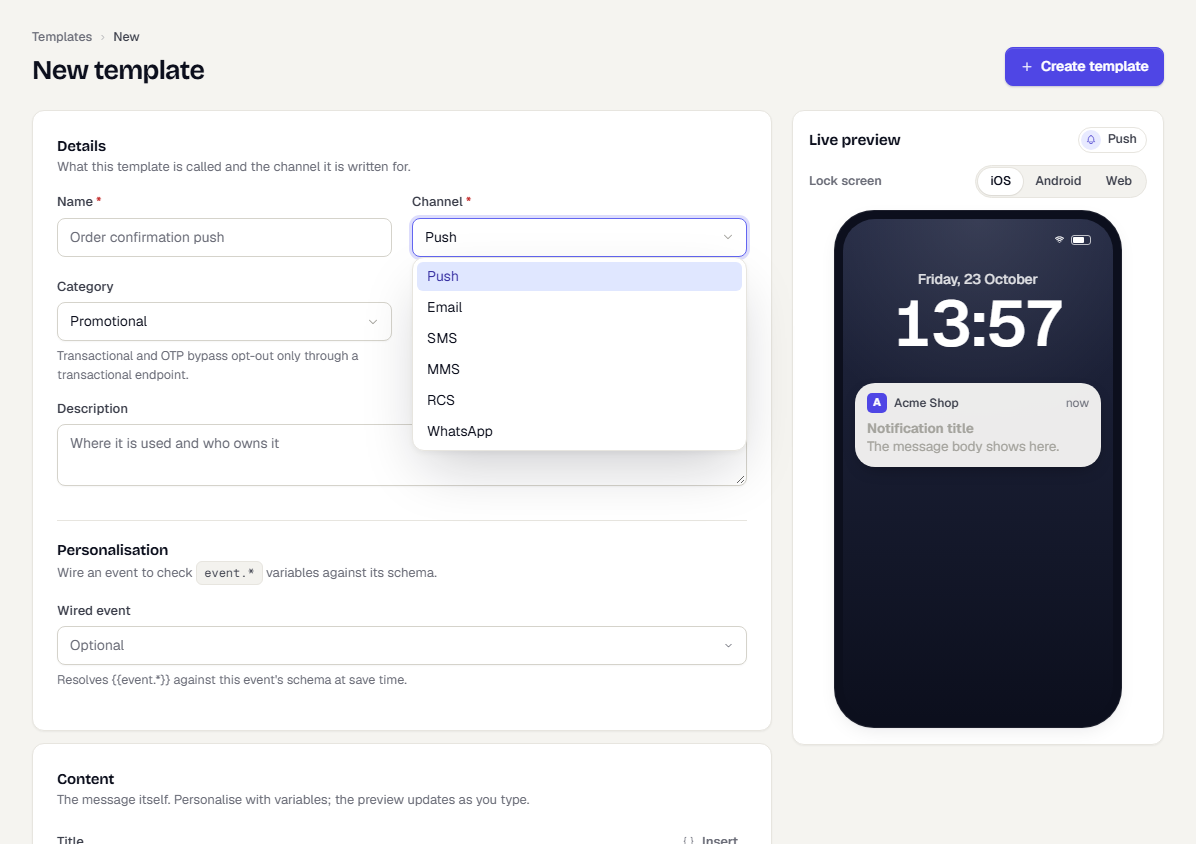
Order shipped SMS. The name must be unique in the environment.Choose the Channel. The options are Push, Email, SMS, MMS, RCS and WhatsApp. The channel is fixed once you create the template.
Choose a Category: Promotional, Transactional, OTP or Service. Transactional and OTP templates bypass opt-out only when they are sent through a transactional endpoint.
Optional: set the Default locale (a language code such as
enorhi) and a Description that says where the template is used and who owns it.Optional: choose a Wired event to check event variables. See Personalise a template.
Fill in the Content section for your channel. The Live preview on the right updates as you type.
Select Create template.
What happens next
The template opens in the editor as a draft with version 1. It cannot be used in a campaign until you validate, test and publish it.
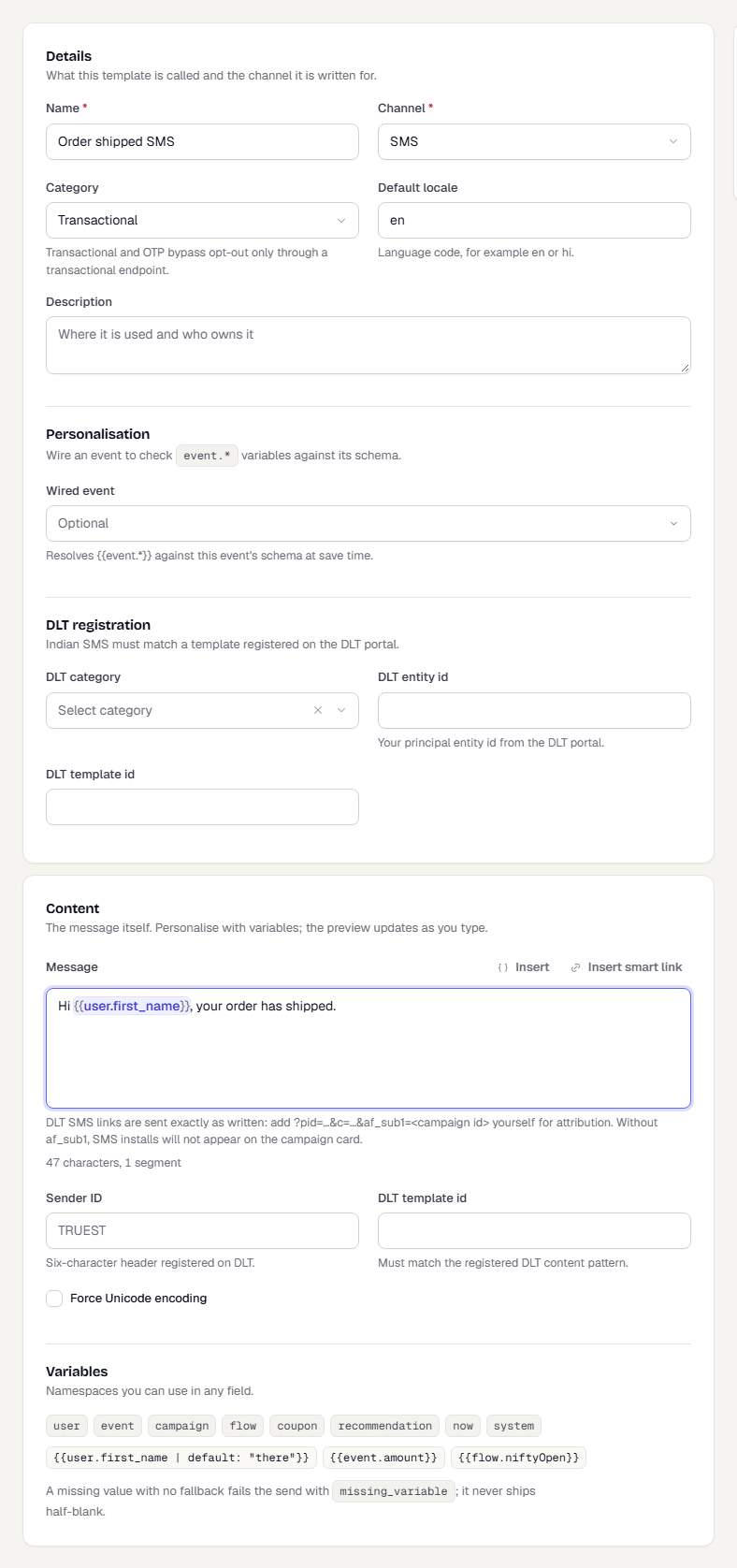
Some channels show extra sections that depend on the channel:
- Vendor approval for WhatsApp, with a Provider and Vendor template id.
- DLT registration for SMS, MMS and RCS, with DLT category, DLT entity id and DLT template id.
Related
Was this page helpful?