Create your first link
Create a smart link in the console, fill in the deep link, UTM and attribution fields, and copy it.
This page walks through making one smart link, then explains every field. Allow ten minutes if you already have a domain and a template.
Before you start
- You need Create and manage permission on Smart Links.
- A link domain and a template must exist. If they do not, the Links page shows the setup card. See Link domains and Templates and bulk creation.
- Know the screen in your app that the link should open. This is the deep link value, for example
/offers/autumn. Your app decides what it means. See Deep links and deferred deep links.
Create the link
- In the sidebar, open Smart Links, then Links.
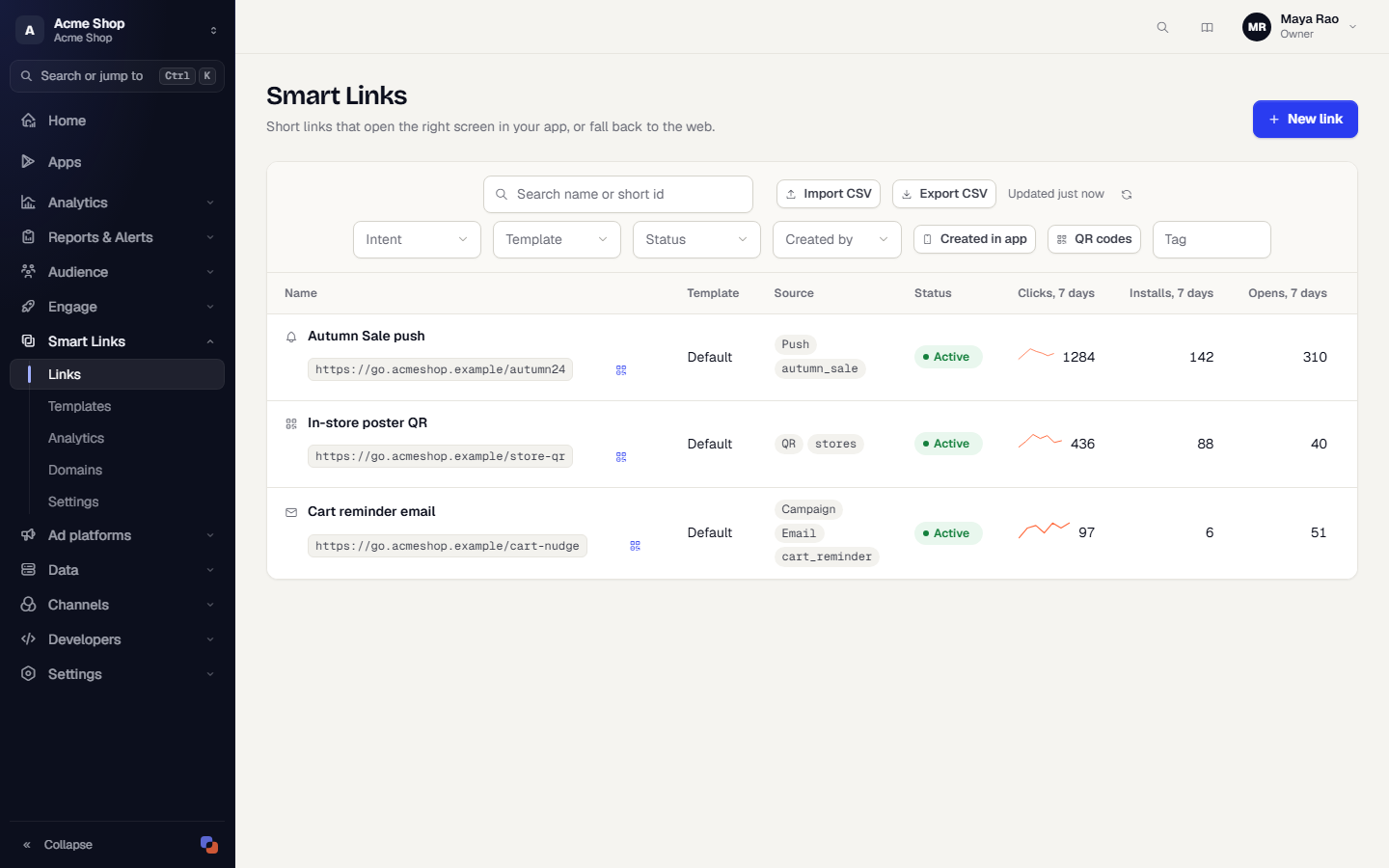
- Select New link. The sidebar action New Link does the same.
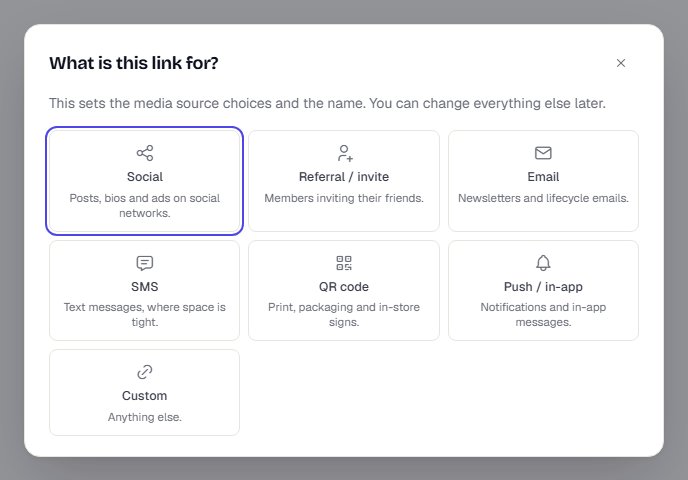
- Choose an intent: Social, Referral / invite, Email, SMS, QR code, Push / in-app or Custom. The intent only changes the media source choices and the suggested name. It cannot be changed later.
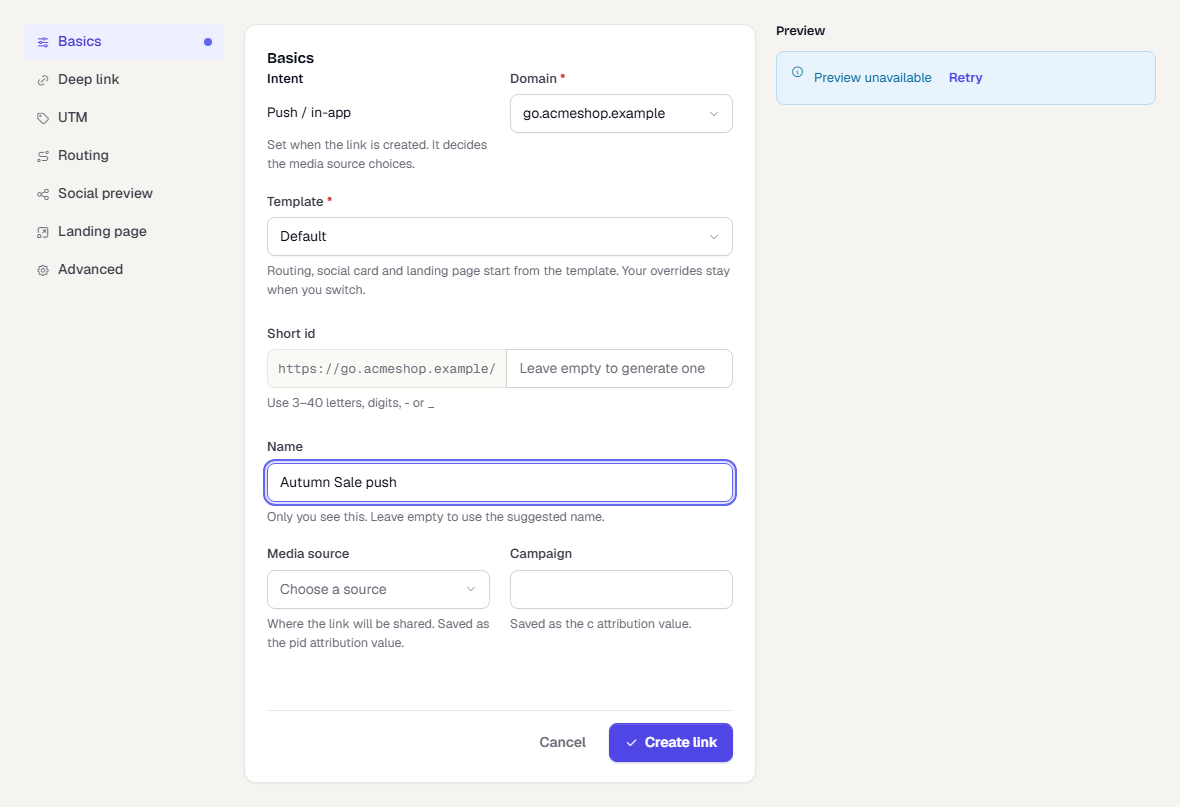
- Under Basics, fill in the fields in the table below. Only Domain and Template are required.
- Open Deep link and enter the Deep link value. Add Additional values if your app needs them.
- Select Create link. The link is saved and its address appears in the preview panel, where you can copy it.
Basics
| Field | What it does |
|---|---|
| Intent | Fixed when the link is created. |
| Domain | The host the link lives on. Cannot change after creation. |
| Template | Routing, social preview and landing page start from the template. Your overrides stay when you switch templates. |
| Short id | The last part of the address, 3 to 40 letters, digits, - or _. Leave it empty to get a random one. It locks after the first human click so shared links never break. The field shows whether the id is available. |
| Name | Only your team sees it. If you leave it empty the console suggests one. |
| Media source | Where the link will be shared, such as Push or Email. Saved as the pid attribution value. Choose Custom to type your own. |
| Campaign | Saved as the c attribution value. |
Short ids are case-sensitive or not depending on the domain. See Link domains.
Deep link
Deep link value is the path or URL your app routes on, such as /product/123. It reaches your app in the onDeepLink callback as deepLinkValue.
Additional values are extra key and value pairs that reach the callback in params. Use keys such as deep_link_sub1, or your own, such as referCode.
UTM parameters
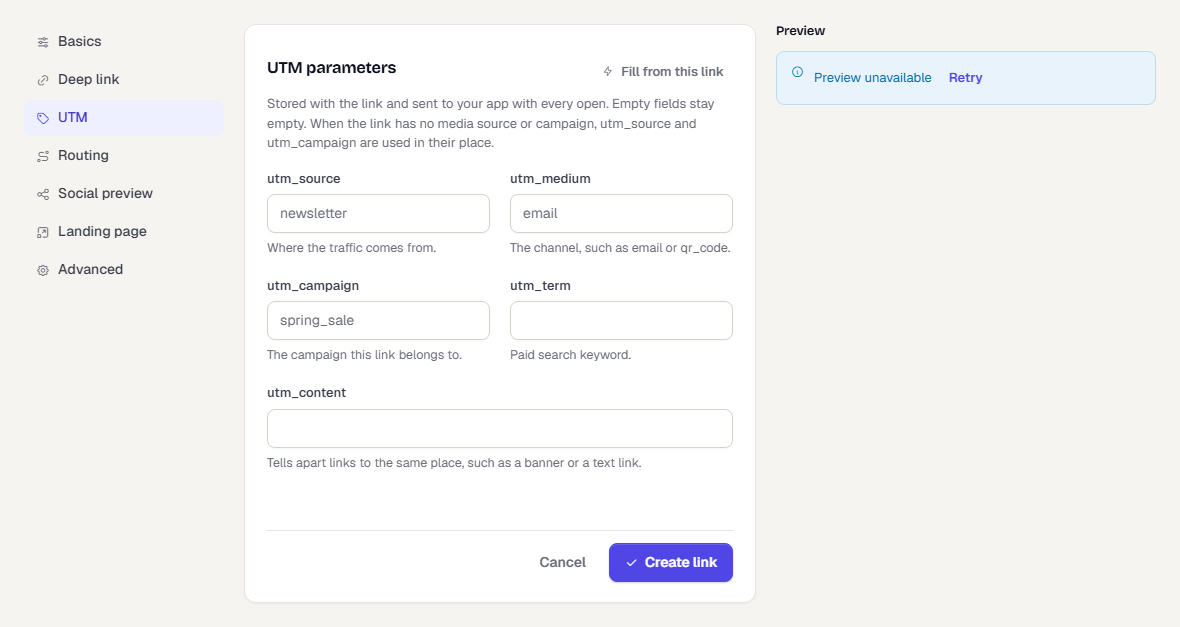
Open UTM to store utm_source, utm_medium, utm_campaign, utm_term and utm_content with the link. They are sent to your app with every open. Empty fields stay empty.
- Fill from this link copies the media source and campaign into
utm_sourceandutm_campaign, and suggests autm_mediumfor the intent, for exampleqr_codefor a QR link. - If a link has no media source or campaign,
utm_sourceandutm_campaignare used in their place.
Extra tracking parameters on the address
You can add parameters to the end of a link address when you place it, for example https://go.acmeshop.example/autumn24?pid=Email&c=autumn_sale. A parameter in the address overrides the saved attribution value, but never the routing.
| Parameter | Meaning |
|---|---|
pid |
Media source |
c |
Campaign |
af_adset, af_ad, af_channel |
Ad set, ad and channel |
af_sub1 to af_sub5 |
Free attribution fields |
utm_source, utm_medium, utm_campaign, utm_term, utm_content |
UTM values. utm_source and utm_campaign fill pid and c when those are empty. |
deep_link_sub1 to deep_link_sub10 |
Extra values passed to your app |
is_retargeting |
Marks the click as a re-engagement |
tpl |
The key of another template on the same domain, used by dynamic links |
These names are reserved. They are not passed on as part of the deep link value. Every other parameter stays on the deep link value.
Click ids from ads
Ad click ids on the address are kept so ad conversions can be attributed after the install. These are gclid, gbraid, wbraid, gad_source, gad_campaignid, fbclid and fbp. They also stay on the deep link value, so your app still sees them. See Smart Links and ad conversions.
Routing, social preview and landing page
Open Routing to change where this link sends people compared with its template. Each field shows Template default until you override it, and Restore template settings goes back. See Routing and rules.
Social preview is the title, description and image shown when the link is pasted into a chat or a post. Without your own, the app's name and icon are used.
Landing page is a page shown inside in-app browsers (Instagram and similar) that block the redirect. Its button opens the link on the alternate host so iOS opens your app.
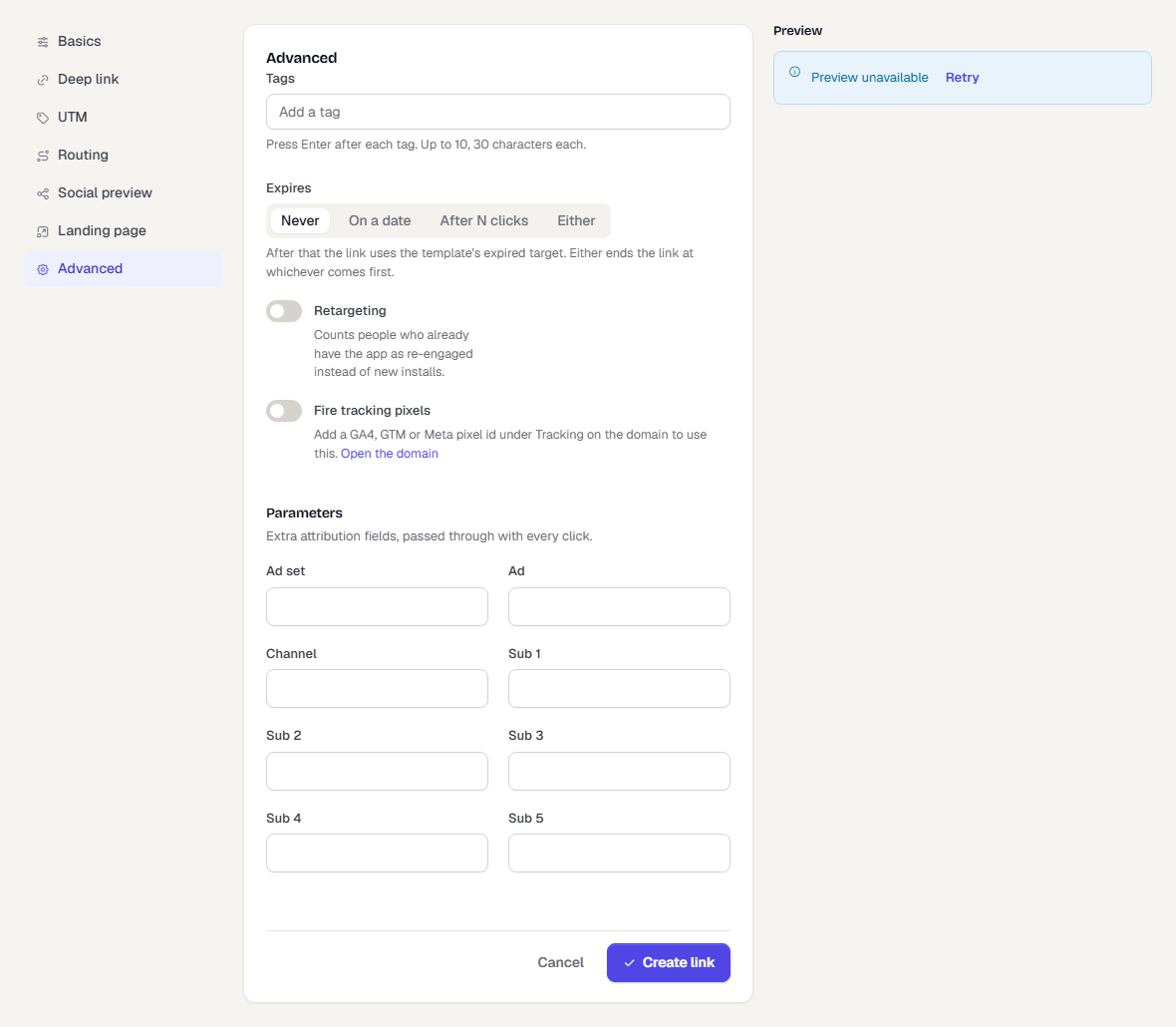
Advanced
| Field | What it does |
|---|---|
| Tags | Up to 10, each up to 30 characters. Use them to filter the Links page. |
| Expires | Never, On a date, After N clicks or Either. After that the link uses the template's expired target. The click count counts people only. Bots and link previews do not count. 1 makes a one-time link. |
| Retargeting | Counts people who already have the app as re-engaged instead of new installs. |
| Fire tracking pixels | Shows a brief page that loads the domain's GA4, GTM and Meta tags before the redirect. Needs a pixel id on the domain. It adds 300 to 800 ms and is skipped for the App Store step and the Android app handoff. Your workspace is responsible for visitor consent. |
| Ad set, Ad, Channel, Sub 1 to Sub 5 | Extra attribution fields passed with every click. |
The preview panel
The panel on the right shows the link's address and, for the current draft, where each platform is sent, plus the exact payload your app receives. Test on phone (after the link is saved) shows a QR code. Scan it with a phone to see which route the link would take. That test page records no click and does not redirect, and the code works for 15 minutes.
After you create it
- Open the link to see its analytics, its Rules, its QR code and its Activity log.
- Use Duplicate, Pause, Resume or Archive from the link page or the row menu. A paused or archived link sends people to the template's expired target.
- Put the link in a campaign. In a push, email or SMS template, use Insert smart link. TrueEngage adds
pidandcfor the campaign automatically if the link does not already set them, and never wraps a smart link in click tracking, because that would stop the app from opening.
Related pages
Was this page helpful?