Quickstart
Sign up, create a workspace, add your app, install the SDK and see your first event in a user profile.
Go from a new account to your first event in a user profile. You work in the Test environment, so nothing you do reaches real customers.
Before you start
- A work email address.
- Your app's Android package name, iOS bundle id or website domain.
- A development build of your app where you can add the SDK.
1. Sign up
- Open the console and go to Create account.
- Enter your full name, email and a password, tick the box to accept the Terms of Service, Acceptable Use Policy and Privacy Policy, and select Create account.
2. Set up your organisation
An organisation is the company account. It owns your workspaces and your team.
- On the Organisation step, enter your legal name, display name, a short URL name (slug), website, industry, company size, country, currency, timezone and data region.
- Select Continue to workspace.
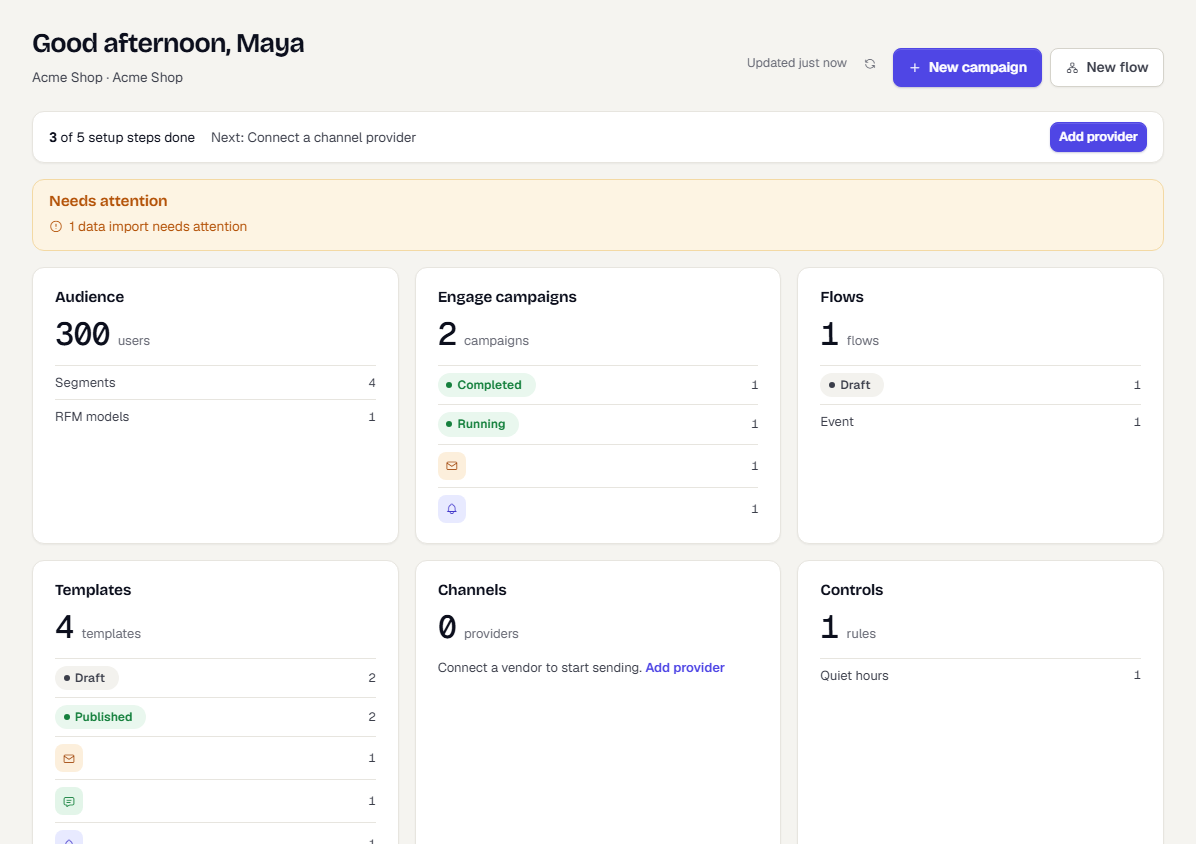
After onboarding you land on Home. A setup bar at the top names your next step, such as connecting a channel provider.
3. Create a workspace
A workspace holds one product's data. Use one per brand or product.
- On the Workspace step, enter a name (for example Acme Shop), a slug (
acme-shop), timezone and currency. - Pick the platforms you use. Under Defaults, set the Event retention (days) you want.
- Select Create workspace. A Workspace ready page shows your Test and Live environments and what to do next. Select Open the console.
You land in the Test environment. The URL looks like /w/acme-shop/test/.
4. Add your app
- In the sidebar, select Apps.
- Select Add app, then choose the Platform: Android, iOS or Web.
- Enter the Package name (Android), Bundle ID (iOS) or Site URL (Web).
- Select Register app.
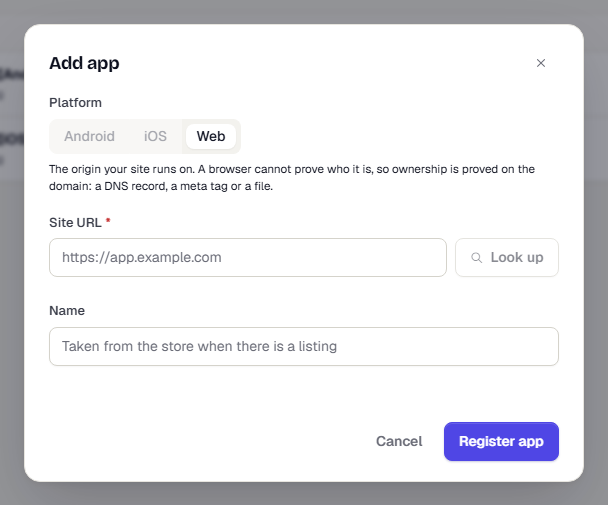
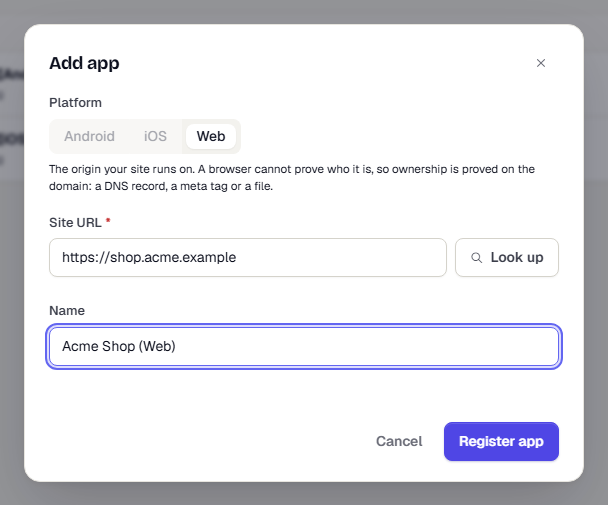
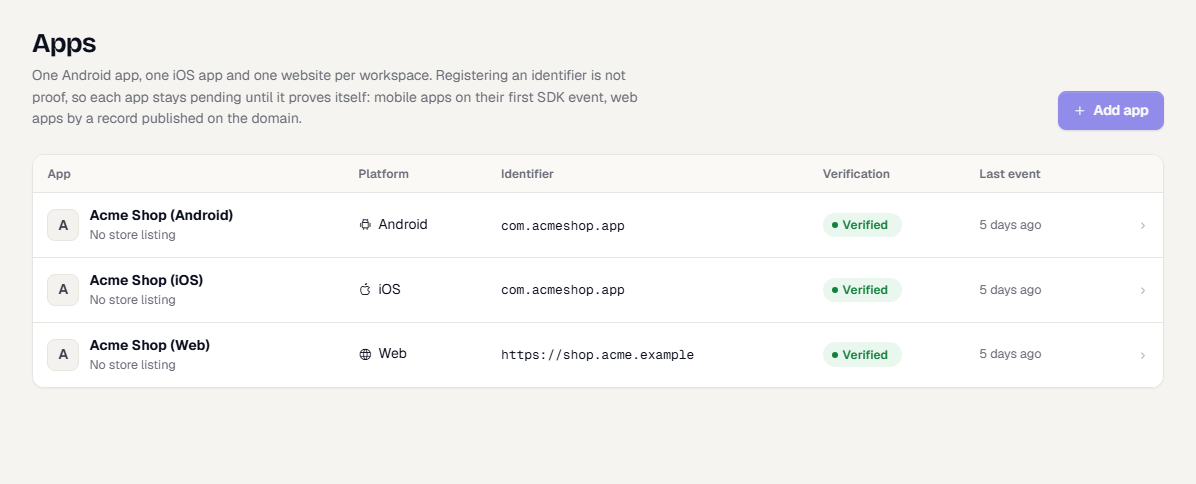
A new app stays pending until it proves itself. A mobile app is verified by its first SDK event. A website is verified by a record you publish on its domain.
For every field and how verification works, see Register your apps.
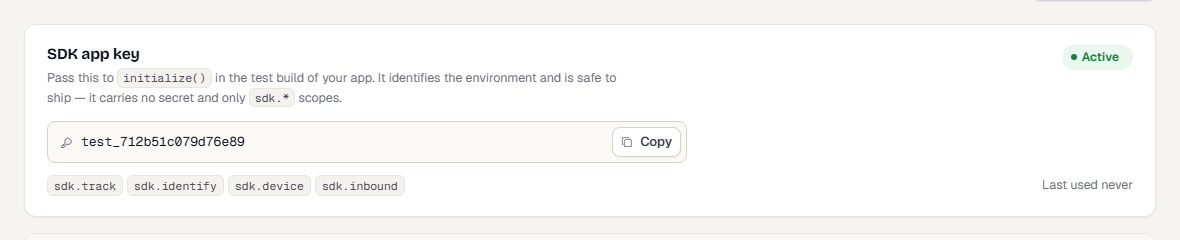
5. Copy your SDK app key
- In the sidebar, open Developers, then API Keys.
- Under SDK app key, select Copy.
The Test key starts with test_. It is safe to ship inside your app, because it only identifies the environment. See API keys.
6. Install the SDK
Pick your platform. Use the test_ key in debug builds.
Android (Kotlin)
class App : Application() {
    override fun onCreate() {
        super.onCreate()
        TrueEngage.initialize(
            this,
            TEConfig.builder("test_xxxxxxxx")
                .dataRegion(DataRegion.IN)
                .build(),
        )
    }
}
iOS (Swift)
import TrueEngage

let config = TEConfig(appKey: "test_xxxxxxxx", dataRegion: .india)
TrueEngage.initialize(config: config)
Flutter
await TrueEngage.initialize(TEConfig(
  appKey: 'test_xxxxxxxx',
  dataRegion: DataRegion.india,
));
Web
import TrueEngage from '@trueengage/web';
TrueEngage.initialize({ appKey: 'test_xxxxxxxx', dataRegion: 'in' });
Install the SDK from its public package registry. These are the current versions. See the SDK release notes for what changed in each.
- Android:
io.trueengage:trueengage-android:0.7.0frommavenCentral() - iOS:
pod 'TrueEngage', '~> 0.7'(CocoaPods) - Flutter:
trueengage_flutter: ^0.7.0from pub.dev - Web:
npm i @trueengage/web
initialize() does no network work. Push setup is in each SDK's guide.
7. Send an event and identify a user
TrueEngage.identify('u-1001', { firstName: 'Pritam' });
TrueEngage.track('Order Placed', { orderId: 'ORD-8891', amount: 2499.5 });
The SDK sends events in batches every 30 seconds, and when the app goes to the background.
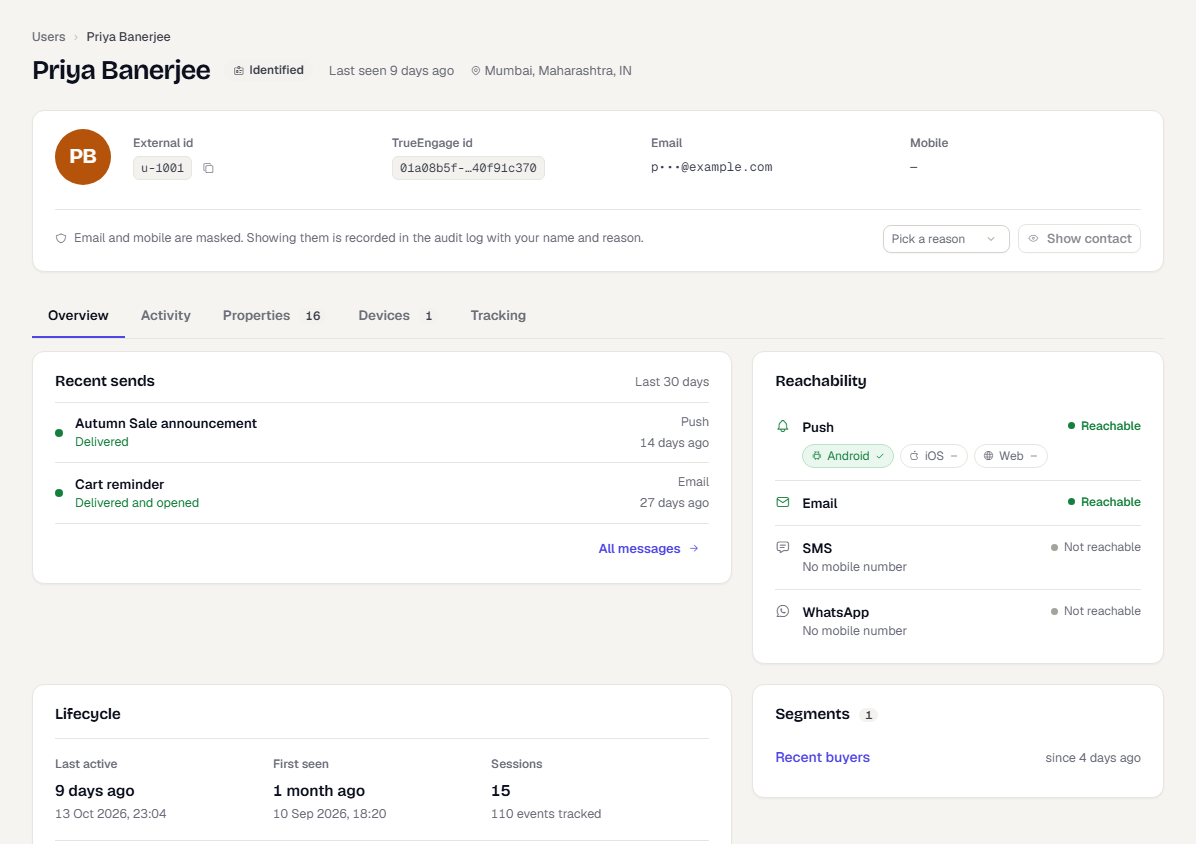
8. See the event in the user profile
- Go to Audience and open Users.
- Search for
u-1001. You can search by mobile number, email, external id or TrueEngage id. - Open the profile, select the Activity tab and look for Order Placed.
What happens next
- A mobile app moves from pending to verified after its first event. A website verifies once you publish its ownership record.
- Build a segment and a campaign on the data you now collect. See core concepts.
- Before you release, read Test and Live and use your
live_key in release builds.
Was this page helpful?