Test and Live
How the two environments in each workspace differ, how to switch between them, and how keys keep them apart.
Every workspace has two environments. Build and check in Test. Send to real customers from Live.
What is separate
Each environment has its own:
- Profiles, events and devices.
- Segments, templates, campaigns and flows.
- API keys and SDK app key.
- Channel controls, including the Test allowlist.
A key reaches only the environment it was created in. A test_ key can never write Live data.
Switch environments
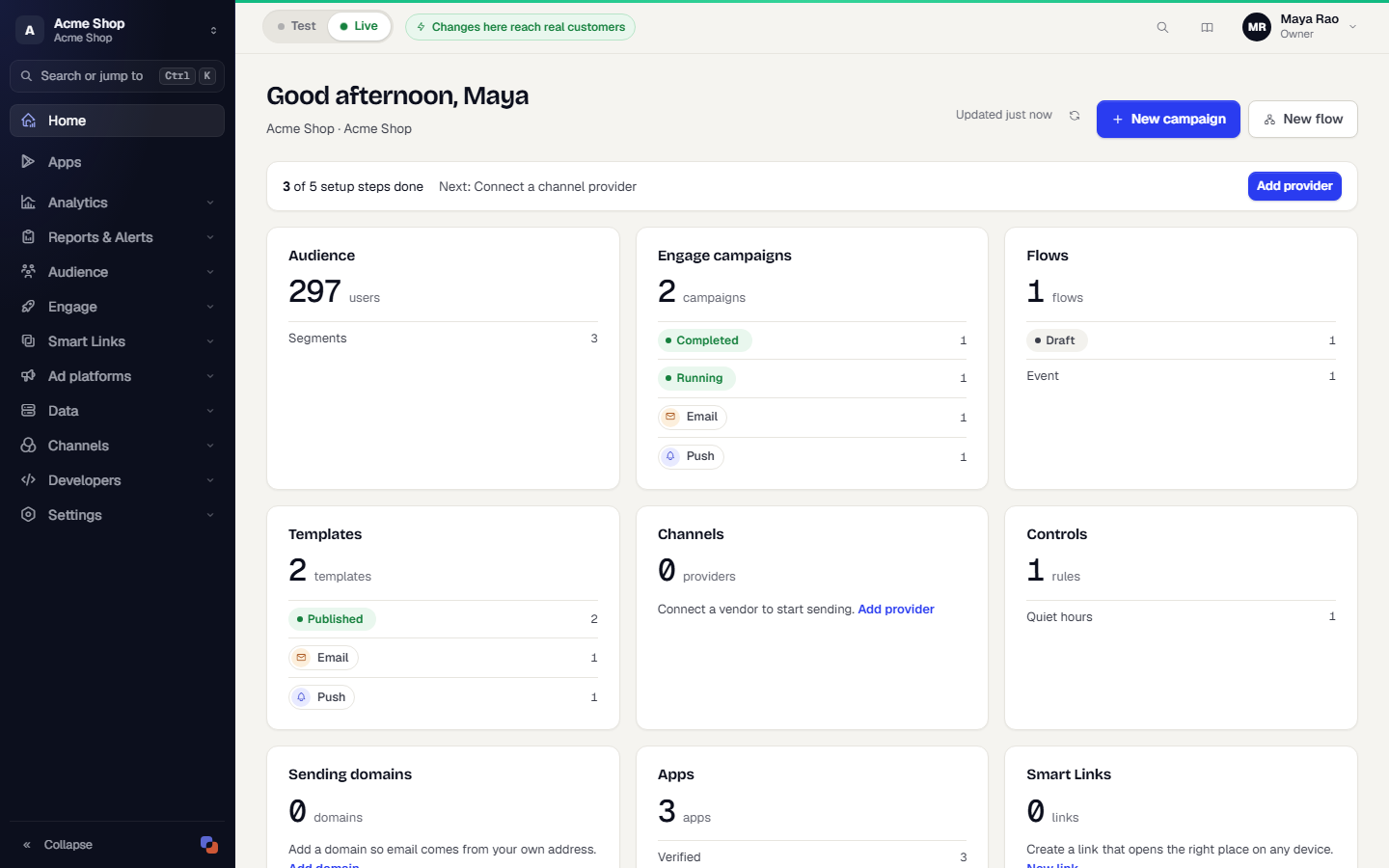
Use the Environment switch in the top bar and choose Test or Live. The URL changes between /w/acme-shop/test/… and /w/acme-shop/live/….
In Live, a banner reminds you that actions affect real customers.
Sending in Test
Test sends follow the same send gate as Live, plus an allowlist. Only people on the allowlist receive messages. Manage the list under Channels, then Delivery Controls, on the Test allowlist tab.
Sending in Live
- Live refuses a default channel provider that has not been verified.
- Your role can limit who may publish or send in Live. See Team and roles.
Move work from Test to Live
You can promote templates, segments and campaigns you built in Test to Live. See Promote a campaign from Test to Live. Promoted items show a Promoted badge. A verified Test channel provider can be promoted too, and it stays disabled in Live until it verifies there. See Add and verify a provider.
Which key goes where
| Where | Key |
|---|---|
| Debug and staging app builds | test_… SDK app key |
| Release app builds | live_… SDK app key |
| Your backend while developing | test_… server key |
| Your backend in production | live_… server key |
See API keys.
Was this page helpful?