Versions, checks and publishing
Save versions, run validation checks, and publish or deactivate a template.
Campaigns and flows use the published version of a template. Every content change creates a new version. Validation and a test send guard what goes live.
Before you start
You need permission to manage templates to save and validate, and the publish permission to publish or deactivate.
Save a version
- Change the content or the Wired event.
- Optional: write a Change note that says why. It is saved with the version.
- Select Save version. A toast says A new version was created.
Changes to details only, such as the name or category, save with Save changes and do not create a version.
The Content heading shows the current version, for example v2, and Unsaved changes when you have edits.
See the version history
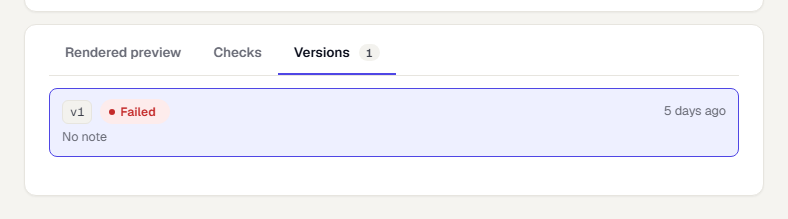
Open the Versions tab. Each row shows the version number, its validation state, whether it is the published one, the time, the change note and the last test send. Select a row to load that version into the editor.
Run the checks
- Save any edits. Checks run on the saved version.
- Select Run checks in the Publish gate, or choose Run checks from the More actions menu. A toast reports All checks passed, Validated with warnings or Validation failed.
- Open the Checks tab to read the results.
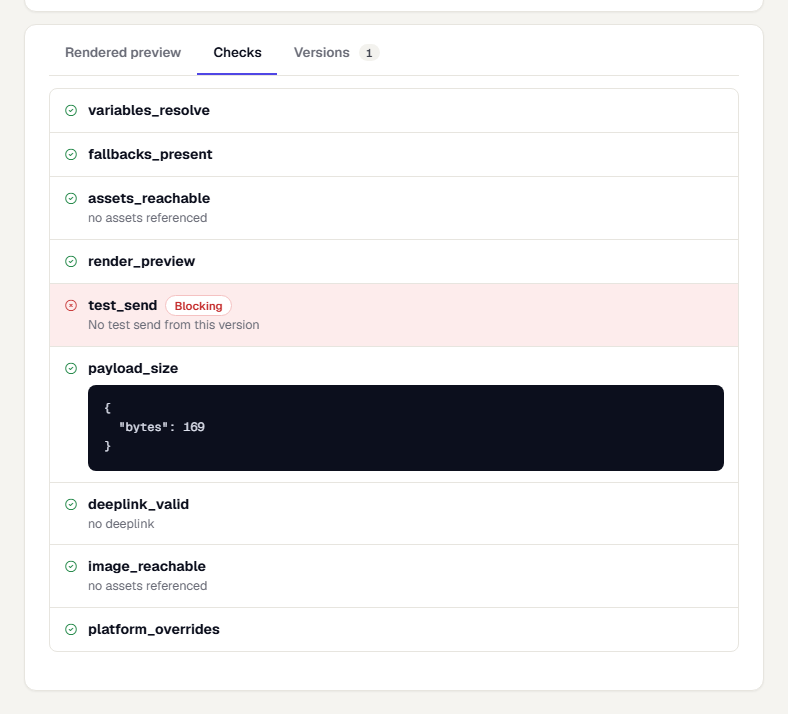
Each check is marked passed, Warning or Blocking. The checks depend on the channel. For the push template they include variables_resolve, fallbacks_present, assets_reachable, render_preview, test_send, payload_size and deeplink_valid. Other channels add checks such as HTML validity, spam score, DLT pattern and vendor approval.
A blocking failure stops publishing and shows a banner. The test_send check is blocking until the version has had a test send. In the demo workspace no provider exists, so no test send can complete and this check stays failed. Fix a blocking failure, save, and run the checks again.
Editing the content marks validation as stale. A passed check never survives an edit.
Publish
The Publish gate card lists what is needed:
- Validation passed
- Test send done (send a test)
- Vendor approval for channels that need it, such as WhatsApp
Publishing needs a passed validation. In Live it also needs a test send on the current version.
- Select Publish. The button appears when there are no unsaved changes and the template is not already published.
- Confirm in Publish template?.
The status changes to Published and the template is available in campaigns and flows. A draft cannot be used in a campaign.
Deactivate or delete
Open More actions (the three dots next to Test send). Deactivate stops a published template from being used. Delete template removes it after you confirm in Delete template?.
Promote to Live
In Test, More actions → Promote to Live copies the template to Live. See Promote a campaign from Test to Live.
Related
Was this page helpful?