Data imports
Bring users and events into TrueEngage from a CSV file, and see what happened to every row.
A data import brings users or events in from a CSV file. Use it to load a customer list, add attributes to existing users, or backfill past events. An Ad tracking import records where existing users came from; see Import past ad tracking data. Every run is audited: rows in the file, users created or updated, events created, and what failed.
Before you start
- You need permission to manage data to create or run imports. Without it, you can view them.
- Prepare a CSV with a header row. Files can be comma, semicolon, tab or pipe separated, in UTF-8.
The imports list
In the sidebar, open Data, then Data Imports.
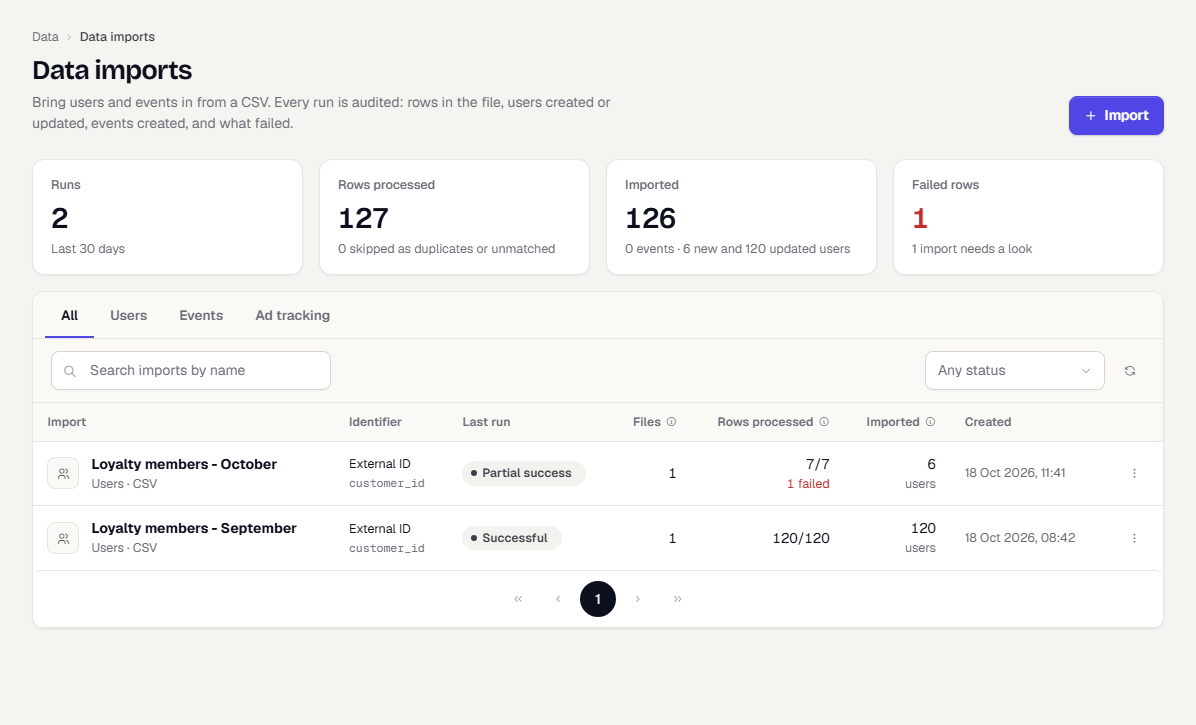
The strip at the top summarises the last days: runs, rows processed, what was imported and failed rows. Use the All, Users, Events and Ad tracking tabs, search by name, or filter by status (Draft, Scheduled, Processing, Successful, Partial success, Failed, Archived).
Each row shows:
| Column | Meaning |
|---|---|
| Import | The name and type (users or events). |
| Identifier | How rows are matched to users, and the CSV column that holds it. |
| Last run | The status of the latest run. |
| Files | How many files were added. |
| Rows processed | Rows attempted out of rows in the files, across real runs. Dry runs are excluded. |
| Imported | Users created and updated, or events created. |
Select a row to open it. The three-dot menu has View details, Run again, Archive and Delete.
What happens next
- Create an import with the four-step wizard.
- Read a run's results and fix failed rows.
Was this page helpful?