Personalise a template
Insert variables with fallbacks, wire an event, and understand what happens when a value is missing.
Variables put each recipient's data into a message. A variable is written between double curly braces, for example {{user.first_name}}.
Variable namespaces
The Variables section at the bottom of the content card lists the namespaces you can use in any field: user, event, campaign, flow, coupon, recommendation, now and system.
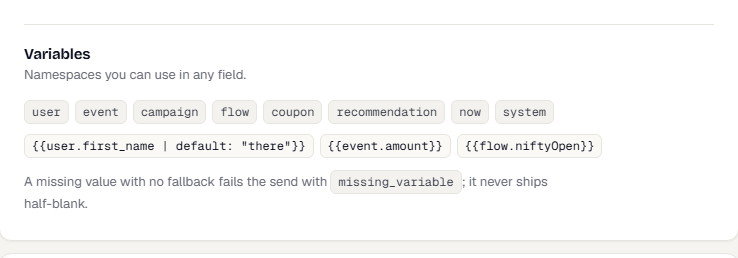
| Example | Result |
|---|---|
{{user.first_name}} |
The profile's first name. |
{{user.first_name | default: "there"}} |
The first name, or "there" if it is empty. |
{{event.amount}} |
A property of the event that triggered the send. |
{{flow.niftyOpen}} |
A flow variable. |
Insert a variable, filter or condition
You do not have to type the braces. Next to every text field, select Insert. A panel opens with a search box (Search variables, filters, blocks) and three tabs.
- Variables lists the fields of your Synthetic event first (paste a payload into that box on the Rendered preview tab or in the Send a test dialog and its fields appear here). Below that are the namespaces
user,event,campaign,flowandbusiness_event. You can also type a path, such asuser.first_name, and select Insert. - Filters groups the filters below under Text, Numbers and Other. Each shows a worked example. Choosing one adds it after the variable at your cursor, with a sample argument selected so you can type over it.
- Blocks adds a ready-made condition: If / else, If only, If / else if / else or If not.
With text in the search box, matches from all three tabs show together. The text fields colour variables, filters and conditions as you type, so a mistake is easy to spot.
Insert a variable, filter or condition
Next to every text field in the Content section, select Insert. A panel opens with a search box and three tabs:
- Variables. Pick a field from your Synthetic event (see below), or a namespace such as
user.and finish the path. You can also type a path such asuser.first_namein Or type a path and select Insert. - Filters. Each filter has a one-line description and a worked example, such as
23198.345becoming23,198.35. Filters are grouped as Text, Numbers and Other. - Blocks. Ready-made conditions: If / else, If only, If / else if / else and If not.
Type in the search box to look across all three tabs. The choice goes in at the cursor, and the part you are likely to change is selected so you can type over it. The link at the bottom of the panel opens this page.
Get help as you type
The text fields colour what you write. Tags sit on a soft chip, and variables, filters, arguments, text, numbers and operators each get their own colour, so you can see where each part starts and ends.
- Suggestions. Type
{{to see conditions and variables, or type|to see filters. Move with the arrow keys and press Enter to accept. - Checks while you type. The editor underlines problems: a tag that is not closed, a
{{#if}}without{{/if}}, an unknown filter, or an empty tag. Hover over the underline to read what is wrong. - Missing values. Once you fill the Synthetic event, a variable that has no value in it is underlined as a warning, because a real send would fail unless you add a
default.
Use a Synthetic event
The Synthetic event box is under Rendered preview, below the content. Open an existing template to see it. Paste the payload your backend or event sends, as JSON: either {"eventName": "...", "properties": {...}} or just the values themselves. Its fields then appear in Insert, in suggestions, and in the Live preview, which fills the event and campaign variables from it. See Preview a template with a real profile.
Add a fallback
Add | default: "value" after the variable. Use it for any value that may be empty.
If a value is missing and has no fallback, the send fails with missing_variable. TrueEngage never sends a half-blank message.
Format a value with filters
Add a filter after the variable with |. Filters run left to right and work in every text field, including a push title and message.
{{campaign.nifty | number:2}}
{{campaign.index | upper}}
{{campaign.trend | map:"up=📈,down=📉,*=➖"}}
{{campaign.change | sign | append:"%"}}
| Filter | What it does | Example | Result |
|---|---|---|---|
default:"x" |
Uses x when the value is empty. |
{{campaign.note | default:"-"}} |
- |
upper, lower, title |
Changes the case. | {{campaign.name | title}} |
Bank Nifty |
trim |
Removes spaces at both ends. | ||
truncate:N |
Cuts to N characters and adds …. |
{{campaign.name | truncate:6}} |
Bank … |
number:"1.0-2" |
Groups digits in the customer's locale. The format is minimum integer digits . minimum decimals - maximum decimals, as in Angular. number:2 means exactly 2 decimals and number alone means none. |
{{campaign.n | number:"1.2-2"}} |
1,234.50 |
currency:"INR":"symbol":"1.0-0" |
Formats as money: the currency code (default INR), then symbol, code, symbol-narrow or name, then the number format. Leave out any from the right. |
{{campaign.n | currency}} |
₹1,500.00 |
percent:"1.0-1" |
Formats with the number format and adds %. The value is already a percentage, so 0.4 gives 0.4%. This differs from Angular, which multiplies by 100. |
{{campaign.n | percent:1}} |
0.4% |
sign |
Adds + to a positive number. |
{{campaign.c | sign}} |
+0.4 |
abs |
Drops the minus sign. | ||
add:x, subtract:x, multiply:x, divide:x |
Calculates with a number or another variable. A second argument is used when that variable is missing; dividing by zero counts as missing, so a later default applies. |
{{event.quantity | subtract:event.tradedQuantity:0}} |
4 |
a || b |
Uses the first variable that has a value. Filters then apply to whichever was found. | {{event.tradedQuantity || event.quantity}} |
6 |
date:"dd LLL yyyy" |
Formats a date in the customer's time zone. | {{campaign.d | date:"HH:mm"}} |
09:30 |
map:"a=1,b=2,*=3" |
Swaps a value for another. * is the fallback. A value with no match stays as it is. |
{{campaign.t | map:"up=📈,down=📉"}} |
📈 |
prepend:"x", append:"x" |
Adds text before or after. | {{campaign.n | prepend:"₹"}} |
₹5 |
The number and money filters also accept a number that is already formatted, such as 24,850.50. A value that is not a number is left as it is. A number format that is not valid, such as "1.2", or one with more minimum decimals than maximum, is refused when you save the template.
Show text only when a condition is true
Wrap the text in {{#if}} and {{/if}}. Add {{else if}} and {{else}} for other cases.
{{#if campaign.change > 0}}📈 up {{campaign.change}}{{else if campaign.change < 0}}📉 down {{campaign.change}}{{else}}➖ flat{{/if}}
A condition compares a variable with a text in quotes or a number, using ==, !=, >, >=, <, <= or contains. Join conditions with and, or and not. and is checked before or, and there are no brackets. A variable on its own is true when it has a value other than 0, no or false.
- A variable with no value counts as false. It never causes an error.
- Numbers with signs, commas or a
%sign, such as+0.4%, compare as numbers. - A variable inside a branch that is not shown does not need a value.
- You can put one
{{#if}}inside another.
If a block is not closed or a filter name is wrong, saving the template is refused with TEMPLATE_SYNTAX_INVALID, listing each problem and the field it is in.
SMS templates registered for DLT must match the registered text exactly, so avoid conditions in them.
Wire an event
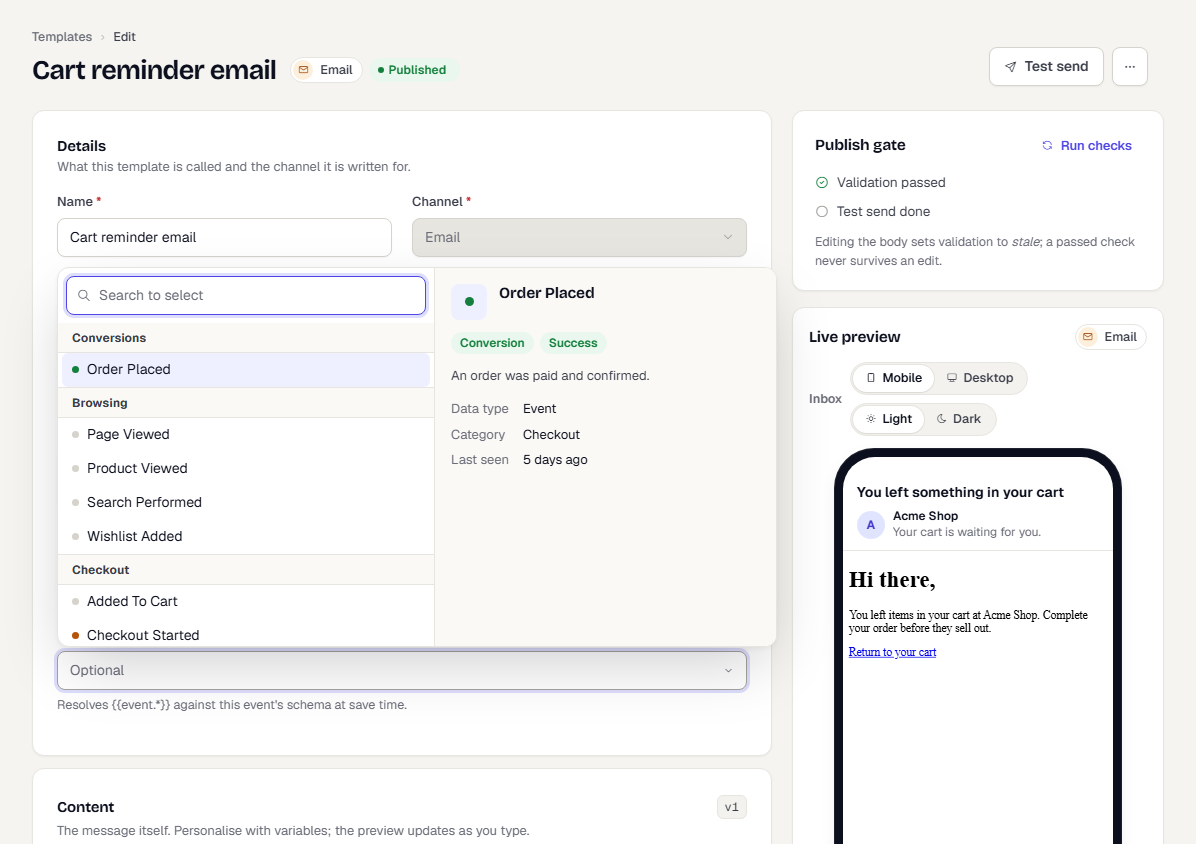
Variables under event. come from the event that triggers the send. To check them while you edit:
- In Personalisation, open Wired event.
- Choose the event, for example
Order Placed. You can also type a name, and clear the field to remove it. - Save the template.
The editor then checks every {{event.*}} variable against that event's properties when you validate.
WhatsApp variables
WhatsApp uses numbered variables, {{1}}, {{2}}. Each has a Value at send time field where you type @ to pick a profile or event token. See Write the content for each channel.
Related
Was this page helpful?